Google Workspace Admins
Manage Google Workspace administrator accounts that enable secure communication between ShiftControl and your Google environment.
Overview
The Google Workspace Admins page allows you to view, create, and manage the administrator accounts used to connect to your organization's Google Workspace directory. These accounts are required to perform actions such as reading user data, managing Google Groups, syncing directory information, and automating Google Workspace management tasks.
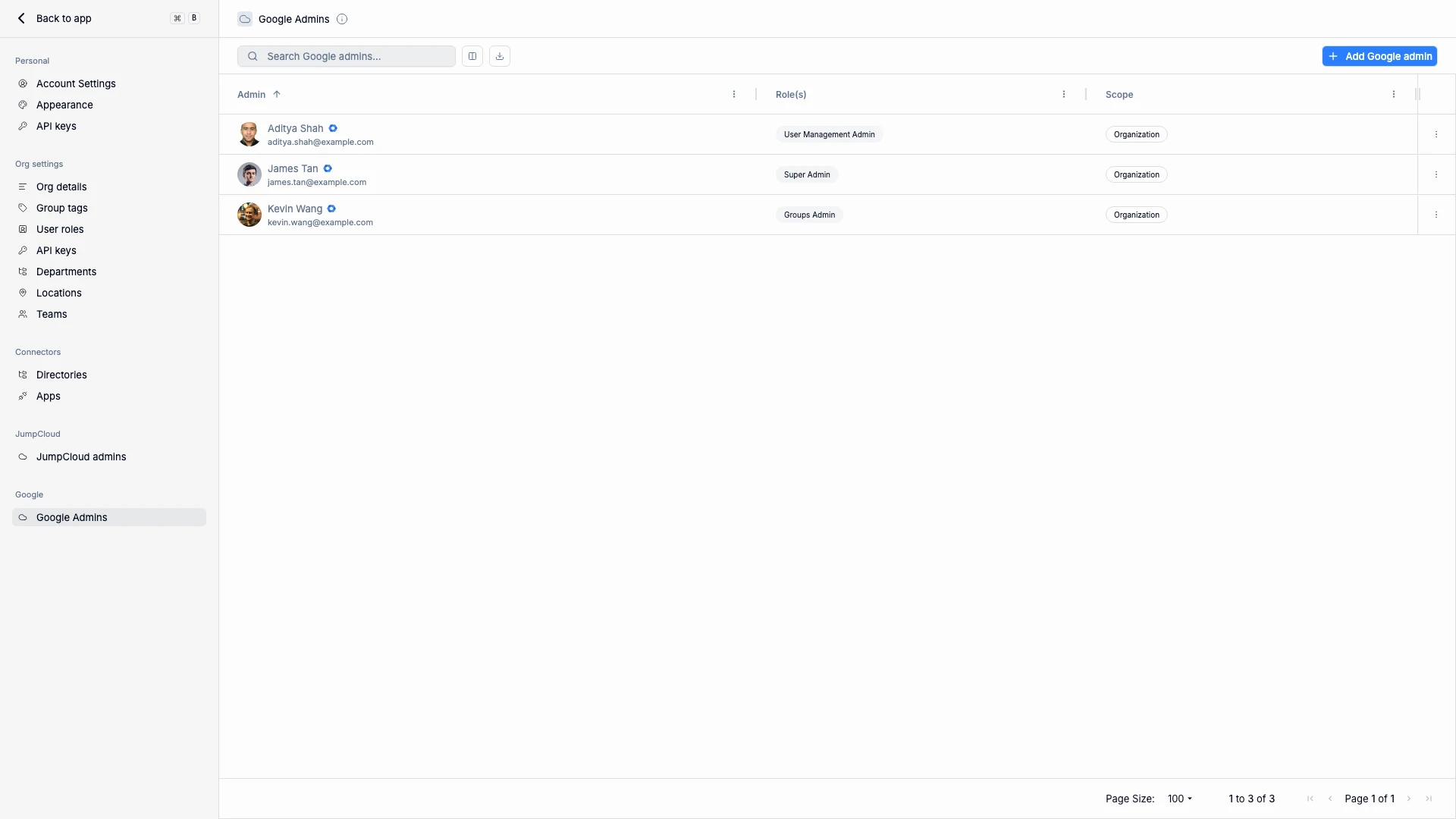
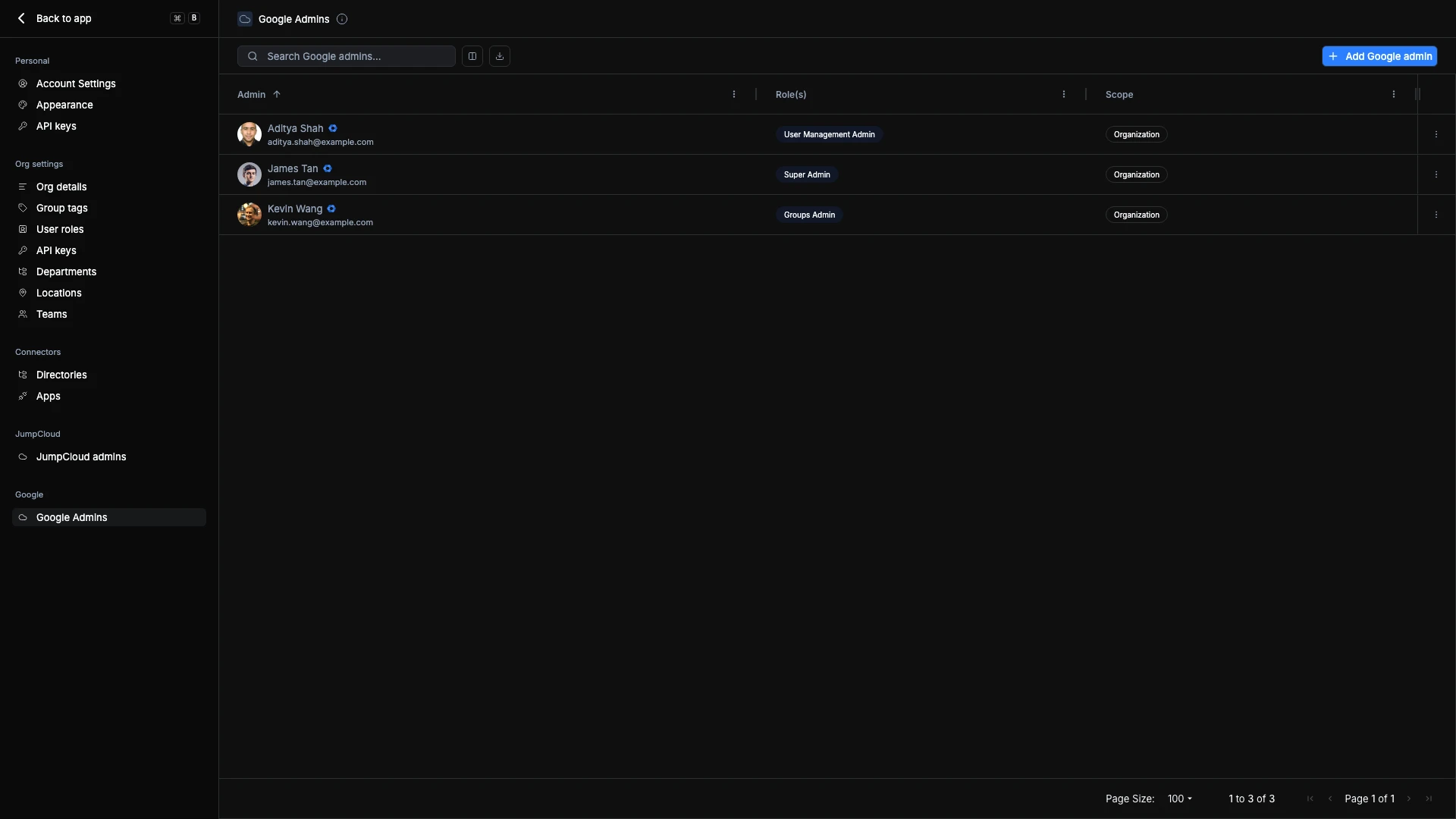
ShiftControl pulls your existing Google Workspace admin roster and displays their roles and scope, so you have full visibility into who has administrative access to your Google environment.
How It Works
When Google Workspace is connected as a directory in ShiftControl, the platform reads admin account data from Google's Admin SDK. Each admin entry shows:
- Admin -- The name and email of the Google Workspace administrator.
- Role(s) -- The Google Workspace admin role assigned to this account (e.g., Super Admin, User Management Admin, Groups Admin). These roles are defined in Google Workspace and control what the admin can do in the Google Admin Console.
- Scope -- Whether the admin role applies to the entire organization or is limited to a specific organizational unit.
Common Scenarios
Scenario: Auditing admin access before a compliance review
Your security team needs to verify who has Super Admin access to Google Workspace. Open the Google Admins page to see every admin, their role, and their scope. Identify any accounts with broader access than necessary and coordinate with your team to adjust roles in Google Workspace.
Scenario: Verifying integration accounts
You want to confirm that the service account ShiftControl uses to connect to Google Workspace has the correct role. Check this page to see the admin account's role and scope, and verify it matches your organization's security requirements.
Creating a Google Workspace Admin
To create a new Google Workspace admin from ShiftControl:
- Click Add Google admin.
- Fill out the following fields:
- Admin email -- The Google Workspace user who will receive admin privileges.
- Admin role -- Select from available Google Workspace admin roles (Super Admin, User Management Admin, Groups Admin, etc.).
- Scope -- Choose whether the role applies organization-wide or is limited to a specific organizational unit.
- Click Save to create the admin assignment.
The admin role is applied directly in Google Workspace. The user will see their new permissions the next time they access the Google Admin Console.
Managing Admins
You can manage each admin using the ⋮ menu beside their name:
- Edit -- Update the admin's role or scope.
- Remove Admin -- Revoke the admin role. The user account is not deleted -- only their administrative privileges are removed.
Best Practices
- Limit Super Admin access. Only a small number of trusted individuals should have Super Admin privileges. Use scoped roles (User Management Admin, Groups Admin) for day-to-day administration.
- Use dedicated integration accounts with clear naming (e.g.,
[email protected]) for the ShiftControl integration. - Review admin access periodically. As your organization changes, admin roles should be re-evaluated. Remove admin privileges from accounts that no longer need them.
Related Features
- JumpCloud Admins -- Manage JumpCloud administrator accounts for your JumpCloud directory.
- Directories -- View and manage all connected identity providers and HRIS integrations.
- Settings Overview -- Navigate all settings sections.