Directories
Connect your identity providers and HR systems so ShiftControl can manage your entire organization from one place.
Overview
The Directories page is where you connect the external systems that feed data into ShiftControl. These connections are the foundation of everything else — user provisioning, group sync, app access, and security policies all depend on having accurate, up-to-date directory data.
There are two types of directories you can connect:
- Identity Providers (IdPs) — Systems like JumpCloud and Google Workspace that manage authentication, user accounts, and access control. Your IdP is the source of truth for who can log in and what they can access.
- HRIS integrations — Systems like BambooHR, Deel, HiBob, Humaans, and Rippling that manage employee records. When someone is hired, promoted, or leaves, the HRIS pushes that change to ShiftControl, which propagates it to your IdP and connected apps.
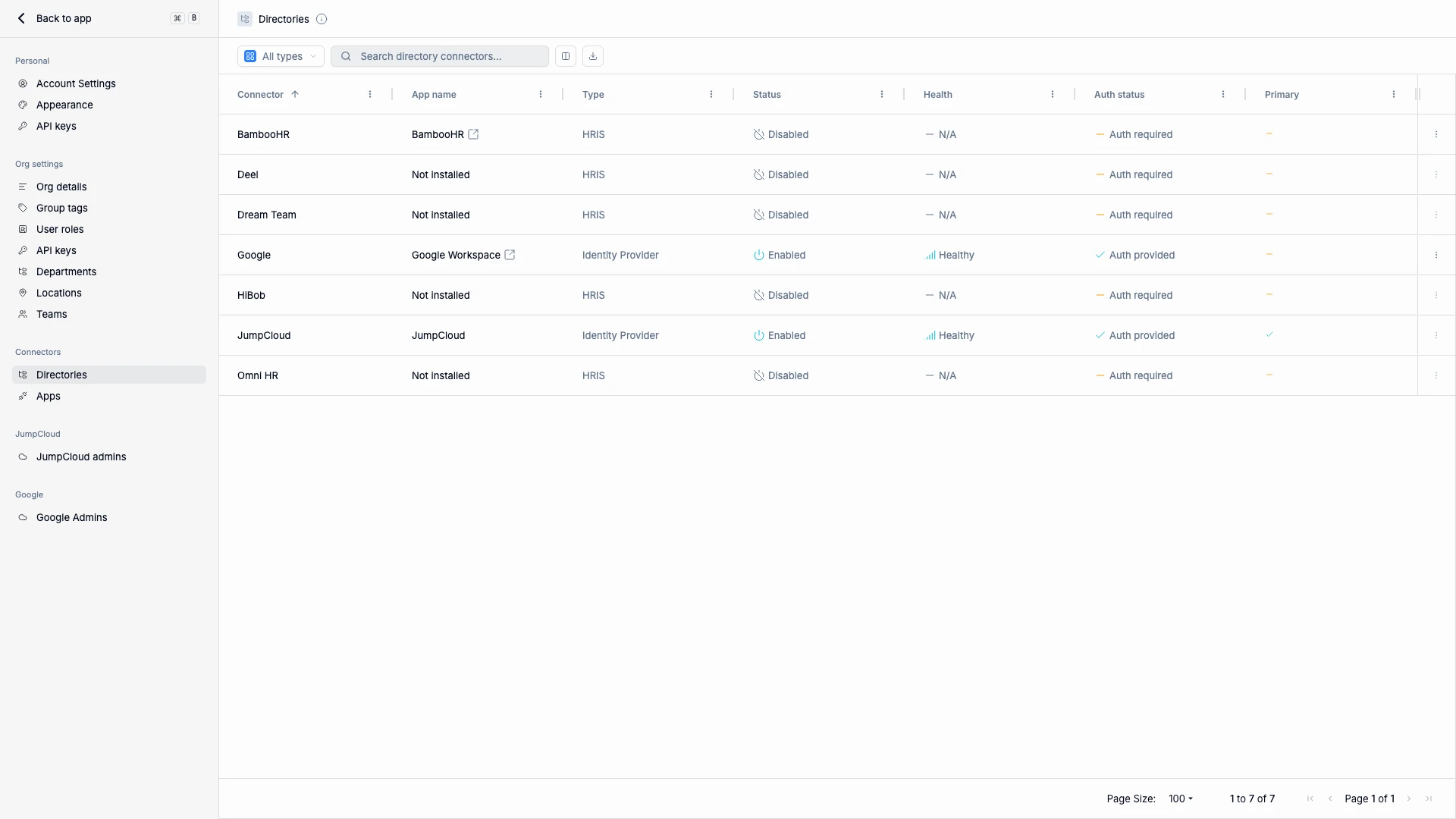
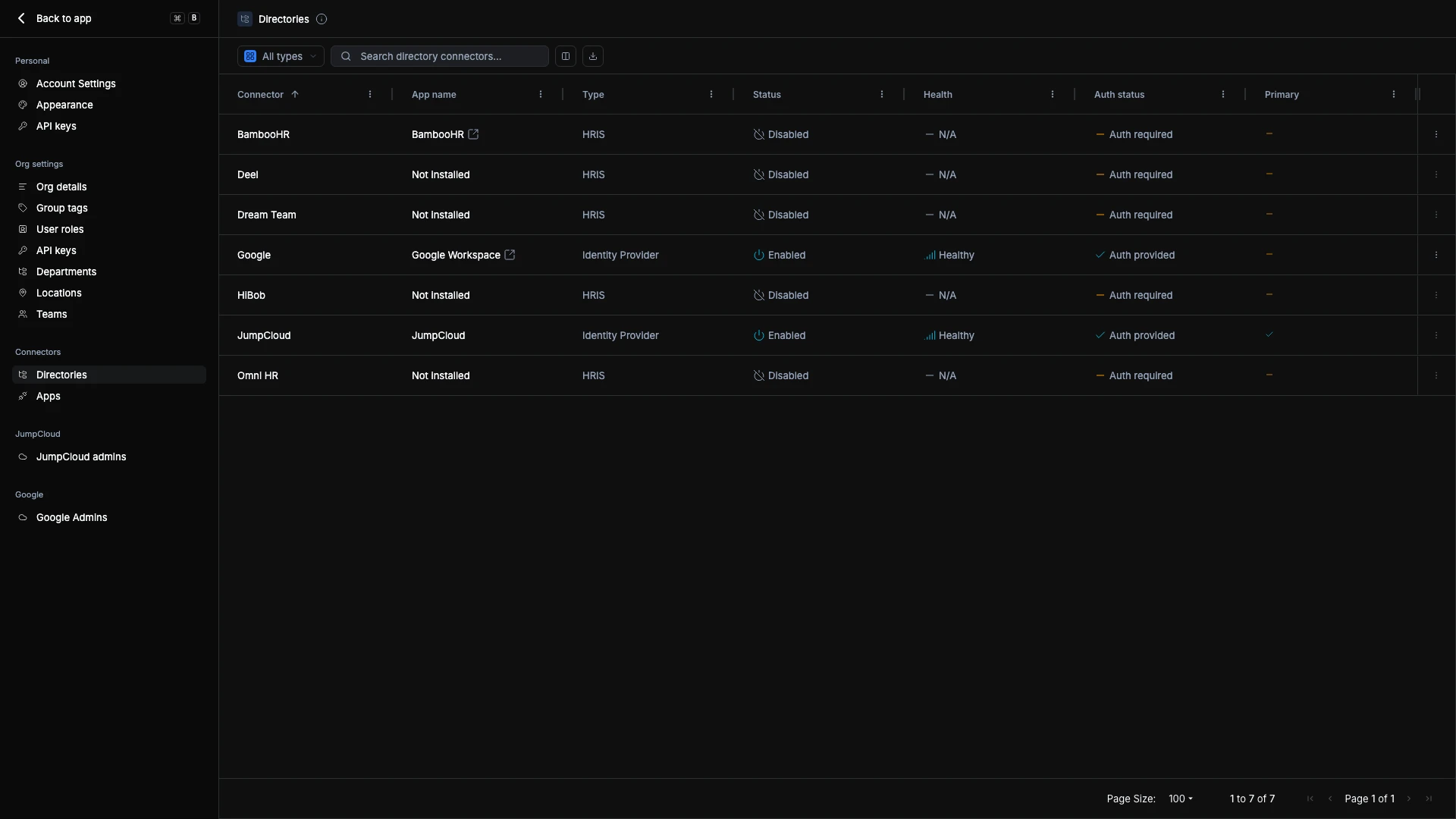
The most powerful setup combines an IdP and an HRIS. The HRIS handles the people data (departments, managers, start/end dates) while the IdP handles authentication and access. ShiftControl bridges the two so changes flow automatically.
What You See
Each directory row shows at a glance whether the integration is healthy:
| Column | What It Tells You |
|---|---|
| Connector | The service name (JumpCloud, Google, BambooHR, etc.) |
| App Name | The corresponding app in your ShiftControl app list |
| Type | Identity Provider or HRIS |
| Status | Enabled (actively syncing) or Disabled (paused) |
| Health | Healthy (sync working), Unhealthy (sync issues), or N/A |
| Auth Status | Whether the integration has valid credentials |
| Connection | How ShiftControl connects. For Google Workspace this is OAuth (with the admin who authorized it) or the Marketplace app. An Upgrade badge means the Marketplace app is recommended for this connection |
| Primary | Which IdP is the authoritative source for identity data |
Connecting a Directory
- Find the directory you want to connect in the list.
- Click the ⋮ menu and select Authenticate.
- Follow the OAuth or credential flow for that service. Most connectors require admin-level access.
- Once authenticated, the Status changes to Enabled and Health shows Healthy when the first sync completes.
The Google Workspace App Authorization page explains every scope ShiftControl requests, the consent screen, and how to delegate authorization to a Google Workspace Super Admin via a 48-hour link if you're not the Super Admin yourself. During onboarding, new organizations can also connect through the Marketplace app — see Google Workspace: Marketplace App or OAuth.
ShiftControl syncs directory data automatically on a regular schedule. The first sync happens immediately after authentication and imports your existing users, departments, and organizational structure.
HRIS connector guides
Step-by-step setup guides for each HR system:
Google Workspace: Marketplace App or OAuth
ShiftControl can connect to Google Workspace in two ways:
- The Google Workspace Marketplace app (recommended). A Google Super Admin installs the ShiftControl app once, for everyone in your organization. The connection belongs to your organization, not to one person. ShiftControl connects as one of your Super Admins, and if that admin leaves or is suspended, it switches to another Super Admin on its own. Sync keeps working.
- OAuth. One admin signs in and approves ShiftControl's permissions. The connection depends on that admin's authorization. If they leave or are suspended, the authorization stops working and Google Workspace stops syncing until someone authorizes again. OAuth is still available as the fallback.
Connect for the first time
New organizations choose how to connect Google Workspace during onboarding. Select Install from Google Workspace Marketplace to install the app, or Connect with OAuth instead. If the account you signed up with isn't a Super Admin, ShiftControl asks for a Super Admin's email once the app is installed and connects as them. You can also select Not an admin? Ask one to install it to send the request to a Super Admin.
Why upgrade
With OAuth, your whole Google Workspace connection rests on one person's login. People change roles, leave, and get suspended, and each of those can silently break user and group sync. The Marketplace app removes that single point of failure, so offboarding the admin who first connected ShiftControl doesn't disconnect your organization.
Upgrade an existing OAuth connection
If your Google Workspace connects through OAuth, the Connection column shows an Upgrade badge, and the Hub shows a card that recommends the upgrade.
Open the upgrade
Select the Upgrade badge, or open the Google connector's ⋮ menu and select Upgrade to Marketplace app. You can also start from the card on the Hub.
Review what changes
ShiftControl shows what changes and what stays the same before you install anything. Your users, groups, sync history, sync schedule, and settings stay the same.
Install the app
Select Install from Google Workspace Marketplace. Sign in to Google with a Super Admin account and install the app for everyone in your organization.
Come back to ShiftControl
You can leave the page while you wait. ShiftControl switches the connection on its own once Google confirms the install. Google says this can take up to 24 hours. If the account you signed in to ShiftControl with isn't a Super Admin — for example, you installed with a separate Super Admin account — ShiftControl first asks for the email of the Super Admin it should connect as. See If you aren't a Google Super Admin.
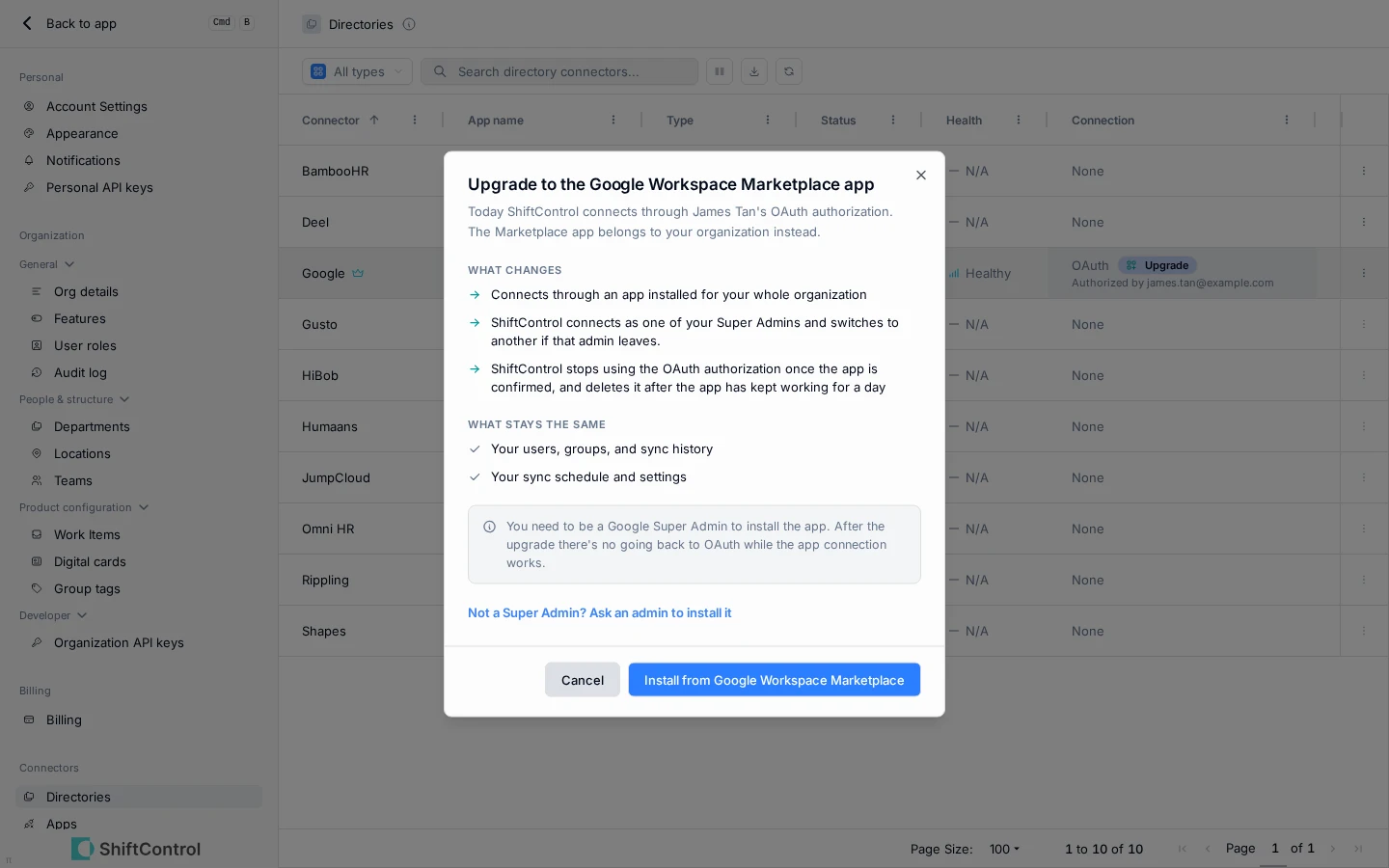
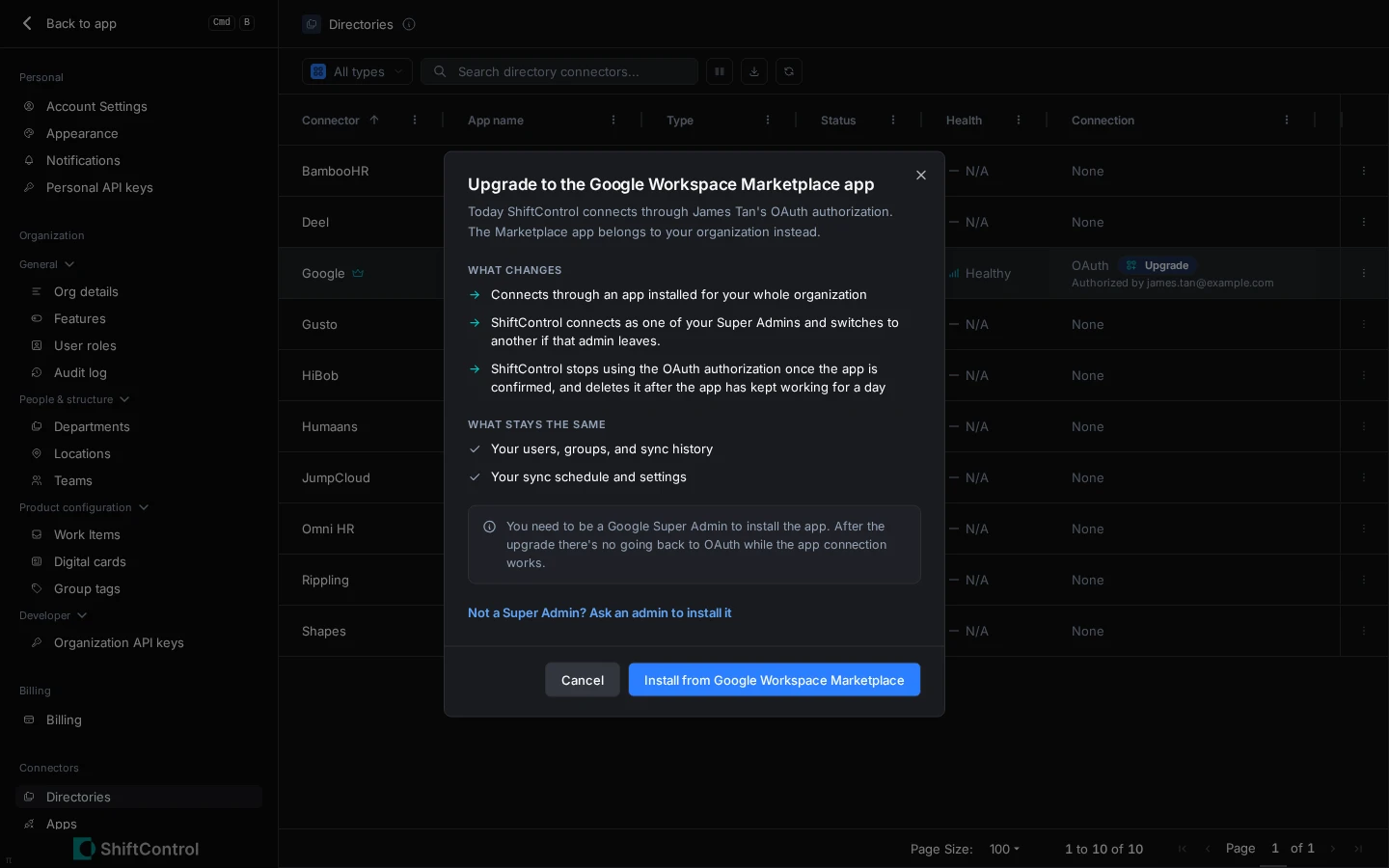
After the switch, ShiftControl stops using the old OAuth authorization. It deletes that authorization after the app has kept working for a day. To see how Google Workspace connects at any time, open the Google connector's ⋮ menu and select View connection.
If you aren't a Google Super Admin
Installing the app takes a Google Super Admin account. ShiftControl checks whether the account you signed in with is a Super Admin. If it can't confirm that, you have two options:
- Install the app yourself with a Super Admin account. Many admins hold Super Admin rights on a separate Google account. Select Upgrade to Marketplace app and install with that account. Afterwards, ShiftControl asks for the email of the Super Admin it should connect as. Enter that email, and ShiftControl connects as them.
- Ask an admin. Select Ask an admin (or Not a Super Admin? Ask an admin to install it) and enter a Super Admin's email. ShiftControl sends them the request for you. The email names you and your organization, links to the app on the Google Workspace Marketplace, and expires in 48 hours. It also tells them how to check that the request is genuine.
Things to know about the Marketplace app
- There's no going back to OAuth while the app works. Once the switch is done, ShiftControl uses only the app connection.
- Waiting is safe. While ShiftControl waits for the install, your OAuth connection keeps syncing as before. If you stop waiting, the request is withdrawn, but ShiftControl still switches on its own if the app gets installed.
- ShiftControl only connects as a Super Admin. If no Super Admin is left in your Google Workspace, the connection stops rather than falling back to a less privileged account.
- Uninstalling the app disconnects ShiftControl. If someone removes the app in the Google Admin console, Google Workspace stops syncing until the app is installed again.
Managing Directories
After a directory is connected, you can:
- Disable — Pauses syncing but preserves cached data. Useful for troubleshooting or temporary disconnects.
- Reauthenticate — Refresh expired credentials without losing your configuration.
- Set as Primary — Designates which Identity Provider is the authoritative source for user identity data. When two directories have conflicting information about a user, the Primary directory wins.
Your Setup: JumpCloud + Google Workspace
With both directories connected, the Directories page shows JumpCloud and Google Workspace side by side. In your configuration:
- JumpCloud is marked as Primary — it handles authentication, SSO, MFA, and is the source of truth for user identity.
- Google Workspace is connected as a secondary directory — it manages Google-specific features like email, Google Groups, admin roles, and Google Drive permissions.
Both directories show as Enabled and Healthy when properly configured. ShiftControl keeps both in sync — changes to users and groups in ShiftControl are pushed to both directories simultaneously.
Your Setup: Google Workspace
Google Workspace is your primary (and only) Identity Provider. ShiftControl manages your Google directory directly — user accounts, Google Groups, admin roles, and access to Google services all flow through this connection.
Things to Know
- Changing the Primary directory is significant. The Primary IdP determines whose data wins in conflicts and which system handles authentication. Don't change this casually — understand the implications for your user accounts first.
- Disabling a directory doesn't delete data. Users imported from a disabled directory remain in ShiftControl. They just won't receive updates until the directory is re-enabled.
- HRIS offboarding runs on local time. When a termination date syncs from your HR system, the deactivation is scheduled in the person's time zone, then their location's, then your organization's. See Locations.
- HRIS and IdP serve different roles. Don't try to use an HRIS as your IdP or vice versa. The HRIS knows about people (hiring, departures, transfers). The IdP knows about access (authentication, permissions, app provisioning). ShiftControl connects the two.
Related Features
- Connector Management — Detailed guide to setting up and managing connectors
- Google Workspace Connector Guide — Step-by-step Google Workspace setup
- Google Workspace App Authorization — How each connection method is authorized, and every permission explained
- The Hub — Where ShiftControl recommends the upgrade to the Marketplace app
- Settings Overview — Navigate all settings sections