Work Items Overview
Work Items gives your team one place to see what needs attention, who owns it, and what has happened so far.
Overview
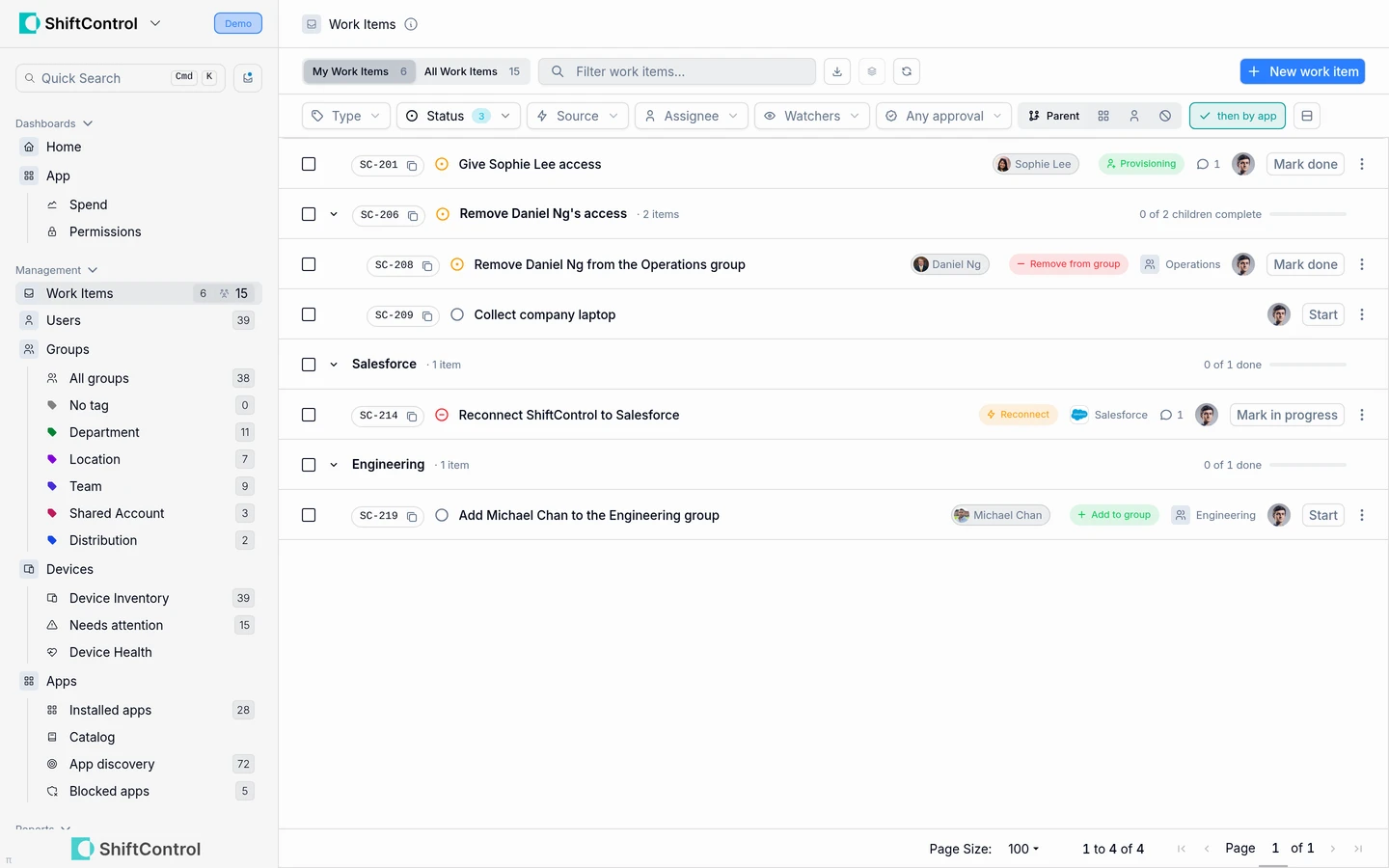
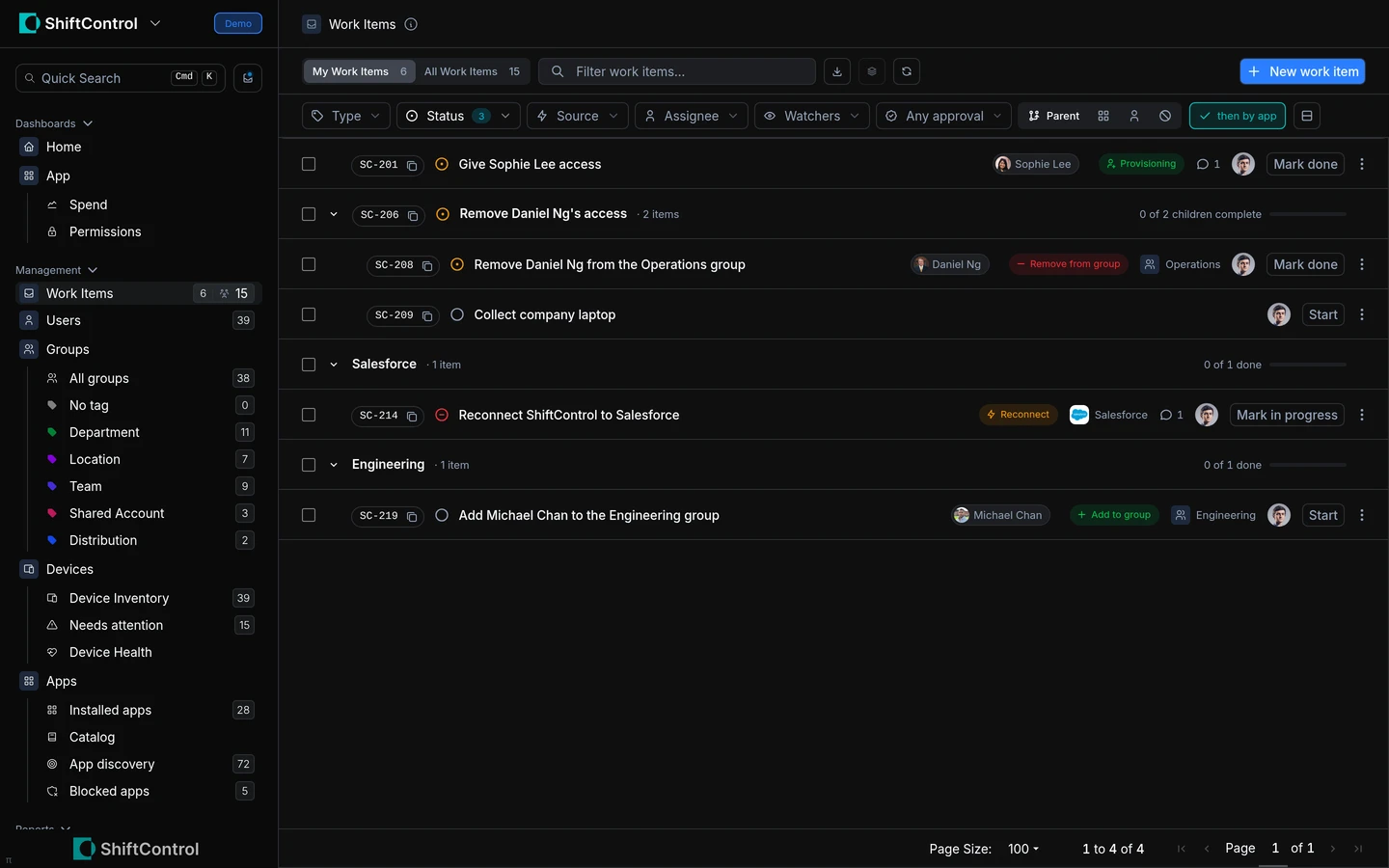
Use Work Items when a change needs a person to review, approve, or complete it. Items can be created by an employee request, by an identity or access change, or by an admin who needs to track a task. A single parent item can collect the smaller steps required to finish a larger piece of work.
How It Works
Work Items connect the request or event to the follow-up work. For example, an access request can have an approval stage followed by a fulfillment step assigned to the person who will make the change. Onboarding and offboarding items can group account, app, and group steps under one parent.
The five statuses define the item's current state. Done and Canceled are terminal. A blocked item can return to In progress with Mark in progress.
| Status | Meaning |
|---|---|
| To do | Waiting for someone to start the work. |
| In progress | Someone is working on it. |
| Blocked | Work cannot continue until a dependency or decision is resolved. |
| Done | The work is complete. |
| Canceled | The work is no longer needed. |
ShiftControl creates work automatically for lifecycle events such as onboarding, offboarding, account changes, app and group access changes, handing over ownership when an app owner leaves, and reconnecting a directory or HR integration whose authorization was revoked or stopped working. A parent item can group smaller account, app, and group steps. Employees can request app access, app removal, and group membership; admins can also create access-review, renewal, contact-check, policy, reconnect, and general tasks.
When an automatically created item has no other owner, ShiftControl assigns it to the app's primary admin when one is available, then falls back to the organization's Default admin. Set that person in Work Items settings so unassigned work has a clear owner.
Types of work items
The type describes what a work item is for. Titles below show the standard wording; a person or resource name fills the placeholder. Older Provisioning and Deprovisioning records may still appear, but those legacy types are no longer created.
| Group | Type | Example title | Created by | Default owner or approver |
|---|---|---|---|---|
| People lifecycle | Provisioning | Give Alex access | Automatic lifecycle event or admin-created | Assigned automatically; falls back to the Default admin when nobody else owns it. |
| People lifecycle | Enabling | Give Alex access | Automatic lifecycle event or admin-created | Assigned automatically; falls back to the Default admin when nobody else owns it. |
| People lifecycle | Disabling | Remove Alex's access | Automatic lifecycle event or admin-created | Assigned automatically; falls back to the Default admin when nobody else owns it. |
| People lifecycle | Deprovisioning | Remove Alex's access | Automatic lifecycle event or admin-created | Assigned automatically; falls back to the Default admin when nobody else owns it. |
| Access steps | Grant access | Give Alex access to Salesforce | Lifecycle, approved request, or admin | App's primary admin when available; otherwise Default admin. |
| Access steps | Revoke access | Remove Alex's access to Salesforce | Lifecycle, approved request, or admin | App's primary admin when available; otherwise Default admin. |
| Access steps | Add to group | Add Alex to the Engineering group | Lifecycle or admin | Admin selected for the work; otherwise Default admin. |
| Access steps | Remove from group | Remove Alex from the Engineering group | Lifecycle or admin | Admin selected for the work; otherwise Default admin. |
| Employee requests | Access request | Alex asked for access to Salesforce | Employee request or admin-created | Requester's manager, then app's primary admin, then Default admin. |
| Employee requests | Removal request | Alex asked to be removed from Salesforce | Employee request | App's primary admin; Default admin if none can decide. |
| Employee requests | Add to group request | Alex asked to join the Engineering group | Employee request | Default admin, if the group accepts requests. |
| Employee requests | Remove from group request | Alex asked to leave the Engineering group | Employee request | Default admin. |
| Maintenance | Review access | Check who still needs Salesforce | Admin-created | Assignee chosen by the admin. |
| Maintenance | Acknowledge policy | Title entered by the creator | Admin-created | Assignee chosen by the admin. |
| Maintenance | Reconnect | Reconnect Google Workspace | Automatically when a connection breaks, or admin-created | Default admin for automatic items; otherwise the assignee chosen by the admin. |
| Maintenance | Review renewal | Decide whether to renew Salesforce | Admin-created | Assignee chosen by the admin. |
| Maintenance | Contact check | Check the billing contact for Salesforce | Admin-created | Assignee chosen by the admin. |
| Maintenance | Hand over ownership | Choose a new owner for Salesforce | Automatically when an app owner leaves | Assigned automatically; falls back to the Default admin when nobody else owns it. |
| Maintenance | Delete account | Delete Alex's Salesforce account | Automatically during account deletion work | Assigned automatically; falls back to the Default admin when nobody else owns it. |
| Maintenance | Task | Title entered by the creator | Admin-created | Assignee chosen by the admin. |
An admin-created item uses the assignee selected in New work item. Automatically created items without another owner go to the app's primary admin when applicable, then to the organization's Default admin. While a reconnect item for a connection is still open, or after the connection is restored, ShiftControl does not open another one for the same break; the item's source shows as OAuth broken.
Parent items and steps
Onboarding and offboarding can appear as parent items with account, app, and group steps underneath. A grouped parent row shows progress as N of M children complete; each step has its own status and may have an assignee.
When every child reaches a terminal status, the parent closes as Done if at least one child is Done; otherwise it closes as Canceled. Canceling a parent cancels its pending children. Some lifecycle work waits for all related provisioning events before the parent can close.
“Waiting on” and ownership
The Waiting on value reflects approval and assignment:
- Pending approval: the current approver sees You, to approve; other readers see the assigned person's name or email followed by “to approve.” If no approver is available, it says Nobody yet, needs an approver.
- No owner: Nobody yet, needs an owner.
- Blocked: the owner is shown with “to unblock a step.”
- Done: Nobody, this is finished. Canceled: Nobody, this was canceled.
- Otherwise, it shows the owner's name or email.
Common Scenarios
Tracking a new starter
An onboarding item can group account setup and app or group assignments. The owner can see which steps remain, while other admins can follow progress without coordinating through a separate checklist.
Completing an app request
An employee asks for an app, an approver decides, and a fulfillment step goes to the person who will grant access. The employee can follow the request while the assignee tracks the setup work.
Enable Work Items
- In the admin portal, open Settings → Organization → General → Features and enable Work Items. This makes the queue and related actions available to your organization.
- Enable App Access Requests separately for the Apps tab and app request actions. Work Items must also be on for employees to submit requests.
- Enable Directory for the People and Groups tabs. Group requests also require Work Items to be enabled and the group to accept requests; Apps remain under App Access Requests.
- Open Settings → Organization → Product configuration → Work Items. Choose a Default admin and configure Email notifications.
Notifications and Permissions
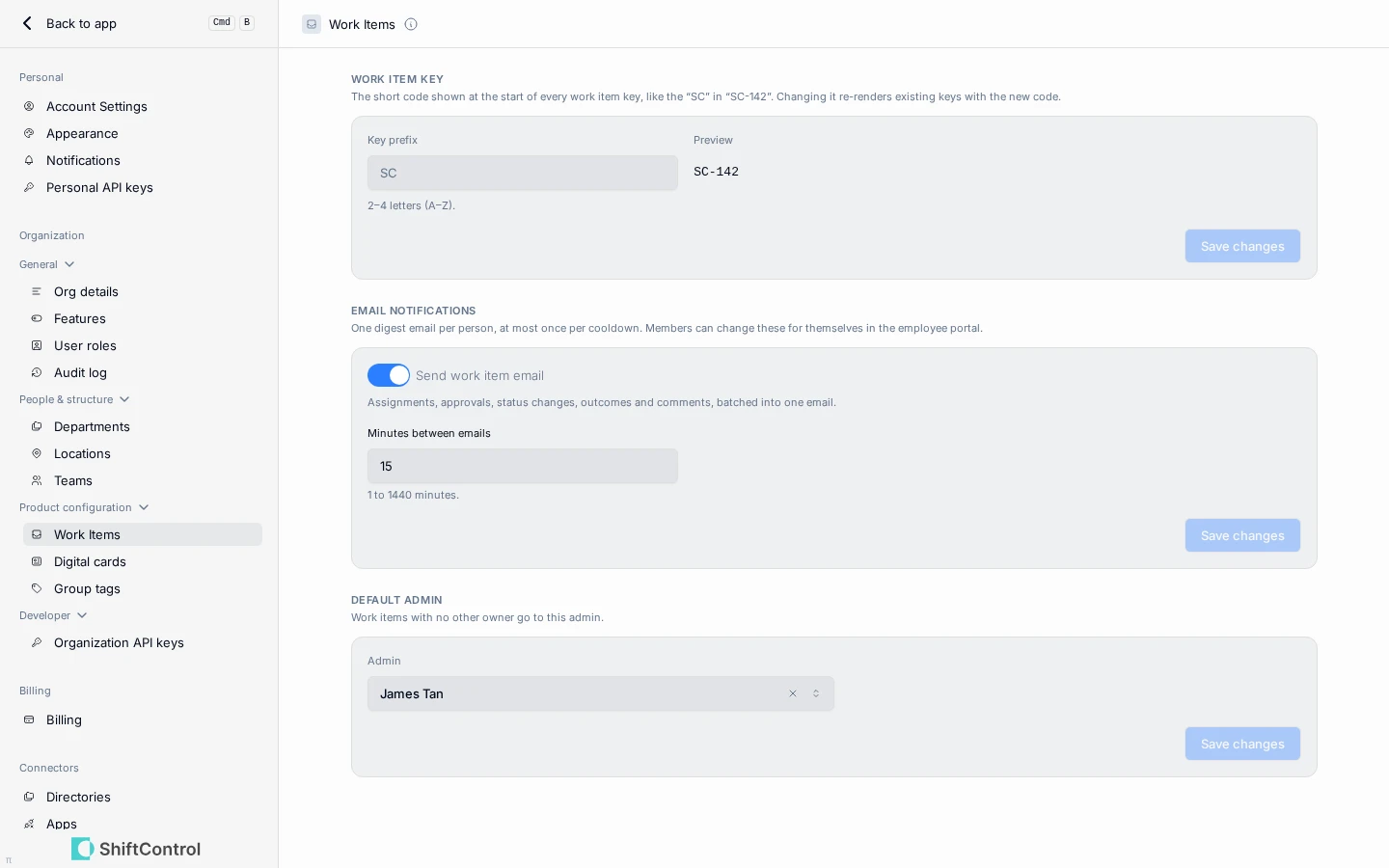
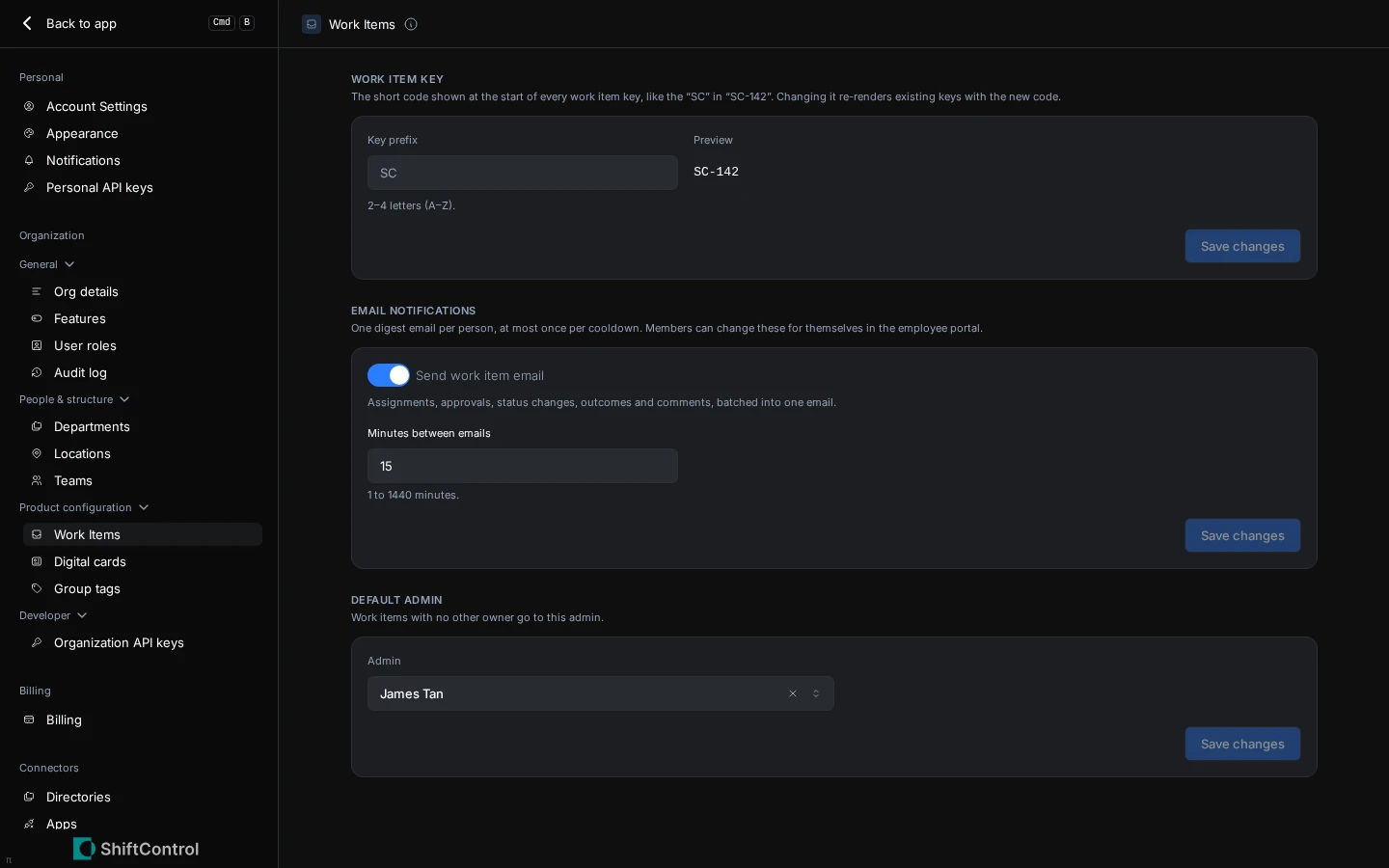
In Settings → Organization → Product configuration → Work Items, the Email notifications section contains Send work item email and Minutes between emails. Eligible assignments, approvals, status changes, outcomes, and comments are batched into digest emails. A quiet inbox may receive a digest immediately; otherwise delivery waits until the per-person cooldown has elapsed. The default cooldown is 15 minutes, and members can change their own email preference in the employee portal.
| Trigger | Email recipients |
|---|---|
| New item | Assignee and current-stage approvers. |
| Assignment or reassignment | New assignee. |
| Approval | Next approver; requester receives the outcome when approval is complete. |
| Denial | Requester. |
| Status change or completion | Assignee and watchers; requester also receives terminal outcomes. |
| Automatic closure | Assignee and watchers. |
| Comment | Assignee, watchers, and people who previously commented. |
| Due soon or overdue reminder | Assignee. |
Approvers can choose Approve or Deny from a decision email without signing in, or decide in the portal. Decision links are valid for 24 hours.
| Role | Work Items access |
|---|---|
| Owner or Admin with Work Items update permission | View and manage work across the organization, including reassignment and watcher management. |
| Read-only admin | View the organization queue and update or comment on items assigned to them from admin Work Items screens or employee My Work Items. They cannot reassign work or edit the title or Needed by date, or manage watchers. |
| Member | See items involving them in My Work Items; update items assigned to them and decide requests when they are the current approver. |
| App admin | Update or comment on their assigned items from admin Work Items screens or employee My Work Items. They cannot reassign work or edit the title or Needed by date, or manage watchers. The App admin role does not include the organization-wide Work Items queue by default. |
| Custom role | An owner or admin can grant separate permissions to view, create, update, or approve work items. |
The ShiftControl MCP connection can also list work items, approve or deny requests the signed-in person may decide, and update item status. The assistant uses that person's permissions and asks for confirmation before making changes; see What your AI can do.
Things to Know
- An approved request and its fulfillment step are related but distinct: the request records the employee's decision and the step records the work to grant or remove access. The request remains with the requester until fulfillment completes.
- An app admin receives one action-required email for an approved app request's fulfillment step; the requester separately receives the decision outcome.
- Some eligible access changes complete automatically when a connected directory or app confirms fulfillment, including supported SCIM-provisioned changes.
- Work Items is separate from the older Tasks queue used for App Discovery. See Task Management for that queue.
Related Features
- Managing Work Items — organize the queue and create admin work.
- Work Item Details — update a specific item and review its history.
- Approvals — review decision routing and fulfillment.
- My Work Items — employee view of requests and assigned work.