My Work Items
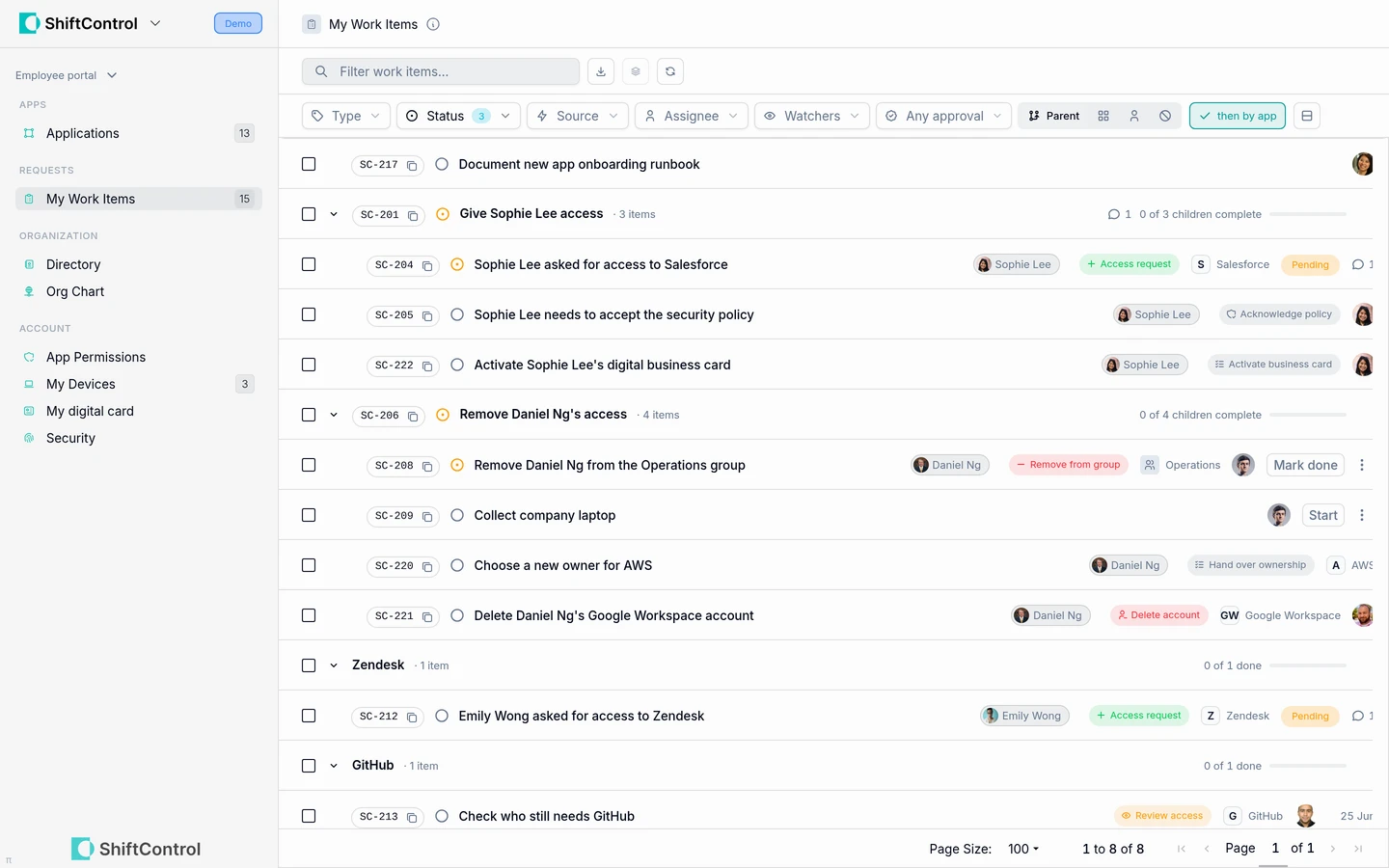
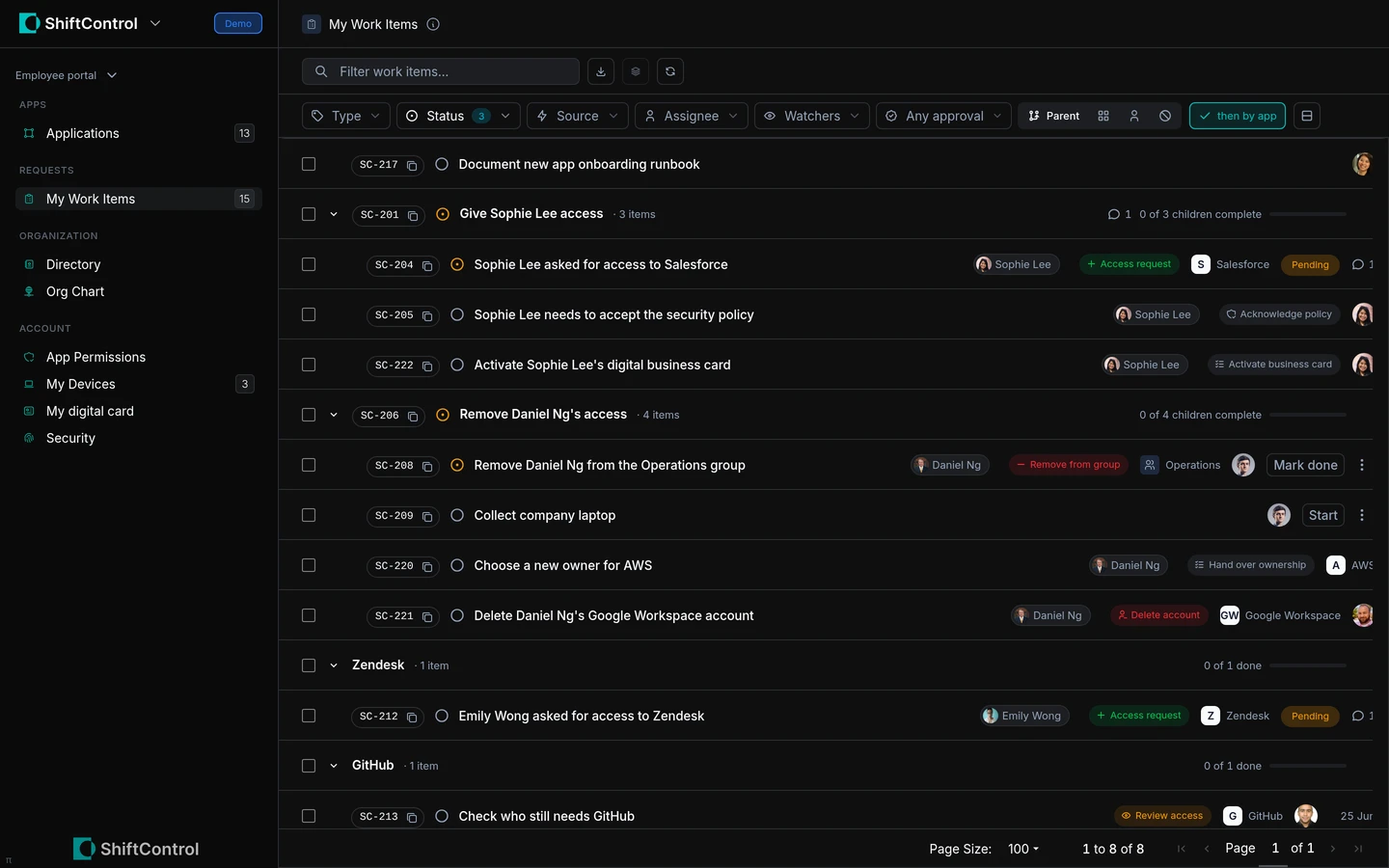
My Work Items shows the requests you made and the work you are involved in, so you can see what needs your attention and what is waiting on someone else.
Overview
Use My Work Items to follow a request after you submit it, or to update a task assigned to you. The navigation count includes requests you made, not only tasks assigned to you.
How It Works
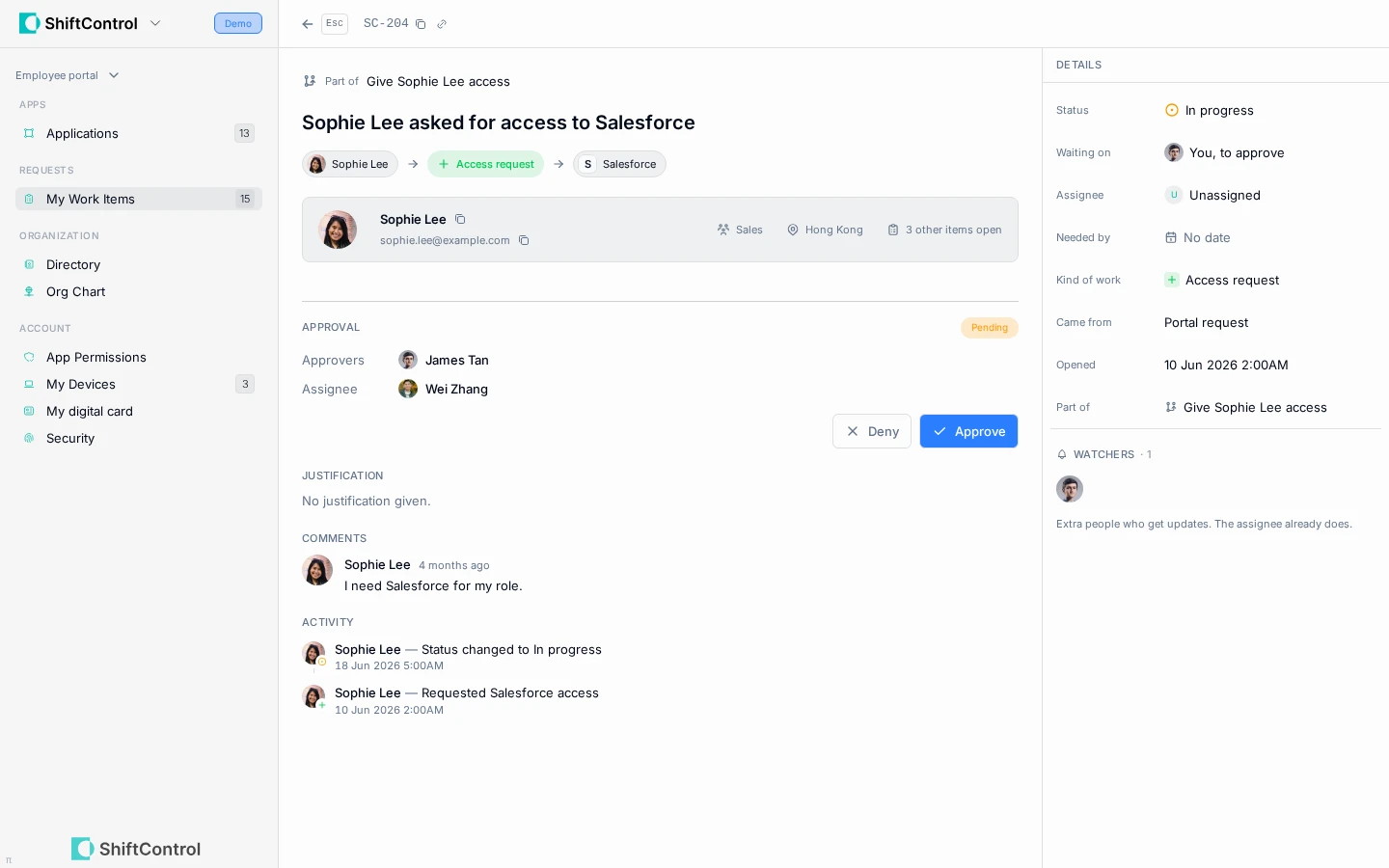
The list can include items assigned to you, requests you made, items where you are the target employee, items you watch, and requests assigned to you as an approver. Open an item to see its status, Needed by date, related steps, comments, and recent activity.
If you are the assignee, you can start work, update its status or notes, add a comment, and mark it done when complete. If you are the approver, the request shows the decision you need to make. You cannot reassign work or manage watchers from the employee portal.
Common Scenarios
Check an app request
After requesting access in the Directory, return to My Work Items to see whether the request is waiting for approval or fulfillment. Open it to review the latest status and comments.
Finish a task assigned to you
Open the item, read its notes and parent request, then update the status as you work. Add a comment if the admin or requester needs to know what changed.
Step-by-Step Guide
Request and follow access
- In the employee portal, open Directory → Apps, choose an app, then select Request access.
- Enter a reason that helps the approver understand the request and submit it.
- Open My Work Items to follow the request, its approver, comments, and current status. An approved request can remain open while its separate fulfillment step is completed.
- To withdraw an open app or group request, return to that app or group in Directory and choose Cancel request in its actions menu.
Approve or deny a request
- Open the request from the decision email or from My Work Items.
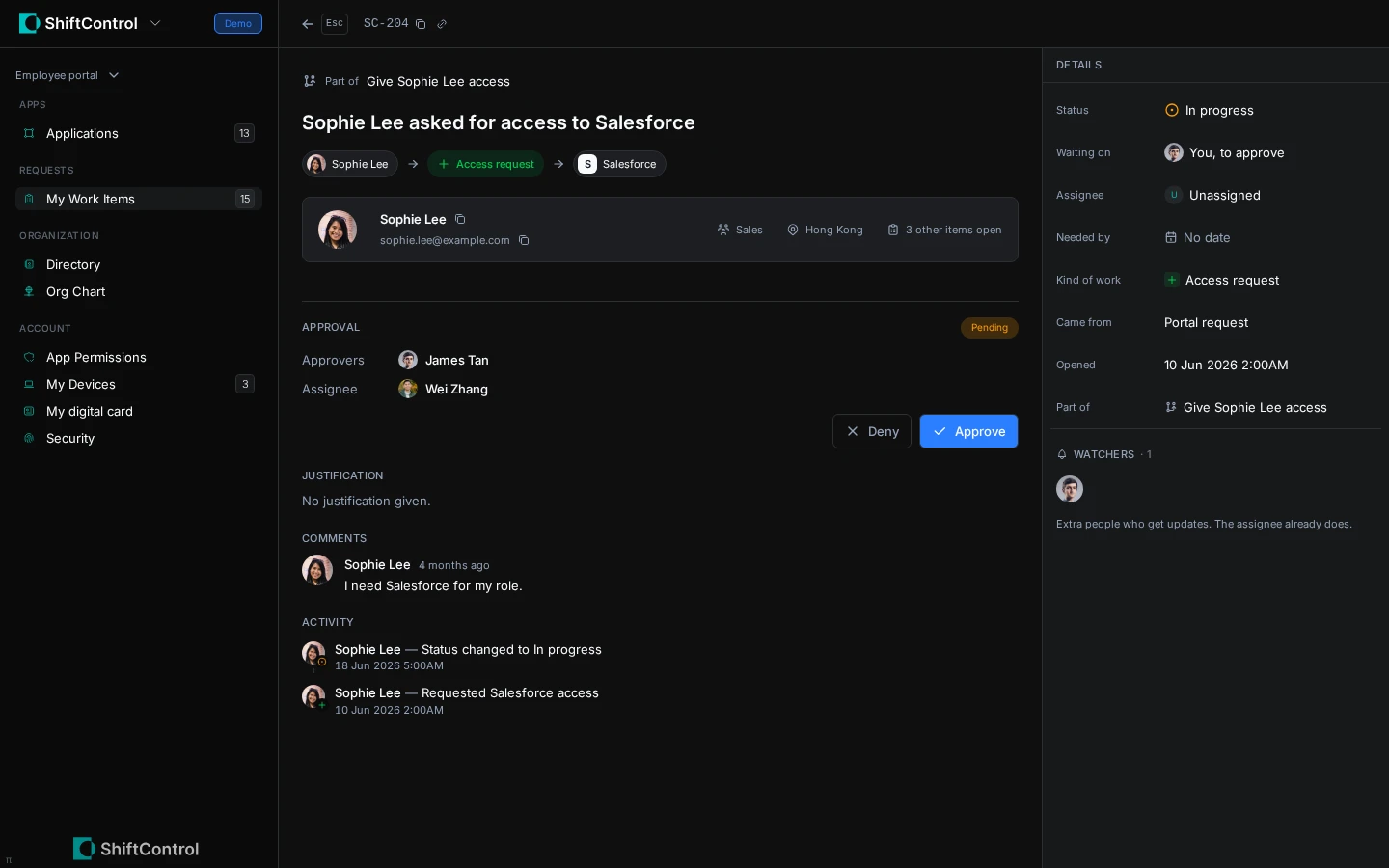
- Review the request and choose Approve or Deny. Add a comment when the requester or assignee needs context.
- Email decision links work without signing in and expire after 24 hours. In the portal, sign in and decide from the request.
- A denied request becomes Canceled; the requester is notified and can see the outcome in My Work Items.
Complete assigned work
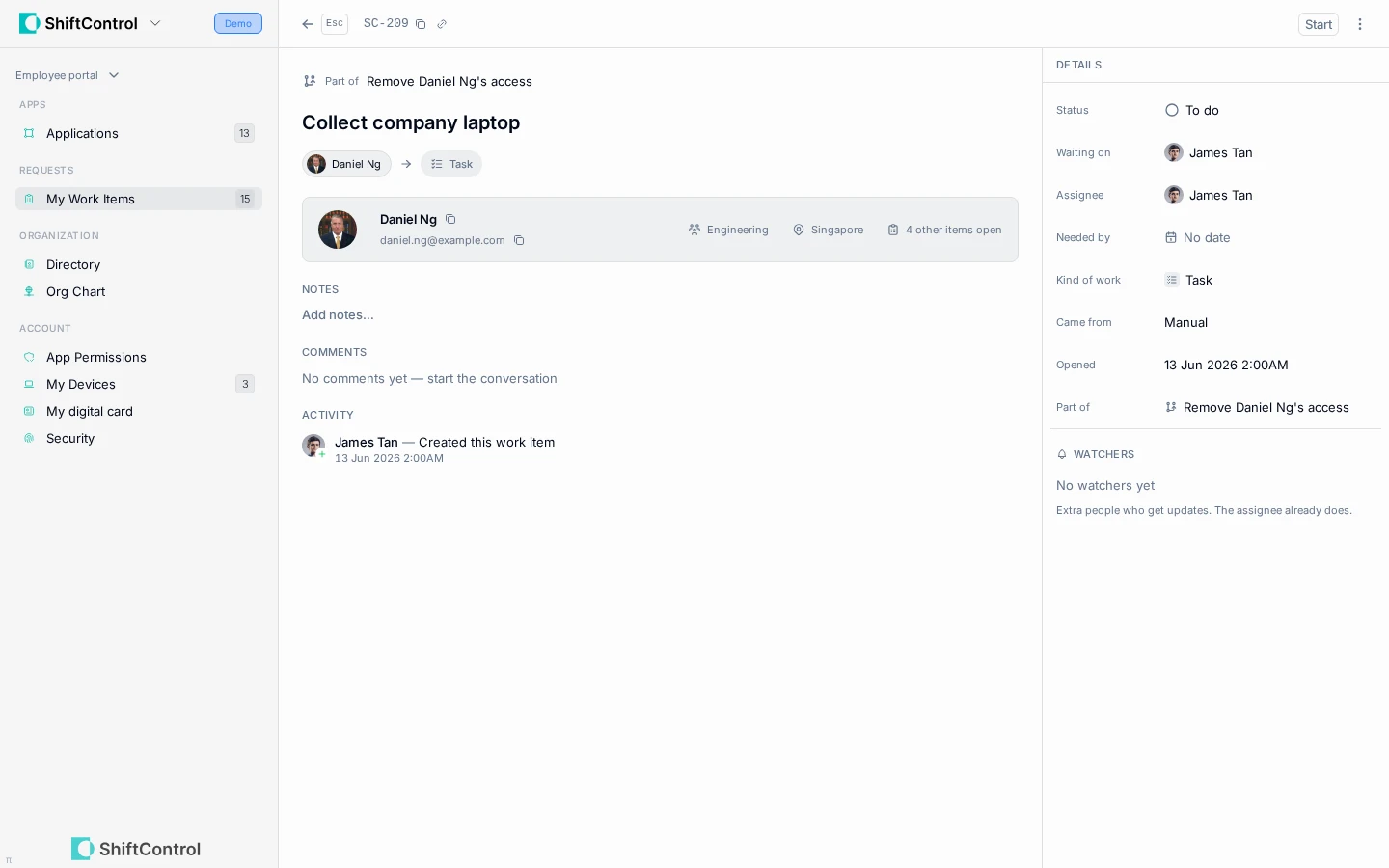
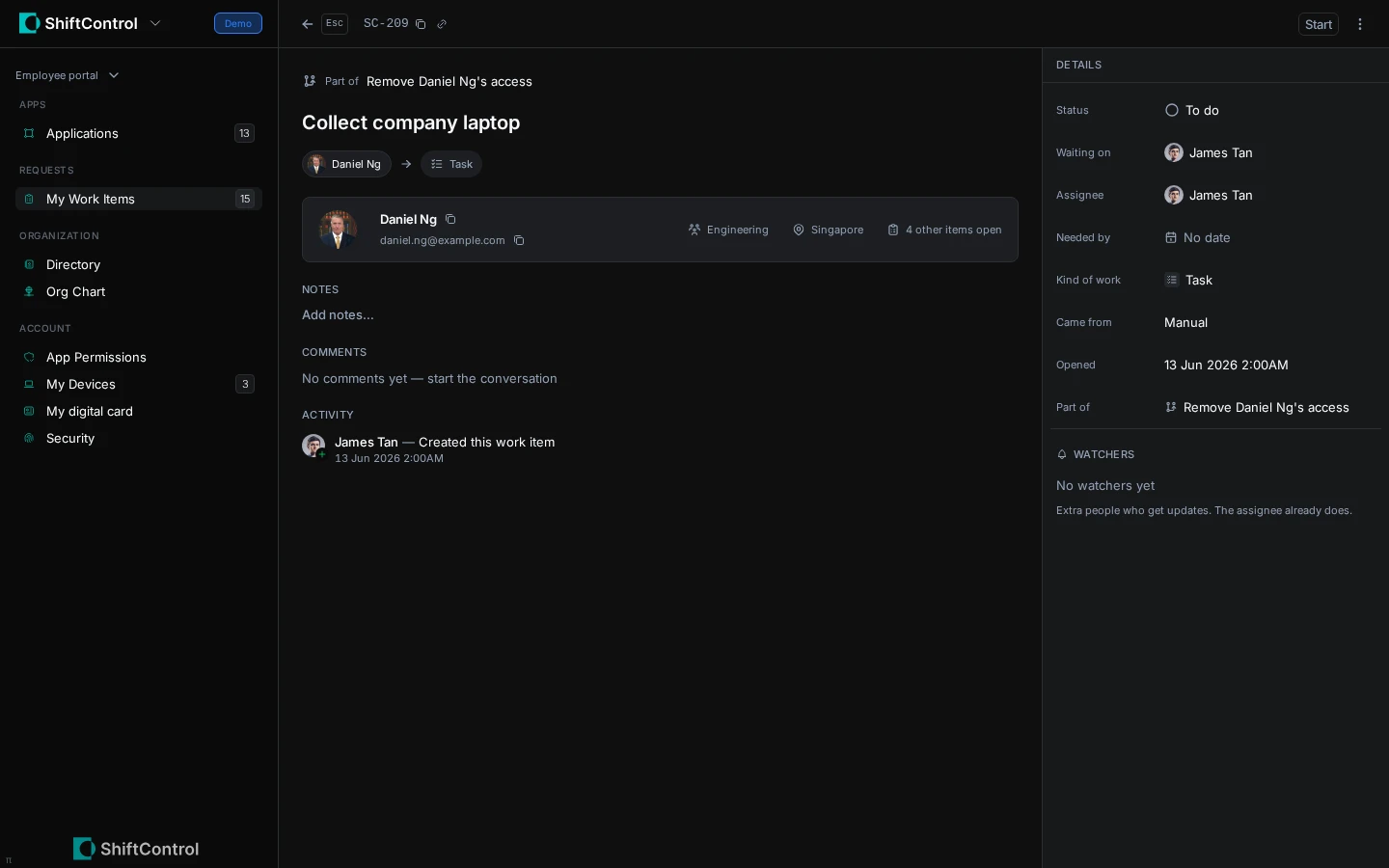
- Open the assigned item and review its notes, parent, and comments.
- Choose Start to move it from To do to In progress.
- If blocked, set Status to Blocked and add a note explaining what is needed. When work can resume, choose Mark in progress.
- Add a comment for a handoff or update. Choose Mark done when the requested work is complete.
Filters and list details
Filter the list by Type, Status, Source, Assignee, or Approval. The list includes the shared Work Items grid details: title, key, status, type, assignee, resource, user, source, approval, created, and updated. It shows work involving you, including requests assigned to you as an approver, not the organization's complete queue.
If you're an admin too
An admin assigned an item can find it in both the admin My Work Items tab and the employee-portal My Work Items list. The admin tab is assignee-only. If you are an approver but not the assignee, use All Work Items in the admin queue or your employee-portal My Work Items list.
Read-only admins and app admins can update and comment on their own assigned work from either surface. They cannot reassign it, change its title or Needed by date, or manage watchers. An Owner or Admin with Work Items update permission can use those admin controls. A request's justification is not editable.
For example, if Sophie requests Salesforce and her manager approves, Sophie receives an outcome email and sees the request in My Work Items. The Salesforce app admin sees the separate Give Sophie access to Salesforce task in their assigned work and receives an action-required email with a one-tap Mark done link. Grant access and mark the task done. Separately, some eligible SCIM-tracked access changes close automatically after a matching sync confirms the change.
Things to Know
- You see work items in which you are involved, not the entire organization's admin queue.
- A request can remain visible while its access change is being completed; an approved request is not always the same as completed fulfillment.
- To withdraw an open app or group request, return to that resource in the Directory and choose Cancel request.
- Read-only admins can still update their own assigned items from the admin Work Items screens.
Related Features
- Directory — find apps and groups and submit requests.
- Your Apps — open the apps your organization has given you.
- Work Items Overview — admin guide to the full workflow.