Your Apps
All your work apps in one place — click to open, and ShiftControl handles the login.
Your App Dashboard
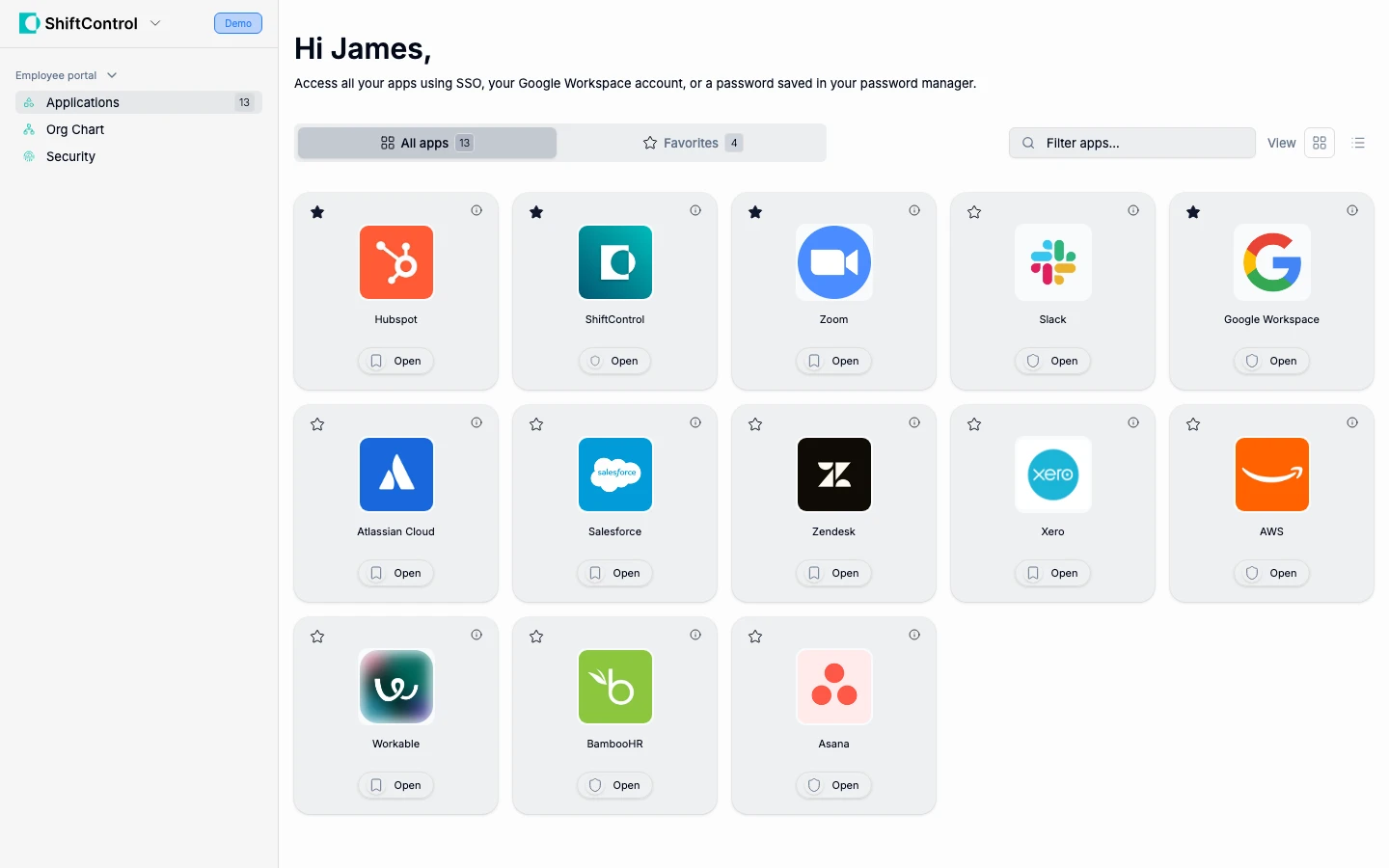
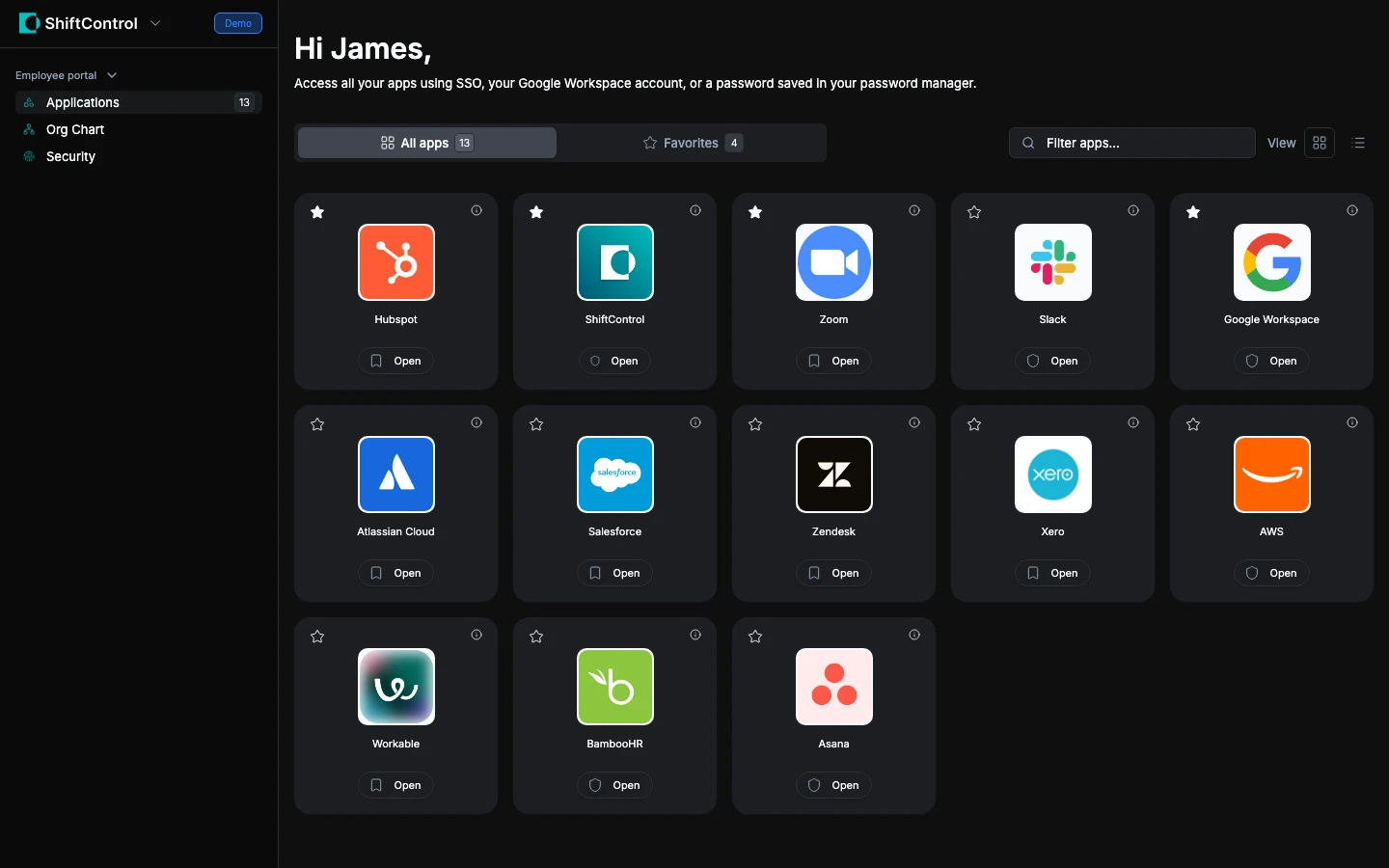
When you log in to ShiftControl, you see your App Dashboard — a grid of all the applications your company has given you access to. These are the tools you use for your job: email, chat, project management, HR systems, and more.
To open an app, just click it. Depending on how the app is set up, one of two things happens:
- SSO apps — ShiftControl redirects you through JumpCloud, which logs you into the app automatically. You'll see an MFA prompt from JumpCloud before the app opens. This is the most secure option — you don't need a separate password for that app.
- Bookmark apps — ShiftControl opens the app's login page. You'll need to log in with whatever credentials that app requires (possibly stored in your password manager), or click "Sign in with Google" if that option is available.
- Apps with Google sign-in — Click "Continue with Google" and you're in. Your Google account handles the authentication.
- Other apps — ShiftControl opens the app's login page. You'll need to log in with that app's credentials.
Finding Apps
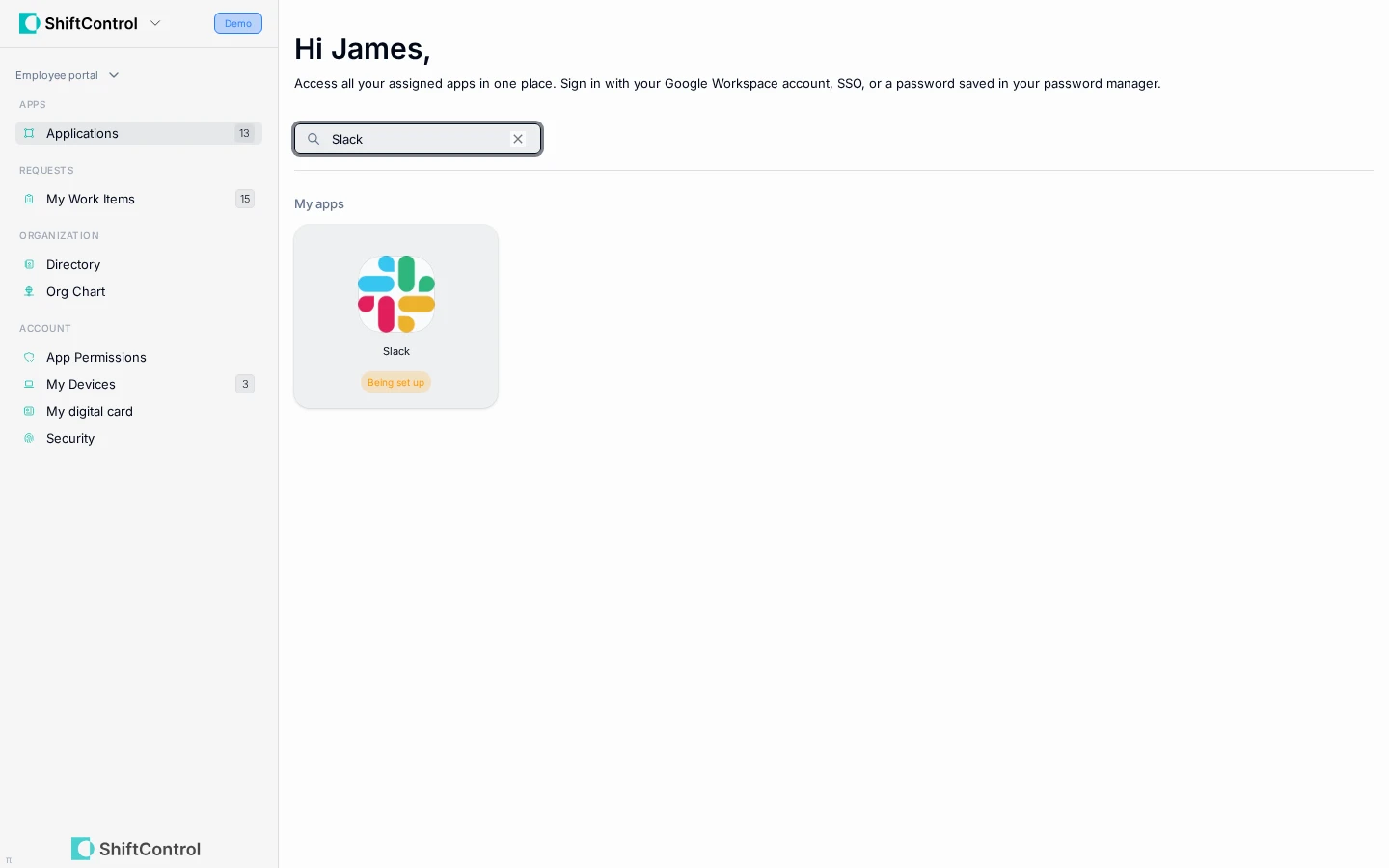
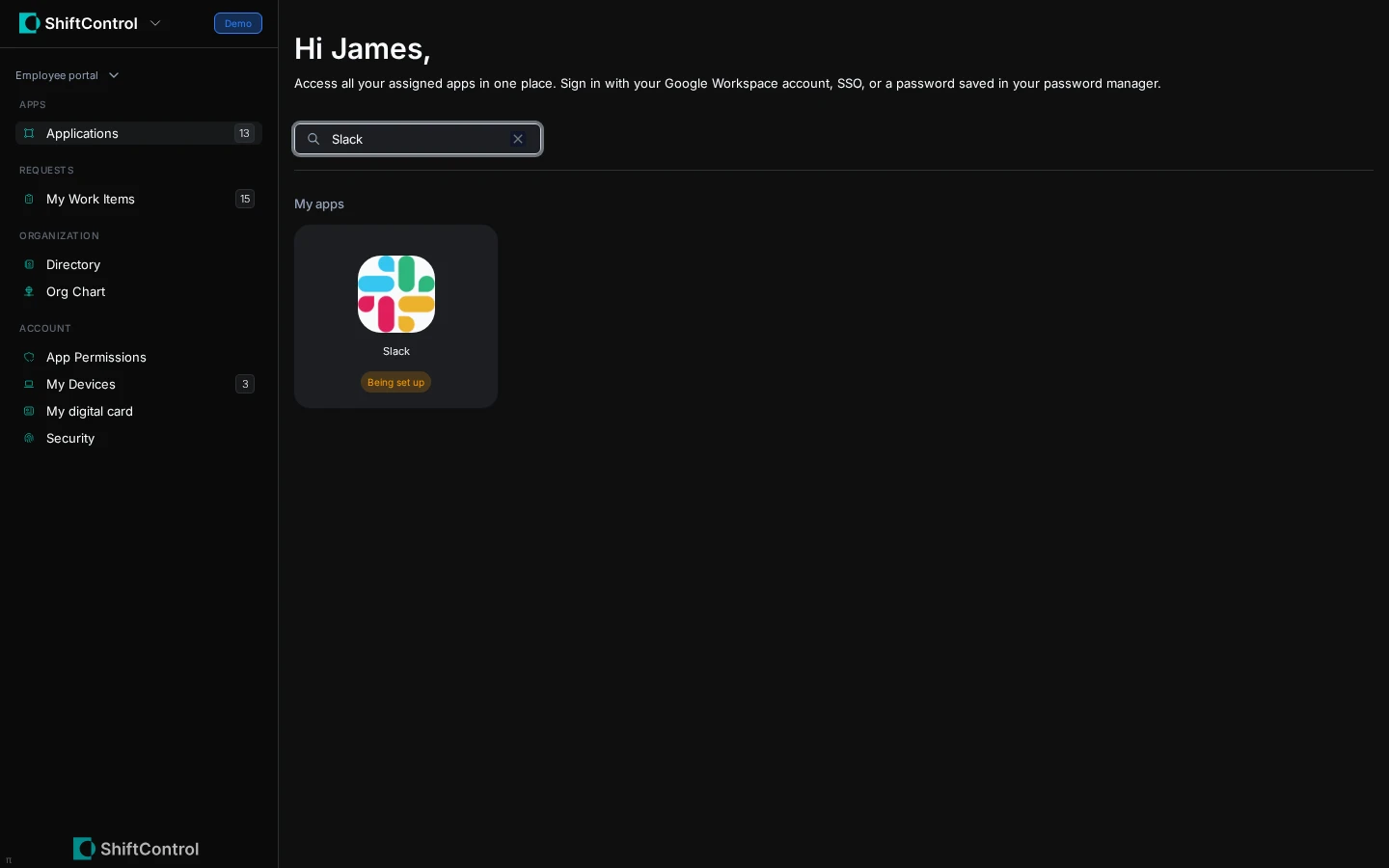
Your apps are organized so you can find them quickly:
- Pinned — Apps you've pinned sit in their own section at the top of the page. There's no tab to click — if nothing is pinned, the section simply isn't there. (Pinned is what used to be called Favorites.)
- All apps — Everything else you have access to, as cards you can drag into whatever order suits you
- Search — Type part of an app name to filter the grid
The star and info buttons only appear when you hover over a tile — so twenty apps read as twenty logos rather than sixty buttons. On a phone or tablet they stay visible, since there's no hover to wait for. Clicking anywhere on a tile opens the app.
Missing an App?
If you need access to an app that isn't on your dashboard, open Directory → Apps and look for a request action. When your organization enables app access requests, you can submit a reason for the approver and follow the request in My Work Items.
If no request action is available, ask your manager or IT admin to check whether you should have access. Access may be assigned through a group, which can also make the app appear on your dashboard.
You can't add an app directly to your dashboard. Your organization decides who approves requests and grants access, either individually or through a group.
See Directory for how to find apps and groups and submit requests.
The SSO Login Flow
When you click an SSO app, here's what happens:
- ShiftControl redirects you to JumpCloud
- If you're already authenticated to Google, this step is automatic — no action needed from you
- JumpCloud prompts for MFA (authenticator app on your phone)
- JumpCloud logs you into the app
For most users, you'll only see one MFA prompt (from JumpCloud) since Google authentication happens automatically in the background. If your organization uses JumpCloud as the primary login instead of Google, you may occasionally see a JumpCloud login screen first, then the MFA prompt for the app.
- ShiftControl redirects you to JumpCloud
- JumpCloud prompts for your password (if not already logged in)
- JumpCloud prompts for MFA (authenticator app on your phone)
- JumpCloud logs you into the app