Org Chart
See who's who in your organization — find colleagues, understand team structures, and see reporting lines.
Using the Org Chart
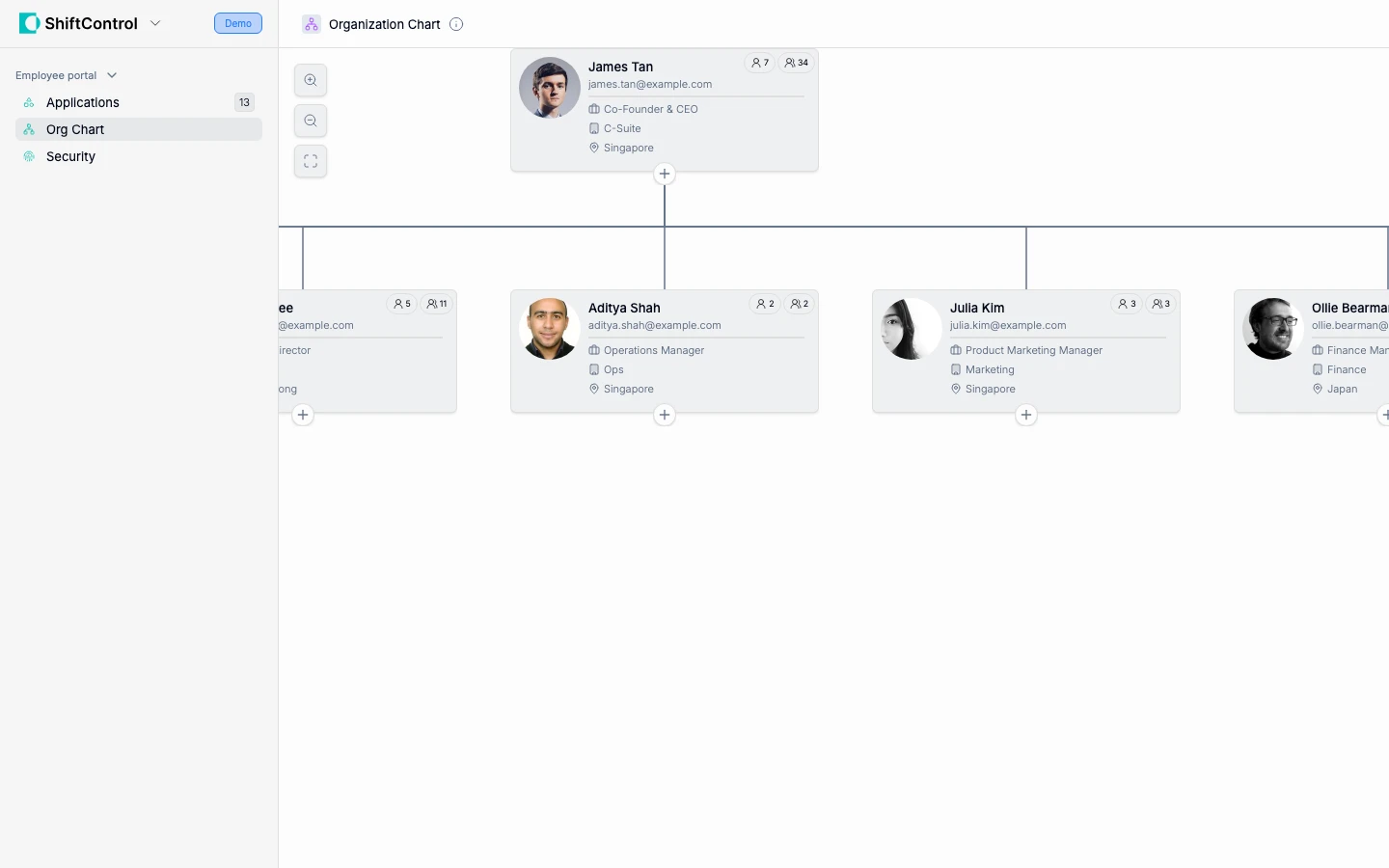
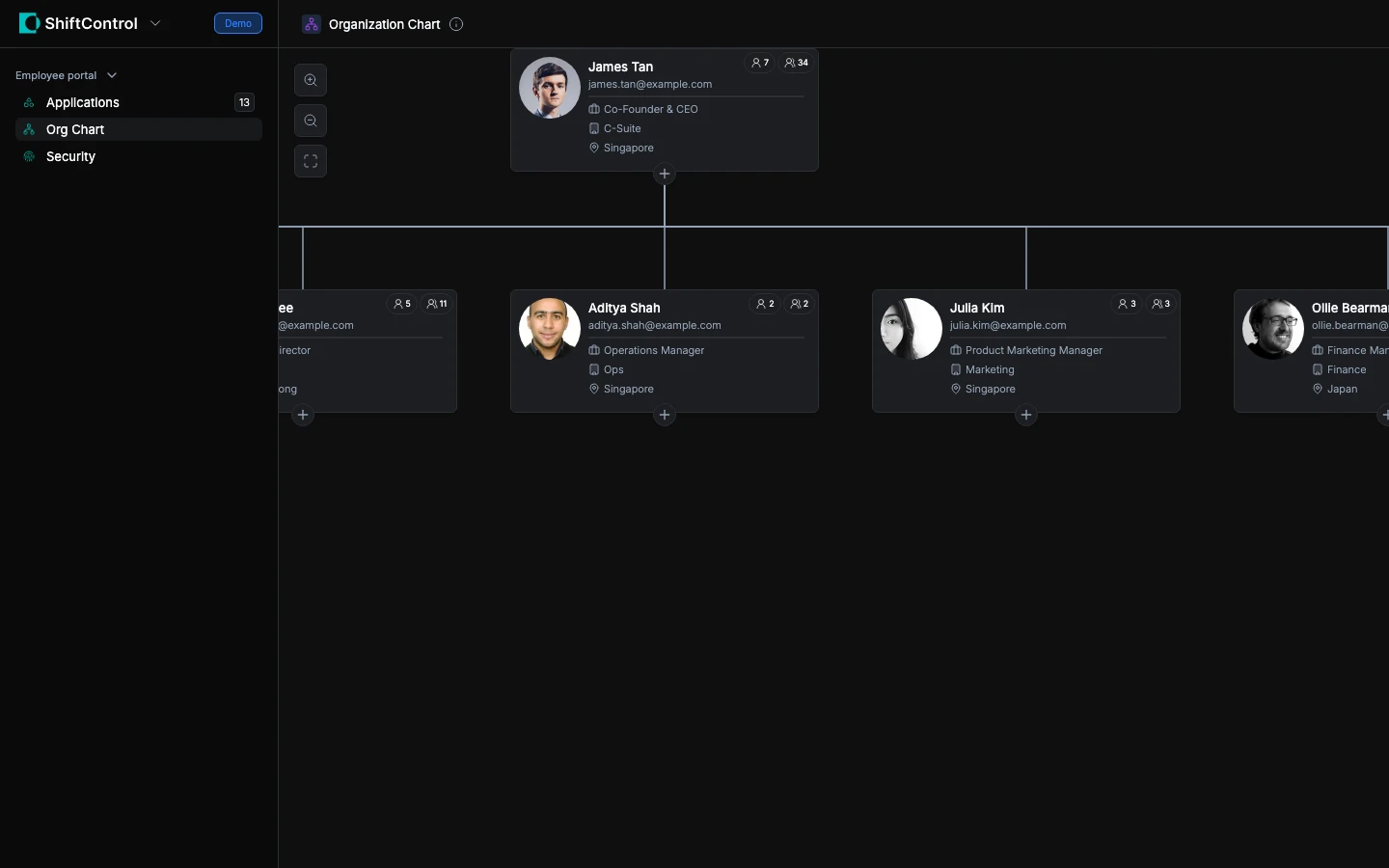
The Org Chart in ShiftControl shows your organization's structure visually. You can:
- Find colleagues — Search by name to locate anyone in the company
- See reporting lines — Understand who reports to whom
- Browse teams — Navigate the hierarchy to see how departments and teams are organized
- View profiles — Click on any person to see their title, department, and contact information
- Show unlinked people — By default the chart only shows people connected to someone (they have a manager, or someone reports to them). Tick the Show unlinked people checkbox above the chart to bring everyone into the picture. If nobody has a manager set yet, the chart says so and points at the manager field instead of drawing a wall of boxes.
Exporting the Chart
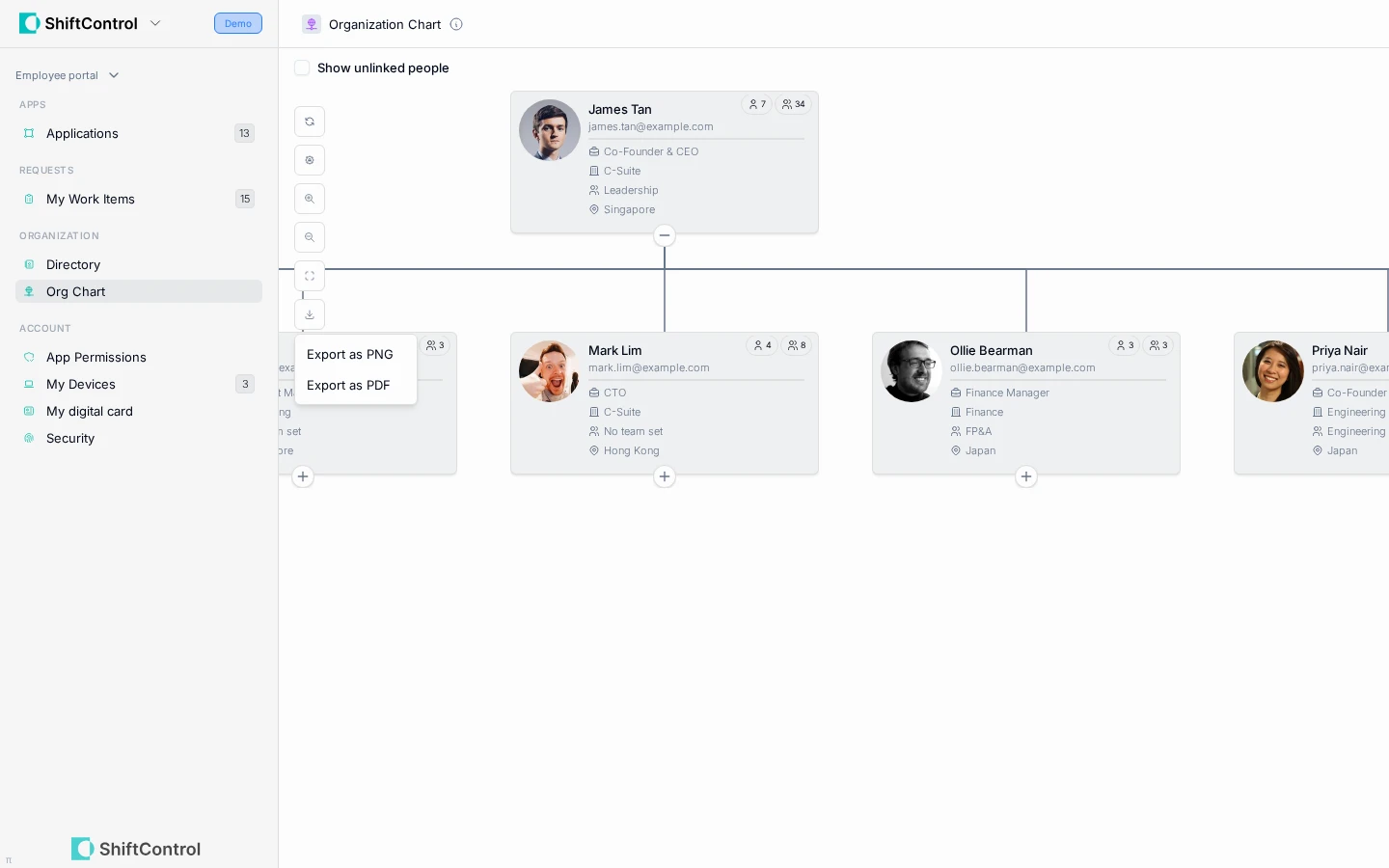
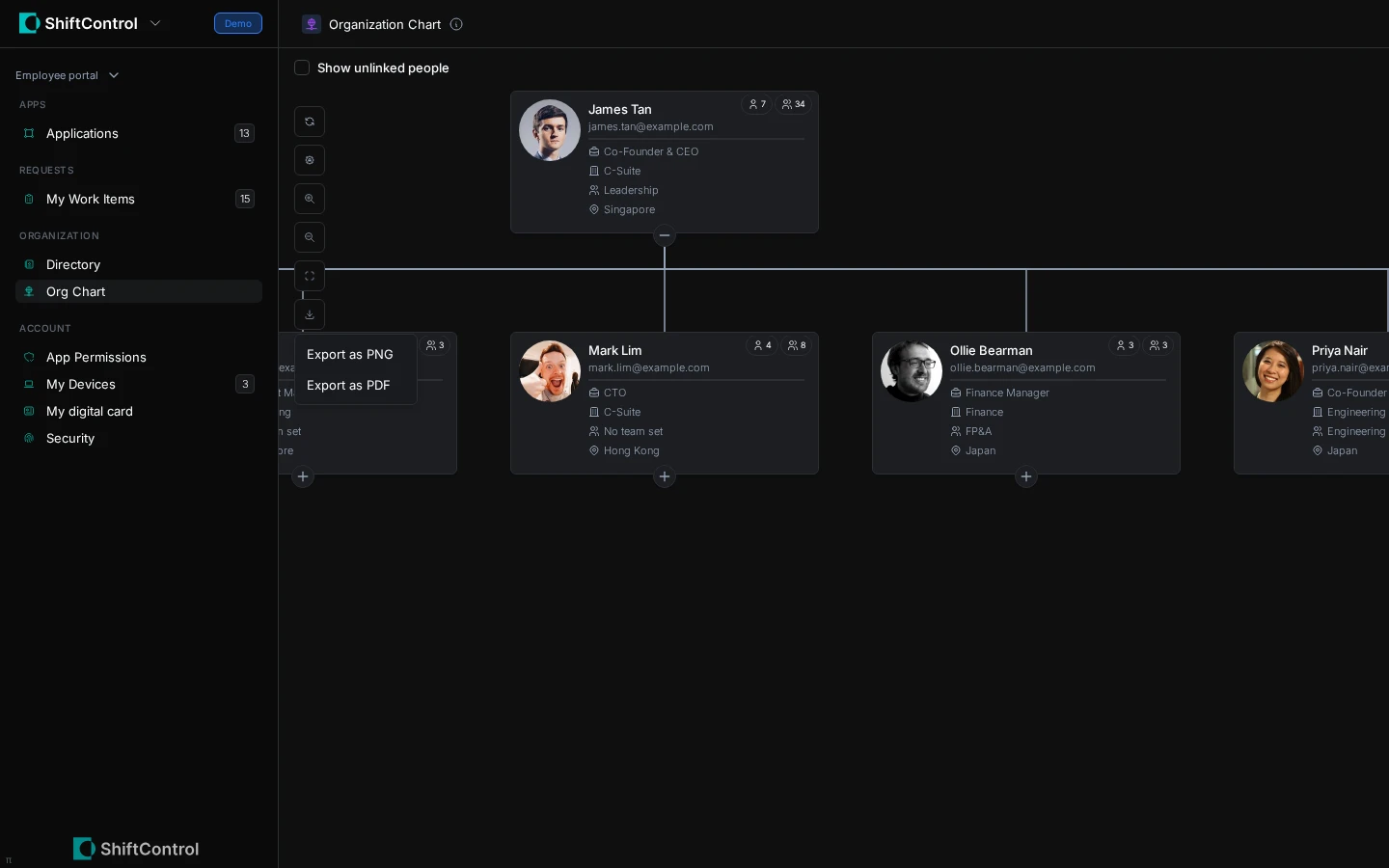
An export control sits alongside the zoom controls, so the chart travels to board packs, onboarding docs, and slide decks — no more cropped screenshots:
- PNG — a plain image of the whole chart
- PDF — a single landscape page sized to your chart
Every branch expands before the export runs, so nothing goes missing just because it was collapsed on screen, and the export follows the Show unlinked people checkbox — you get what you're looking at. Files are named for your organization and the date, like org-chart-acme-2026-09-22.png.
Who Appears in the Org Chart
The org chart is built from the same data your IT team manages in ShiftControl. Everyone who has been added to ShiftControl appears here, organized by their manager, department, and team assignments.
If you notice incorrect information (wrong manager, missing team member), contact your IT admin — they can update it in ShiftControl and the change will reflect here immediately.
If you don't see the Org Chart in your employee portal, your company has chosen to disable this feature. Your organization may use a different tool for viewing the org chart — check with your IT admin or manager.