New Employee Onboarding
Welcome to your new company! Here's how to set up your accounts and get access to your work tools.
What to Expect
Your IT team has already created your accounts using ShiftControl. You don't need to sign up for ShiftControl itself — your account there is created automatically. What you need to do is activate your identity provider account(s) and set up security.
How you receive your credentials depends on whether you're onboarding in the office or remotely.
Setting Up Google Workspace
If You're Onboarding In the Office
Your IT or HR team will give you your Google Workspace credentials (your work email and a temporary password) directly — either in person, via chat, or printed out.
Log in to Google
Go to accounts.google.com and sign in with your work email and the temporary password you were given.
Set your new password
Google will prompt you to create a new password. Choose something strong and unique.
Set up 2-Step Verification
Google will guide you through enabling 2-Step Verification. We strongly recommend setting up a passkey (fingerprint or face recognition) for the most convenient and secure option.
Set up 2-Step Verification immediately. If you don't enable it within a few days, Google may lock you out of your account as a security precaution. Don't put this off.
Options for your second factor:
- Passkey (recommended) — Fingerprint or face recognition via TouchID, Windows Hello, or Android biometrics
- Google Authenticator — A 6-digit code from an app on your phone
- Security key — A physical FIDO2 key
You're set!
You can now access your email, Google Drive, Calendar, and all your work apps. Go to app.shiftcontrol.io to see your employee portal with all your available apps.
If You're Onboarding Remotely
You'll receive an email from ShiftControl (from [email protected]) at your personal email address with your Google Workspace credentials.
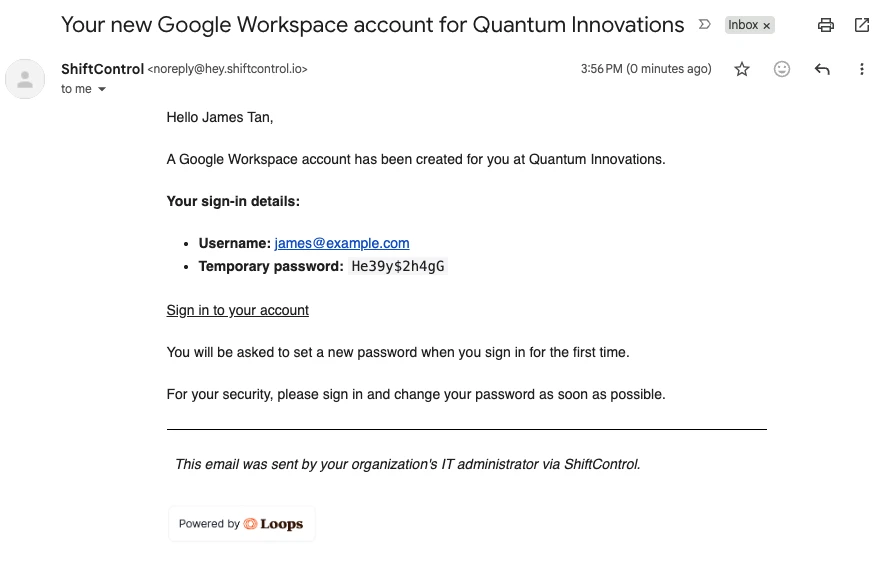
The email contains your username (work email) and a temporary password. From there, follow the same steps as above — log in at accounts.google.com, set your new password, and enable 2-Step Verification.
Setting Up Your Accounts
Your company uses both Google Workspace and JumpCloud. You'll need to set up both — Google first (for email), then JumpCloud (for SSO app access).
Step 1: Set Up Google Workspace
In the office: Your IT/HR team will give you your Google credentials directly.
Remotely: You'll receive an email from ShiftControl at your personal email:
Log in to Google
Go to accounts.google.com and sign in with your work email and the temporary password.
Set your new password
Google will prompt you to create a new password.
Set up 2-Step Verification
Enable 2-Step Verification immediately. We recommend a passkey (fingerprint/face) for the best experience.
Don't skip this. Google may lock your account within a few days if 2-Step Verification isn't enabled.
Step 2: Set Up JumpCloud
After Google is set up, you'll set up JumpCloud for SSO access to your work apps.
In the office: Your IT team will give you JumpCloud credentials.
Remotely: You'll receive a separate email from JumpCloud:
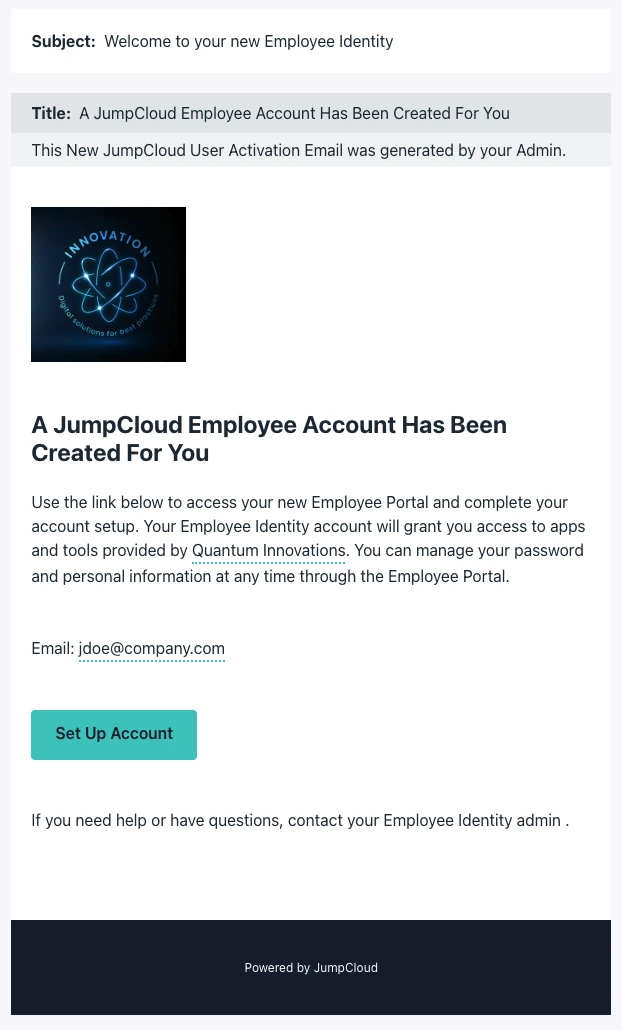
Click 'Set Up Account' or log in
If you received the JumpCloud email, click the Set Up Account button. If you were given credentials in person, go to console.jumpcloud.com.
Set your JumpCloud password
Create a strong, unique password. This should be different from your Google password.
You'll rarely use this password again after setup. Since your company uses Google as the primary login, JumpCloud will authenticate you through Google automatically in the future. But JumpCloud requires a password to be set on first login.
Set up JumpCloud MFA
JumpCloud will prompt you to configure multi-factor authentication. We recommend JumpCloud Protect — a push notification app:
- Download JumpCloud Protect on your phone (FAQ)
- Enroll JumpCloud Protect by scanning the QR code
- Add a device factor (optional but recommended) — once logged in, go to the Security tab in JumpCloud and enroll Windows Hello (Windows) or Touch ID (Mac) for faster authentication on your laptop
Step 3: Access Your Apps
Once both accounts are set up, go to app.shiftcontrol.io — your ShiftControl employee portal. You'll see all the apps available to you. Click any app to open it.
Why two accounts? Google handles your email and Google apps. JumpCloud provides SSO to the work apps your organization has configured. ShiftControl ties them together and provides your employee portal. When you open an SSO app, if you're already logged into Google, that part is automatic — you'll typically just see the JumpCloud MFA prompt.
Setting Up JumpCloud
If You're Onboarding In the Office
Your IT/HR team will give you your JumpCloud credentials directly.
If You're Onboarding Remotely
You'll receive an email from JumpCloud:
Click 'Set Up Account' or log in
If you received the email, click Set Up Account. Otherwise, go to console.jumpcloud.com with the credentials you were given.
Set your password
Create a strong, unique password. This is the password you'll use to log into JumpCloud and access your SSO apps.
Set up MFA
JumpCloud will prompt you to set up multi-factor authentication. We recommend JumpCloud Protect — a push notification app for easy MFA:
- Download JumpCloud Protect on your phone (FAQ)
- Enroll JumpCloud Protect by scanning the QR code
- Add a device factor (optional) — once logged in, go to the Security tab in JumpCloud and enroll Windows Hello (Windows) or Touch ID (Mac) for faster laptop authentication
Access your apps
Go to app.shiftcontrol.io to see your employee portal with all your available apps.
Common Questions
I didn't get an activation email
Check your spam/junk folder. If it's not there, contact your IT admin — they can resend it. For remote onboarding, make sure your IT team has your correct personal email address.
I can't log in after setup
Make sure you're using the right credentials for the right system — you have separate passwords for Google and JumpCloud. Try resetting your password through the login page, or contact your IT admin.
Try resetting your password through the login page. If that doesn't work, contact your IT admin.
Google locked my account
This usually happens because 2-Step Verification wasn't enabled in time. Contact your IT admin — they can temporarily reset your account so you can set up 2SV.
I see an MFA prompt when opening an app
This is JumpCloud verifying you before granting access to the SSO app. If you're already logged into Google, that part is automatic — you'll typically only see the JumpCloud MFA prompt.
JumpCloud prompts for MFA each time you access an SSO app. This is a security feature that verifies you before granting access.
An app I need isn't on my portal
App access is managed by your IT team through groups (based on your department, team, or role). Ask your manager or IT admin to add you to the right group.
I lost my MFA device
Contact your IT admin immediately. They can reset your MFA enrollment so you can set up a new device.