My Digital Card
Share your contact details instantly — no app to install, no paper to run out of.
Digital cards is an optional feature your IT team switches on for the whole organization. If My digital card isn't in your employee-portal sidebar, your admin hasn't turned it on — ask them if you think you should have it.
Why this exists
Paper business cards are out of date the day they're printed, and you never have one when you need it. Standalone card apps want a monthly subscription and don't know anything about you.
Your digital card solves both. It's already built from your directory profile, so your name, title, and department are right without you typing them. You get a short link and a QR code you can show on your phone, put in your email signature, or print on a lanyard — and when your title changes, the card follows.
Activating your card
Open My digital card from your employee-portal sidebar. The first time, you'll see a preview of your card built from your profile, with an Activate my card button.
Some details in that first preview may be sample values — the page tells you which ones — because your profile doesn't have everything a card can show. You'll set the real values right after activating.
Choose Activate my card. That creates your card as a draft and drops you straight into the edit screen to review it.
Activating creates a private draft. Your card isn't on the internet until you publish it, which is a separate step on the Manage tab.
Your company may also present card activation as a step during onboarding — if you did it there, your card is already activated and you'll land straight on it.
The four tabs
Once your card exists, the page has four tabs.
My card
Your live card as other people see it, with everything you need to share it.
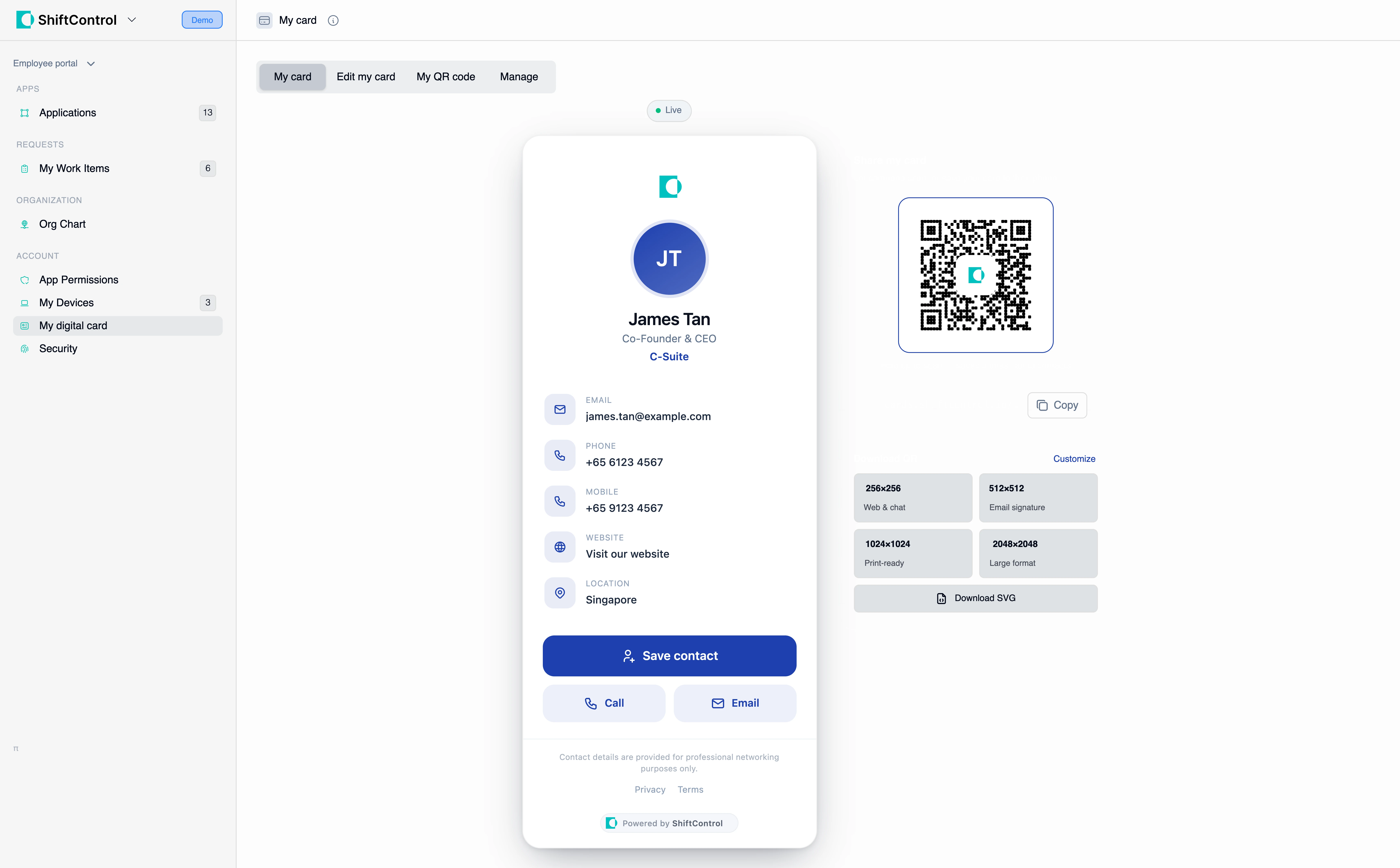
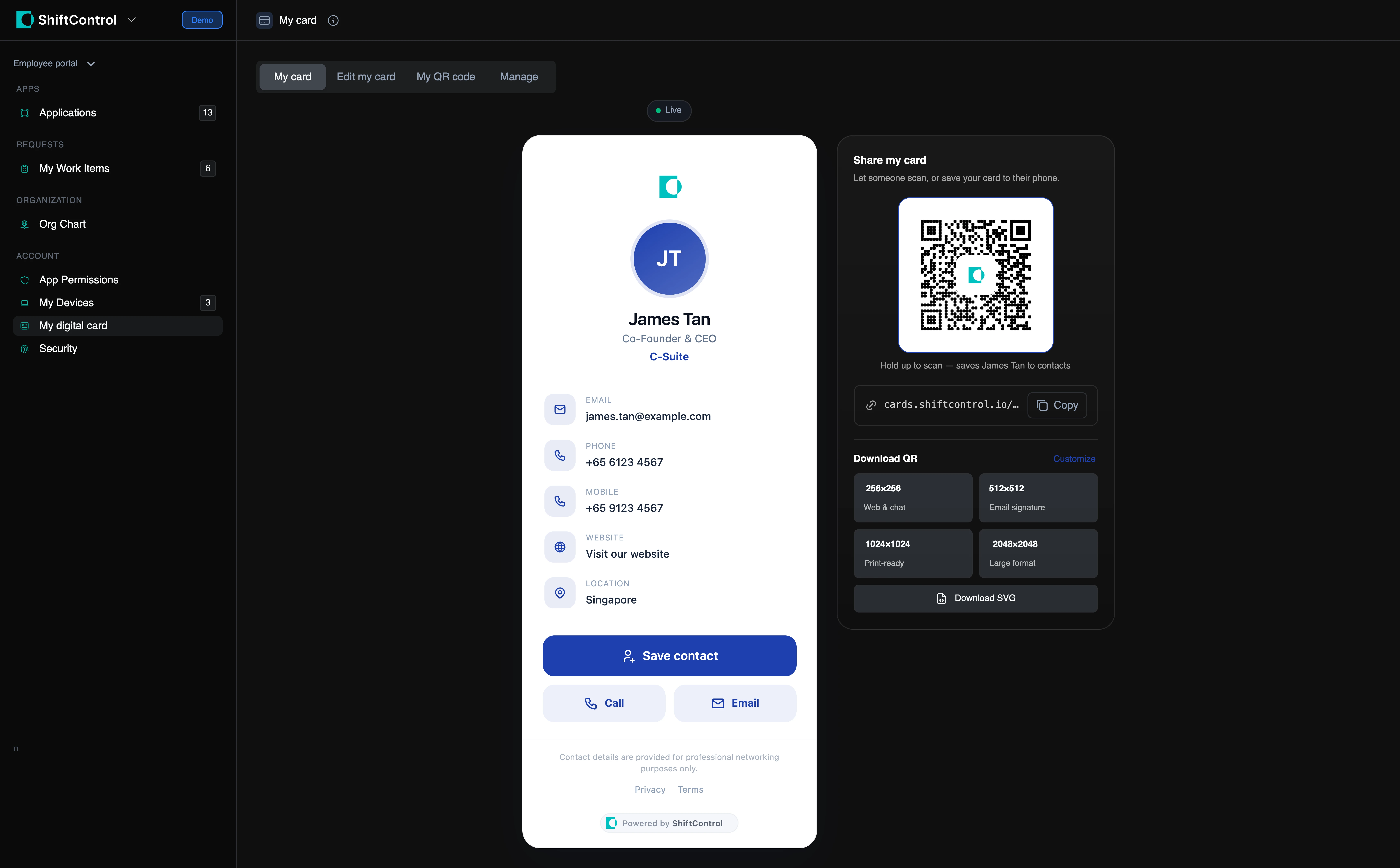
- Your card link — Copy puts it on your clipboard, ready for an email signature or a chat message.
- Your QR code — hold your phone up and someone can scan it to save you as a contact.
- QR downloads — four sizes, labelled for what they're good for: 256×256 for web and chat, 512×512 for an email signature, 1024×1024 print-ready, and 2048×2048 for large format. There's also Download SVG if whoever's doing your print work wants a vector.
- A status badge tells you whether the card is Live.
The card itself has Save contact, Call, and Email buttons — those are for the person you're sharing with, so they can save you to their phone in one tap.
On a narrow screen, a Share my card button opens a share sheet with the same QR code, copy-link, and downloads.
Edit my card
Your photo and details.
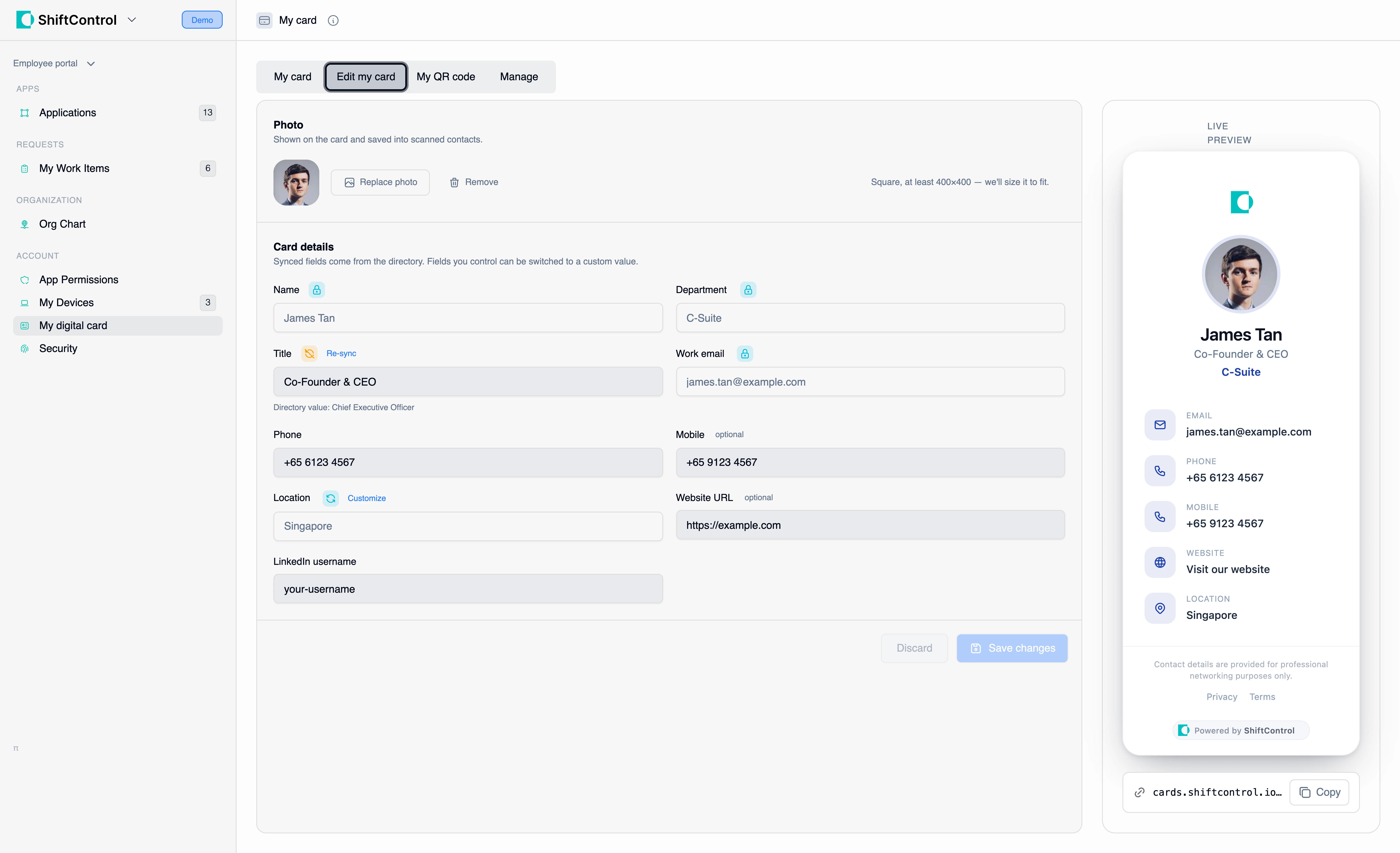
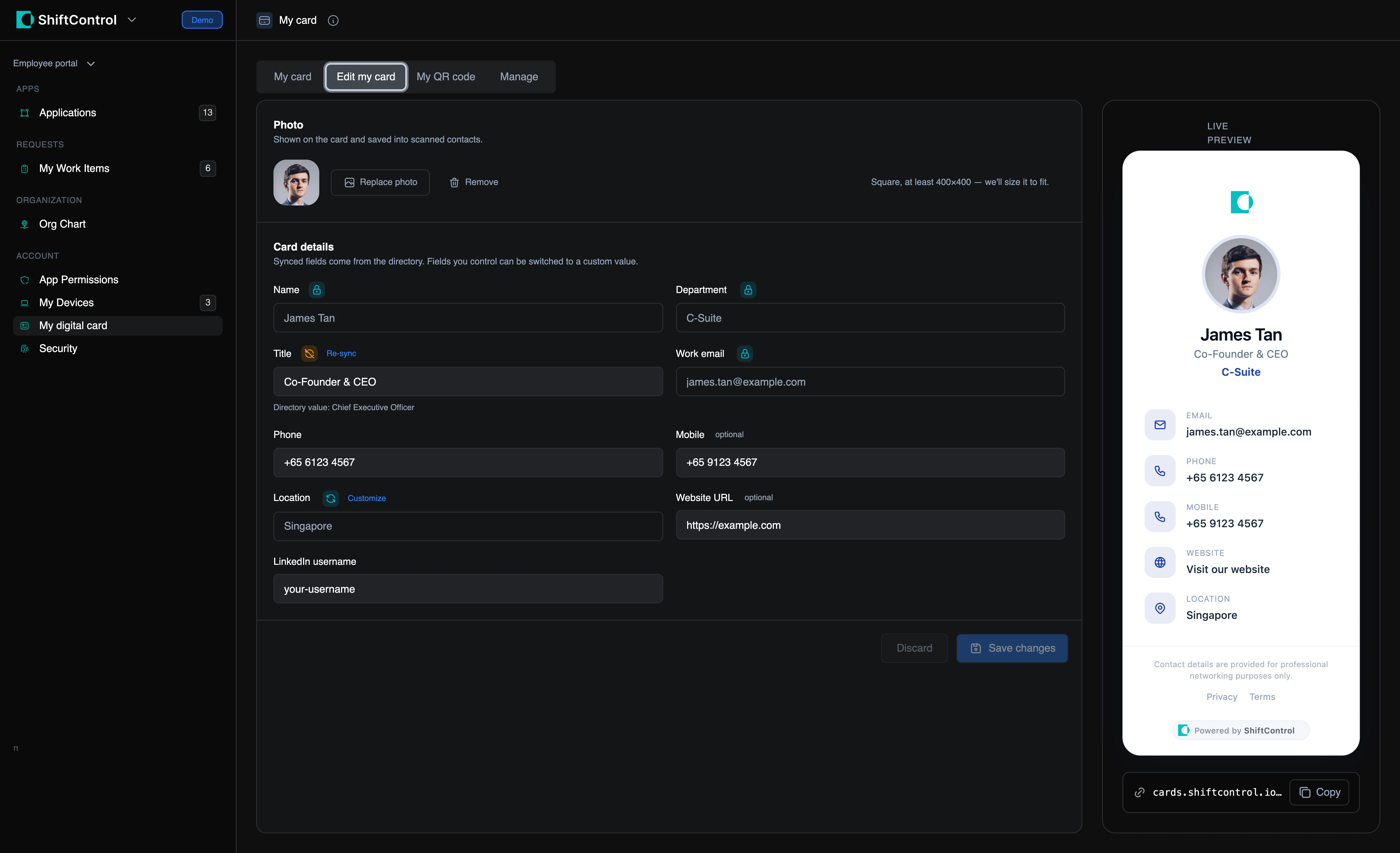
Photo — Replace photo uploads a new one, Remove clears it, and Reset to profile photo puts your directory photo back. Square works best, at least 400×400; it gets resized to fit.
Card details — what you can change here depends on how your admin set the card up:
- A field with a lock icon is controlled by your company. You can see it, but not change it.
- A field marked Synced comes from your directory profile. If you'd rather show something different, choose Customize — the field becomes yours to edit, and your directory value stays visible underneath for reference. Re-sync reconnects it.
- Everything else you can just type into. Fields marked optional are ones you can choose to leave blank.
Nothing is saved until you press Save changes. Discard throws away your edits.
If your directory says "Senior Manager, Commercial Partnerships" and you introduce yourself as something shorter, choose Customize on the title and set the version you actually use. It won't be overwritten the next time your profile syncs.
My QR code
Changes what sits in the middle of your QR code.
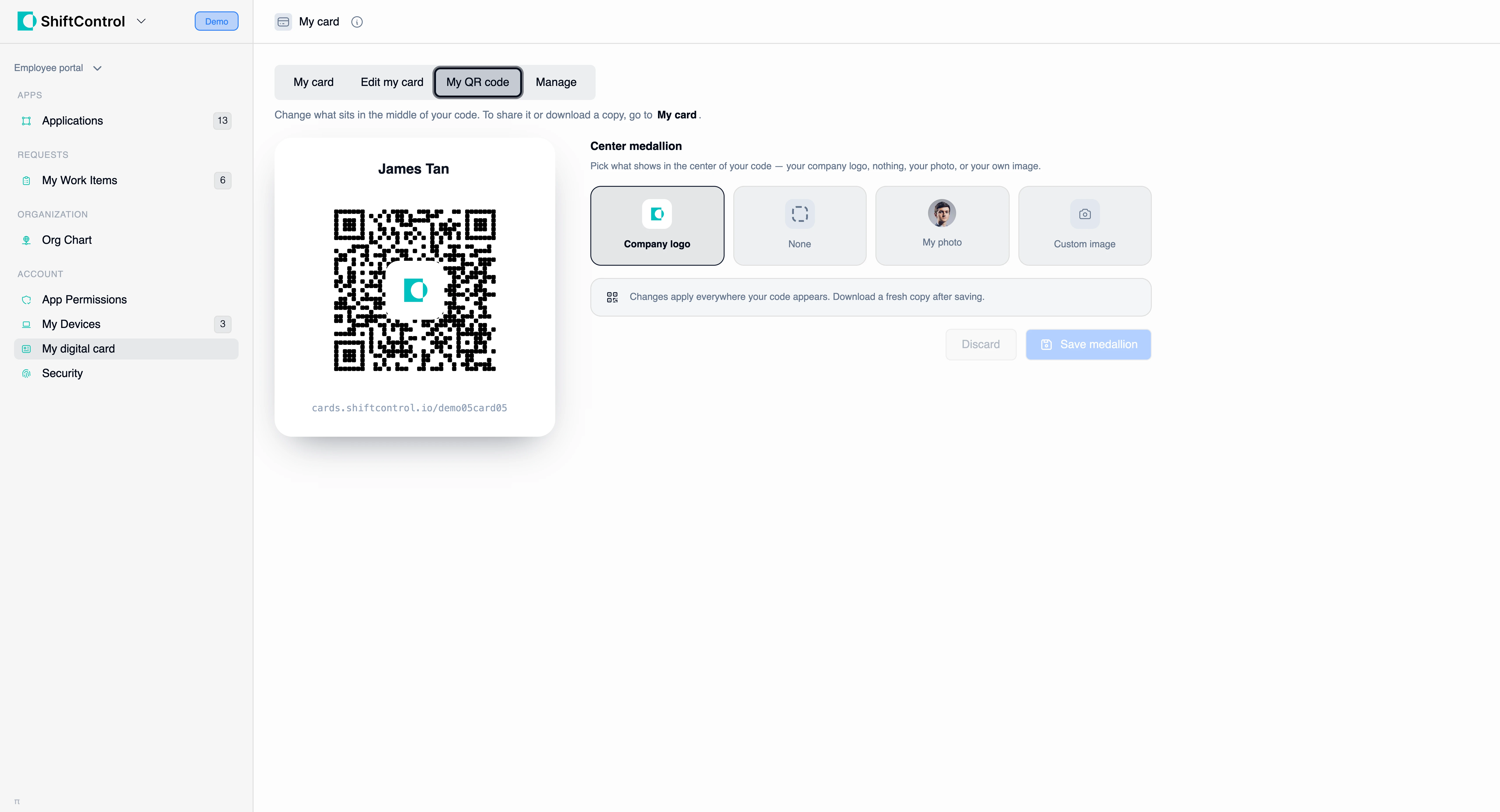
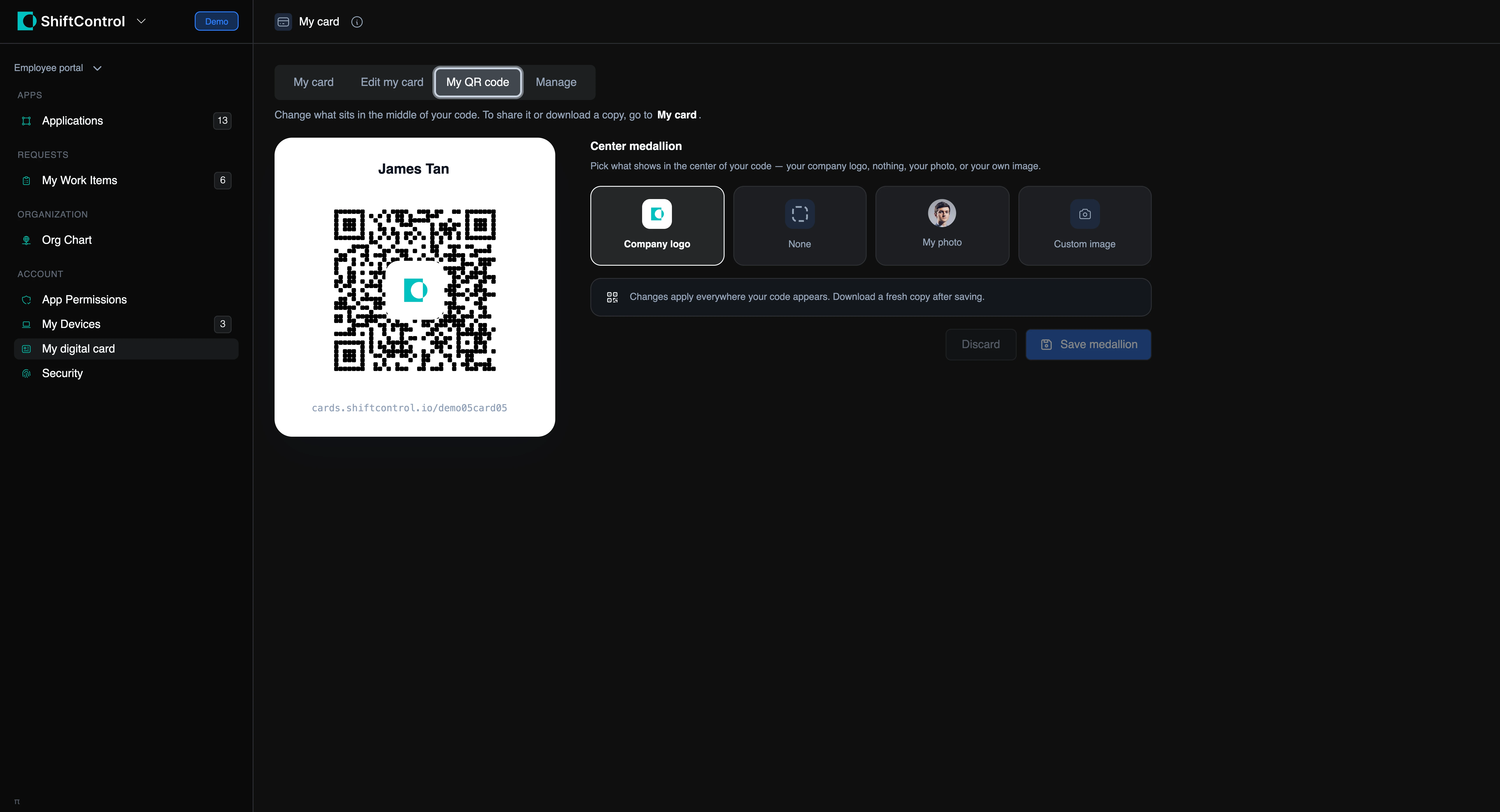
Pick Company logo, None, My photo, or Custom image and press Save medallion. Your company sets a default, but your choice wins.
The change applies everywhere your code appears, but a QR image you already downloaded still shows the old medallion. Grab a new download from the My card tab after saving.
Sharing and downloading live on the My card tab — this tab only changes the code's appearance.
Manage
Publishing and your card's PIN.
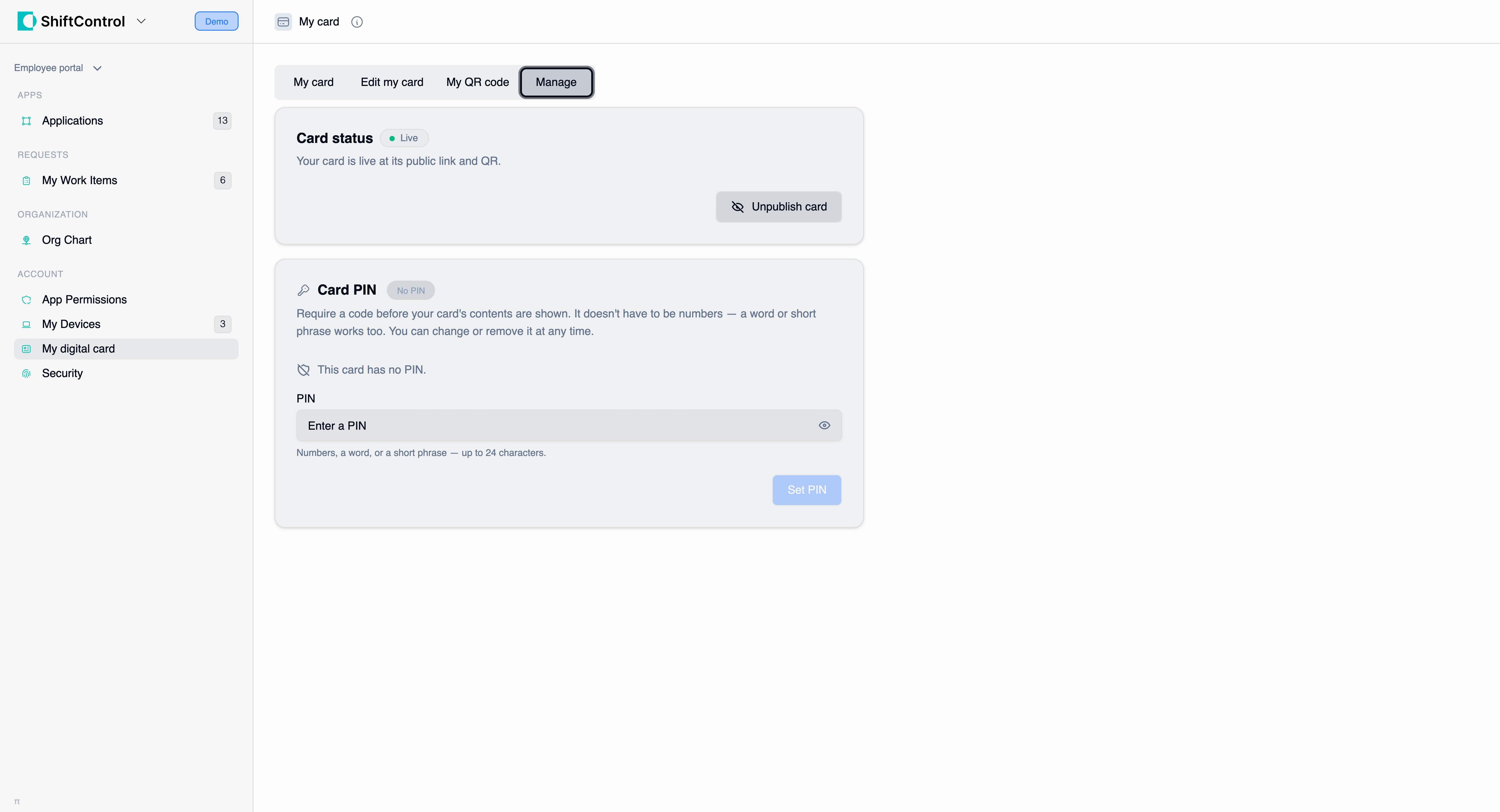
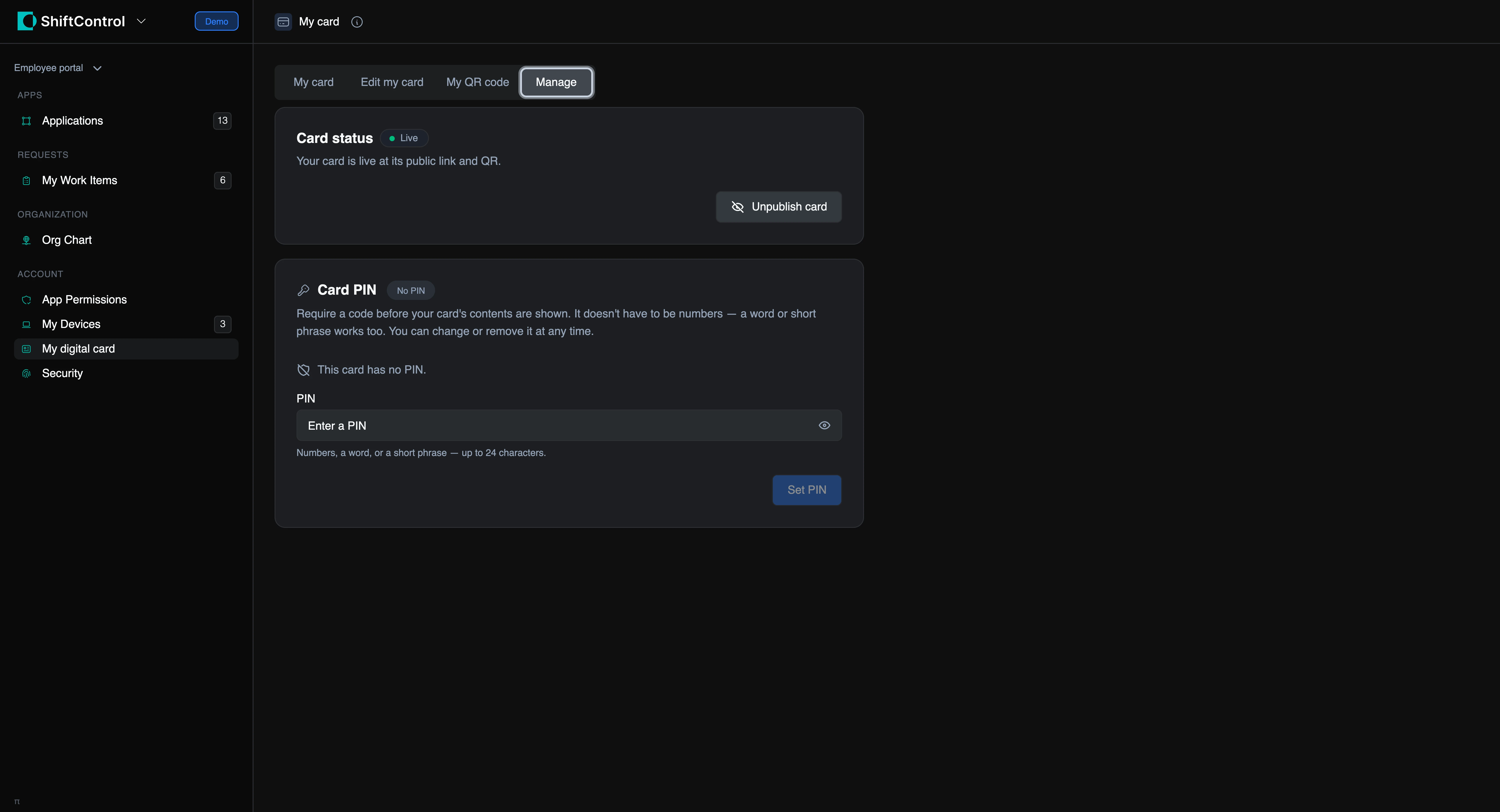
- Card status — whether your card is live, with a button to publish or unpublish it. Unpublishing takes the card off the internet without deleting anything, so you can publish again whenever you like. (Your admin can turn this off, in which case they control publishing.)
- Card PIN — require a code before your card shows its contents. It doesn't have to be numbers; a word or short phrase works, up to 24 characters. You can change or remove it at any time, and you can see the current value.
- Your card link — if your admin has allowed it, you can regenerate your link here. Most organizations keep this with admins.
Common questions
Who can see my card?
Anyone with the link. Your card link is long and random, so nobody can guess it or find your colleagues by changing the URL — and cards aren't listed in any public directory or indexed by search engines. But treat the link as public: anyone you give it to can pass it on.
If that's a concern, set a PIN on the Manage tab, or unpublish the card when you're not using it.
Can I have more than one card?
No — one card per person.
What happens to my card if I leave?
Your company sets that policy in advance. Depending on what they chose, your link will either show a neutral "no longer with the company" card, redirect to a company page, or stop working. Your admin may also apply a grace period first.
My title on the card is wrong
If the field is locked, your admin controls it — ask them to change it. If it's synced, either get your directory profile corrected or use Customize to set the value yourself.
Why can't I edit some fields?
Your admin locked them so that cards across the company always match the directory. It's not personal — name, title, and department are the usual ones.
I changed my photo but the card still shows the old one
Photo changes save with the rest of the form. Make sure you pressed Save changes on the Edit my card tab.
Related pages
- Your Apps — the applications you have access to.
- My Devices — the hardware assigned to you.
- Org Chart — who's who, and where you fit.
- Account Security — your sign-in and MFA settings.