Work Item Details
The detail panel keeps the owner, approvers, and watchers working from the same record instead of passing updates between tools.
Overview
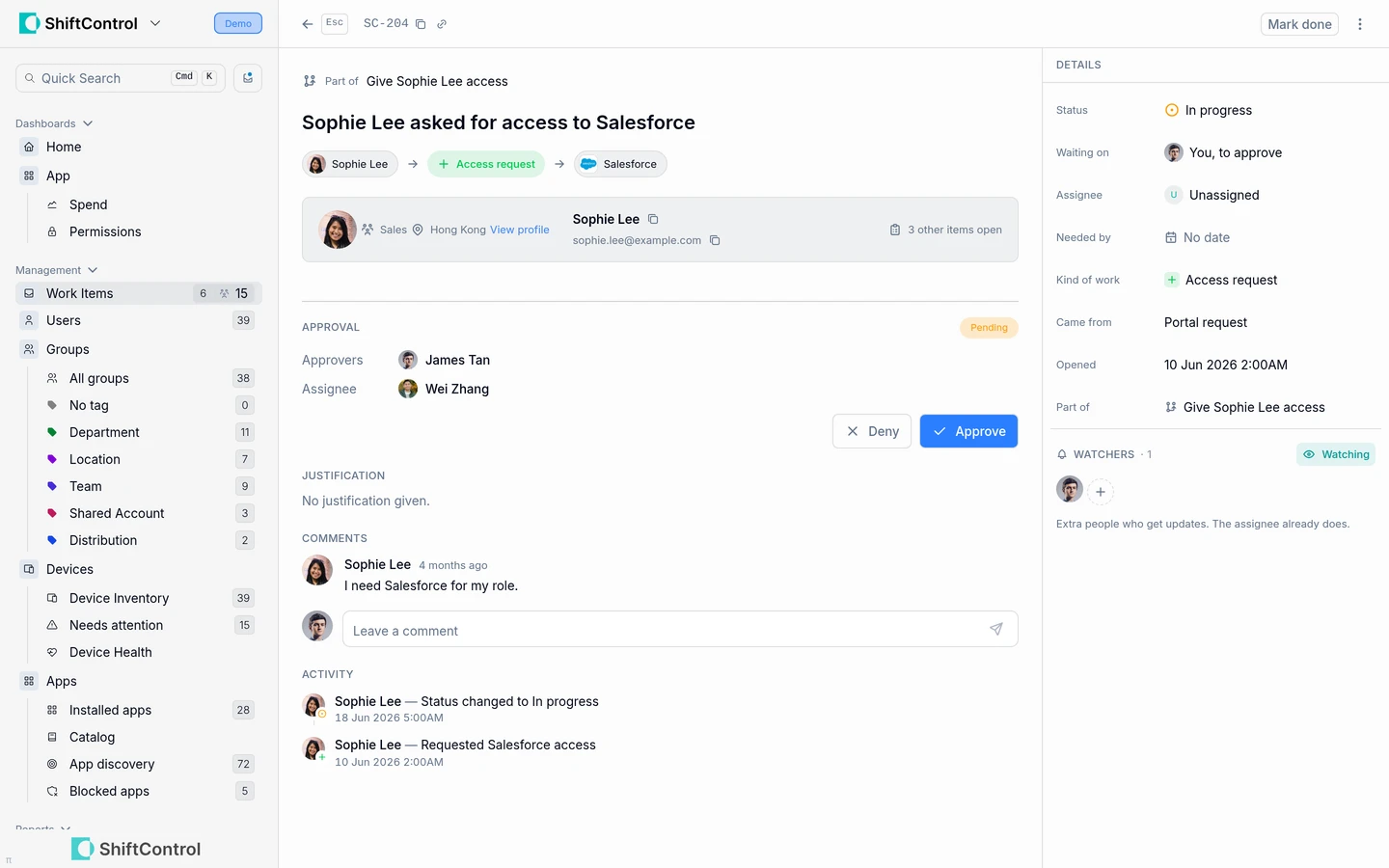
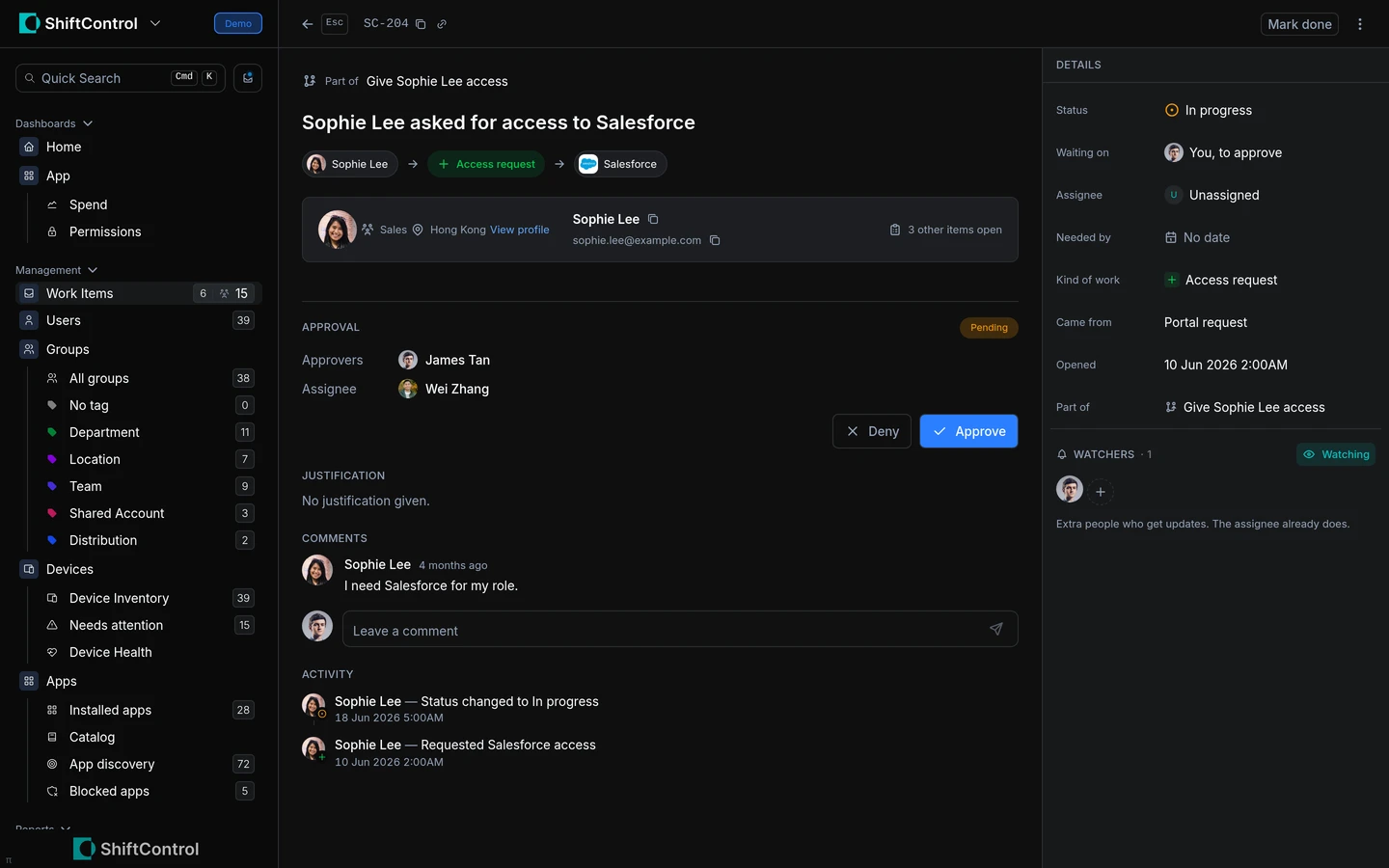
Open a work item from the admin queue or My Work Items to see its context and make an update. The panel brings the item's status, due date, notes, related steps, approval details, comments, watchers, and activity together.
How It Works
The item status shows whether the work is to do, in progress, blocked, done, or canceled. The Needed by date helps the owner plan when to finish it. Notes give the assignee a place to record what needs to happen or what they learned. Comments keep questions and handoffs with the item, while activity records changes such as a status update or request.
When an item has a parent, the panel links back to the larger work and shows its related steps. Each step can have its own owner and status. For approval requests, the panel shows the approver and the current decision state; fulfillment work is tracked separately from the request.
Common Scenarios
Record a blocker
If you cannot finish a setup step yet, update its status and add a note explaining what is missing. The next person who opens the item can see the context without asking you to repeat it.
Follow an approval through fulfillment
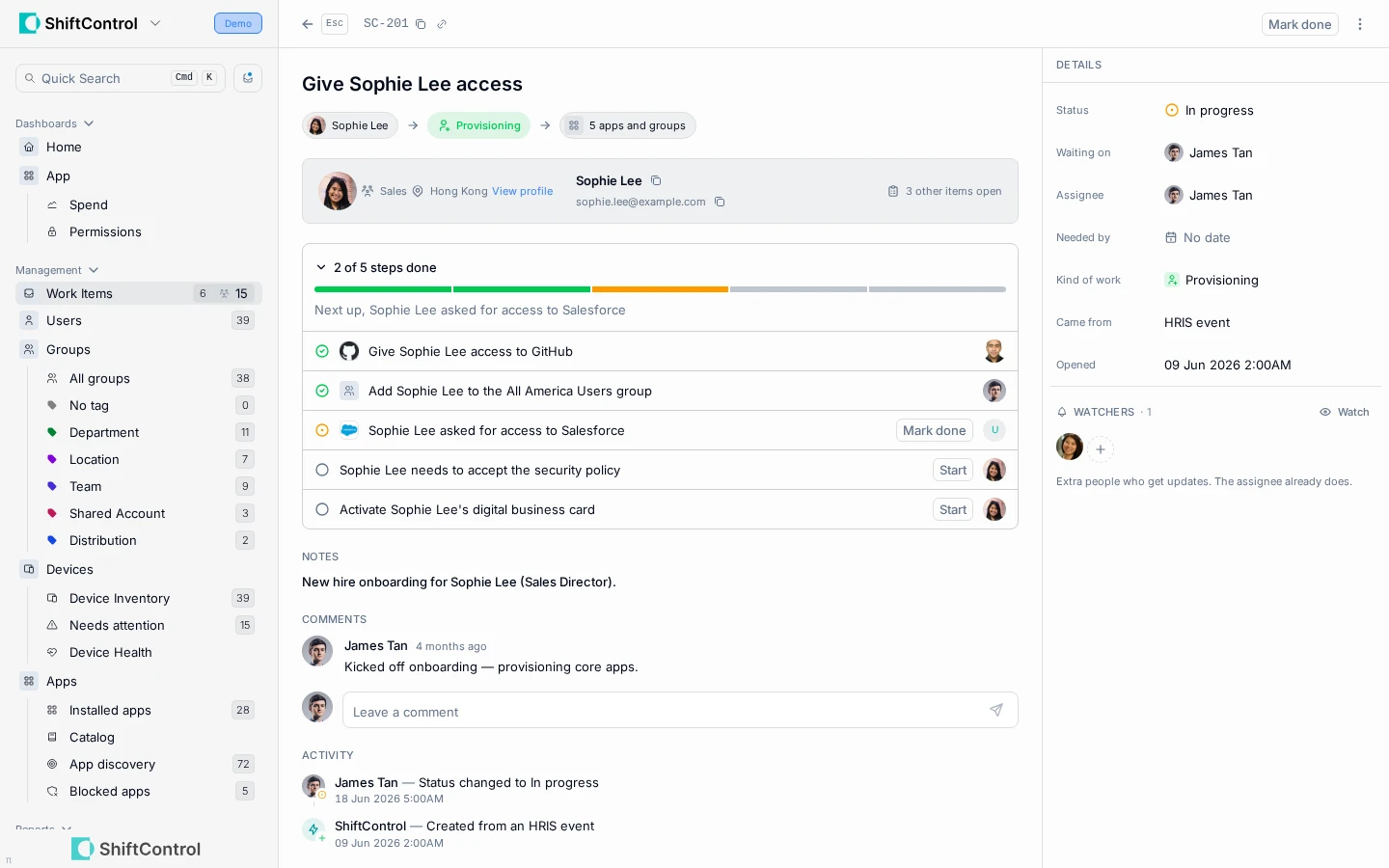
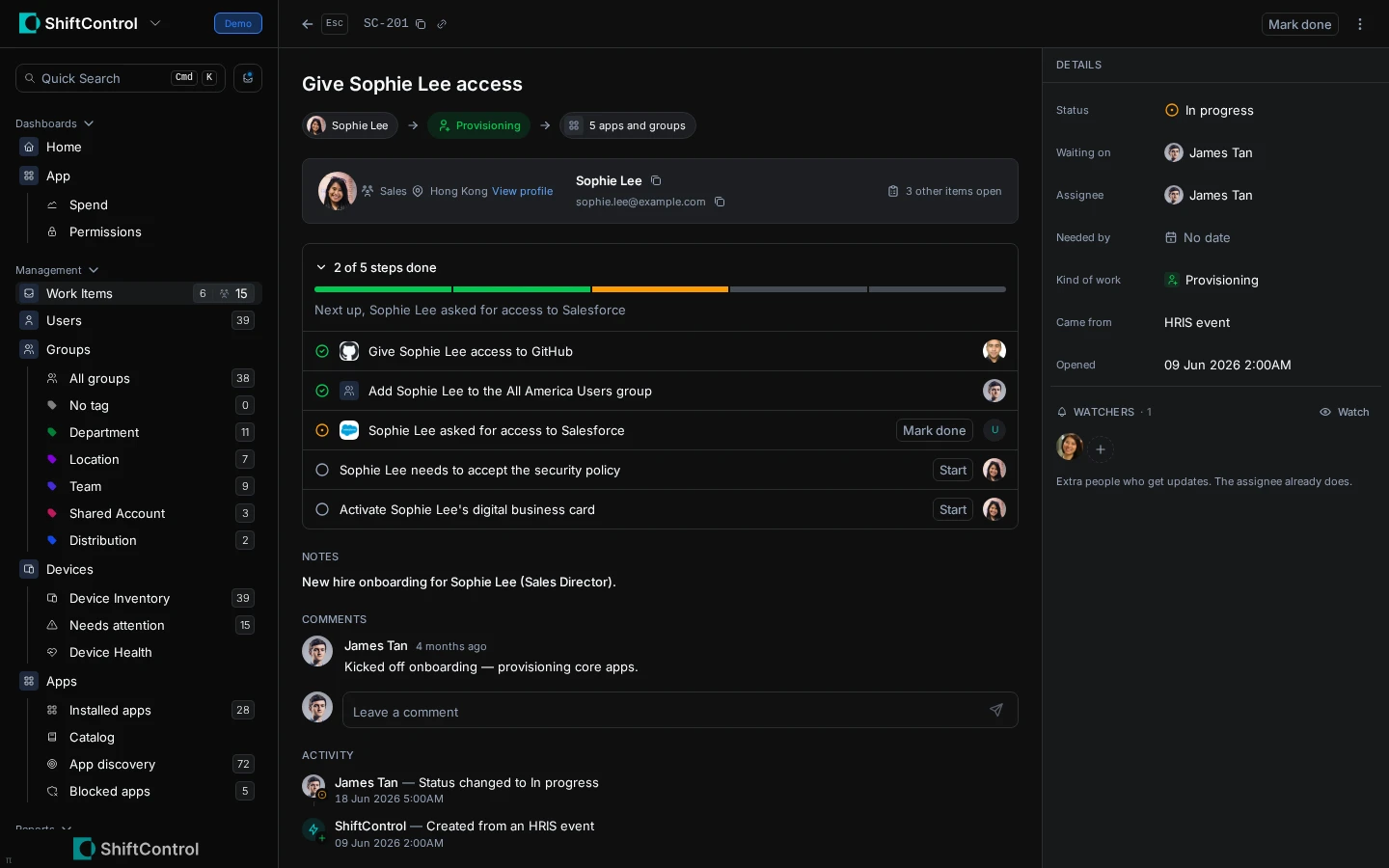
An approver can review the request details and decide it. After approval, the assigned person follows the fulfillment step and can comment or update status until the change is complete.
Step-by-Step Guide
- Open the item from the queue or My Work Items. Use the linked parent to understand how it fits into a larger request.
- Review its assignee, approval state, and Needed by date before changing the status.
- Add or update notes with the next action or relevant context; notes are visible to people who can access the item.
- Use comments to ask a question or describe a handoff. Add watchers when another person needs updates but is not the assignee.
- Mark the item done when the work is complete, or canceled when the work is no longer needed.
If you're an admin too
If you are assigned an item, you can find it in the admin My Work Items tab and in the employee-portal My Work Items list. The admin tab includes assignees only. If you are an approver but not the assignee, use All Work Items in the admin queue or open My Work Items in the employee portal.
Read-only admins and app admins can update status, edit notes on non-request work, and comment on their own assigned items from either surface. They cannot reassign the item, change its title or Needed by date, or manage watchers. An Owner or Admin with Work Items update permission can use those admin controls. Request justifications stay read-only.
Example: Sophie requests Salesforce
Sophie asks for access to Salesforce. Her manager approves, and Sophie receives an outcome email and continues to see the request in My Work Items. The Salesforce app admin receives the separate Give Sophie access to Salesforce fulfillment item, sees it in assigned work, and gets an action-required email with a one-tap Mark done link. The app admin grants access and marks the step done; the request closes when its fulfillment work is complete. Separately, some eligible SCIM-tracked access changes close automatically after a matching sync confirms the change.
Things to Know
- The actions you can take depend on your role and whether you are the assigned approver or work owner.
- Read-only admins and app admins can update and comment on items assigned to them from admin Work Items screens as well as the employee portal.
- Employees can update their own assigned items in My Work Items, but cannot reassign work or manage watchers there.
Related Features
- Managing Work Items — find items, change ownership, and use bulk actions.
- Approvals — learn how request decisions and fulfillment fit together.
- My Work Items — employee access to assigned work and requests.