Managing Work Items
Use the admin queue to find the right work, move it forward, or hand it to someone better placed to finish it.
Overview
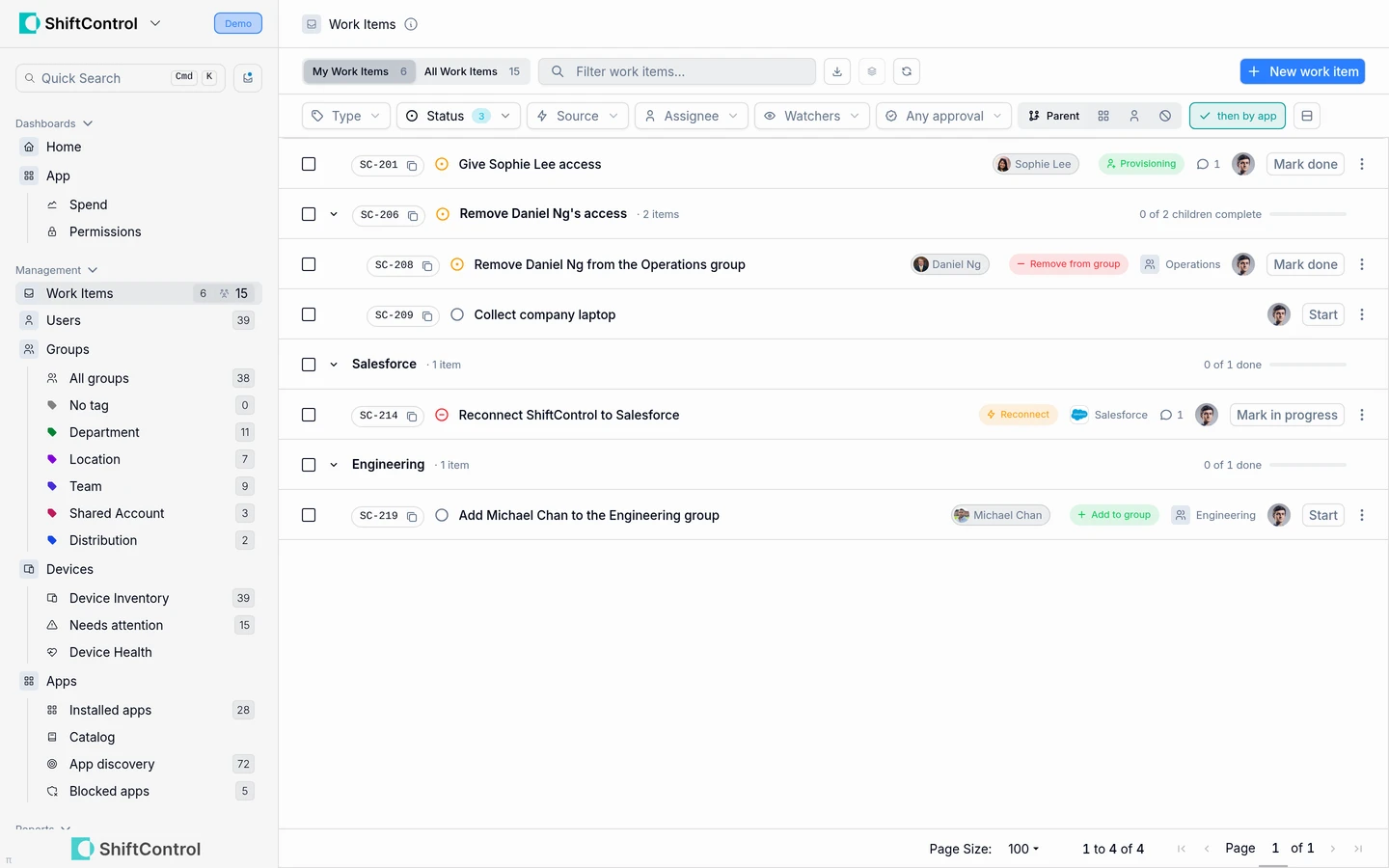
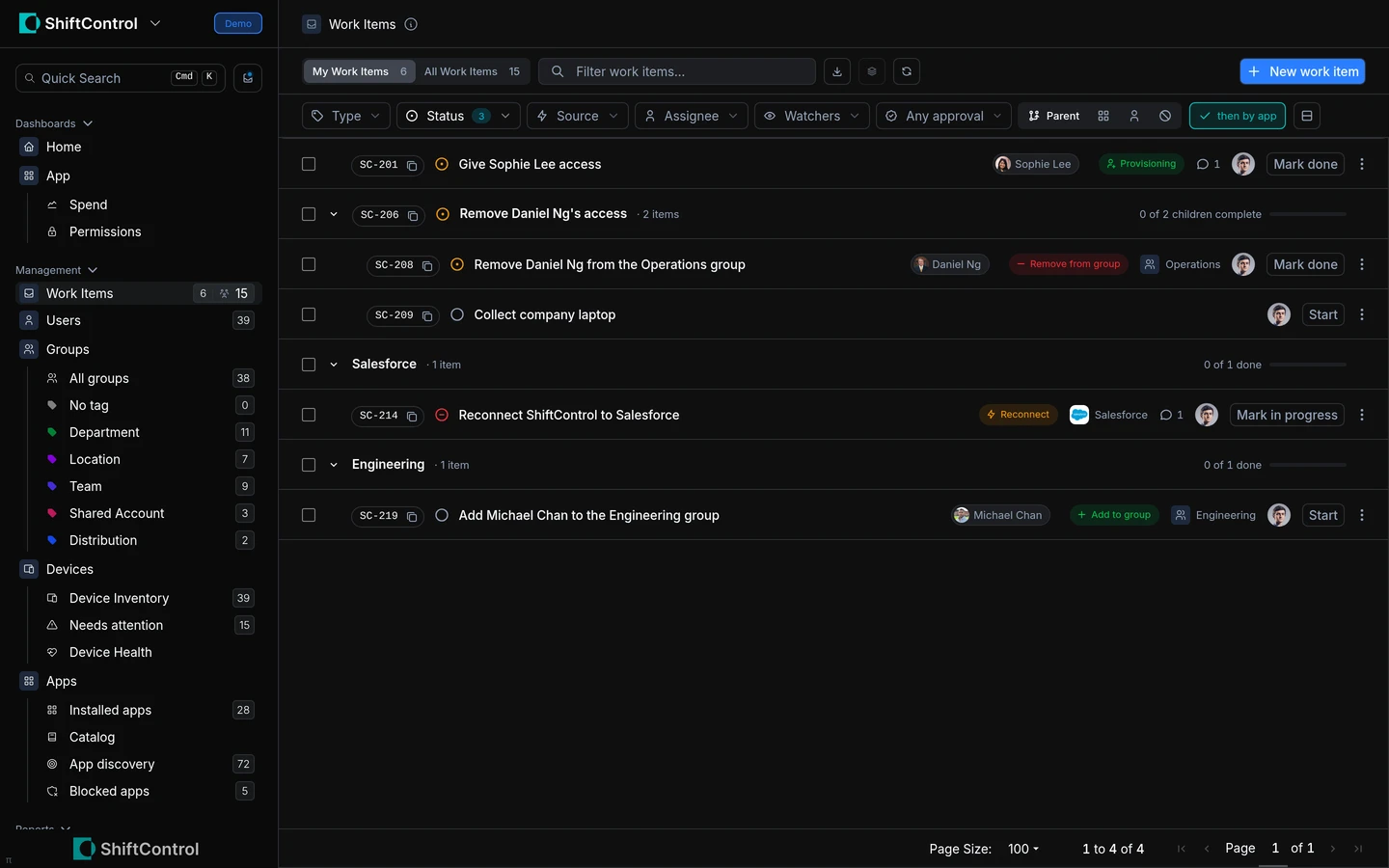
The Work Items list is the operational view for admins. Use My Work Items to focus on items assigned to you, or All Work Items to review open work across the organization.
How It Works
Filter by status, type, source, assignee, watchers, approval state, or parent. Group the list by app or parent item to see individual steps alongside the larger request they support. The column chooser controls which details stay visible in the grid.
My Work Items is scoped to items assigned to you; an approver-only item appears in All Work Items, not the assignee-only tab. Approval decisions are available to the current approver or an organization role with approval permission.
Filters and columns
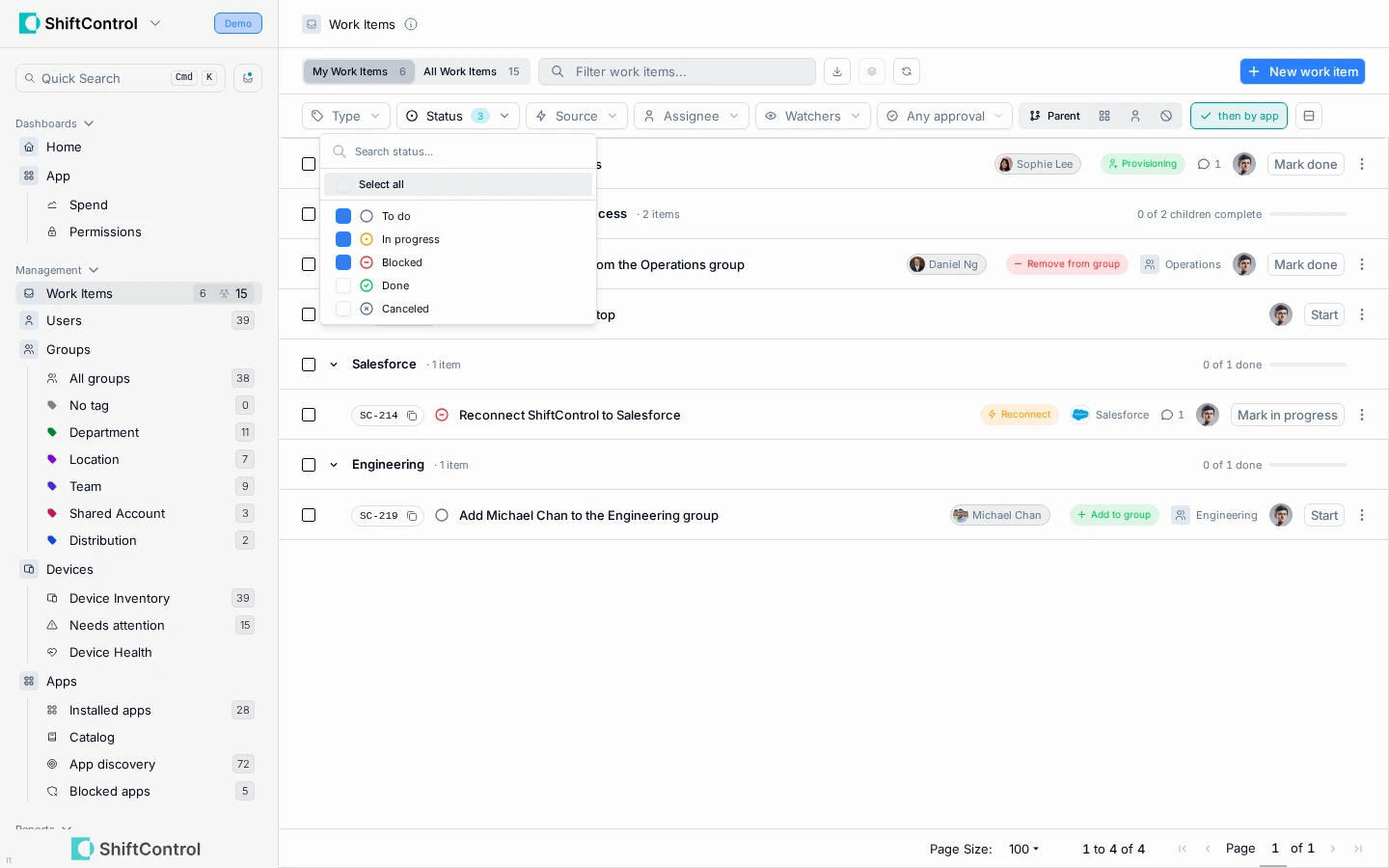
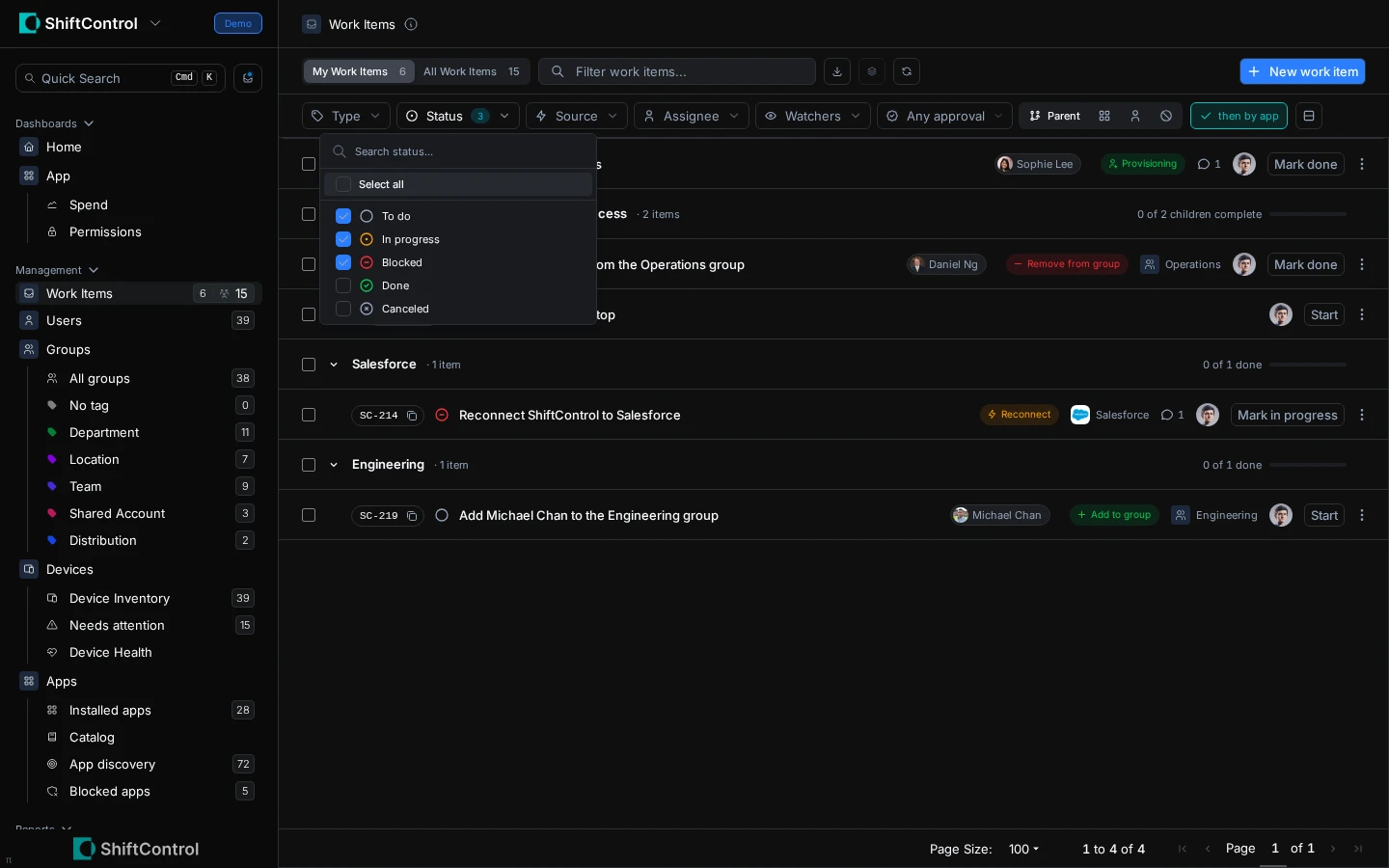
Type, Status, and Source are multi-select filters. Assignee and Watchers narrow the list to selected people. Approval filter values mean:
| Value | Meaning |
|---|---|
| Any approval | Do not filter by approval state. |
| Pending | An approval decision is waiting. |
| Approved | The approval flow completed successfully. |
| N/A | No approval state is attached to the item. |
A denied request is Canceled; Denied is not a separate Approval filter value. Filters combine across fields, while multiple values within one field match any selected value.
| Column | Meaning |
|---|---|
| Title | The work being requested or completed. |
| Key | The item's copyable organization key. |
| Status | To do, In progress, Blocked, Done, or Canceled. |
| Type | The kind of work, such as Access request or Grant access. |
| Assignee | The person responsible for the work. |
| Resource | The app or group involved. |
| User | The employee the work affects. |
| Source | How the item entered Work Items, such as a portal request or system event. |
| Approval | Pending, Approved, or N/A. |
| Created / Updated | When the item was created and last updated. |
When grouping rows, the grid also uses Event, App, Action, and Person group columns.
Row actions depend on the item's current status and your permissions. You can move eligible items between statuses, reassign work, or approve or deny a request when you are its approver. Select two or more rows to use bulk actions for status changes, approval decisions, reassignment, adding watchers, or changing due dates. Ineligible rows are skipped rather than given an action they cannot take.
Create an Admin Work Item
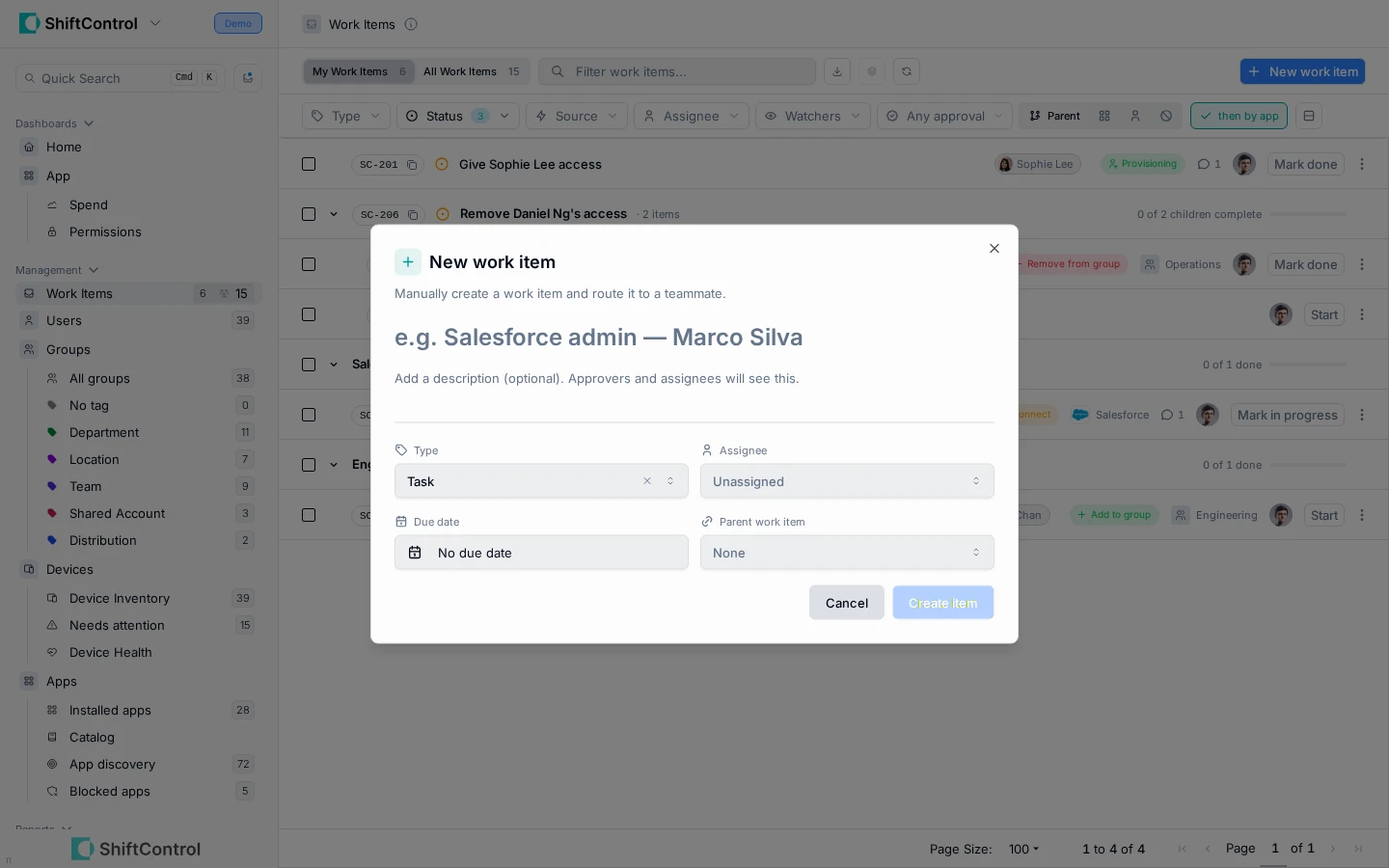
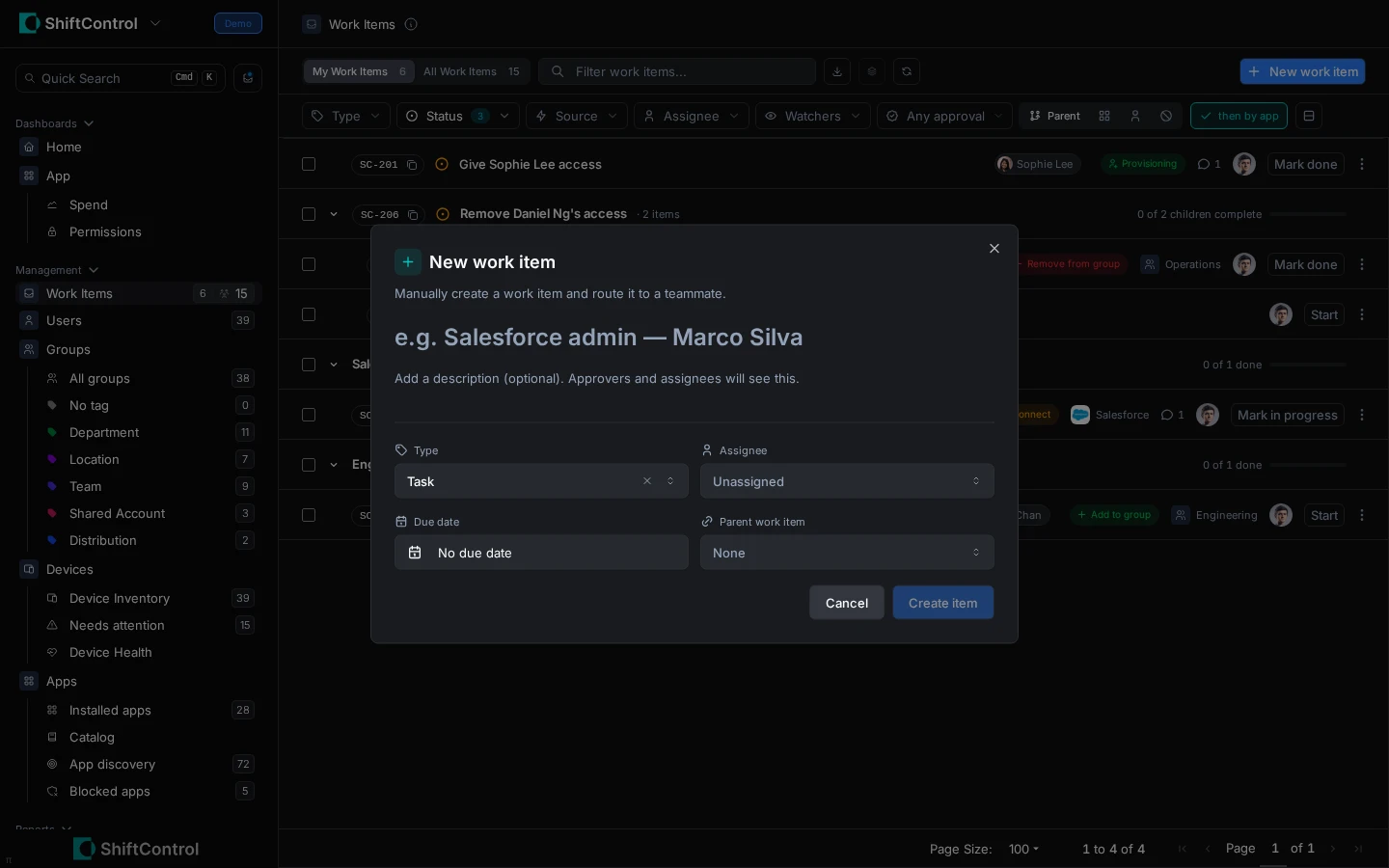
Use New work item when a piece of work needs an owner and a place in the queue even though it did not start as an employee request.
The type selector includes app access requests; app grants, revocations, and reviews; group additions and removals; user provisioning, enabling, disabling, and deprovisioning; policy acknowledgements; app reconnects and renewal reviews; contact checks; and general tasks. App-removal and group-membership requests are submitted from the employee Directory, while system-generated items such as ownership handovers are not available in this form.
- Choose a type and give the item a clear title. The type describes the work; the form only asks for target information when that type needs it.
- Add a description and due date when they will help the assignee plan the work.
- Choose an assignee and, if the task belongs to a larger effort, a parent item. Assigning an owner makes it clear who is expected to act.
- Create the item. It appears in the queue and its assignee can follow it in My Work Items.
Common Scenarios
Triage overdue or unassigned work
Filter the list to the relevant status and assignee, then group by parent to see whether an item is one step in a larger request. Reassign the item if another admin is now responsible.
Update several items after a review
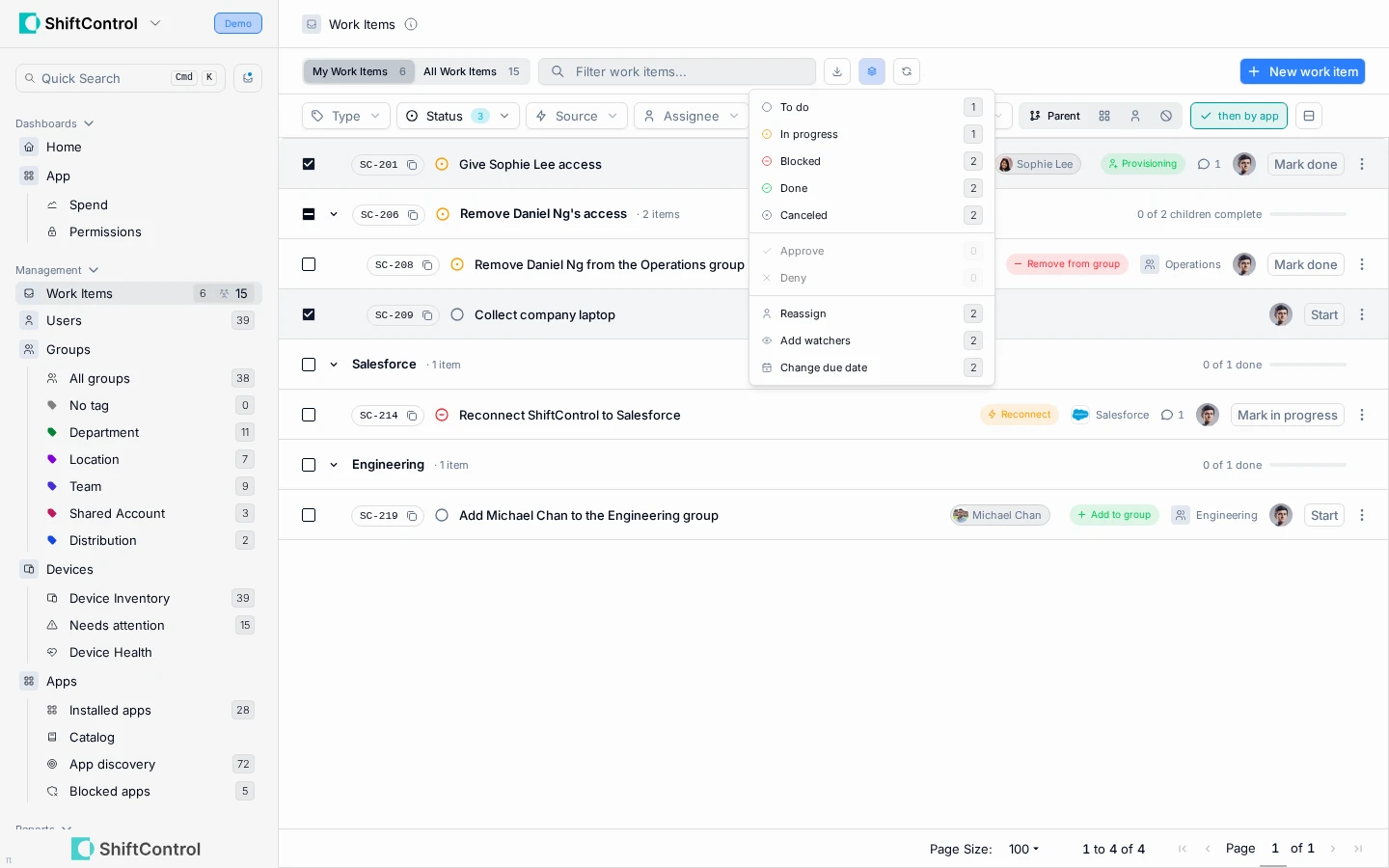
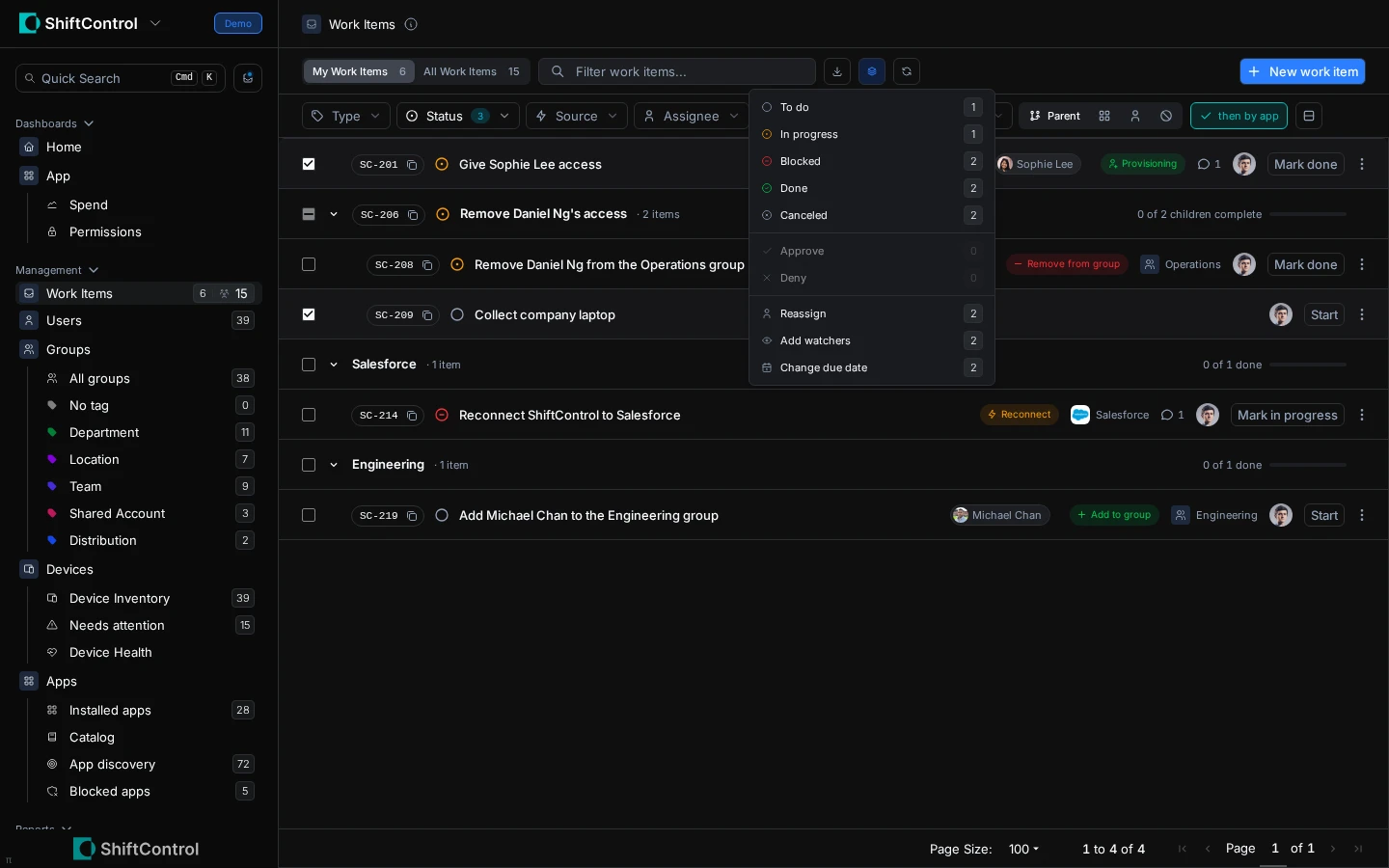
Select the items that need the same change and use a bulk action. Review the confirmation summary, which shows how many selected items are eligible, before applying it.
Step-by-Step Guide
- Open Work Items in the admin navigation and choose My Work Items or All Work Items.
- Set Type, Status, Source, Assignee, Watchers, or Approval filters before taking action.
- Choose an app or parent grouping to see related steps together.
- Use Start to move a To do item to In progress or Mark done when work is complete. To pause, set Status to Blocked and add a note; choose Mark in progress when you resume. Done and Canceled are terminal; there is no separate Re-open action.
- Use a row action for one item, or select several rows and choose a bulk action. Only actions allowed by the current status and your role are available.
- Open an item to review its full details before changing ownership or making an approval decision.
Things to Know
- Done and canceled items are excluded from the default open-work view; use the status filter to include them.
- Reassignment and approval decisions are permission-gated. A bulk action applies only to eligible selected items.
- Employees can update the status of their own assigned work, but they cannot reassign items or manage watchers from My Work Items.
Related Features
- Work Items Overview — understand item types, assignments, and feature settings.
- Work Item Details — work with notes, steps, comments, and activity.
- Approvals — understand request decisions and fulfillment.