Work Item Approvals
Approvals keep access decisions visible and connect the decision to the person responsible for carrying it out.
Overview
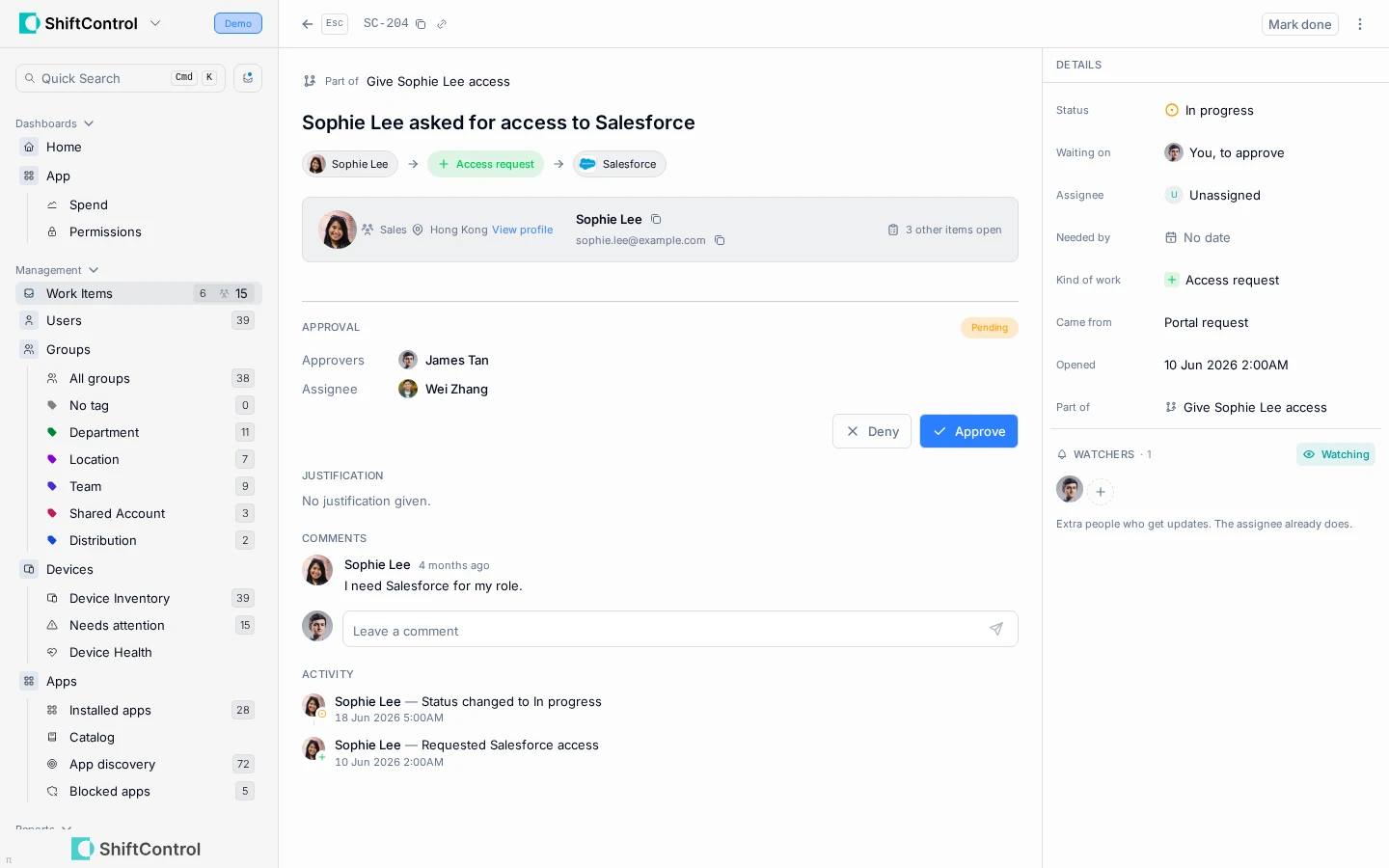
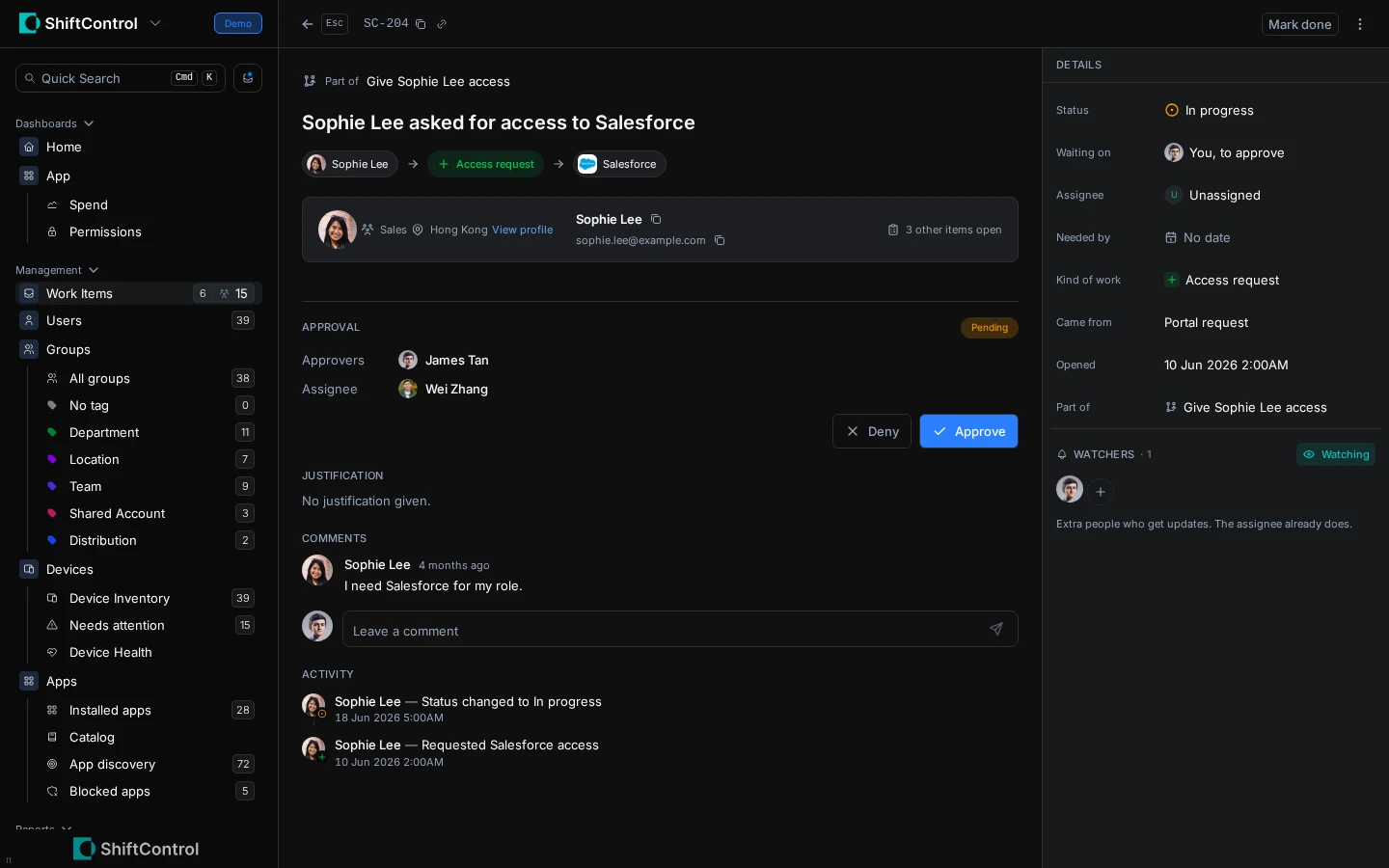
When someone requests app access, app removal, or group membership, ShiftControl records the request as a work item. The approver can review the context, approve or deny it, and leave a comment. If approved, the request moves to fulfillment rather than disappearing from view.
How It Works
Approval routing depends on the request:
| Request | Approver |
|---|---|
| App access | The requester's manager, then the app's primary admin, then the organization's Default admin. If there is no manager or app admin, the request falls through to the next option. |
| App removal | The app's primary admin; Default admin is the fallback if no app admin can decide. |
| Group join or leave | The organization's Default admin, if the group accepts requests. The group owner or manager is not the approval route. |
The request screen shows the expected approver before submission. If the requester is the organization's Default admin and nobody else can approve, the request is approved automatically. The confirmation reads, “You're the approver for this request, so it was approved automatically.” The activity history records the automatic approval.
An approver can choose Approve or Deny in the portal or use the email decision links without signing in. Decision links expire after 24 hours. Denying a request changes its status to Canceled, notifies the requester, may include the approver's comment, and cancels any pending child work.
Approval and fulfillment are separate work. An approved request remains visible to the requester while ShiftControl creates a fulfillment step. An approved app-removal request creates a separate access-revocation step, assigned to the app's primary admin or, if there is none, the organization's Default admin. The requester receives the decision outcome; the person assigned a step receives an action-required email. Some eligible SCIM-tracked access changes can close automatically after a matching sync confirms the change.
Common Scenarios
An employee without a manager requests an app
If the employee has no manager and the app has no primary admin, approval falls back to the organization's Default admin. Configure a default admin so there is a final approver.
An admin approves an app request
The manager reviews the reason and approves. The Salesforce primary admin receives a separate fulfillment item and action-required email. The admin grants access and marks the task done, unless connected provisioning closes it after the sync confirms the assignment. The request stays visible to Sophie until fulfillment completes.
Step-by-Step Guide
- Open the request from the approval email, the admin queue, or employee My Work Items.
- Check the employee, requested app or group, justification, and current approver.
- Choose Approve or Deny. Add a comment when the requester or next assignee needs context.
- After approval, follow the separate fulfillment item. Mark it done when the access change is complete, unless connected provisioning closes it automatically.
- Configure the Default admin at Settings → Organization → Product configuration → Work Items to provide a fallback approver.
Things to Know
- A requester cannot decide their own request. If the requester is the Default admin and no other approver is available, ShiftControl auto-approves the request and records that event in activity.
- An organization role with approval access can decide requests across the organization. Otherwise, only the named approver for the current stage can decide.
- App removal and group membership requests are tracked as work items too; an employee can follow them in My Work Items.
- Each approved app request leads to one setup task. An employee can't request an app they already have or one whose access is already being set up. If a setup task for the same person and app is already open when a request is approved, ShiftControl doesn't create a second one: the request closes against the existing task.
- Email notifications are configured at Settings → Organization → Product configuration → Work Items. The Send work item email switch controls digest delivery; Minutes between emails sets the per-person cooldown.
Related Features
- Work Items Overview — enable the feature and set the default admin.
- Work Item Details — review approval and fulfillment activity.
- Directory — employee app and group requests.