Omni HR
Connect Omni HR to ShiftControl and make HR data your single source of truth for user management.
Overview
The Omni HR connector allows you to connect your Omni HR system to ShiftControl, enabling HR data to become the single source of truth for user management across your organization. This connector is particularly valuable for our Asia-based customers, as Omni HR ships no native IdP connectors.
Why It Matters
- Single Source of Truth: Turn Omni HR into a single source of truth for identities—no more manual spreadsheet uploads
- First Seamless Path: ShiftControl delivers the first seamless path from HR to downstream apps for Omni HR users
- Automated Lifecycle Management: Automatically handle user provisioning, updates, and deprovisioning
- Streamlined Operations: Eliminate manual data entry and reduce human error
Key Features
- Full-Field Synchronization: Manager, department, start date, and every other key attribute flow straight into ShiftControl
- On-Demand Sync: Don't want to wait for the hourly update? Simply go to the actions menu for the connector and click "Refresh data" to start a new sync
- Pre-Start Provisioning: Five days before a new hire's start date, we silently enable the account so Gmail, Calendar, and Docs are ready without sending the welcome email
- Automatic Status Management: Automatic disable/re-enable keeps your roster accurate and compliant
How It Works
ShiftControl polls Omni HR hourly to spot new hires, role changes, and departures. The connector automatically detects and processes changes, ensuring your user data is always up-to-date across all connected systems.
Getting Started
Step 1: Create an Omni HR Report
Before setting up the connector in ShiftControl, you need to create a report in Omni HR that exposes the employee fields required for the connector:
Prepare a user account for API access
- We recommend a dedicated Omni HR user that can run the report you create below
- The user must sign in to Omni HR with a username and password: accounts that only sign in through SSO or one-time codes cannot be used
- ShiftControl signs in once with these credentials to create a Personal Access Token named "ShiftControl", then uses only that token
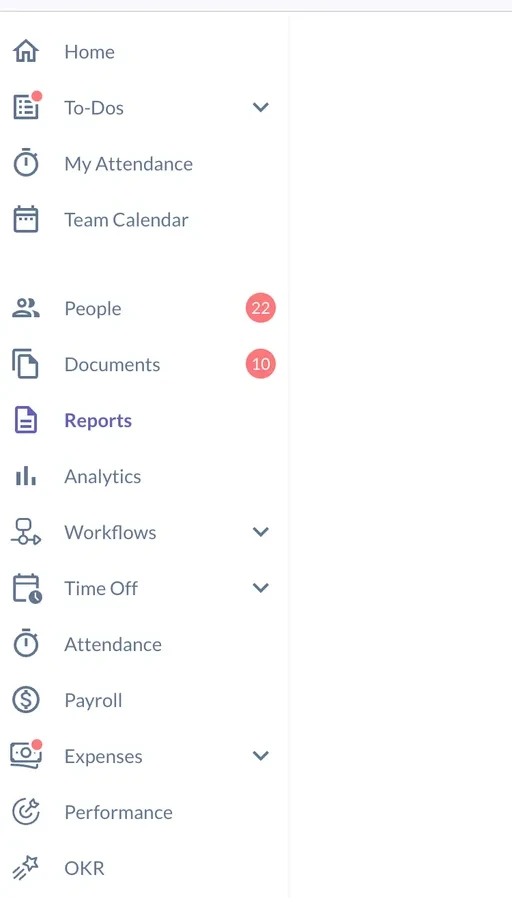
Navigate to Reports in Omni HR
Access the Reports section in your Omni HR dashboard
Create a custom report
Click on the option to create a new report
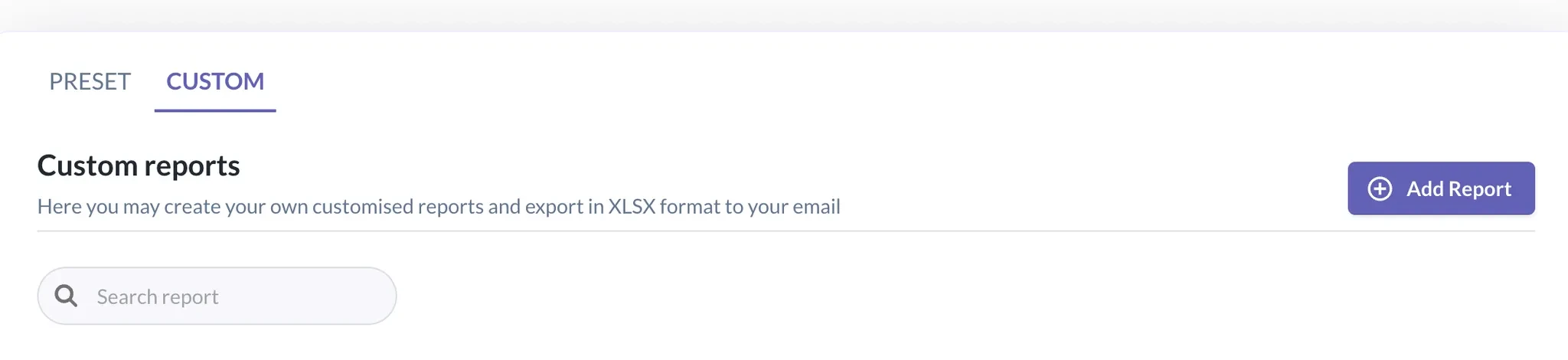
Set up the report
- Click on
Add Report - Click on
master report - Use the interface to select the fields you need for the report
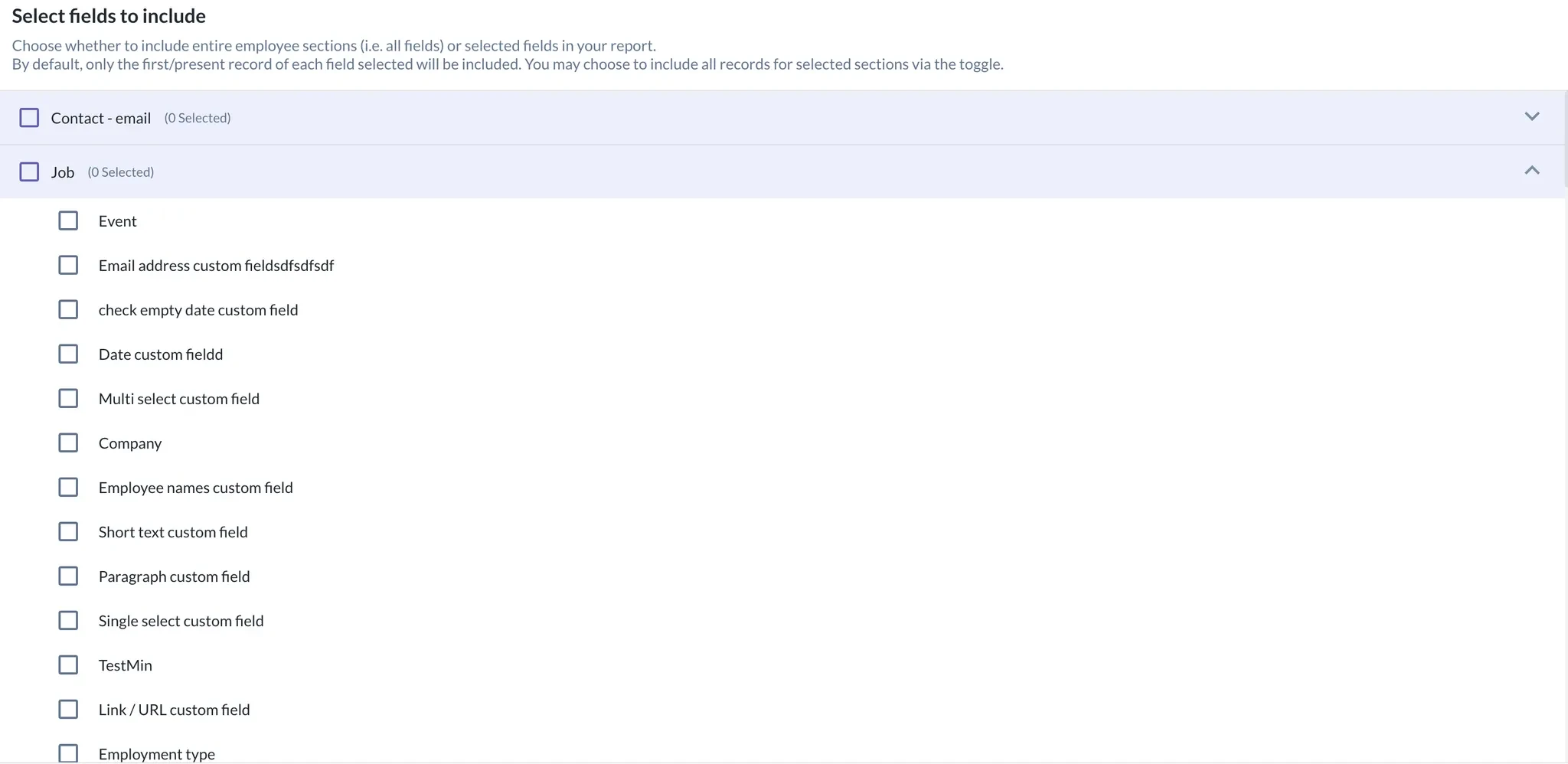
Do not choose custom fields as they are not supported at the moment.
Include required fields
Make sure to include the following required fields in your report:
| HRIS Field | ShiftControl Field |
|---|---|
| Basic->Preferred name | N/A |
| Basic->Employee ID | N/A |
| Contacts - email->Email (Work) | |
| Employment->Start date | N/A |
| Employment->Last day of work | N/A |
| Employment->Status | N/A |
| Job->Company | company |
| Job->Department | department |
| Job->Position | jobTitle |
| Job->Location | location |
| Job->Employment type | N/A |
| Team->Manager | manager |
Even though we don't map every field, we still require them to be present in the report so we can determine the appropriate actions to take for each user.
Create the report
After selecting all required fields, create and save the report
Get the report ID
Contact the support team to obtain the unique ID for your report
Step 2: Add Authorization in ShiftControl
Once you have created the report in Omni HR and have obtained the report ID, you can set up the connector in ShiftControl:
Add the Omni HR App
Navigate to Integrations → Omni HR and select "Add Authorization"
Provide Credentials
Enter the following credentials:
- Username & Password: the dedicated Omni HR user you prepared
- Omni HR Domain: the subdomain only, e.g.
acmeif your URL is https://acme.omnihr.co - Custom Report ID – the ID of the report you created in the previous step
Authorize the Connector
Click "Authorize". ShiftControl signs in once, creates a Personal Access Token named "ShiftControl" with no expiry, checks the report, and stores only the token. Your password is not stored.
Monitor Synchronization
ShiftControl will begin synchronizing with Omni HR automatically
How Authorization Works
- One-time sign-in: When you connect, ShiftControl signs in with the username and password once to create a Personal Access Token named "ShiftControl"
- Token-only sync: Hourly and on-demand syncs use only the token. The password is never stored
- No expiry: The token is created without an expiry date
Revoking Access
To disconnect ShiftControl from Omni HR, delete the token named "ShiftControl" in the user's Personal Access Tokens settings in Omni HR.
Once the token is revoked, syncing stops and ShiftControl shows a "Reconnect Omni HR" task. Reconnecting signs in again, creates a fresh token, and removes the old one.
Benefits
- Hands-Off User Management: Eliminate manual user creation and management tasks
- Smoother Onboarding: New employees have access to necessary systems before their start date
- Tighter Security: Proper deprovisioning when employees leave, and a revocable access token instead of a stored password
- Data Accuracy: Ensure consistent user information across all systems