Locations
Manage your organization’s locations for better structure, visibility, and automation.
Overview
The Locations page under Org Settings allows administrators to define and manage the list of organizational locations such as offices, regions, or countries. Locations can be automatically synced from your HRIS integration or added manually. They are used throughout ShiftControl to associate users, apps, and groups with specific physical or operational sites.
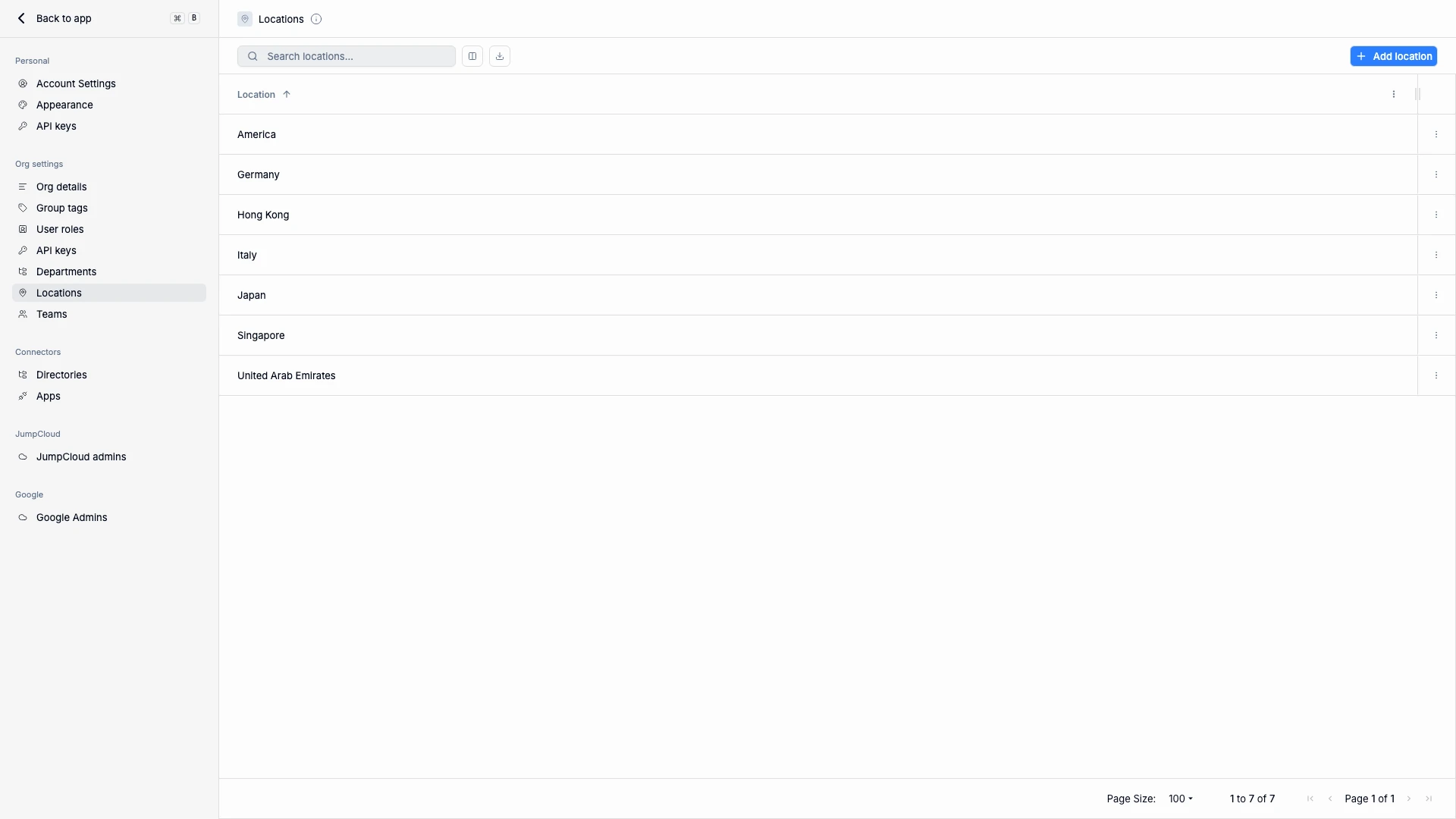
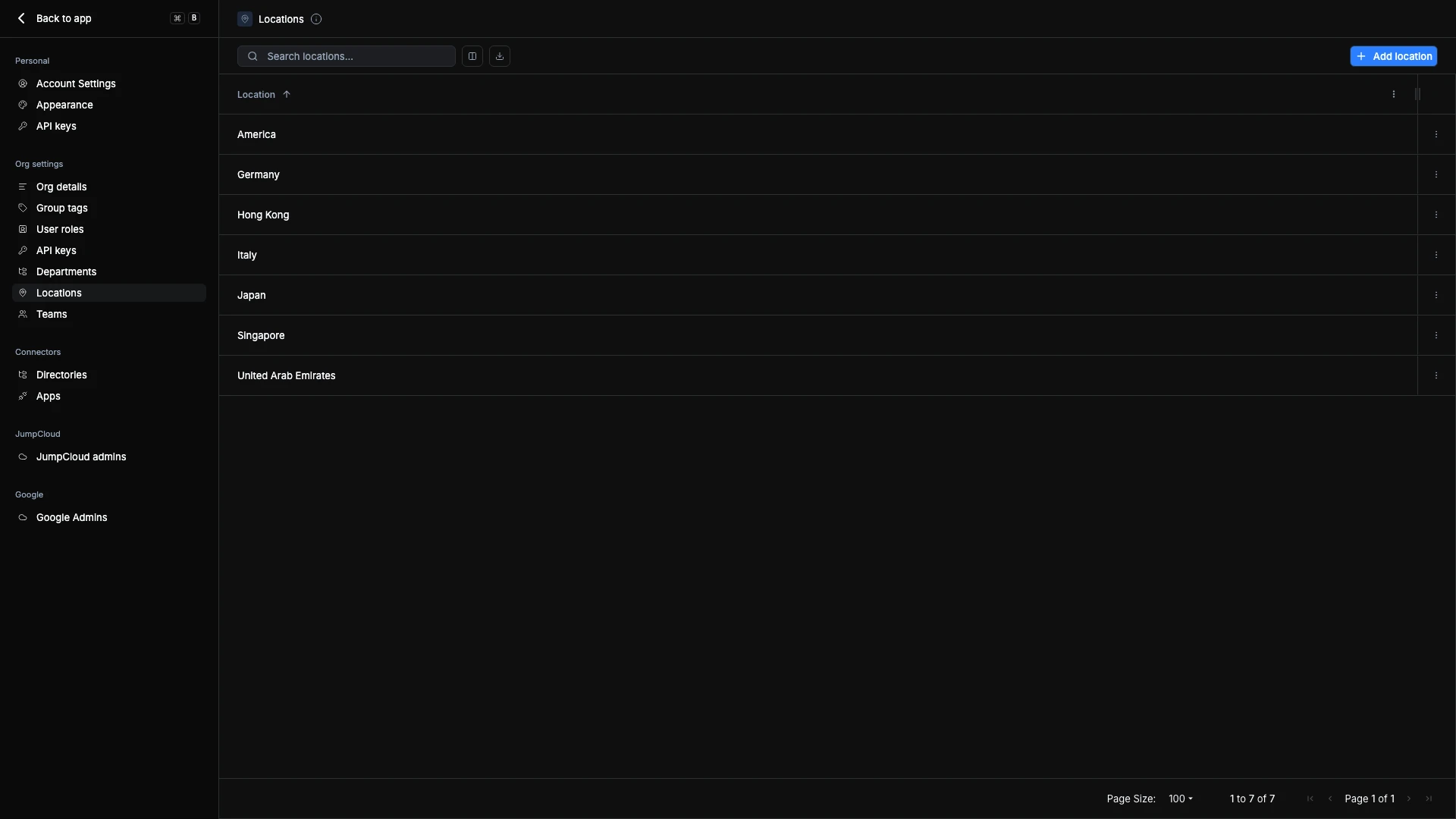
Each location also has a Timezone column. Org default means the location has no time zone of its own and uses your organization's time zone — see Time Zones and HRIS Offboarding.
Each row shows its group and its headcount — the icon next to a name means a group is linked to that location, and the number beside it is how many people currently match. A location with people and no icon never got its group; a group with a count of zero has a rule that isn't matching anyone.
Syncing with HRIS Integrations
When an HRIS integration is active, locations are automatically created and synced from your HR system. This ensures that the office and region data in ShiftControl always match your source of truth.
Even when HRIS syncing is enabled, you can still rename or add locations manually — ShiftControl maintains the correct internal mapping.
Using Locations in ShiftControl
Locations are used to help segment and organize users, apps, and access controls across your organization. You’ll find them in several key areas:
- User Profiles – Assign each user to a location for context, reporting, and visibility.
- Dynamic Group Rules – Automatically group users by location for easy management and access policy enforcement.
- App Ownership – Use locations to specify where an app is deployed or primarily used.
- Reporting and Governance – Filter user or app data by location for audits or analytics.
When a new location is created, ShiftControl automatically creates a Location Group, tags it as a Location group, and assigns a dynamic rule so membership updates automatically as users are assigned to that location.
Creating or Editing a Location
To add or modify locations manually:
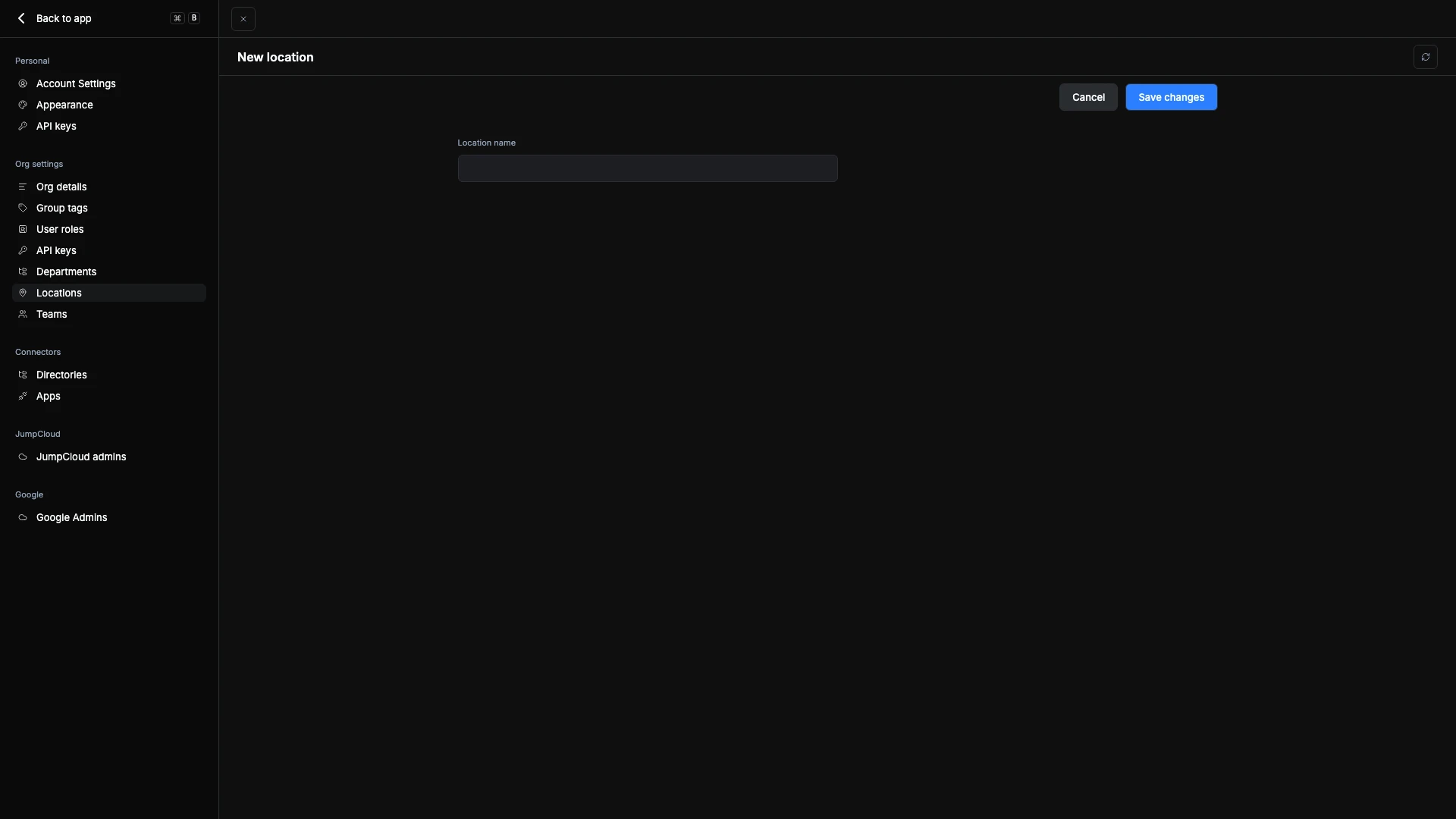
- Click Add location at the top right of the page.
- Enter a Location name (e.g., Singapore, United States, Germany).
- Leave Time zone on Detect automatically to let ShiftControl work it out from the location name, or pick a time zone from the list. The time zone decides when HRIS offboarding runs for people in this location.
- Under Group for this location, choose Create a new group, Link an existing group, or No group.
- Click Save changes to confirm.
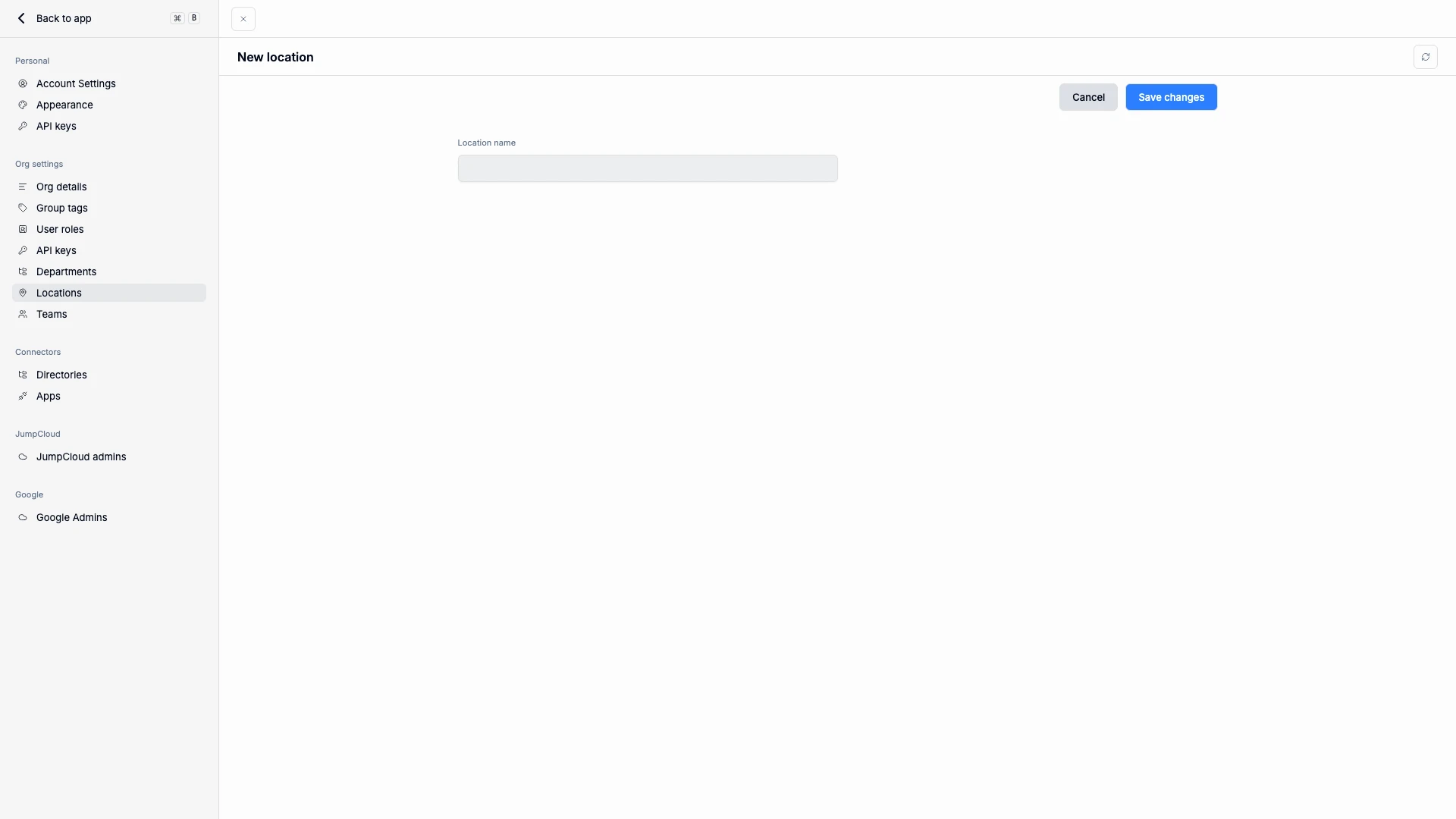
You can also edit existing locations using the ⋮ menu next to each entry — including changing the time zone and linking, unlinking, or relinking the group behind it. The edit form shows the location's current time zone, or Org default with your organization's time zone in brackets when it has none. When renamed, any linked users or dynamic groups remain associated automatically, and the group's email address updates to match the new name.
Location-based groups are dynamic — users are automatically added or removed as their assigned location changes.
Time Zones and HRIS Offboarding
Why location time zones matter
When your HR system records someone's last day, ShiftControl deactivates their account at the end of that working day (18:00 local time by default). "The end of Friday" is a different moment in Tokyo, London, and San Francisco. If every office ran on one clock, someone in Tokyo could lose access on Thursday evening or keep it into Saturday. Giving each location its own time zone means offboarding happens on the right day in every office, without anyone doing time zone maths.
How ShiftControl picks the time zone
When a termination date arrives from your HR system, ShiftControl schedules the account deactivation using the first time zone it finds:
- The person's own time zone, if their HR profile has one.
- Their location's time zone, if the location has one.
- Your organization's time zone, if neither of the above is set.
Existing locations show Org default until you choose a time zone for them, so nothing changes for them until you do.
Where a location's time zone comes from
- Detected from the name. With Detect automatically, ShiftControl looks for a country or city in the location name. Singapore or Japan resolve to a single time zone. A country that spans several time zones, such as United States, Canada, or Australia, can't be resolved from the name alone, so the location keeps using your organization's time zone — pick one yourself, or include the office's city in the location name.
- From your HR system. If your HR system sends a time zone for a location, ShiftControl picks it up during sync. It fills in an empty time zone and replaces a detected one.
- Chosen by you. A time zone you pick by hand is never overwritten by an HR sync.
Termination date changes and cancellations
- If a termination date changes in your HR system, the scheduled deactivation moves to match.
- Scheduled deactivations show that they came from your HR system, so you can tell them apart from ones an admin set.
- If you cancel an HR-scheduled deactivation by hand, ShiftControl tells you it won't schedule it again unless the termination date changes in your HR system.
Common scenarios
- An office in a single-time-zone country. You add a location called Singapore and leave Detect automatically selected. ShiftControl sets Asia/Singapore, and everyone there is offboarded at the end of their last day in Singapore time.
- A country with several time zones. Your HR system has one location called United States for people on both coasts. Detection can't pick one zone, so the location uses your organization's time zone. Split it into locations such as New York and San Francisco, or set a time zone on each person's HR profile, so each person is offboarded on their own clock.
- A last day that moves. HR extends someone's notice period by a week. ShiftControl moves the scheduled deactivation to the new date — you don't need to reschedule anything.
Deleting a Location
To delete a location:
- Open the ⋮ menu beside the location name.
- Select Delete Location.
- Confirm the deletion. ShiftControl shows which group is attached and offers to remove it at the same time — delete the group first and the same choice runs the other way.
Deleting a location will not remove users — it only unassigns them from that location and deletes the related dynamic group.