Departments
Define and manage your organization’s departments for better structure, visibility, and automation.
Overview
The Departments page under Org Settings allows administrators to manage the list of departments used throughout ShiftControl. Departments can be synced automatically through an HRIS integration or added manually. They provide structure across your organization and are used in user management, app ownership, and automation rules.
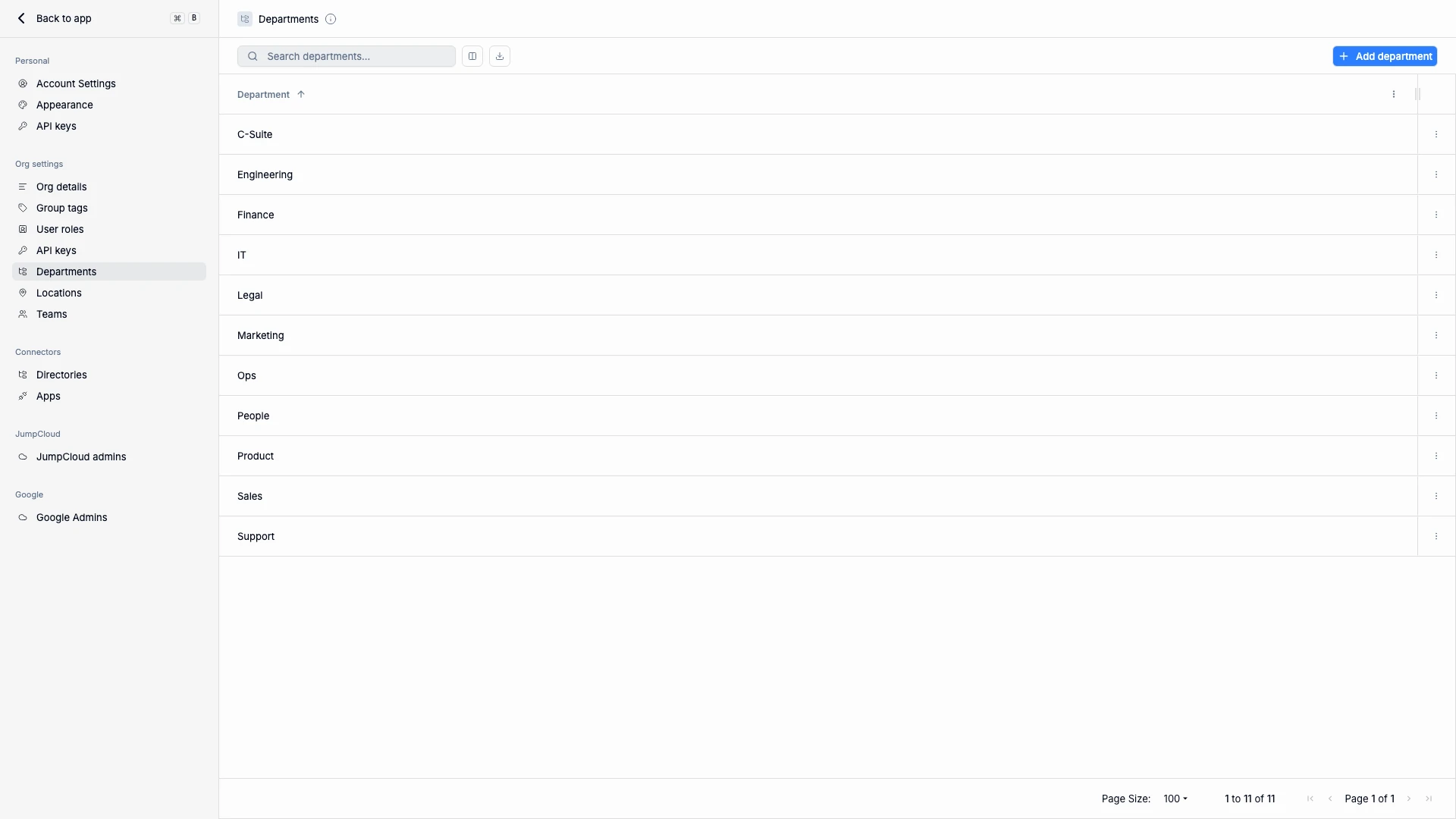
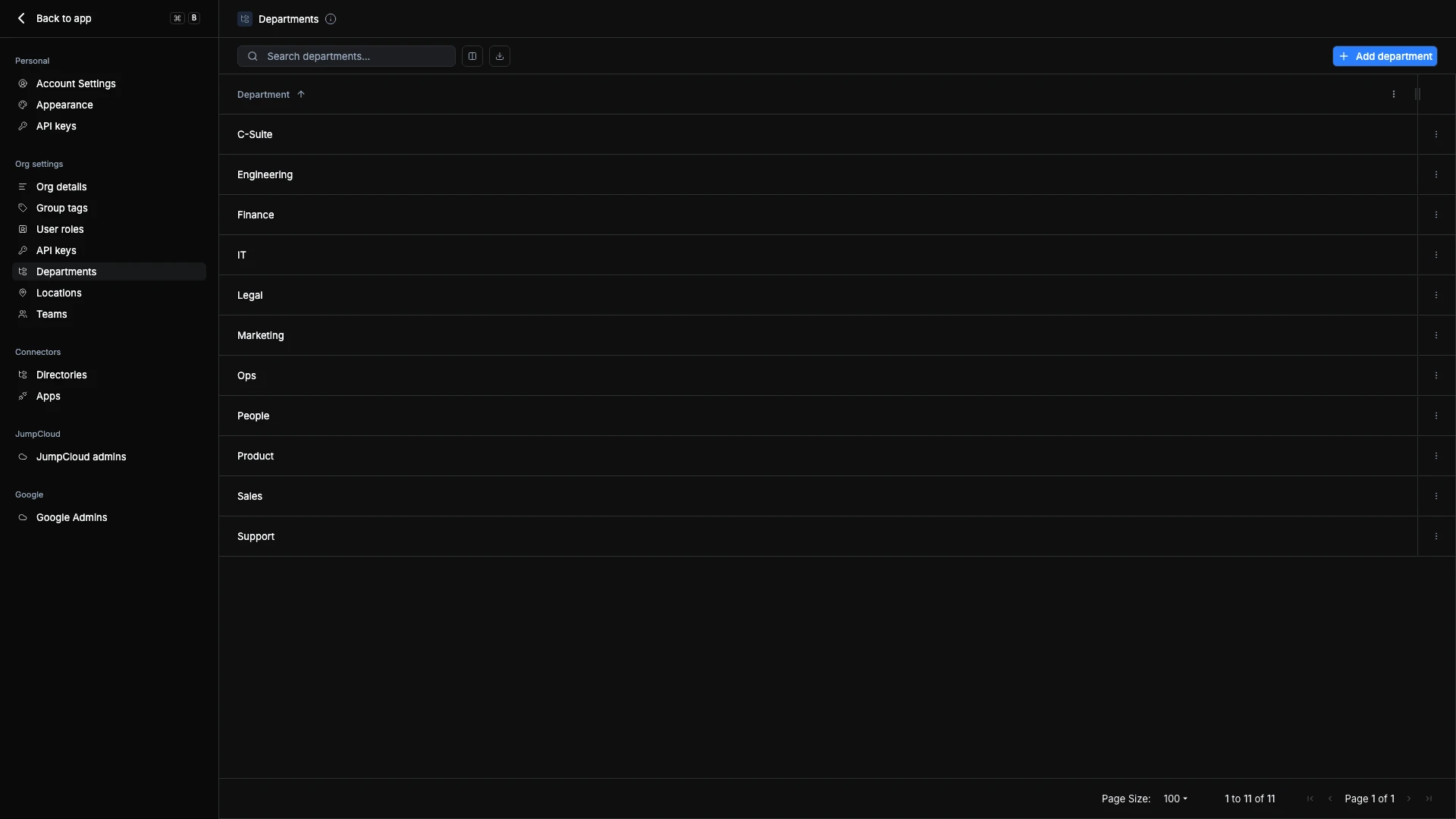
Each row shows its group and its headcount
Departments, locations, and teams each have a group quietly doing the work behind them. The icon next to a name means that entry has a group linked to it, and the number beside it is how many people currently match. This turns two common checks into a glance:
- Spot the gaps. A department with people and no icon is one that never got its group created.
- Spot dead rules. A department with a group and a count of zero means the rule isn't matching anyone.
Nested departments
Departments can sit inside other departments — a parent and its children, two levels deep, which is what HR systems actually expose. Child departments are indented under their parent in the list, and when you create or edit one you pick its parent from a dropdown.
- The group nests too. The group behind a child department automatically nests inside its parent's group, so anyone in Backend is also counted in Engineering with no extra rule.
- Downstream names are composed. Department names sent to Google Workspace and JumpCloud are composed as
Parent - Child— "Backend" shows up as "Engineering - Backend" everywhere downstream. Top-level departments are unchanged. - Siblings can share a name. "Finance → Ops" and "Product → Ops" no longer collide.
Syncing with HRIS Integrations
If your organization has an HRIS integration active, departments are automatically created and kept in sync with your HR system of record. This ensures your organizational structure in ShiftControl mirrors your HR data, keeping department names and hierarchies consistent.
When using an HRIS integration, you'll need to take extra care when managing departments from your HRIS system. Changes made to a department names in the HRIS system are treated as new departments in ShiftControl, so you should coordinate the change and update the Department name in ShiftControl accordingly.
When making Department changes, you should always be mindful of the potential impact on any linked users, apps, or dynamic groups. Such changes can accidentally remove all users from an app or group if not handled carefully.
Using Departments in ShiftControl
Departments are a foundational part of how ShiftControl organizes and automates your workspace. They’re used in:
- User Profiles – Assigning a user’s department for access control, reporting, and automation.
- Application Ownership – Defining which department “owns” a specific app.
- Dynamic Group Rules – Automatically assigning users to department-based groups.
- Reporting and Visibility – Filtering data, usage, or compliance by department.
When a department is created, ShiftControl automatically creates the related Group, tags it as a Department group, and assigns a dynamic rule so membership updates automatically as users are added to that department.
Creating or Editing a Department
To add or modify departments manually:
- Click Add Department at the top right of the page.
- Enter a Department Name (e.g., Marketing, Engineering, Finance).
- To nest it, pick a Parent from the dropdown — or leave it top-level.
- Choose whether to create a group for this department or link an existing group you already have.
- Click Save to confirm.
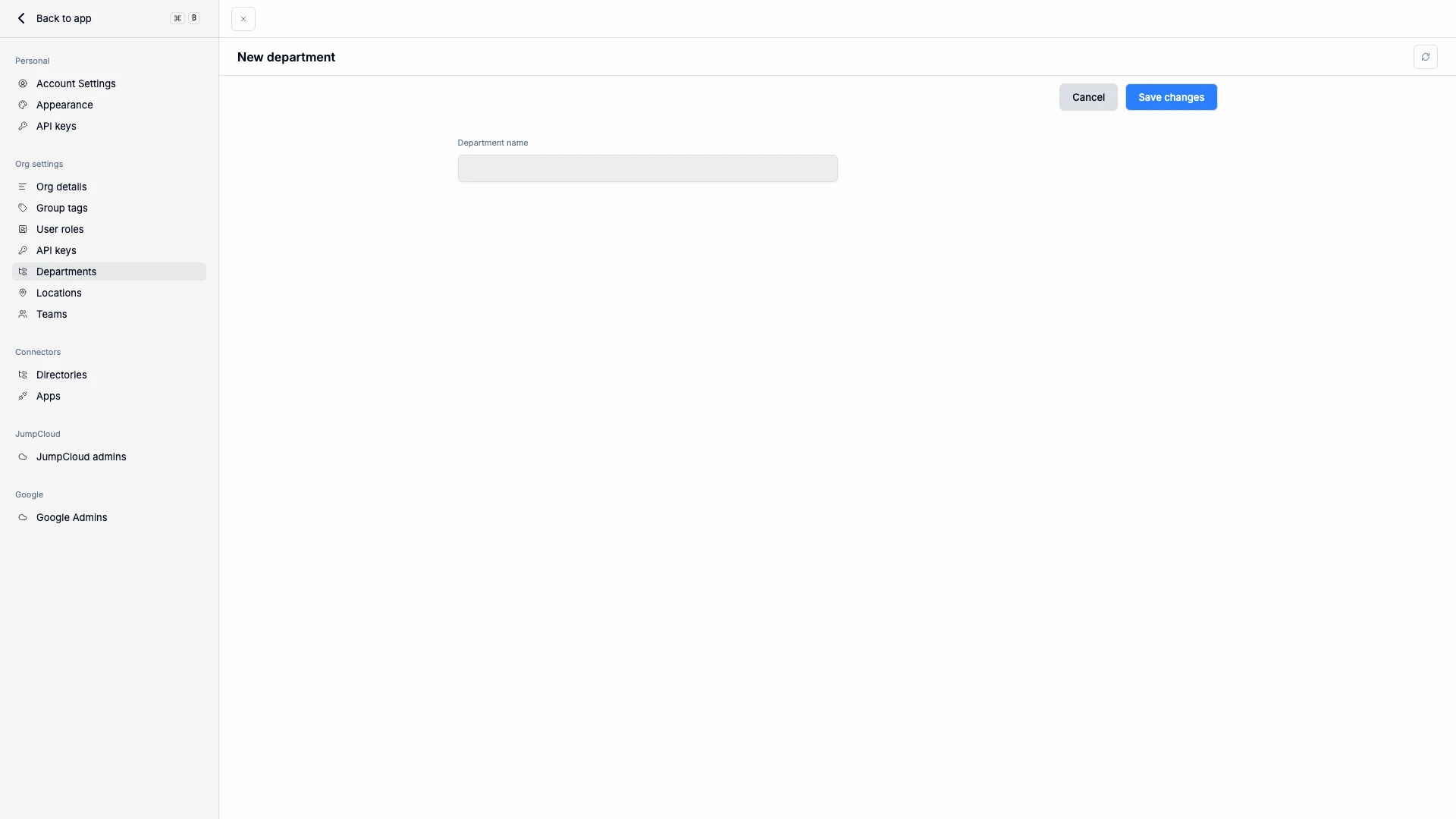
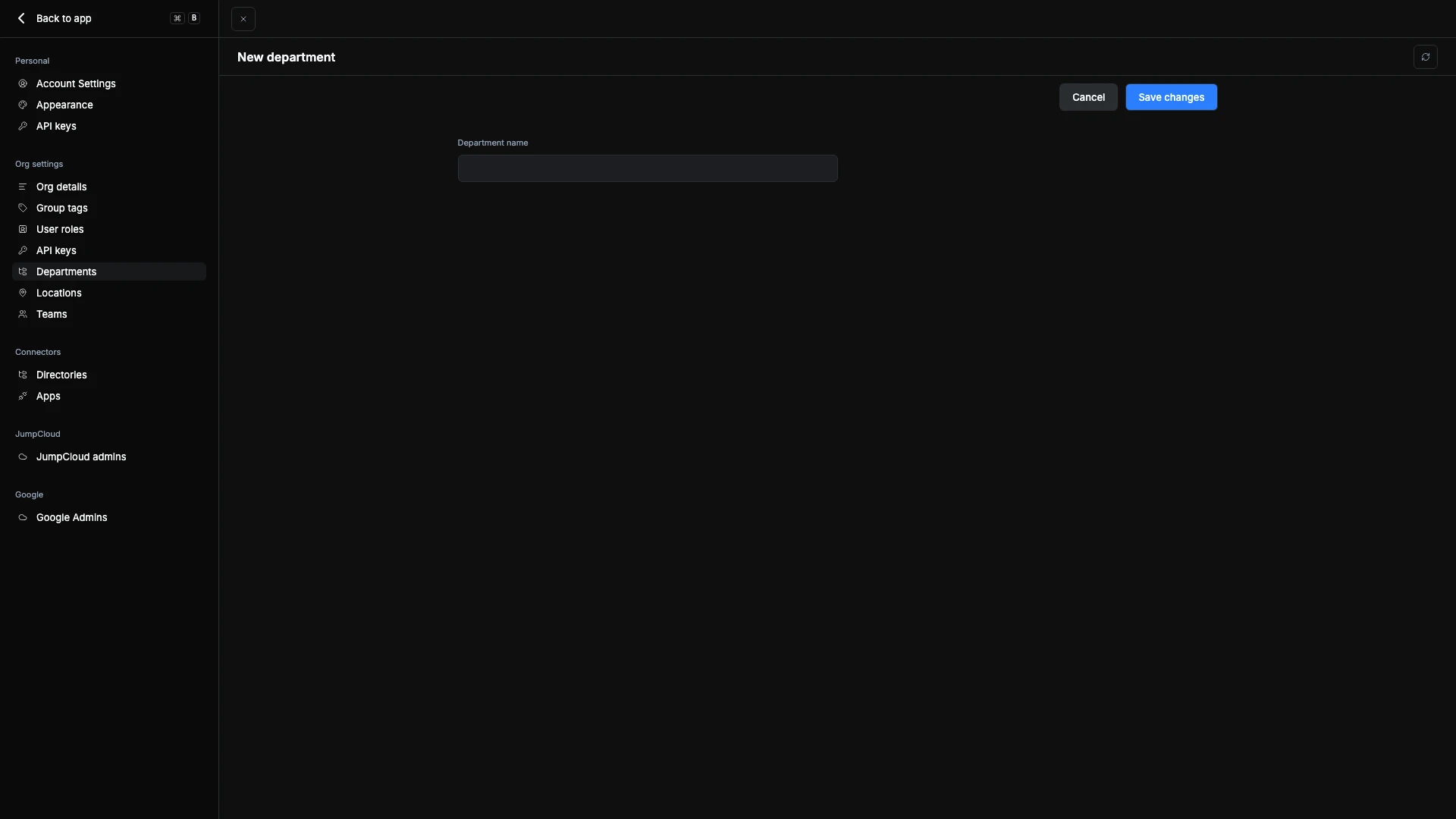
You can also edit existing departments using the ⋮ menu next to each entry — including linking, unlinking, or relinking the group behind it. The quick-add dialog when editing a user offers the same create-or-link choices as the full screen.
When renamed, any linked users, apps, or dynamic groups remain connected automatically — and the group's email address is updated to match the new name, so distribution lists never drift out of step with the display name.
Department-linked groups are dynamic — changes to a department’s user assignments automatically reflect in the related group.
Deleting a Department
To delete a department:
- Open the ⋮ menu next to the department name.
- Select Delete Department.
- Confirm the action. ShiftControl tells you which group is attached and offers to remove it at the same time — delete the group first and the same choice runs the other way.
Deleting a department does not delete users. It only removes the department association and related dynamic group.