User Roles
Define who can manage settings, users, and data through detailed role-based permissions.
Overview
The User Roles page lets administrators control who has access to different parts of ShiftControl. The system uses Role-Based Access Control (RBAC) to assign permissions to users based on their responsibilities — ensuring that only authorized users can manage sensitive settings.
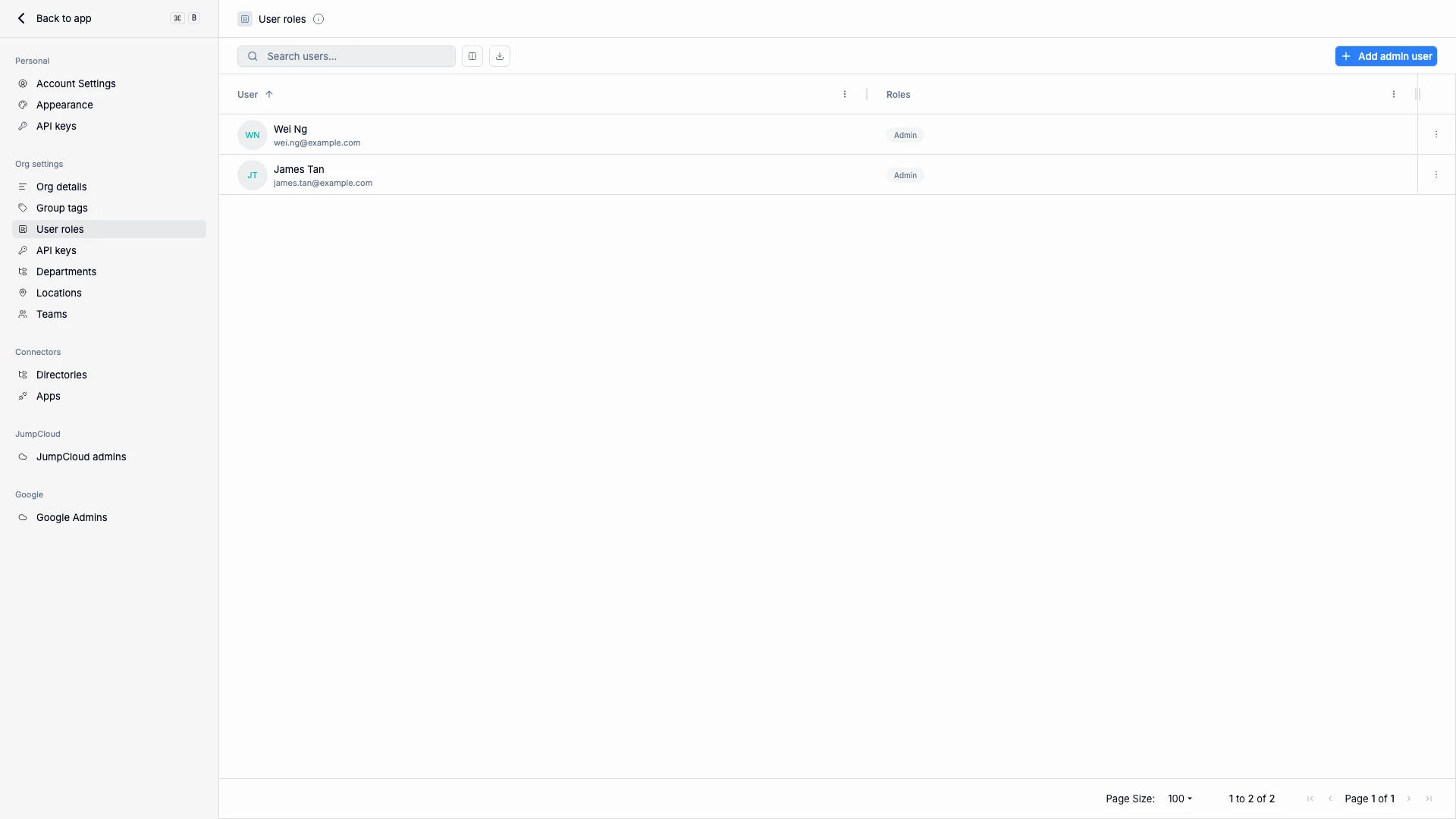
Roles can be tailored to provide varying levels of control, such as:
| Role | Description |
|---|---|
| Full Admin | Complete access to all settings, integrations, and data. |
| Read-only Admin | Can view all configuration and reports, but cannot make changes. |
| App admin | Manages apps, app integrations, directories, and blocked apps — and can see users and groups to assign apps to. Cannot manage users or groups themselves. |
| Group admin | Manages groups, group tags, departments, and locations, and can see users. |
| User admin | Manages users, departments, and locations — plus Google Workspace user sessions, 2-Step Verification, tokens, and user schemas where Google is connected. |
| Finance admin | Edits the subscription side of an app — cost, contract terms, billing frequency, renewal dates, platform fees, budget owner, notes — and reads the rest of the organization. Cannot create, delete, or reconfigure apps, and cannot reach Manage Users or Manage Groups at all. |
| Role Manager | Can assign and remove ShiftControl roles, including the manager roles below. |
| JumpCloud Admin Manager | Can add, change, and remove JumpCloud administrators. Shown only when JumpCloud is connected. |
| Google Admin Manager | Can manage Google Workspace admin roles and role assignments. Shown only when Google Workspace is connected. |
Each role in the picker carries a short description of what it allows, so you can confirm the scope before you save.
Use role separation to improve security — not everyone who manages users needs access to billing, API keys, or integrations.
When a new organization signs up, its first admin automatically gets Role Manager plus the manager role for its directory. ShiftControl will not let you remove the last Role Manager in your organization.
Choosing a Role
Roles are additive — assign several to one person when their job spans areas. A few common picks:
- Someone who only keeps SaaS costs up to date — Finance admin. They can edit every subscription field on an app and are dropped straight onto the editable Subscription tab from the Cost Dashboard, but can't touch apps, users, or groups. Perfect for the person who owns renewals, not IT.
- A help-desk or IT teammate who onboards people — User admin (add Group admin if they also maintain the groups people land in). They get user management, departments, and locations without seeing billing or app configuration.
- A teammate who owns the app catalog — App admin. They can add apps, wire up SSO, and block apps, and they can see users and groups to make assignments — but can't change who those people are.
- Whoever vets other admins — Role Manager plus the directory manager role (JumpCloud Admin Manager or Google Admin Manager). Keep this tight; it's the role that grants the others.
Viewing and Searching Roles
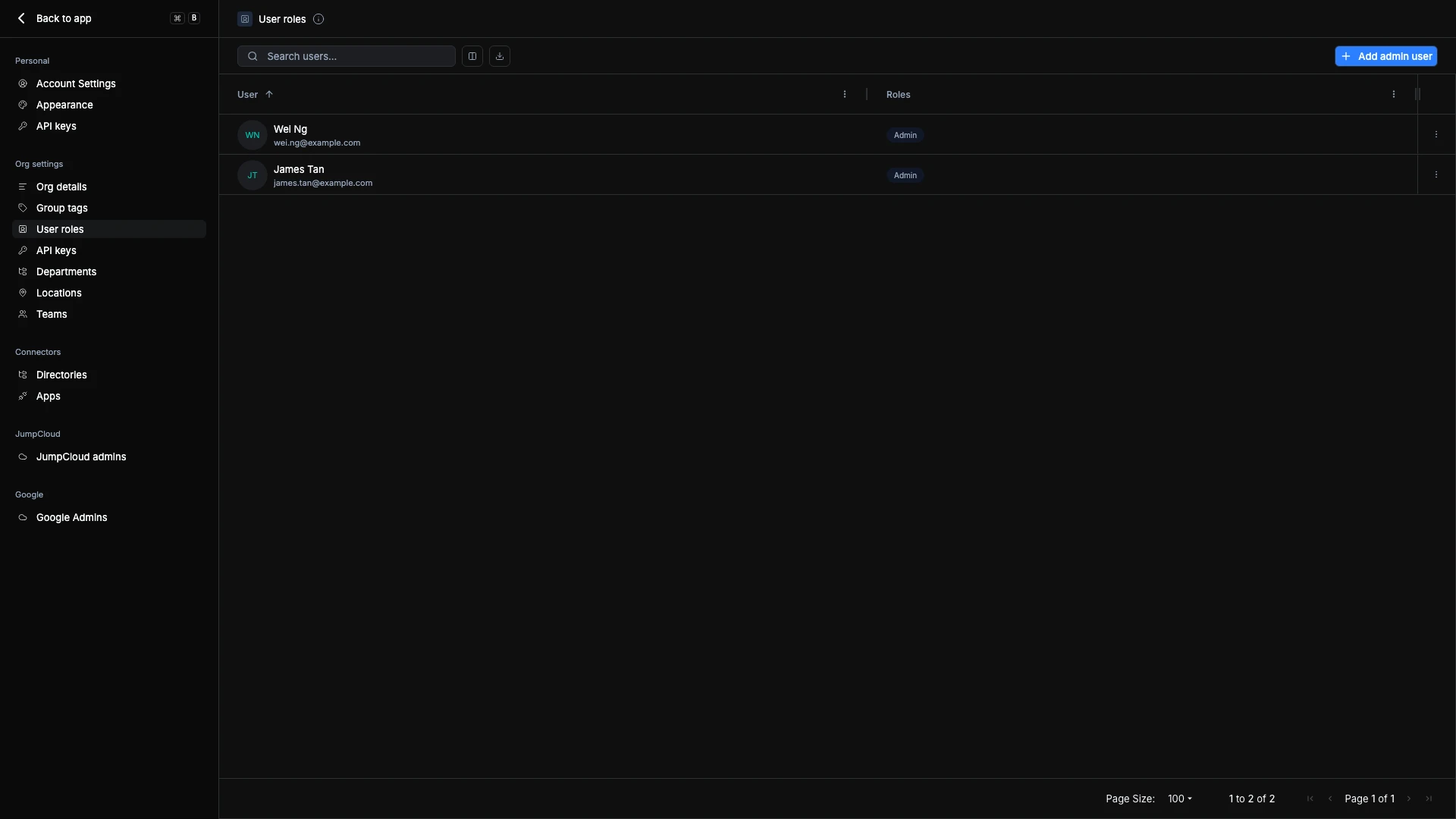
The User Roles list displays all users who currently have administrative access. Each entry includes:
- User — The name and email of the admin.
- Roles — The specific roles assigned to that user.
You can use the search bar to quickly locate users or filter by assigned role.
Adding or Editing an Admin User
To create or update an admin’s assigned roles:
- Click Add Admin User (or the ⋮ menu → Edit) to open the role editor.
- Select the Admin User from your organization’s directory.
- Under Assigned Roles, choose one or more roles from the dropdown.
- Click Save to confirm.
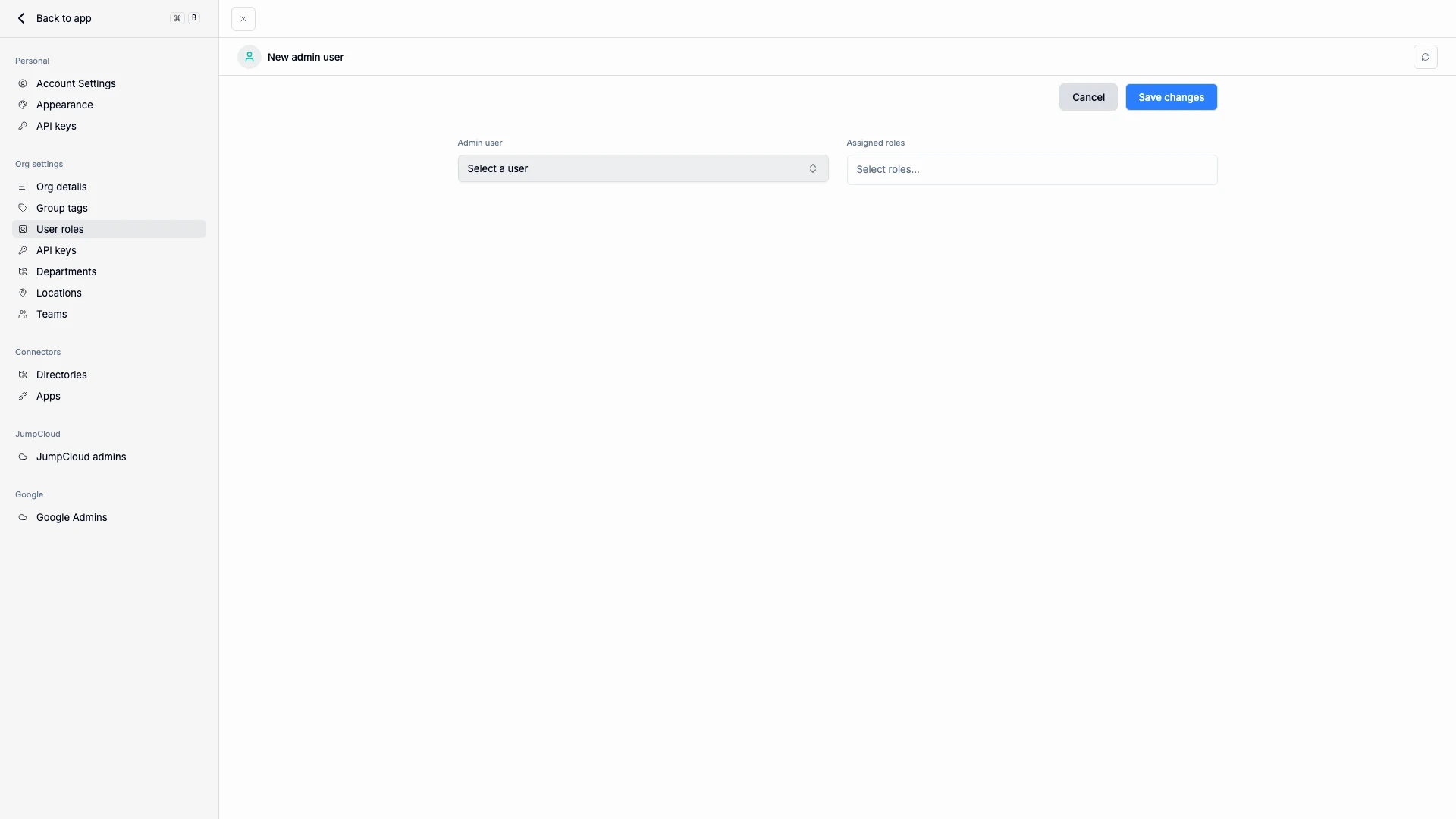
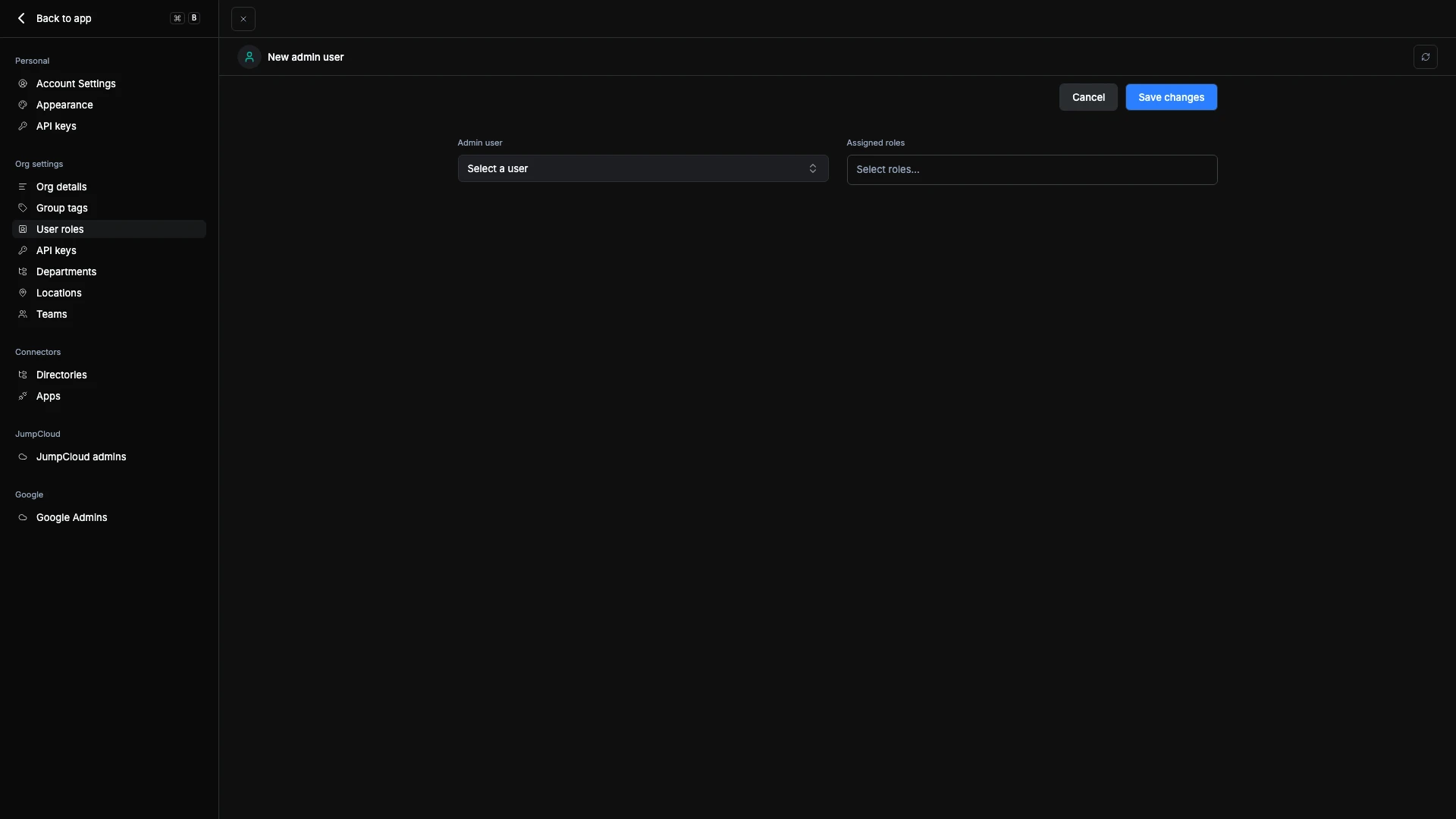
The flow for creating and editing roles is identical — you can modify role assignments at any time.
All changes take effect immediately. Users may need to refresh their browser for access changes to apply.
Removing an Admin User
To revoke administrative access:
- Open the ⋮ menu next to the user’s name.
- Select Remove Admin User.
- Confirm the action — the user will immediately lose admin privileges.
Before removing an admin, make sure another user has the same role if the responsibilities need to be maintained.