Viewing an App
See everything about an app — who has access, how it's configured, what it costs, and how SSO is set up.
Overview
The app detail page is where you go to understand an application's full footprint:
- "Who has access to this app and through which groups?"
- "What does this subscription cost and when does it renew?"
- "How is SSO configured?"
- "Who owns this app?"
Click any app name in the App Management list to open it.
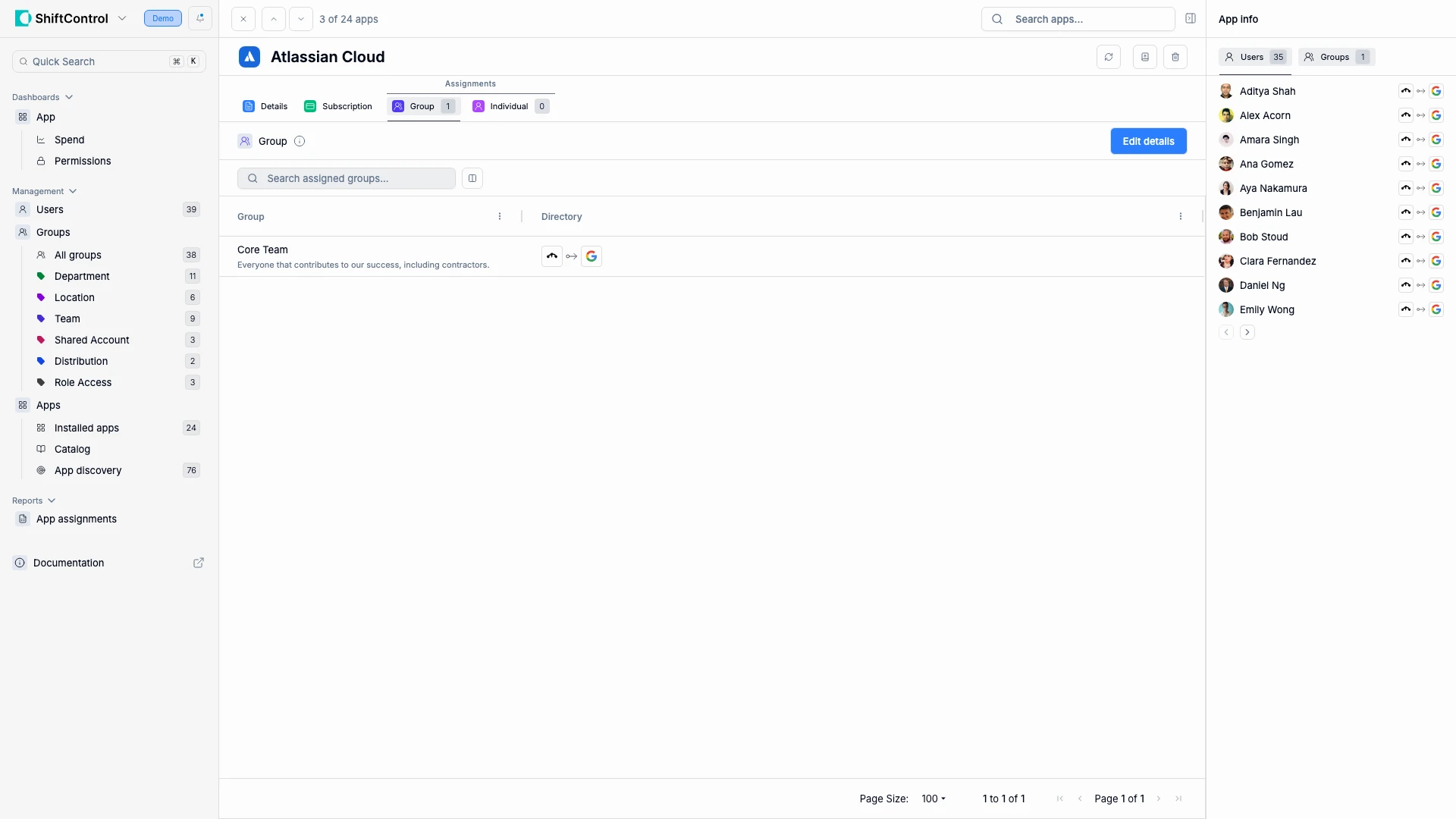
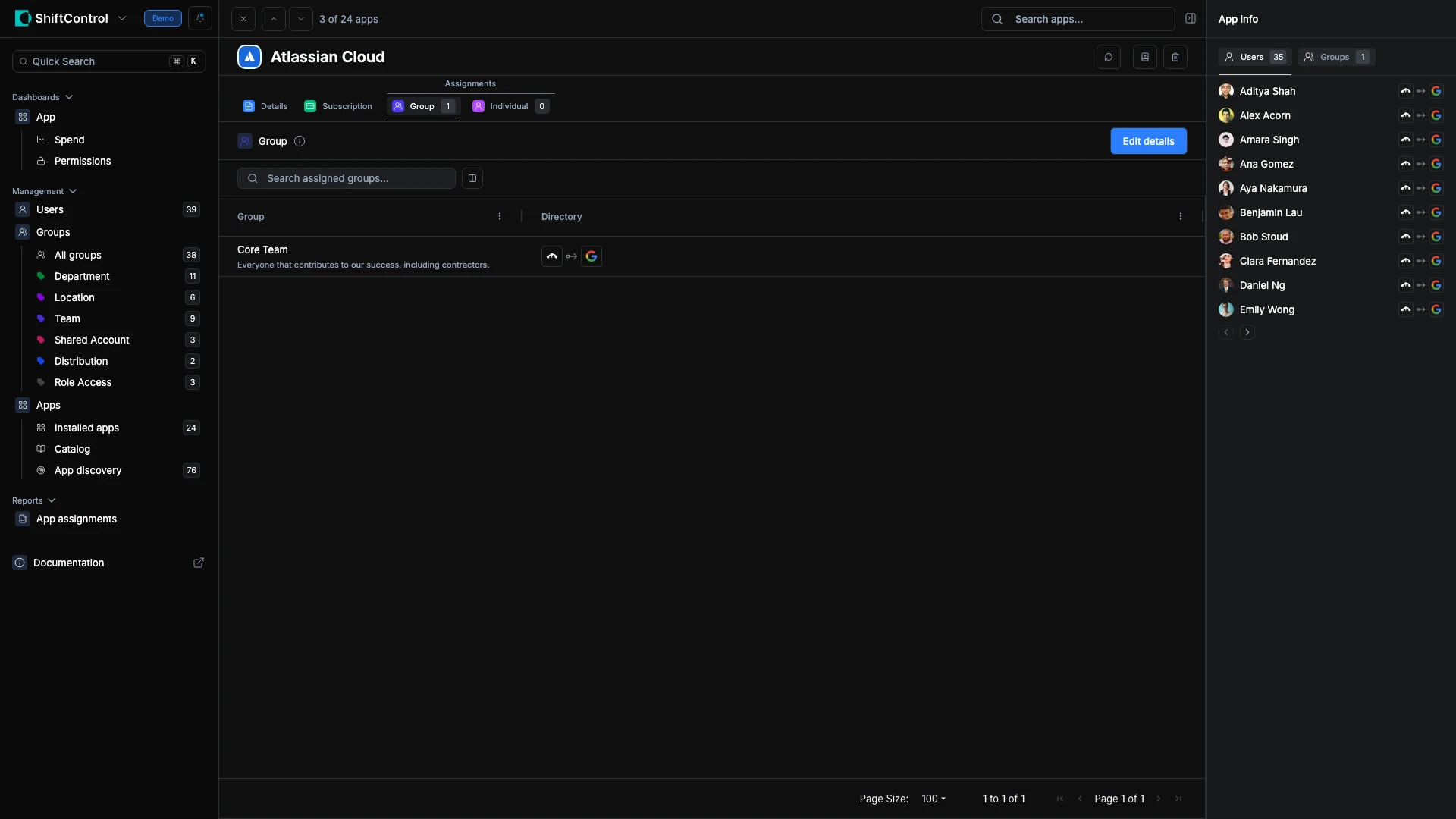
The Details Tab
Shows the app's basic information:
- App name — Display name across ShiftControl and the employee portal
- Primary admin — Person responsible for day-to-day management
- Budget owner — Person responsible for costs and renewals
- Owning department — Which department owns this app
- Description — Visible to employees in their app dashboard
- Bookmark URL — (Bookmarks only) Where users are sent when they click the app
The Subscription Tab
Shows plan details and costs that feed into the App Spend Dashboard:
- Plan duration, billing cycle, and renewal date
- Per-user or flat-rate cost
- Platform fees and notes
This is where you check before renewal conversations — see exactly what you're paying and when the charge hits.
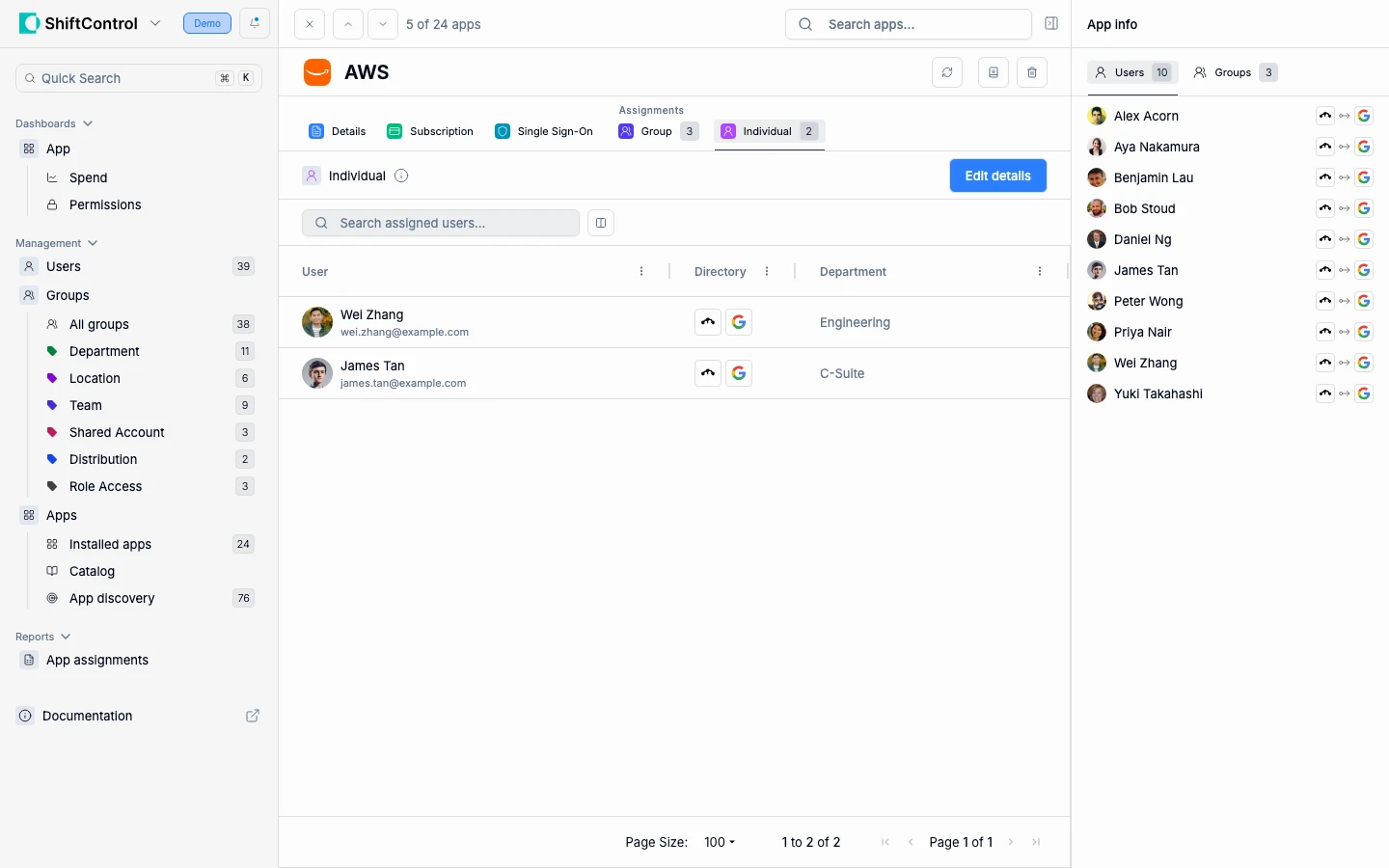
The Assignments Tab
Shows who has access and how:
- Groups sub-tab — Which groups are assigned to this app. Every member of those groups has access.
- Individual sub-tab — Users assigned directly, outside of any group.
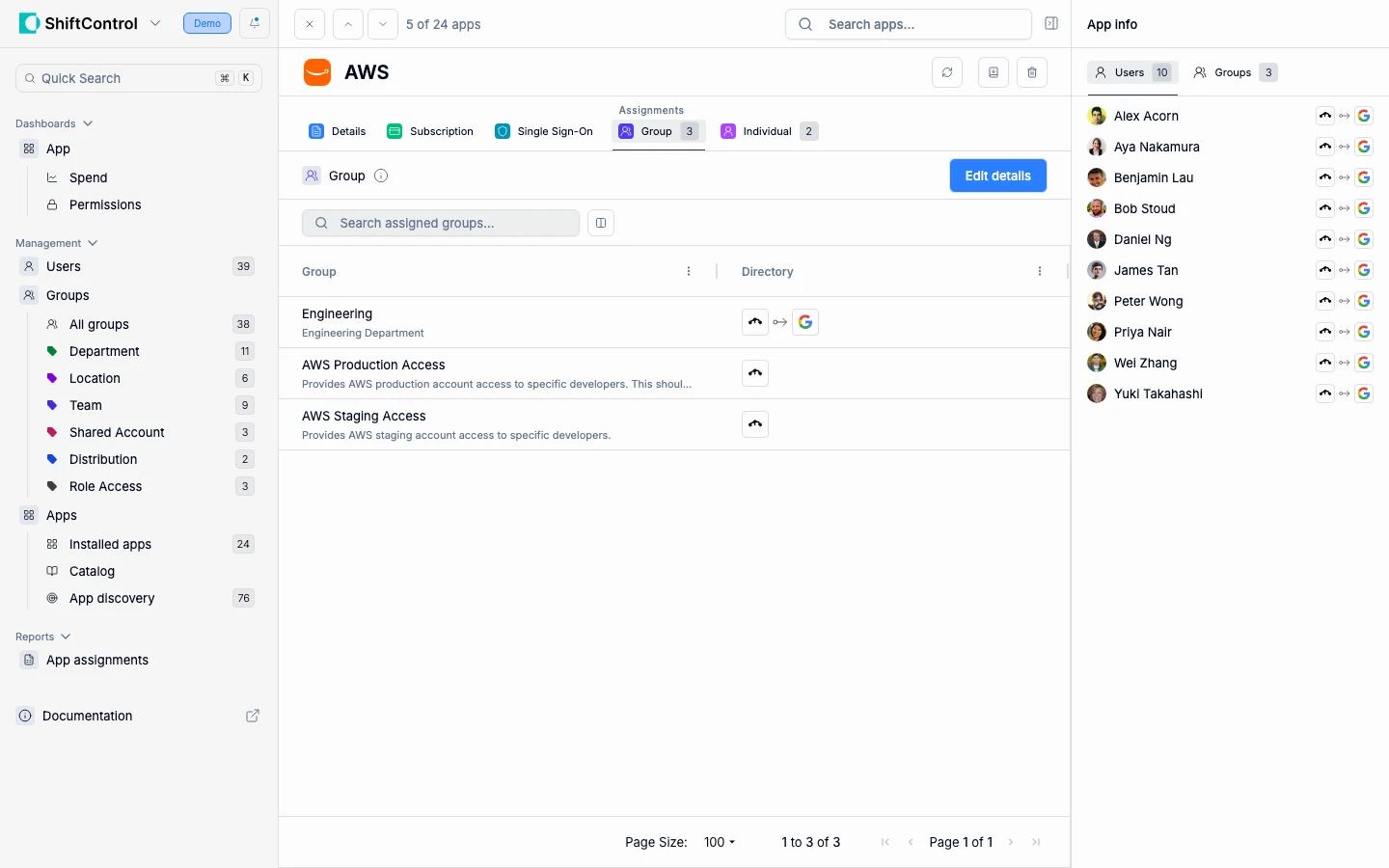
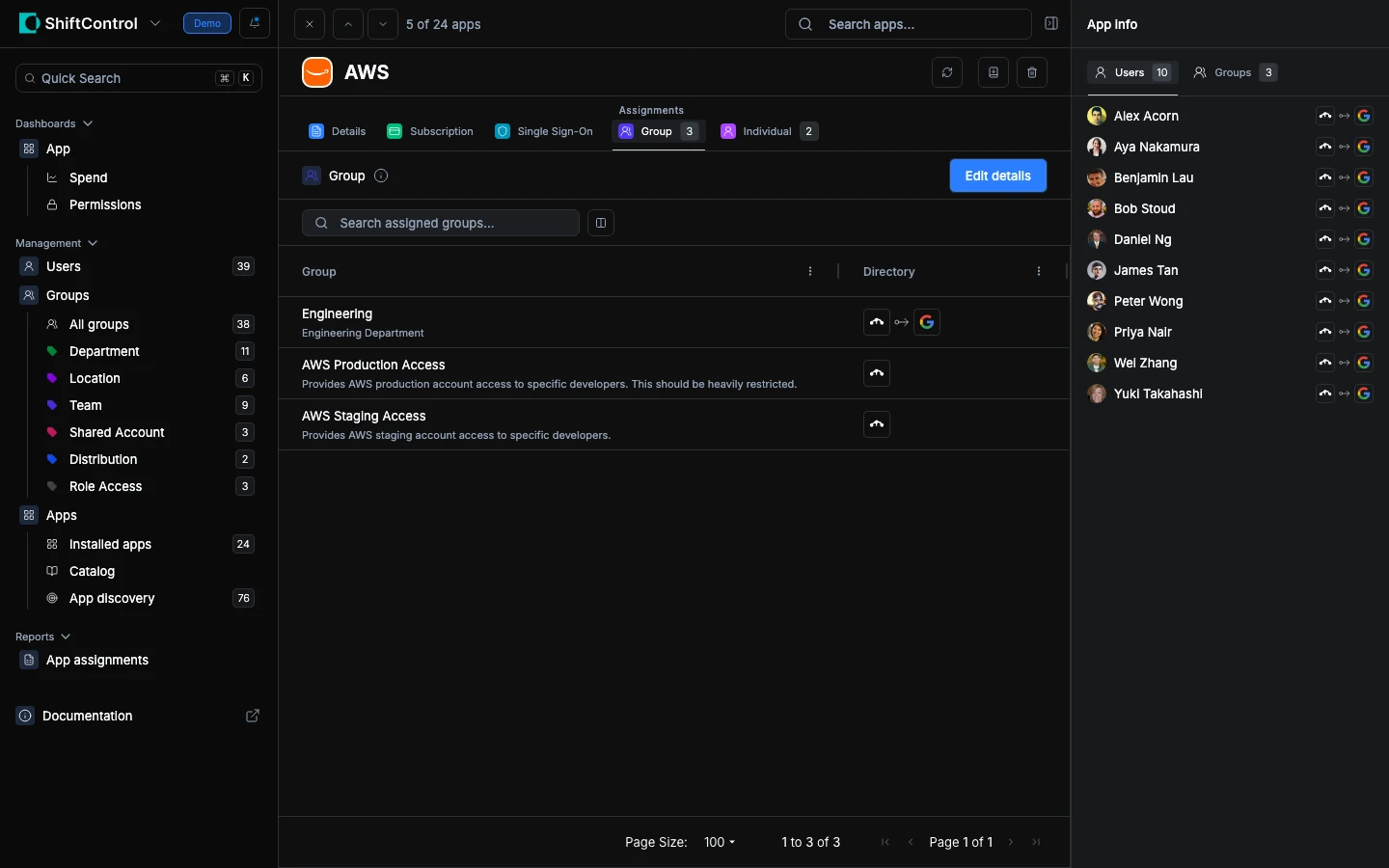
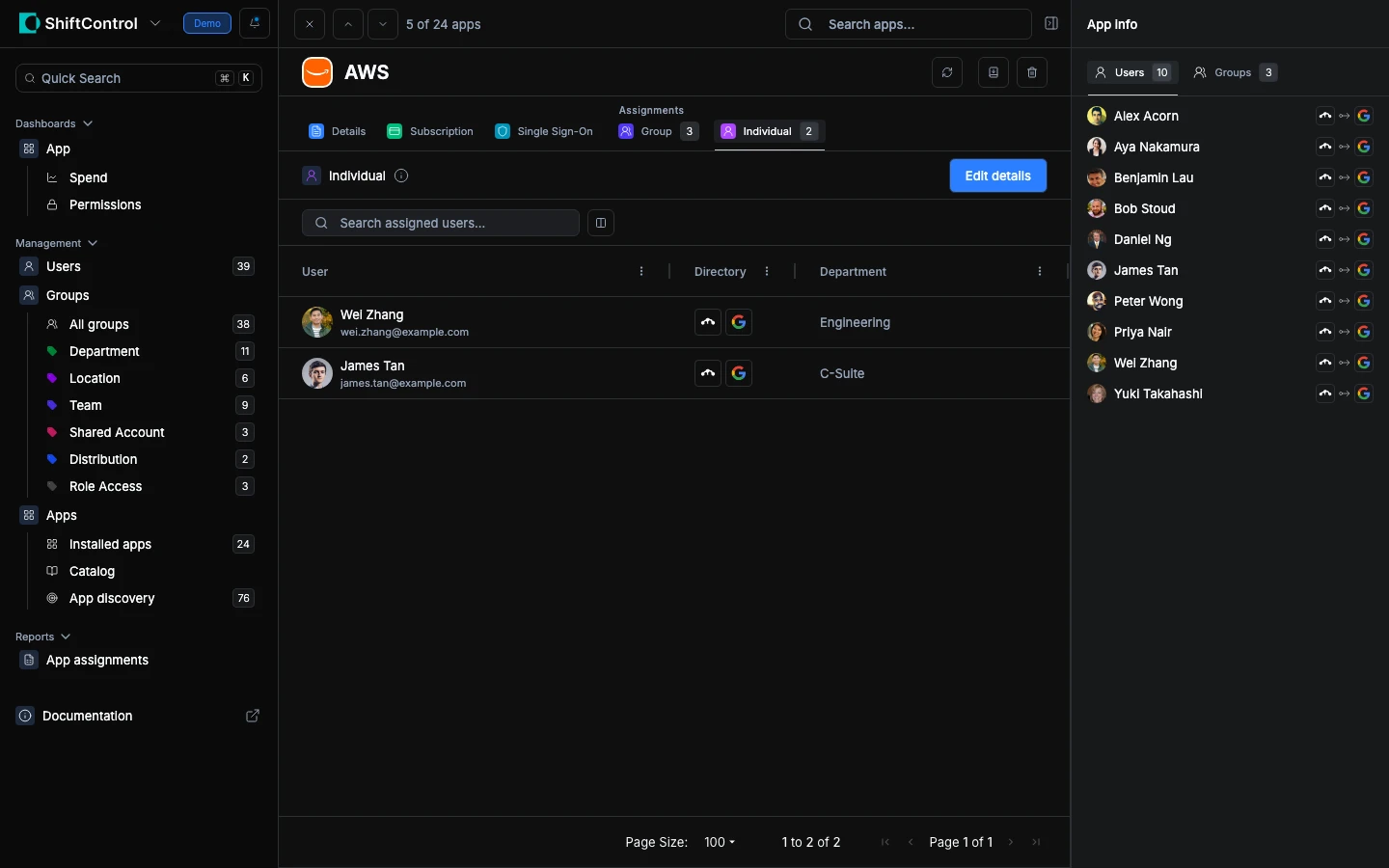
The sidebar mirrors this with quick counts:
Context Menu Actions
Click the ⋮ menu on any app row in the App Management list:
- Edit — Open the app for editing
- Delete — Remove the app from ShiftControl (disabled for the ShiftControl app itself)
Bulk actions: Select multiple apps and choose Delete to remove them in bulk.
Common Scenarios
Preparing for a renewal negotiation
Open the app, check the Subscription tab for the current cost and renewal date. Check Assignments > Groups to see how many people actually have access. Cross-reference with usage data to build your negotiation case.
Investigating why someone has access
Open the app, check the Assignments tab. If access is group-based, click into the group to understand its membership rules. If it's an individual assignment, you can see who added it.
Verifying SSO is configured correctly
Open the app, go to the SSO tab. Verify the IdP URL, certificate, and assertion settings match what the vendor expects.
Related Features
- App Management — Return to the full app list
- Editing an App — Make changes to app settings
- App Spend Dashboard — Organization-wide cost view