App Management
Your central view of every SaaS application in your organization — what you have, who has access, and what it costs.
Overview
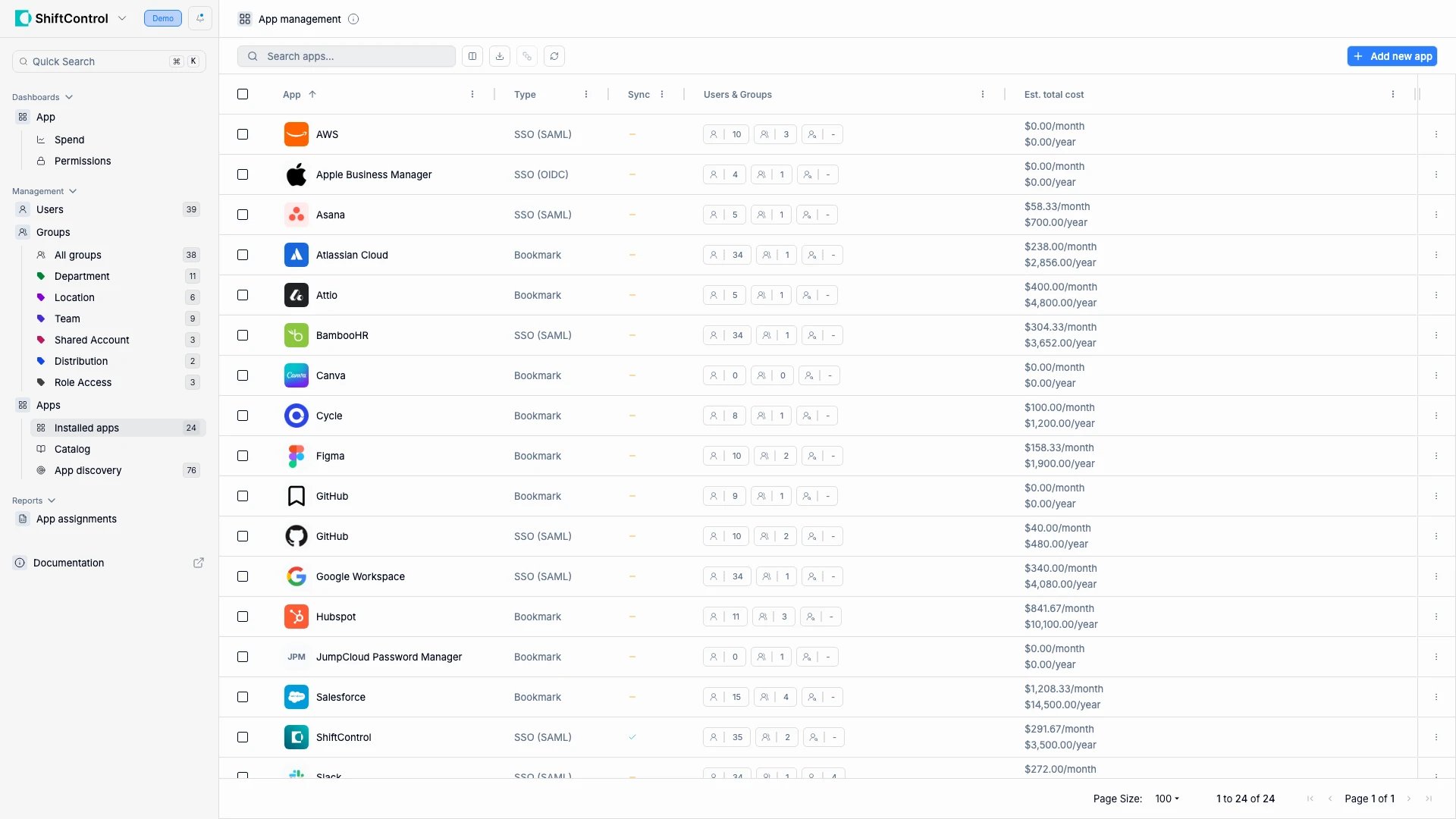
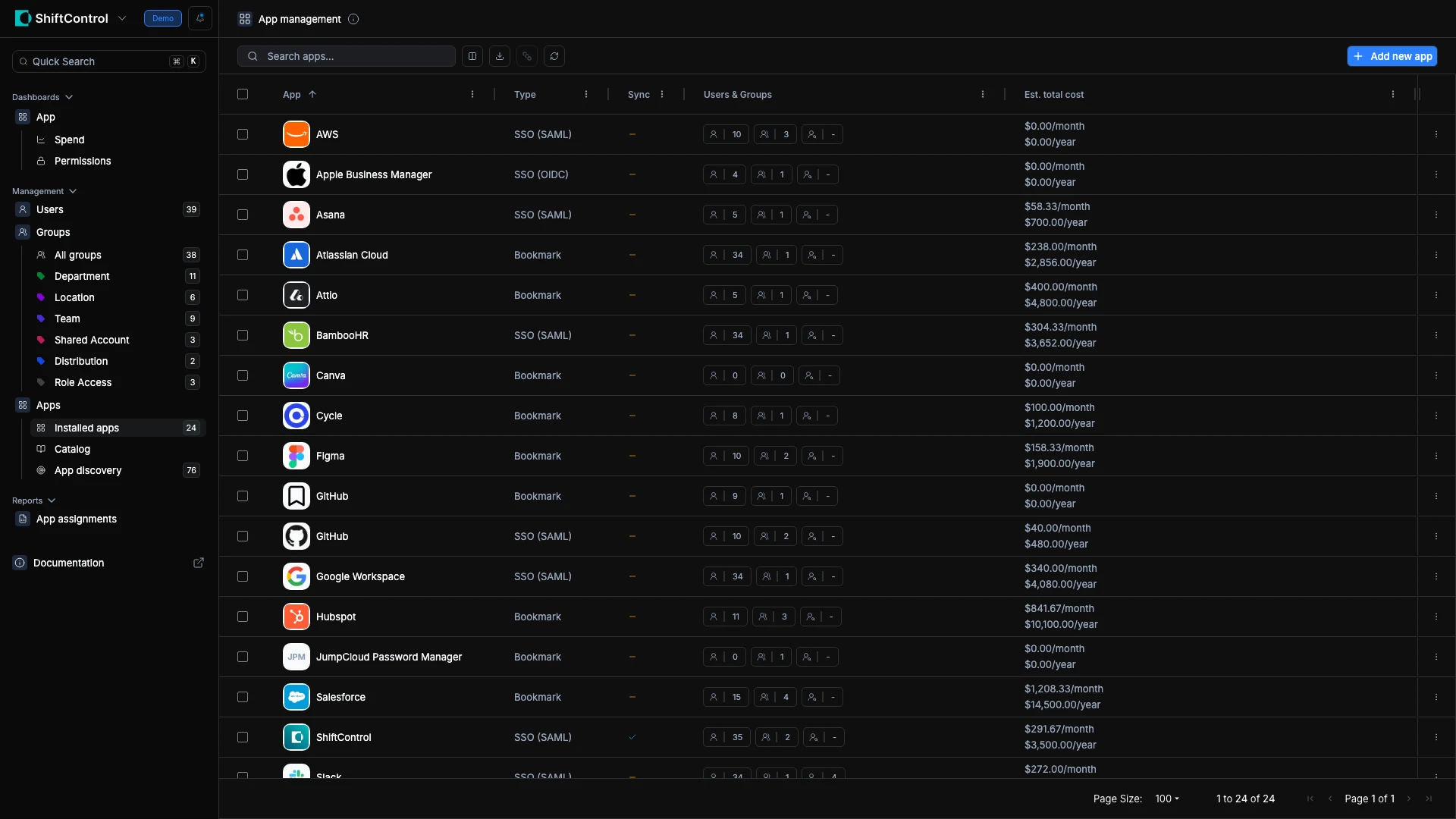
App Management shows every SaaS application connected to ShiftControl. Each app row tells you its type (SSO, bookmark, or managed), how many groups and users have access, and what it costs per user. From here you add new apps, edit existing ones, configure SSO, and remove apps you no longer need.
How It Works
The dashboard displays a table of all your installed apps with the following columns:
- App -- the app icon and name.
- Type -- how the app is connected: SSO SAML, SSO OIDC, or Bookmark.
- Sync -- whether automatic user sync is configured.
- Users & Groups -- how many users and groups are assigned.
- Est. Total Cost -- the estimated total cost based on the subscription you configured.
You can search by name, paginate through the list, and click any app to edit its details.
App Types
With JumpCloud connected, ShiftControl supports three app types. SSO is powered by JumpCloud as the identity provider.
| Type | What It Does | When to Use It |
|---|---|---|
| SSO (SAML) | Full single sign-on using the SAML protocol. Users authenticate through JumpCloud and are logged in automatically. | The app supports SAML and your license tier includes SSO. This is the most secure option. |
| SSO (OIDC) | Full single sign-on using OpenID Connect. Same benefit as SAML, different protocol. | The app supports OIDC but not SAML, or OIDC is the recommended integration. |
| Bookmark | A portal link to the app. No SSO — users log in to the app separately. | You want the app in the employee portal for easy access, but SSO isn't available or configured yet. |
A Bookmark can be upgraded to SSO SAML or OIDC at any time without losing assignments or configuration.
With Google Workspace as your directory, apps in ShiftControl are managed as portal links — they appear in your employees' app dashboard for easy access. SSO for Google Workspace apps is managed through Google's own authentication system.
Why Add All Your Apps
We recommend adding every SaaS app your organization uses. When all your apps are in ShiftControl:
- Employees see everything in one place. Their App Dashboard becomes a single launch point for all work tools.
- Onboarding is faster. New hires get access to all their apps on day one through group assignments.
- You can track costs. The Subscription tab on each app lets you record plan details and per-user costs so you can see spend across your entire SaaS portfolio.
- You're ready for SSO later. A Bookmark can be upgraded to SSO SAML or OIDC at any time without losing assignments.
Common Scenarios
Centralizing SaaS access for a growing team
You have 30+ apps spread across different departments. Add them all to ShiftControl (SSO where possible, Bookmarks for the rest), assign them through groups, and every employee gets a personalized App Dashboard with the tools they need.
Setting up SSO for a new app
Find the app in the App Catalog (983+ pre-configured apps), click "Add SSO app," configure the SAML or OIDC settings, assign groups, and save. Users can now authenticate through ShiftControl.
Tracking SaaS costs across your org
Add subscription details (plan, billing cycle, per-user cost) to each app. The App Management table shows estimated total cost per app so you can spot expensive or underused tools.
Adding an App
Click the Add new app button at the top of the dashboard. This opens the App Catalog where you can search 983+ pre-configured apps or add a custom app.
Viewing and Editing an App
Click any app name in the list to open its detail page. From there you can review configuration, SSO settings, subscription costs, and assignments. To make changes, see Editing an App.
App Actions
Click the ⋮ menu on any app row:
- Edit — Open the app for editing
- Archive — Retire the app while keeping its cost and subscription history (see below)
- Delete — Permanently remove the app and all its assignments (disabled for the ShiftControl app itself)
Additional actions available for JumpCloud-managed apps:
- Regenerate Secret — Rotate OIDC client secrets (OIDC apps only)
- Convert to SSO App — Upgrade a bookmark to SSO (bookmark apps only, disabled if directory sync is active)
- Convert to bookmark app — Downgrade an SSO app to a bookmark (SAML apps only, disabled if directory sync is active)
Bulk actions: Select multiple apps and choose Archive or Delete to retire or remove them in bulk.
Archiving vs. Deleting an App
When you stop using an app, you have two ways to retire it — and the difference is what happens to its cost history.
Archiving retires an app while keeping its record. Use this for almost every app you stop using:
- The app is removed from your live setup — assignments are pulled and it's no longer provisioned, so it stops appearing in your team's app launcher.
- Its subscription and cost history are preserved, so your spend totals stay honest and you can still answer "what did we used to pay for that?"
- Archived apps are excluded from every total and report, so they don't inflate your numbers.
- Flip on the admin-only Archived filter to browse retired apps along with their cost and sign-on details.
- Un-archive at any time to bring an app back — it returns unassigned, so you'll re-assign who gets access.
- Every archive is stamped with who did it and when.
Deleting permanently removes the app and its entire cost history. Reserve it for apps added by mistake or duplicates — anything where the historical spend record has no value.
Archiving is almost always the right choice for an app you're actually retiring. Deleting throws away the subscription and cost history along with the app — exactly the data you'll wish you had at your next budget review.
Things to Know
- Deleting an app removes all group and individual assignments. If the app uses SSO, users will lose single sign-on access immediately.
- Bookmark apps do not control authentication. They are portal links only -- users still log in to the app with their own credentials.
- The "Est. Total Cost" column is calculated from the subscription details you enter. It is not pulled from the app vendor automatically.
- You can upgrade a Bookmark to an SSO app at any time by editing the app and configuring SSO settings.
Related Features
- Adding an App -- step-by-step guide for adding apps from the catalog or creating custom apps.
- Editing an App -- how to configure General, Subscription, and Assignment tabs.
- App Discovery -- automatically detect apps your users are accessing via OAuth.
- Groups -- manage the groups used to assign apps to users.
- Work Items -- review employee app requests and the fulfillment work that follows approval.
- Employee Directory -- see how employees browse apps and request access.