Group Management
Groups are how you give people access to apps in ShiftControl. Every app assignment, every permission, and every access decision flows through groups.
Overview
Instead of assigning apps to individual users one at a time, you assign apps to groups — then manage who belongs to each group. When someone joins a group, they immediately gain access to every app assigned to it. When they leave, that access is revoked.
This is the approach that scales. A new developer doesn't need five separate app assignments. They need to be added to the Engineering group, and everything else follows.
What You See
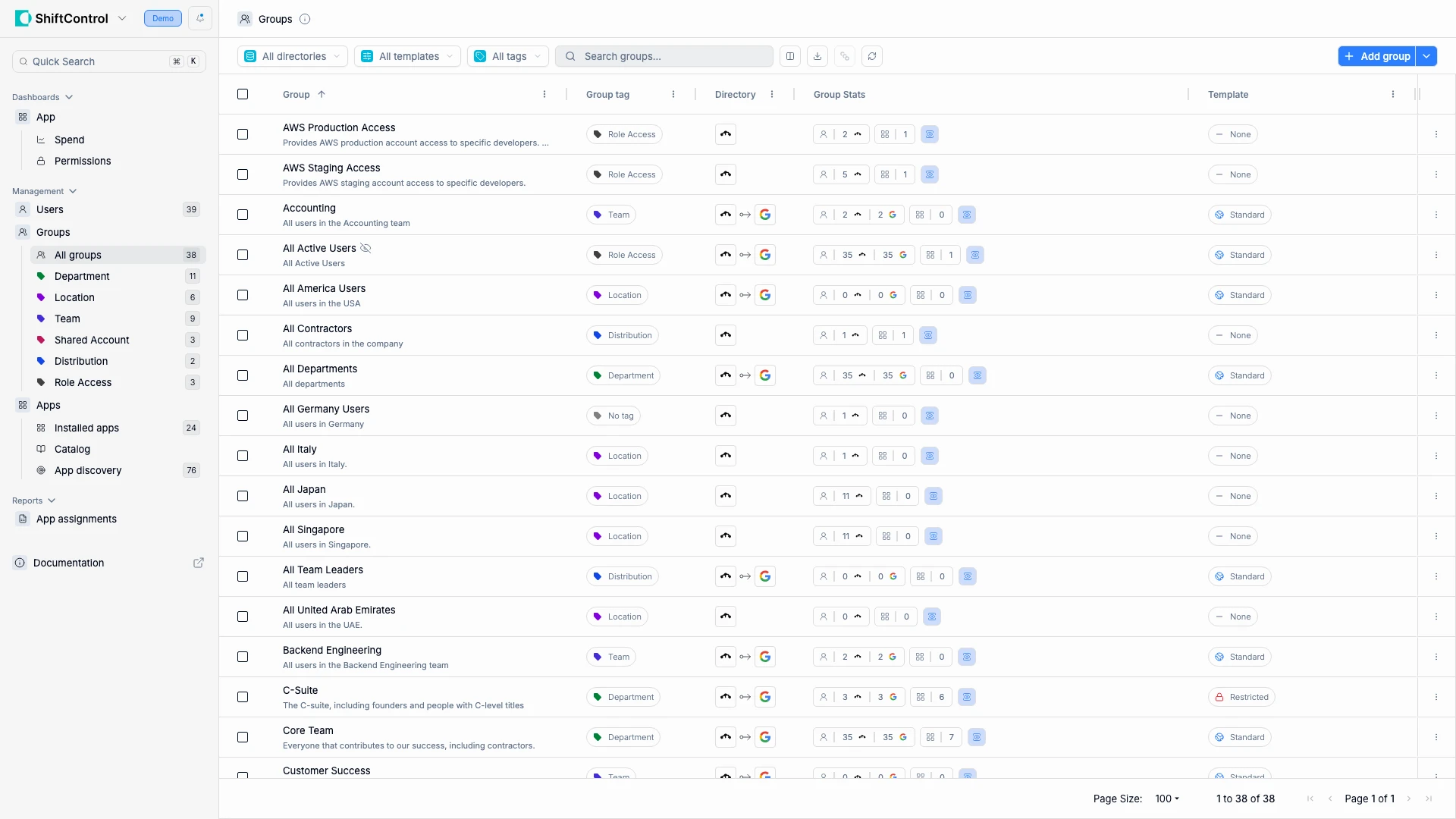
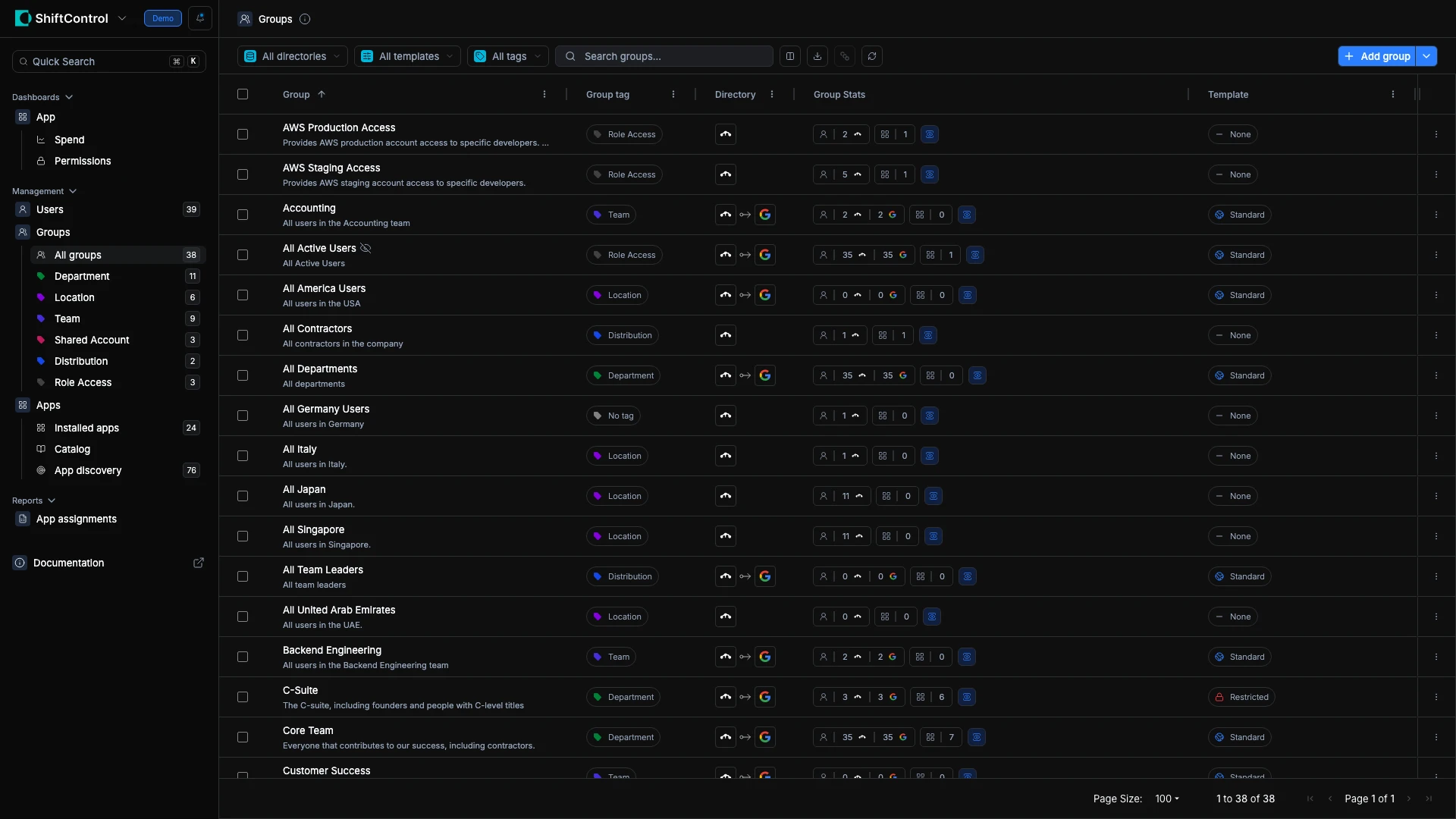
The groups table shows:
| Column | What It Tells You |
|---|---|
| Group | Name, the group's email address (with a copy button), and description |
| Group Tag | Color-coded category (Department, Team, Location, Role Access, Distribution) |
| Directory | Which directories the group is synced to |
| Group Stats | Number of users and apps associated with the group |
With both JumpCloud and Google Workspace connected, the Directory column shows icons for each directory a group syncs to. Groups can exist in one or both directories. Sync arrows between icons indicate that membership changes are pushed to both directories automatically.
Groups that have an email address show it directly under the name, so you can tell apart groups with similar names and copy an address for a mailing list or app setting without opening the group. Groups without an email, such as most location or role groups, show only the name and description. The search box matches group emails as well as names, plus the extra columns you choose to show, such as Group tag, Nested groups, Template, or Directory.
Use the filters at the top to narrow by directory or tag. The sidebar shows group counts by tag category — click any category to filter.
Common Scenarios
Department-based app access — Create an "Accounting" group with a dynamic rule matching users whose Department equals "Accounting." Assign QuickBooks, Expensify, and NetSuite to the group. Every accountant gets access automatically — including new hires the moment their profile is set up.
Role-based cloud access — Create groups like "AWS Production" and "AWS Staging" tagged as Role Access. Assign the appropriate AWS SSO app to each. Engineers who need production access join the production group. Everyone else gets staging only.
Location-based distribution lists — Create "All Singapore Users" with a dynamic rule matching Location equals "Singapore." Enable Google Sync to automatically create a Google Workspace distribution list. Now anyone can email the entire Singapore office at one address.
Group Tags
Tags categorize your groups so you can understand their purpose at a glance, filter the list, and apply appropriate settings. ShiftControl provides predefined tag categories that cover common group purposes:
| Tag | Purpose | Example |
|---|---|---|
| Department | Official departments and teams | Accounting, Engineering, Marketing |
| Location | Groups by office, site, or region | Singapore Office, London HQ |
| Team | Cross-functional or project-based teams | Platform Team, Q4 Launch |
| Role Access | Groups mapped to system roles or permissions | AWS Production Access, GitHub Admin |
| Distribution | General purpose email distribution lists | All Hands, Newsletter |
| Catch-all | Addresses like hello@, contact@, legal@, security@ | contact@ |
| Support | Groups for internal requests | it-support@, hr@ |
| Alerts | Groups for system or vendor notifications | PagerDuty Alerts, AWS Alerts |
| Service Account | Groups tied to automated service accounts | CI/CD Pipeline, Monitoring |
| Shared Account | Shared login accounts used by multiple users | Social Media Account, Demo Account |
| Custom | Org-defined groups for anything else | — |
You can change a group's tag from the group edit page, the context menu, or in bulk by selecting multiple groups.
You can create additional custom tags with your own names and colors in Group Tags Settings. Each tag belongs to one of the predefined categories above.
Google Workspace Group Templates
Google Workspace groups have over 60 settings spread across three separate permission screens, with labels like "Who can post" that don't clearly explain what they control. The default settings often allow anyone to join, anyone to leave, and don't save message history — which is rarely what you want.
ShiftControl solves this with templates — curated presets that configure all Google Group settings at once, using clear language instead of Google's confusing terminology.
Available Templates
| Template | Best For | Key Settings |
|---|---|---|
| Standard (default) | Most use cases — departments, teams, distribution lists | Anyone can email this group (including external). IT controls membership. Visible in directory. Message history saved. |
| Internal | Groups that should only receive email from your organization | Only org members can email this group. IT controls membership. Visible in directory. |
| Restricted | Sensitive groups — leadership, HR, legal, board | Hidden from directory. Only members can see the group, its members, or messages. Members only can email. |
| Team-managed | Social groups, committees, clubs, project teams | Members can add/remove others and request to join. Members manage their own group. Visible in directory. |
What Templates Control
Every template configures settings across five categories:
- Membership — Who can join, who can leave, who can see members, who manages membership
- Sending & Delivery — Who can email the group, spam handling, reply behavior, message footers
- Visibility — Who can find the group, who can read messages, directory listing
- Moderation — Who can delete/lock messages, content organization
- Message History — Whether messages are archived and searchable
Quick Toggles
On each group's Settings tab, four important settings are promoted as standalone toggles regardless of which template you're using:
- Show in directory — Whether the group appears in your org's contacts and email autocomplete
- Send as group address — Whether members can send email that appears to come from the group's address
- Save message history — Whether messages are archived in a browsable, searchable record
- Team inbox — Whether the group acts as a shared queue where conversations can be assigned, tracked, and resolved
Custom Settings
If none of the templates fit, choose Custom to configure every setting individually. ShiftControl uses clear, human-readable labels (e.g., "Who can email this group" instead of Google's "Who can post") and explains what each setting actually controls.
ShiftControl also detects which template a group currently matches — so you can see at a glance whether a group's settings have drifted from the preset.
Applying Templates
You can apply a template to a group in two ways:
- From the group edit page — Open a group, go to the Settings tab, and select a template
- In bulk — From the Groups list, select multiple groups, click the ⋮ menu, and choose Apply template to standardize settings across many groups at once
Google Workspace Group Templates are available when Google Workspace is connected as a directory. They let you manage Google's complex group settings through simple, opinionated presets.
Group Actions
Click the ⋮ menu on any group row. The same row menu is available in groups-by-tag views:
- Add users — Add users to the group from the list
- Assign to apps — Give the group access to apps without opening each app
- Change tag — Reassign the group's category tag (Department, Team, Location, etc.)
- Apply template — Apply a predefined group configuration template
- Edit — Open the group for editing
- Import to JumpCloud — Import a Google-only group into JumpCloud (shown only when the group exists in Google but not JumpCloud)
- Delete — Remove the group and revoke all its app access
Bulk actions: Select multiple groups and choose Delete to remove them in bulk.
Choosing what to delete from Google Workspace
When removing several groups, review Also delete from Google Workspace before you confirm. It controls whether a JumpCloud group's synced Google copy is deleted too. The switch is off by default.
- Retiring a JumpCloud group but keeping its Google group: leave the switch off. ShiftControl keeps the Google copy, even if your selection also contains Google-only groups.
- Retiring the group in both directories: turn the switch on to delete the synced Google copy as well.
A Google-only group has no JumpCloud copy to remove. If you select it for deletion, it is deleted from Google Workspace regardless of this switch. The count beside the switch refers to synced groups, not every group in your selection.
Select the groups, choose Delete, and review both the selection and the directory switches. Type delete only when you are ready, then use Delete groups to confirm. Cancel if a selected Google-only group must be kept.
Things to Know
- App assignment uses app access permissions. Admins who can view and update apps can use Assign to apps from a group row even if they cannot edit groups.
- Group changes take effect immediately. Adding or removing a user from a group updates their app access right away. No delays, no manual propagation.
- Deleting a group revokes access. Every user in that group loses access to its assigned apps. Always review app assignments before deleting.
- Users can belong to multiple groups. A user's total app access is the combined set of all apps from every group they're in.
- Groups sync to your connected directories. Changes are pushed via API in real time, so group membership propagates to any directory-integrated systems.
Related Features
- Adding a Group — Create new groups and configure membership rules
- Editing a Group — Configure dynamic, nested, and individual membership
- Adding a Group — Google Sync — Sync membership to Google Workspace