Viewing a Group
See who's in a group, why they're there, what apps they can access, and how the rules work — all at a glance.
Overview
The group detail page answers the questions you ask during access reviews:
- "Who is in this group and how did they get there?"
- "What apps does this group grant access to?"
- "What rules control membership?"
- "Is this group syncing to Google Workspace?"
Click any group name in the Group Management list to open it.
Membership Tabs
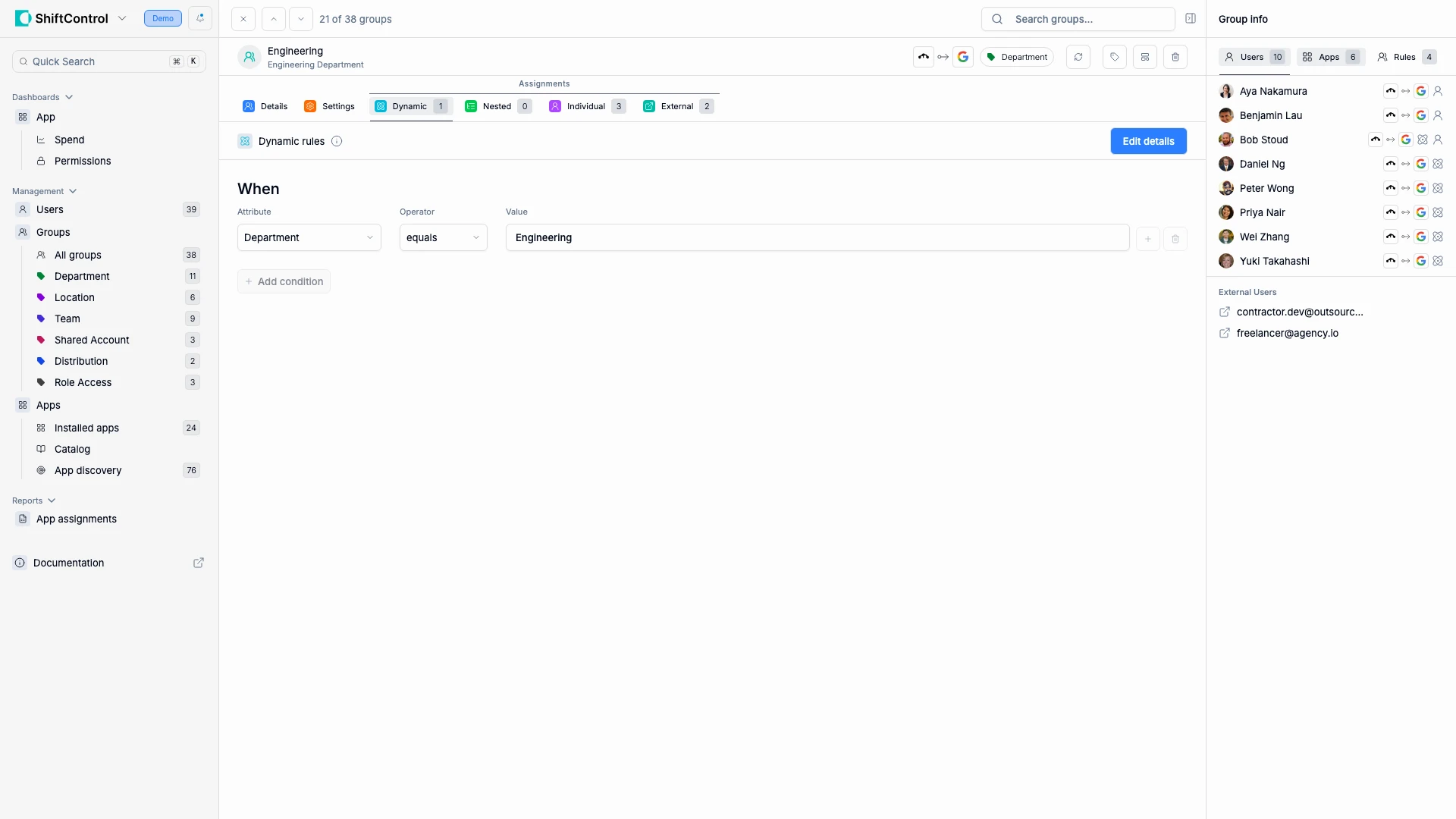
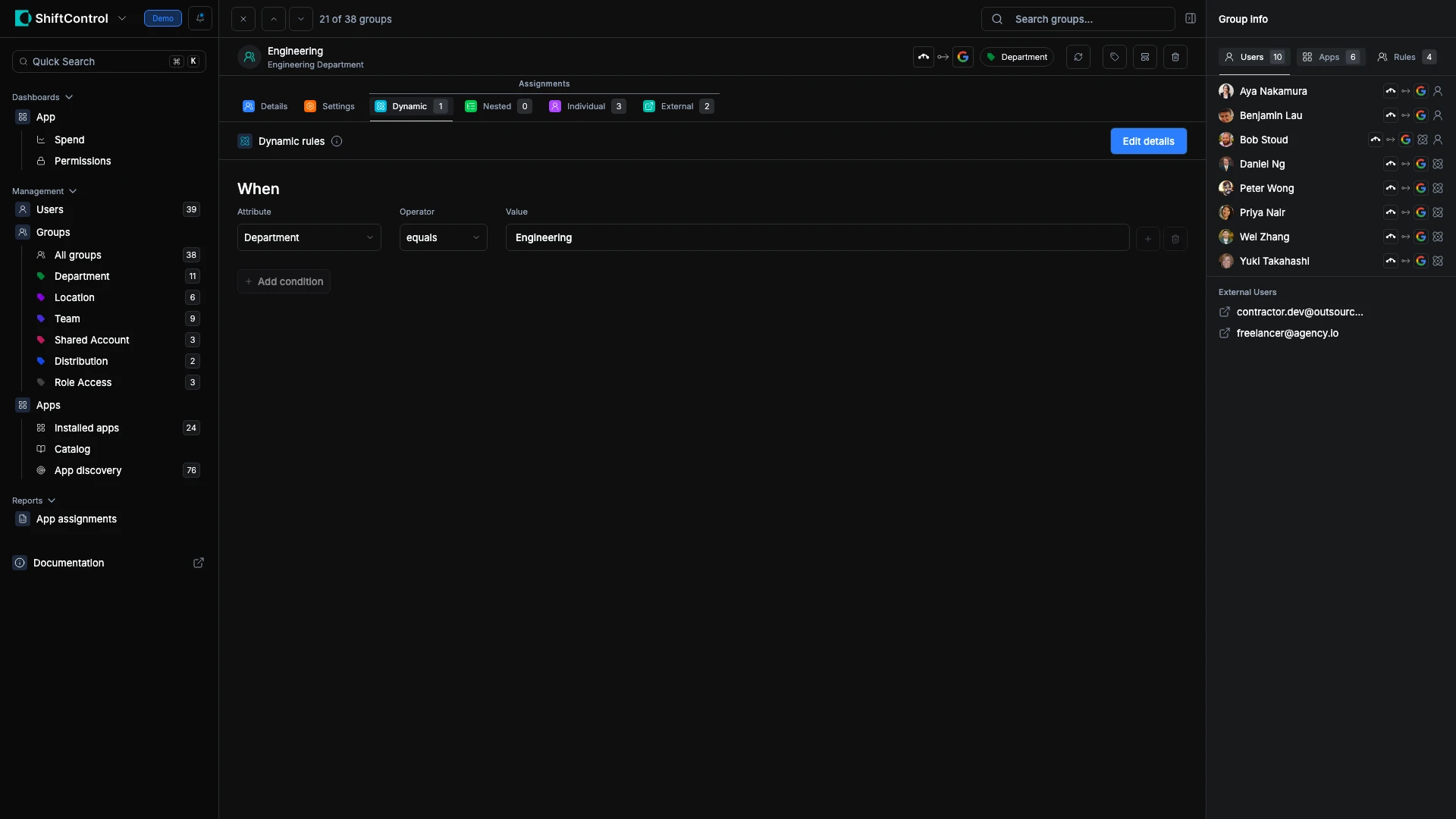
Membership on the group detail page is split across four tabs — Dynamic, Nested, Individual, and External — each with a count, so you can see at a glance where a group's members actually come from. The distinction matters when you go to change something: you don't remove a dynamic member, you edit the rule; you don't remove someone who's there through a nested group, you remove the group. The lightbulb beside the Assignments label explains all four in plain language.
Dynamic
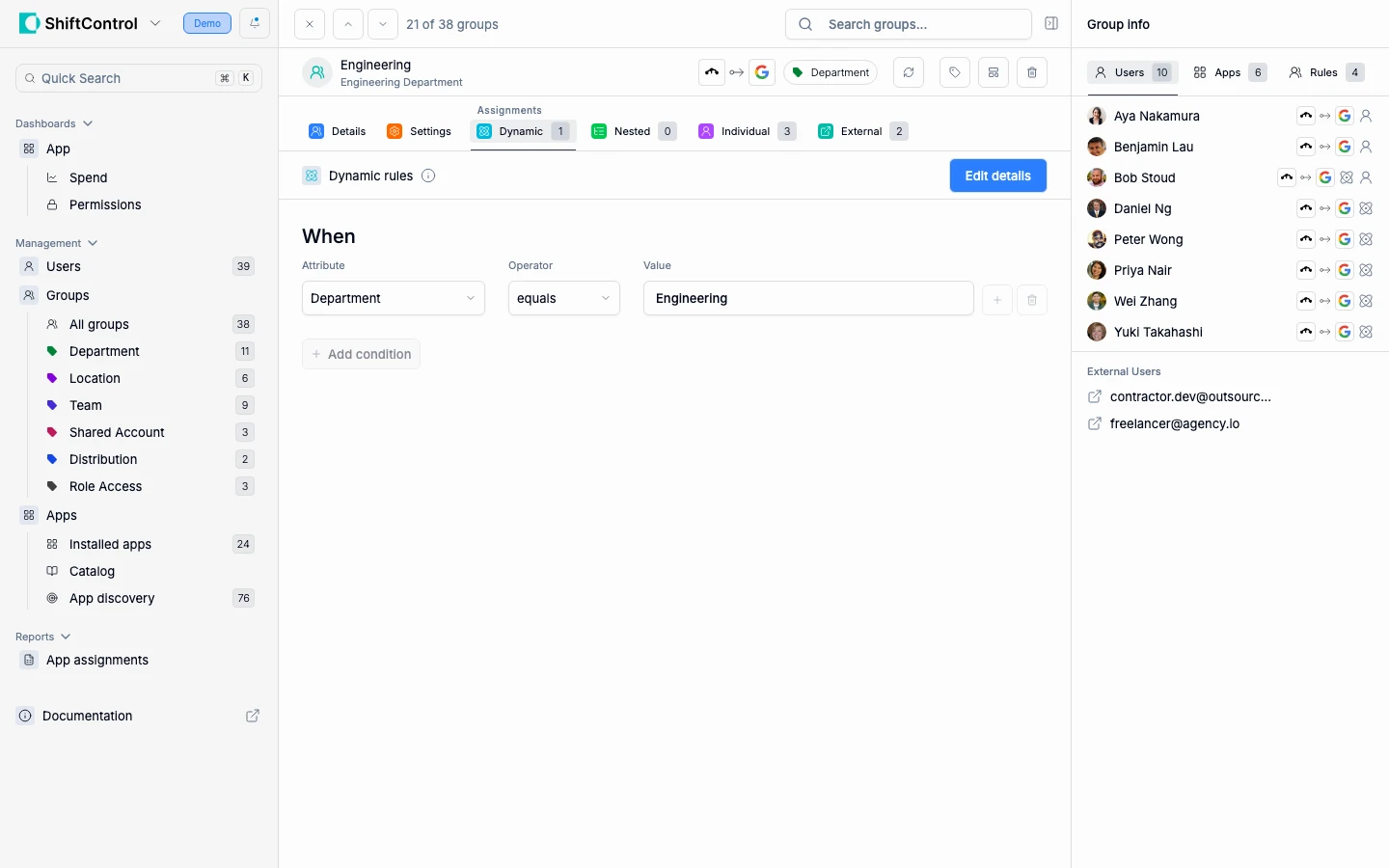
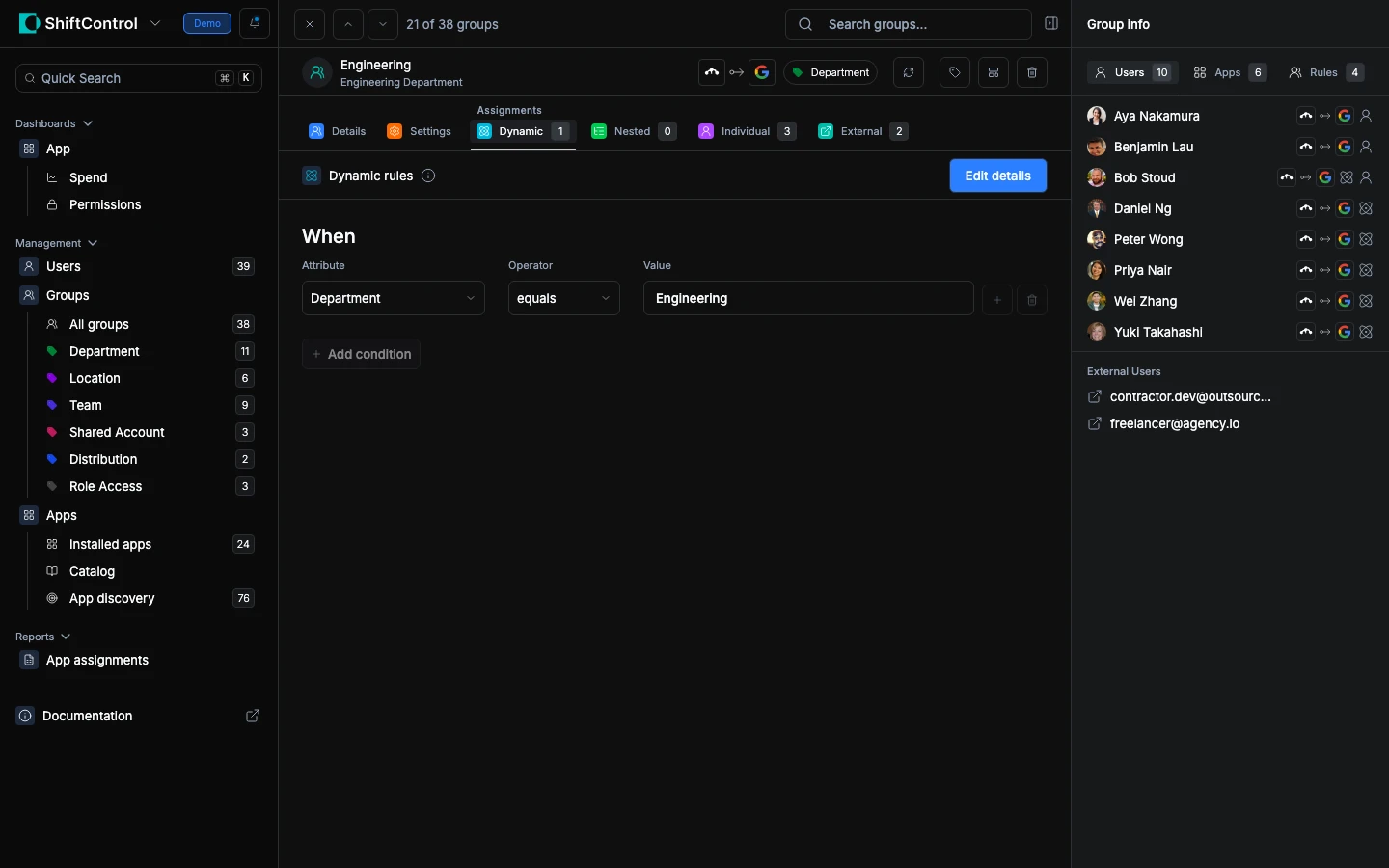
Shows rules that automatically add/remove users based on profile attributes, and the members they currently match. For example: "When Department equals Engineering" adds everyone in the Engineering department. When someone transfers out, they're automatically removed.
Nested
Shows other groups whose members are included in this group. If you nest the "Engineering" group inside "All Technical Staff", every engineer becomes a member of both.
Individual
Shows users who were manually added to the group — useful for one-off exceptions or contractors who don't match any dynamic rule.
External
Shows members who belong to the group in a connected directory but aren't part of your ShiftControl user list — for example, addresses added directly in Google Workspace.
The Sidebar
The right sidebar gives you quick counts and details:
Rules Tab
Summary of active rules — how many dynamic, nested, and individual rules are configured.
Users Tab
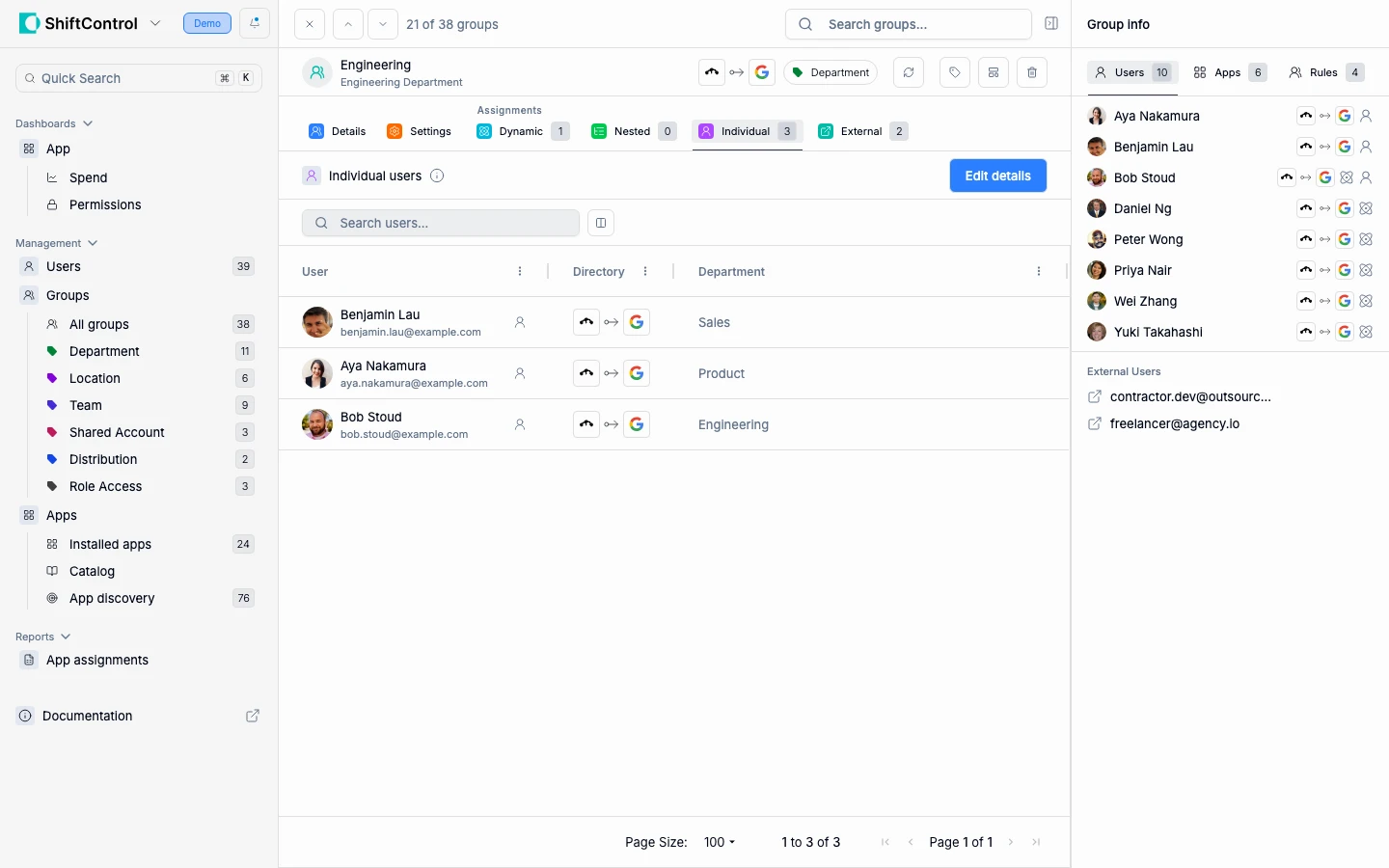
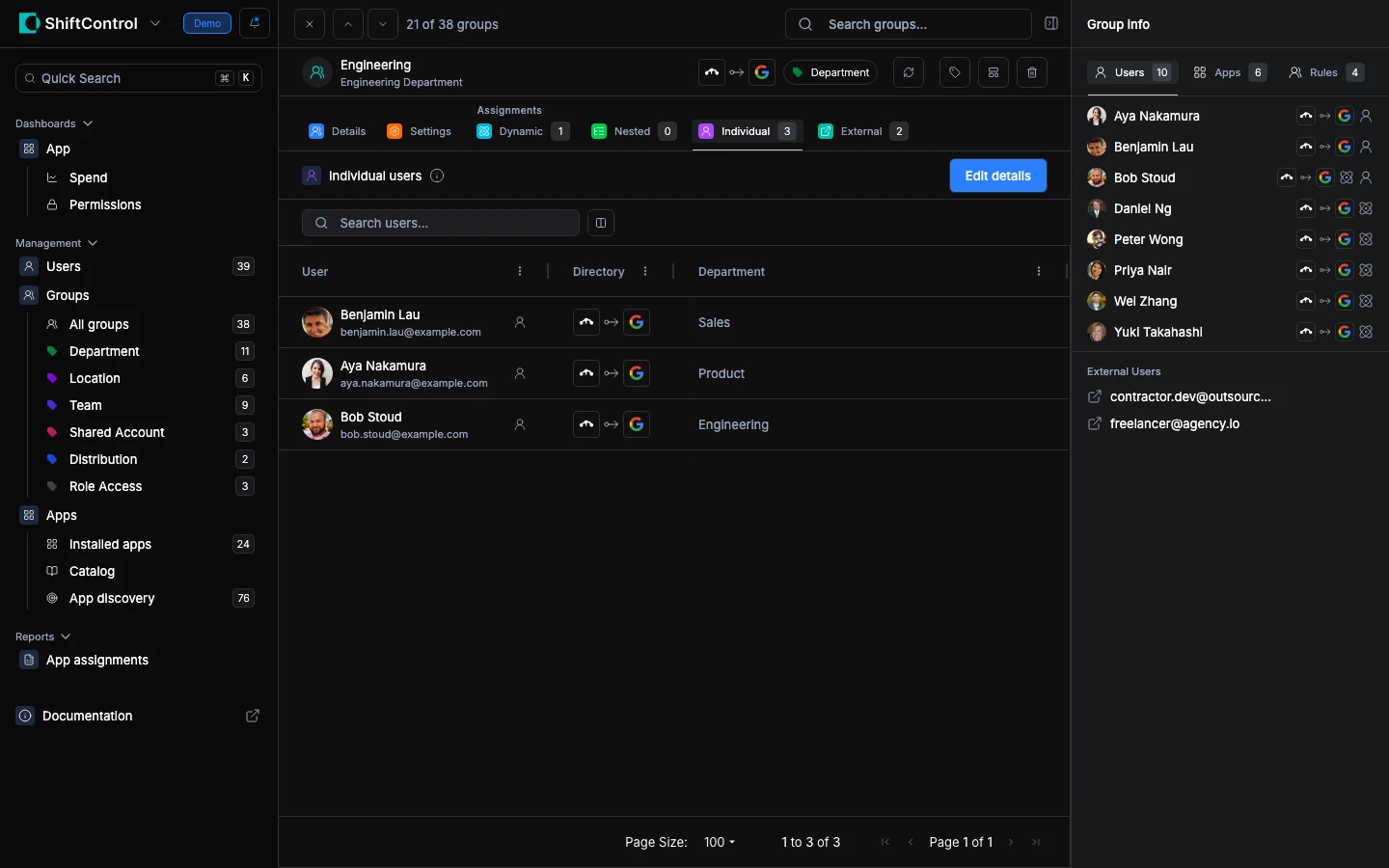
Lists all current members and shows how each was added (dynamic rule, nested group, or individual assignment). Hover over the icons for details.
Apps Tab
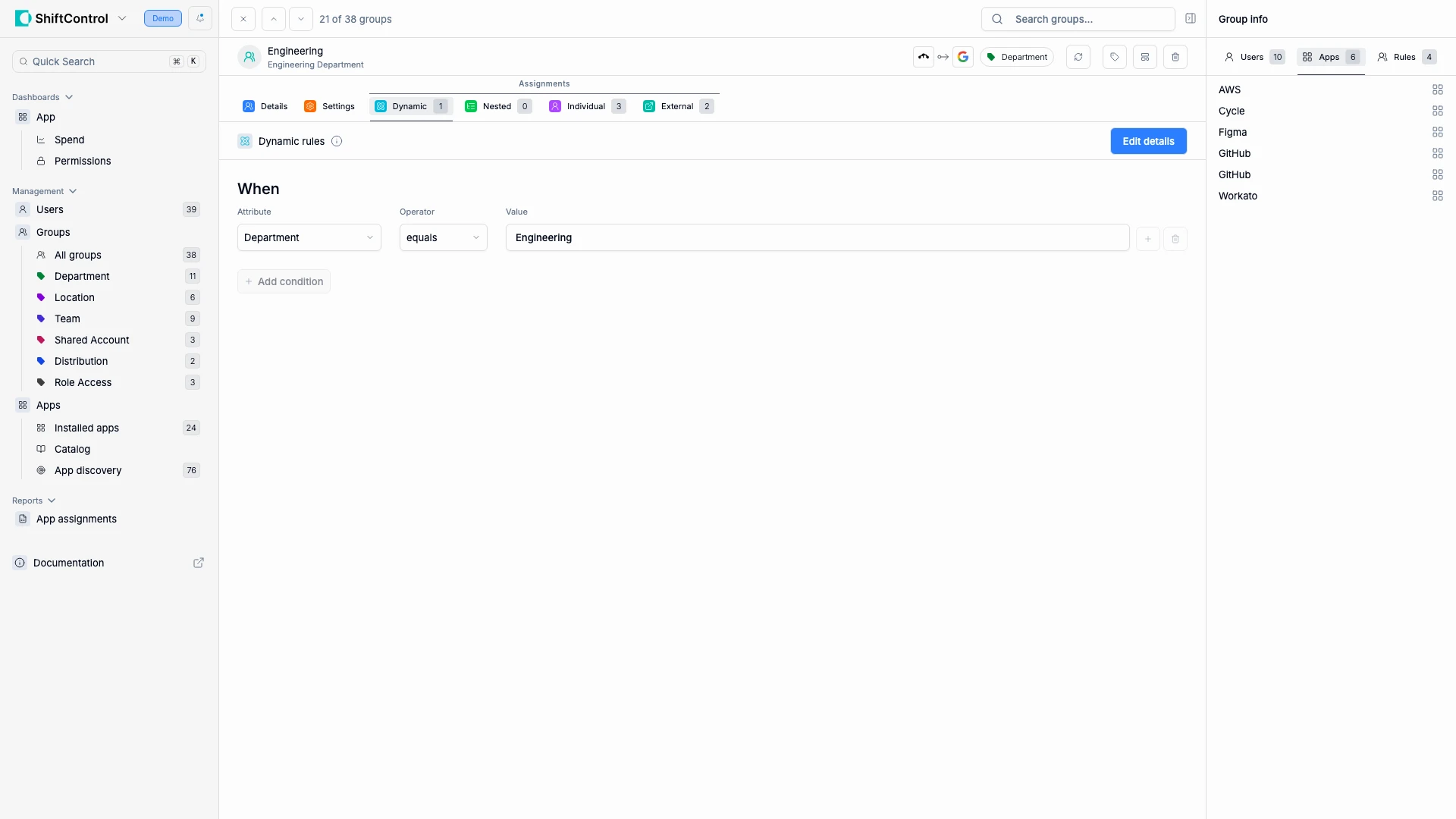
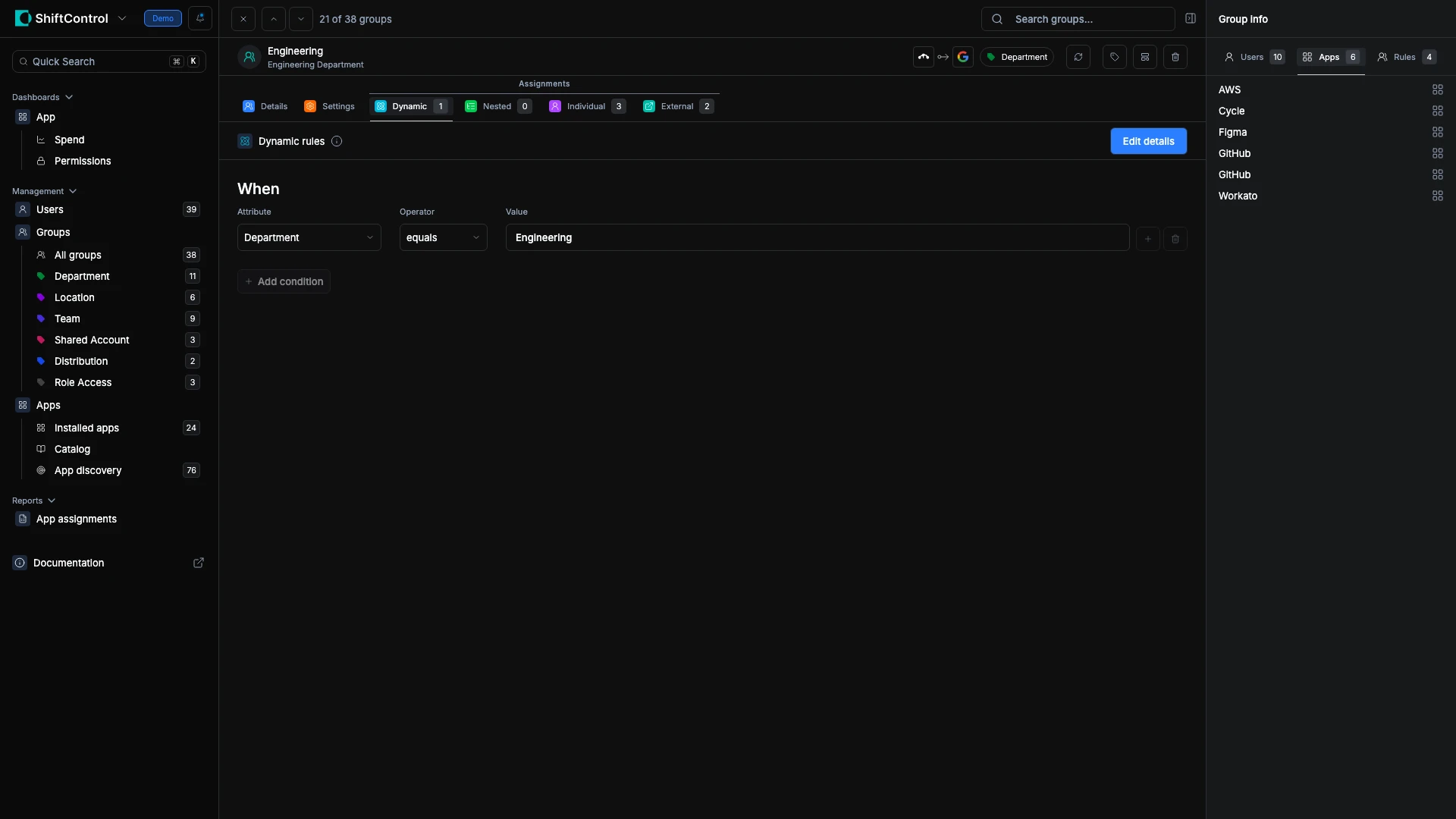
Shows every application this group grants access to. In organizations connected to both directories, this also includes apps granted through a linked group in the other directory. Every member gets access to the apps listed here.
Common Scenarios
Access review — checking who has access to a sensitive app
You need to verify who has access to AWS Production. Open the "AWS Production Access" group, check the Users sidebar tab to see every member, and the Apps sidebar to confirm which apps this group grants. Check the Dynamic tab to verify the membership rule hasn't been overly broadened.
Assigning apps after defining a group
Your Engineering group is ready, and you need to give its members access to a new tool. Check the Apps sidebar to see the access the group already grants, then choose Assign to apps in the group header to add the new app. Every member of the group gets access.
Understanding why a user has unexpected access
A user has access to a tool they shouldn't. Open the relevant group from their user detail sidebar, check the Dynamic tab to see if a rule is matching too broadly, and the Nested tab to see if they're inheriting membership from another group.
Verifying Google Sync status
Check the Details tab for the Google Sync toggle and email address. If sync is enabled, every membership change in ShiftControl is pushed to the corresponding Google Group automatically.
Related Features
- Group Management — Return to the full group list
- Editing a Group — Change membership rules, settings, and assignments
- Adding a Group — Google Sync — Sync membership to Google Workspace