Blocking Apps
App Blocking isn't available for JumpCloud-only organizations.
Not available for JumpCloud-only
App Blocking works by revoking Google Workspace OAuth grants — the access users hand third-party apps when they connect them to Google data like Drive and Gmail. Your organization is set up with JumpCloud only, so there's no Google directory for ShiftControl to enforce against, and this feature doesn't apply.
If you add Google Workspace to your organization, App Blocking becomes available automatically. In the meantime, App Discovery and App Management cover the rest of your application management.
Stop a risky third-party app from touching your data — revoke everyone who already granted it access, and keep revoking anyone who tries to authorize it again.
Overview
App Blocking lets an admin block a third-party OAuth app for your entire Google Workspace and record why. Blocking does two things: it revokes the app for everyone who has already authorized it, and it keeps watching — if someone authorizes the app again later, ShiftControl revokes that new grant automatically, usually within a couple of minutes.
This is the enforcement half of App Discovery. Discovery tells you which third-party apps your team has connected to your Google Workspace; blocking is how you shut down the ones you don't want.
What Blocking Actually Does — and Doesn't
This is the most important thing to understand before you rely on App Blocking.
Blocking revokes an app's OAuth authorization — the access a user granted when they let an app connect to their Google data (read their Drive, send Gmail, edit Sheets, read Calendar, and so on). When you block that app, ShiftControl deletes those grants, so the app can no longer reach your data.
Blocking does not end a plain "Sign in with Google" login session inside another service. If someone uses Google only to log in to, say, an AI tool, that service authenticates them and holds its own session — often for hours or days, depending on the service. ShiftControl can't reach inside that third-party service to log them out. Revoking the Google grant doesn't kill a session the other service is already running.
So where App Blocking is genuinely powerful:
- Apps that request data scopes — anything granted access to Drive, Gmail, Sheets, Slides, Calendar, or similar. Block it and that access is pulled, org-wide, fast. This is the case that matters.
Where it helps less:
- Pure "Sign in with Google" logins — the user can still start a fresh login and get a new session inside that service. Google does let you restrict app sign-in from the Admin console, but that control is buried several levels deep in an API-access screen most admins never find. App Blocking doesn't replace that; it targets the data-access grants that actually put your files and mail at risk.
How It Works
When you block an app, two enforcement paths run.
1. Everyone who already authorized it is revoked. ShiftControl kicks off a background job that scans every user in your Google directory, finds who granted the app OAuth access, and deletes those grants. This runs org-wide and can take a few minutes on a large directory. When it finishes, ShiftControl emails you — the admin who blocked it — a summary of how many grants were revoked.
2. New authorizations are revoked automatically. After the initial sweep, the block stays live. Google notifies ShiftControl whenever a user authorizes a third-party app; if that app is on your block list, ShiftControl revokes the new grant — usually within a couple of minutes — and emails that user to tell them their access to a blocked app was revoked. This near-real-time step depends on ShiftControl receiving the authorization signal from Google, so treat "a couple of minutes" as the normal case, not a guarantee.
The two paths notify different people. The initial org-wide sweep emails you, the blocking admin, a single summary when it completes. The ongoing auto-revocation emails the affected user each time a new authorization is caught and revoked.
Blocking is keyed to an app's Google OAuth client ID. Most apps use a single client ID, but some span several. When you block by app name, ShiftControl blocks every client ID it has seen for that app; you can drop into an advanced view to block only a specific one (for example, to shut down a single compromised client ID while leaving the rest active).
Common Scenarios
Cutting off a risky app's access to your data
App Discovery surfaces a note-taking app that a dozen people connected to their Gmail and Drive with broad read scopes. You've decided it's not allowed. You block it — ShiftControl revokes all twelve grants within a few minutes and emails you a summary. From then on, if a thirteenth person authorizes it, that grant is pulled automatically and they're told why.
Responding to a compromised app
You learn one of an app's OAuth client IDs is compromised. Rather than block the whole vendor, you open the app in the block modal's advanced view, block only the affected client ID, and leave the legitimate one running — so your team keeps working while the bad credential is dead.
Enforcing a decision from a single user's page
While reviewing one employee's connected apps, you spot an app that shouldn't be anywhere in the org. You block it right there from their App permissions tab. The block is org-wide — it doesn't just cover that user; it revokes and keeps revoking for everyone.
Where to Block an App
There are three places to block an app. All three create the same org-wide block.
- From the Blocked apps page — the dedicated list, best when you want to block an app you already know by name or client ID.
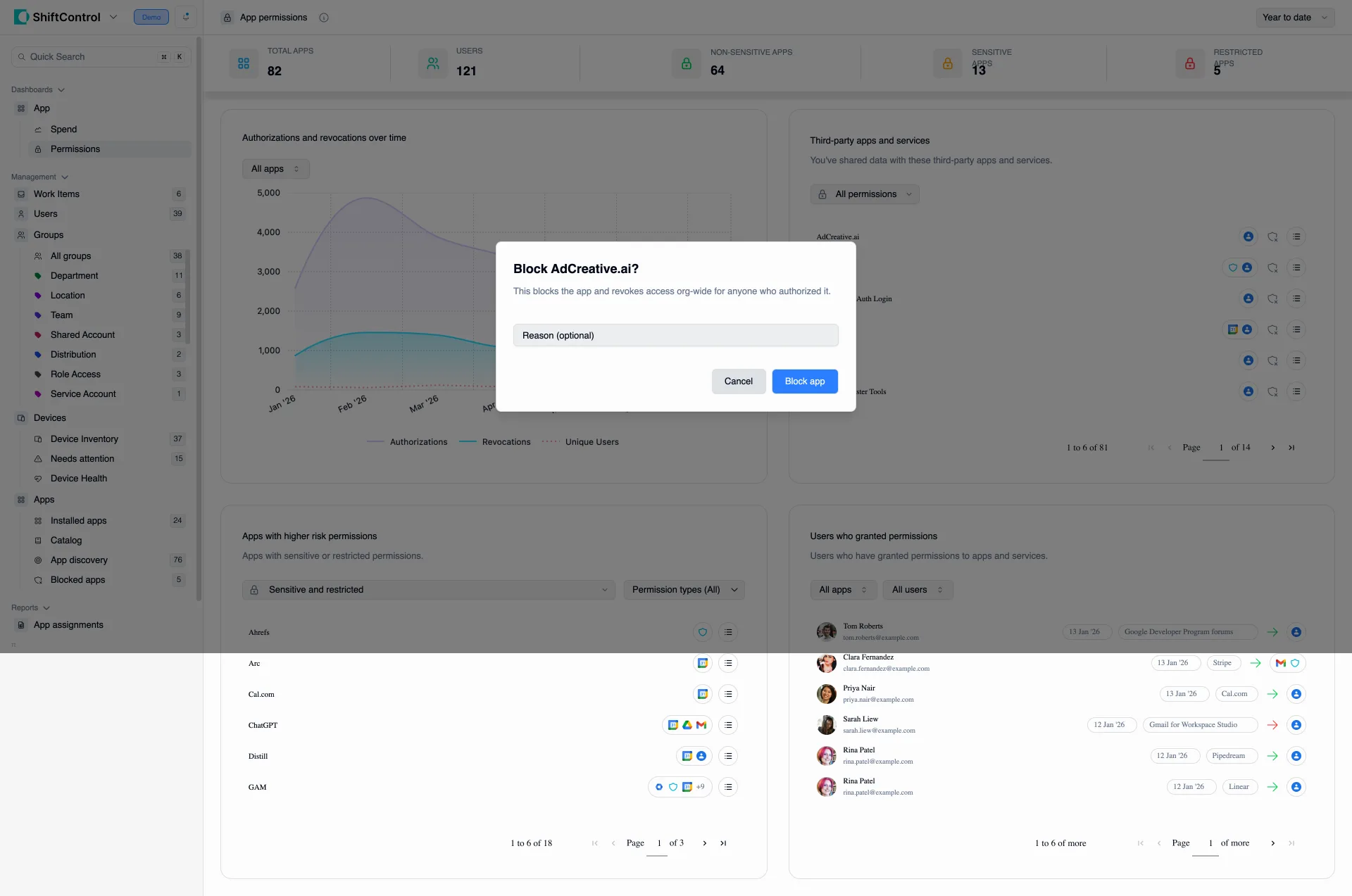
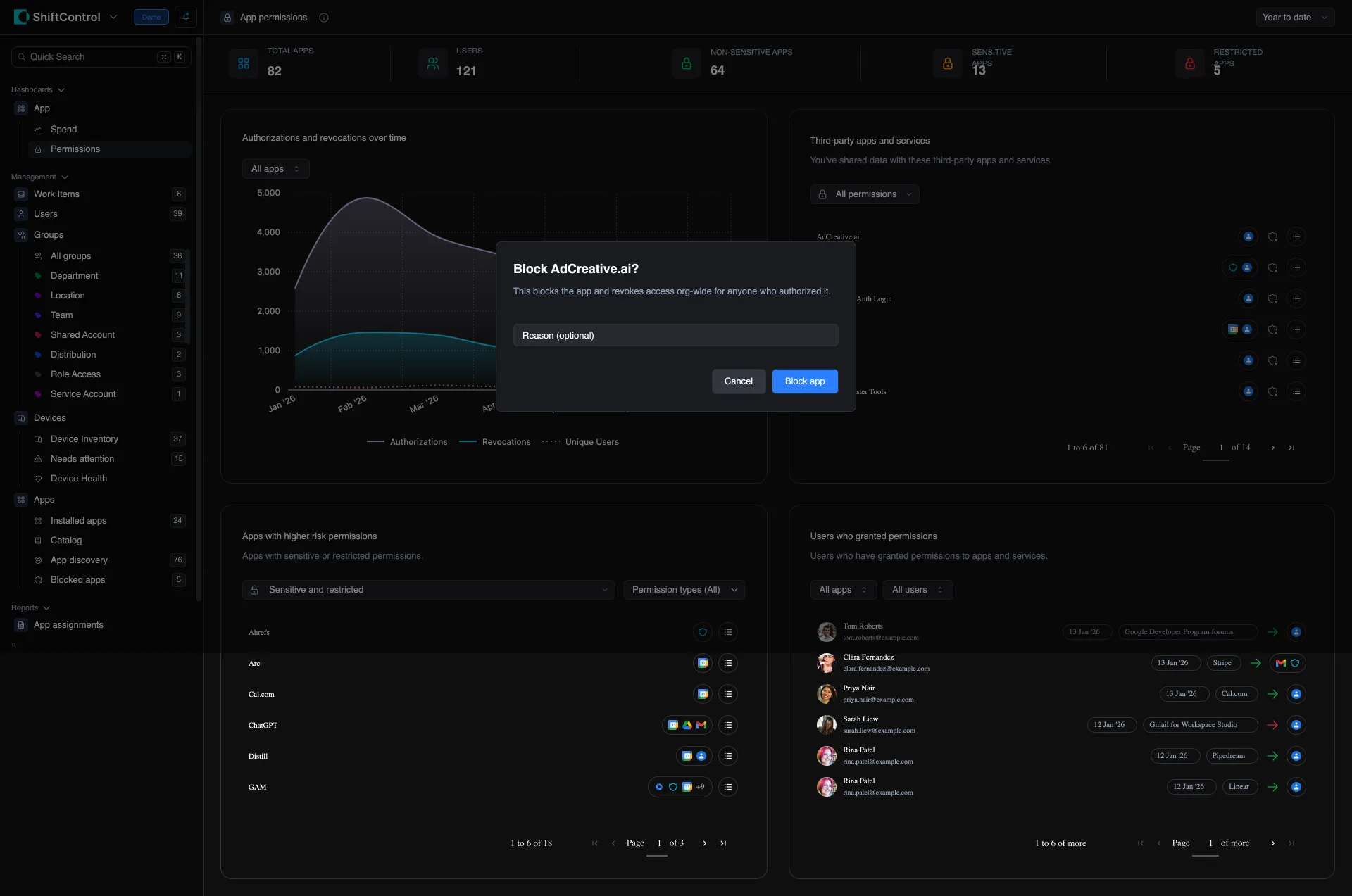
- From the App Permissions dashboard — block an app directly from the "Third-party apps and services" list while reviewing OAuth activity across the org.
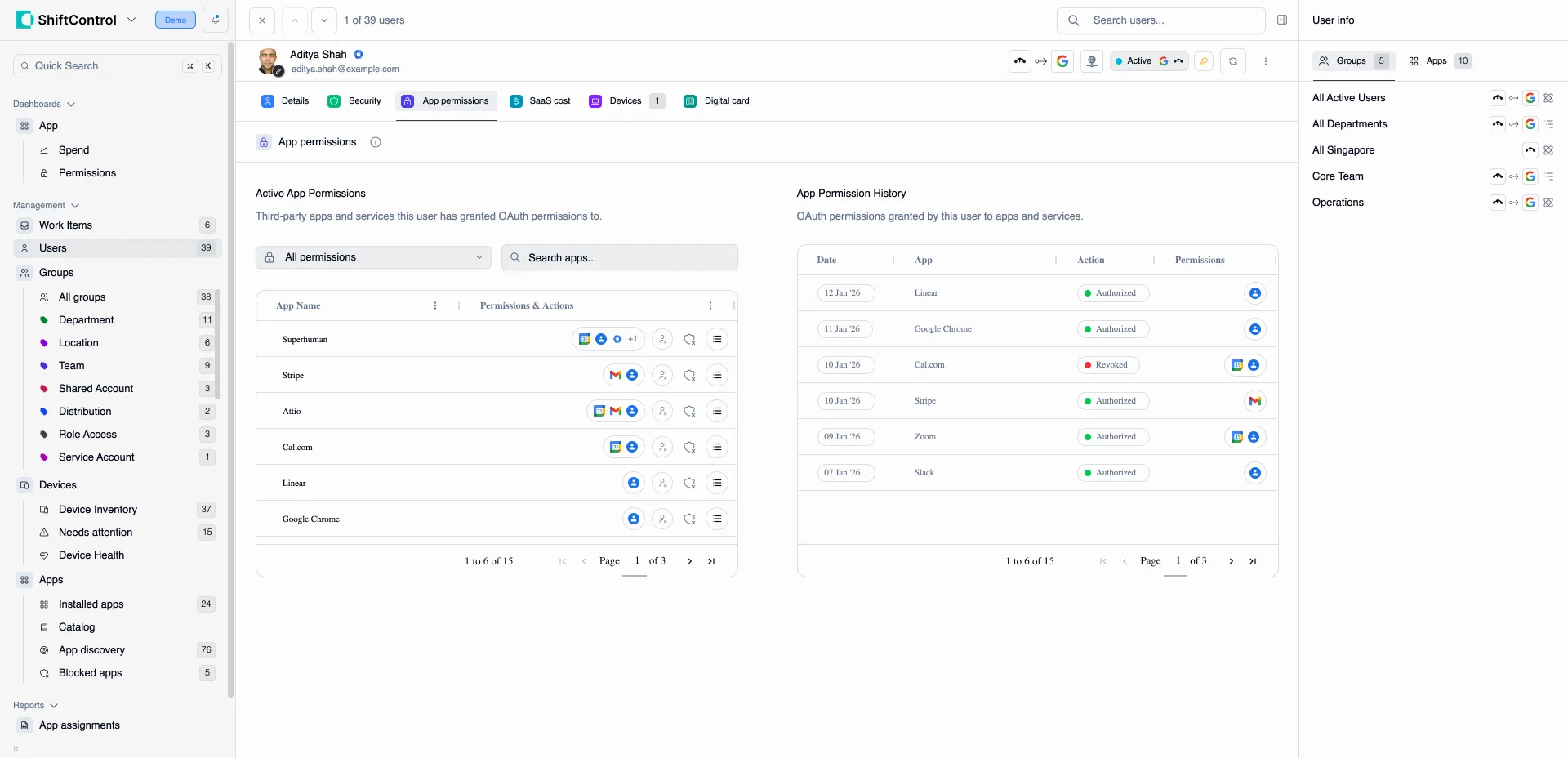
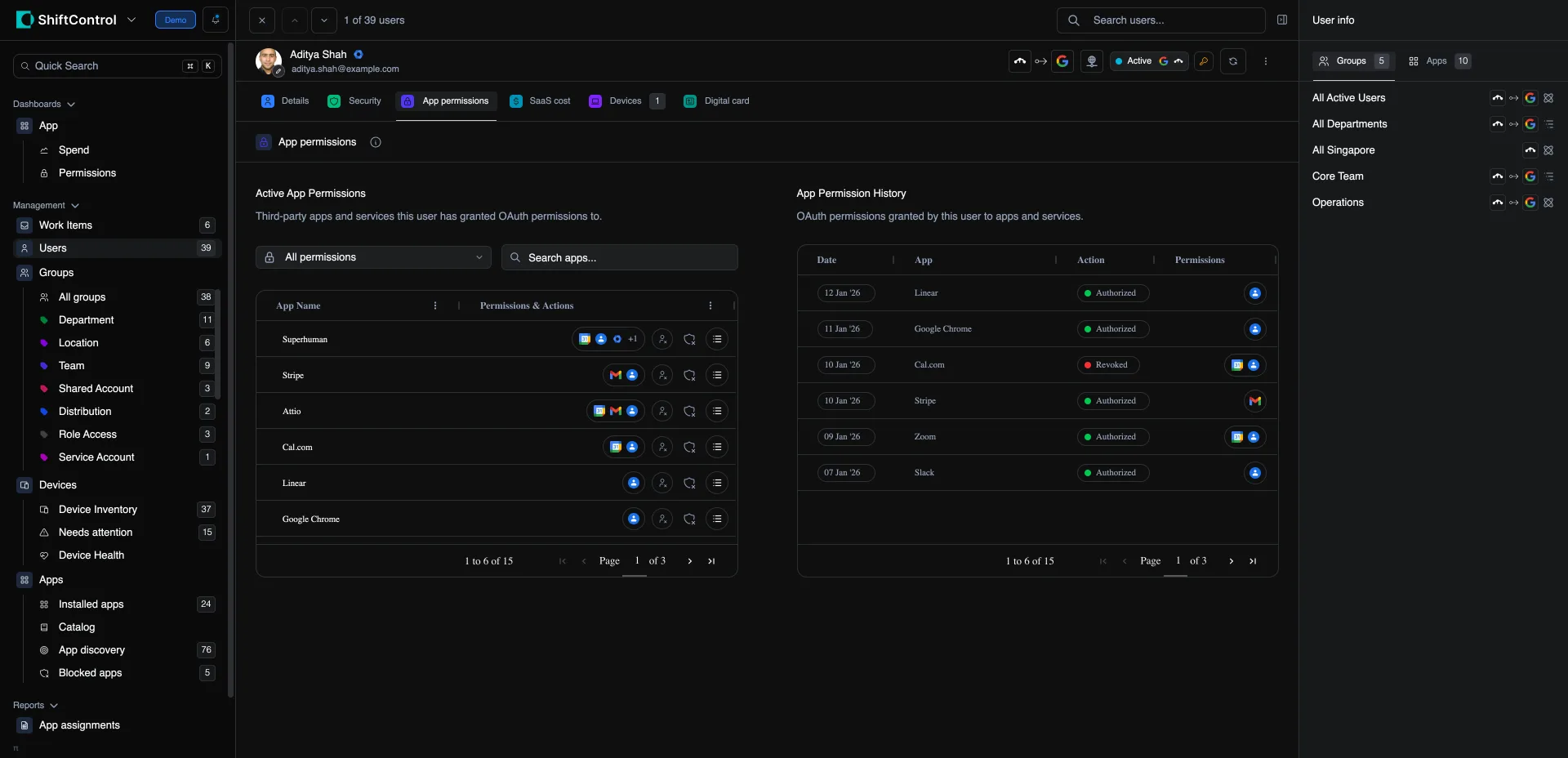
- From a user's App permissions tab — block an app while looking at one person's connected apps. The block still applies to the whole org.
The Blocked Apps Page
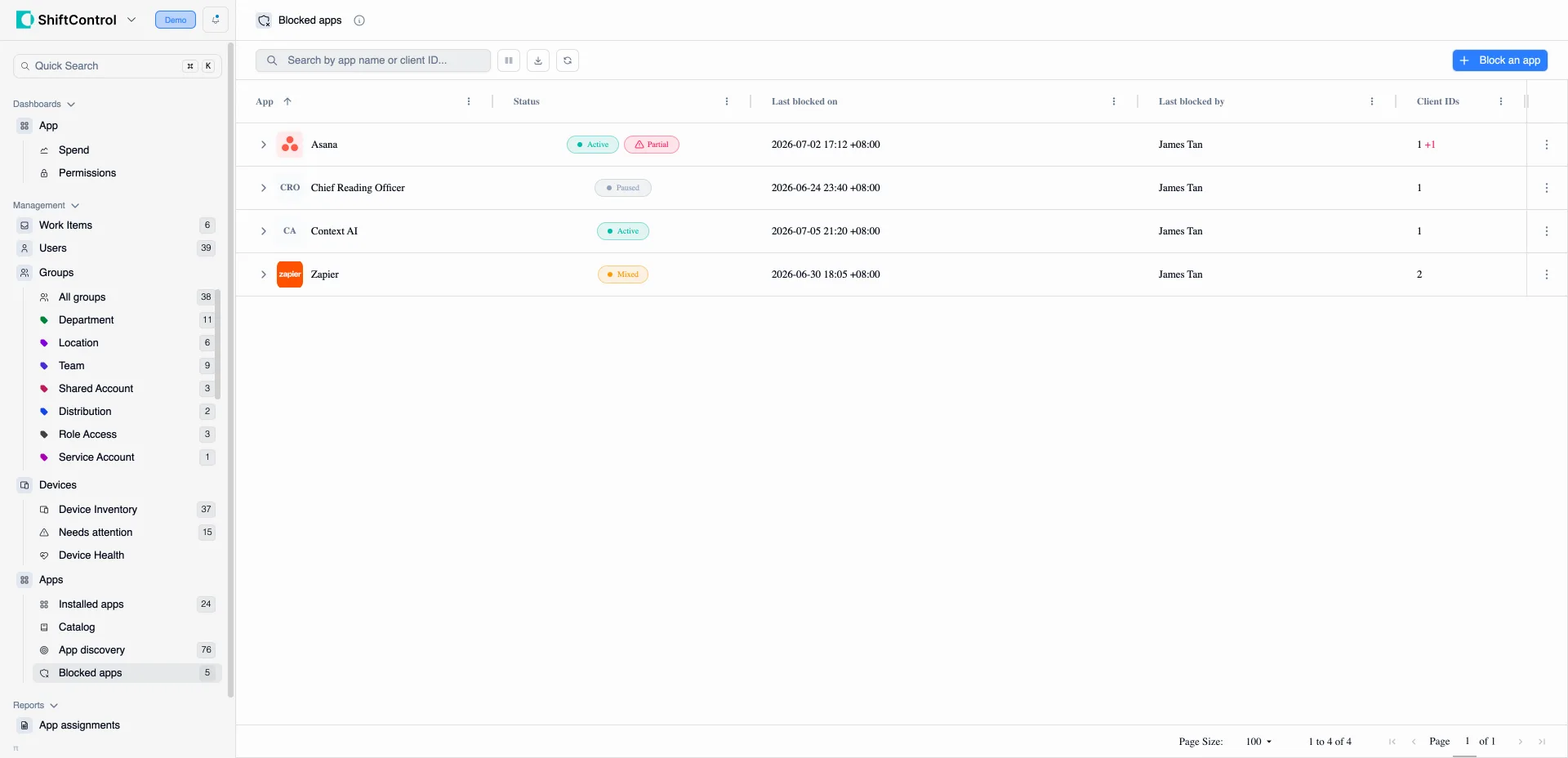
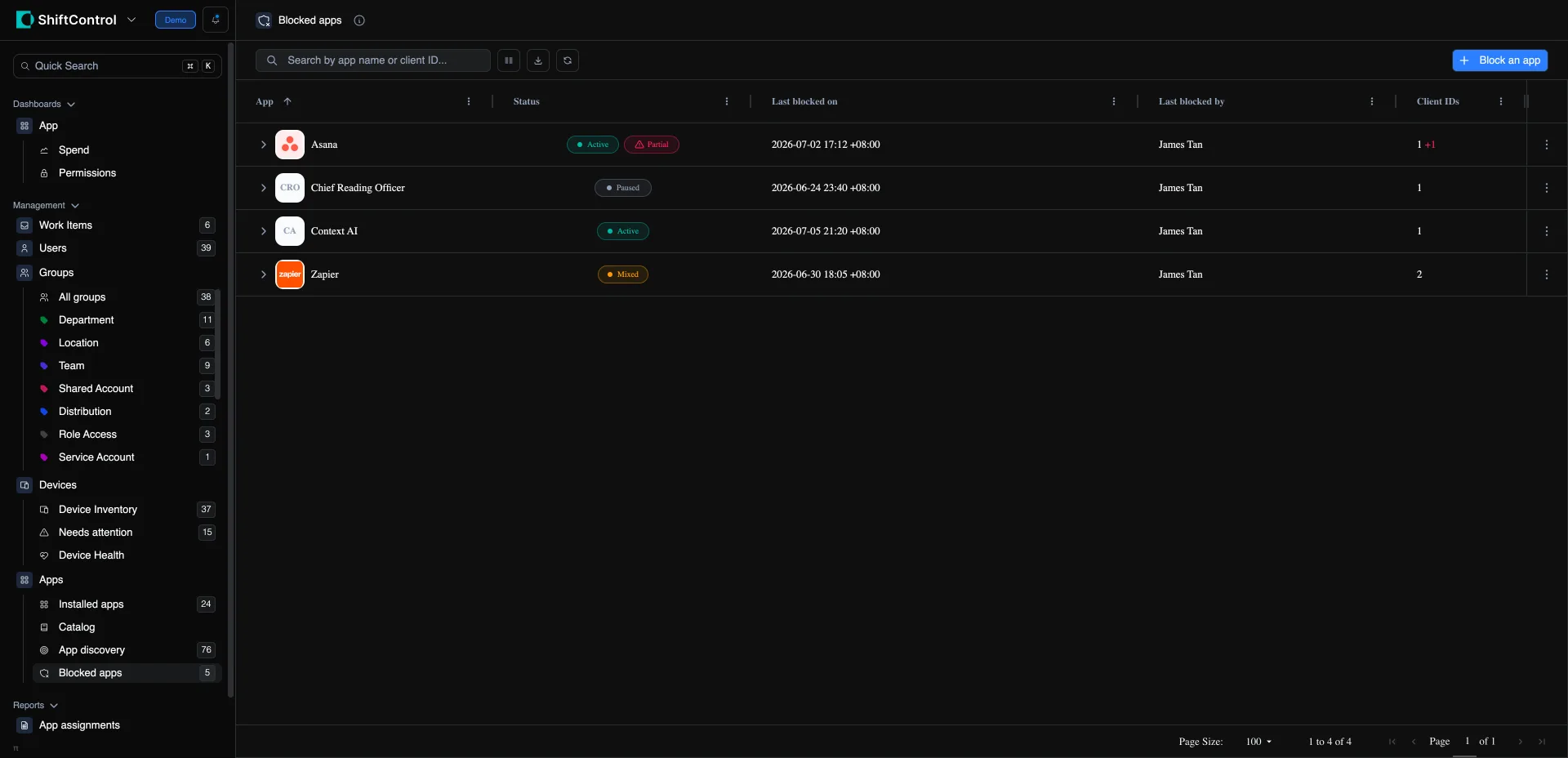
Find Blocked apps under Apps in the sidebar. This page lists every app currently blocked for your organization.
Each row shows:
- App — the app's icon and name.
- Status — whether the block is Active, Paused, or Mixed (some of the app's client IDs blocked, some paused).
- Last blocked on — when the app was most recently blocked.
- Last blocked by — the admin who blocked it.
- Client IDs — how many client IDs are covered, flagged if the app has authorized client IDs that aren't yet blocked.
Expand a row to see each client ID individually, with its own status, the reason it was blocked (you can edit this inline), when it was blocked, and by whom.
Blocking a New App
Click Block an app. The modal gives you two ways to identify the app:
- Pick existing app — search the third-party apps ShiftControl has already detected in your org and select one. This is the usual path. If the app spans multiple Google projects or client IDs, an advanced view lets you choose exactly which client IDs to block.
- Enter manually — paste a Google OAuth client ID (it ends in
.apps.googleusercontent.com) and give the app a name. Use this for an app ShiftControl hasn't detected yet.
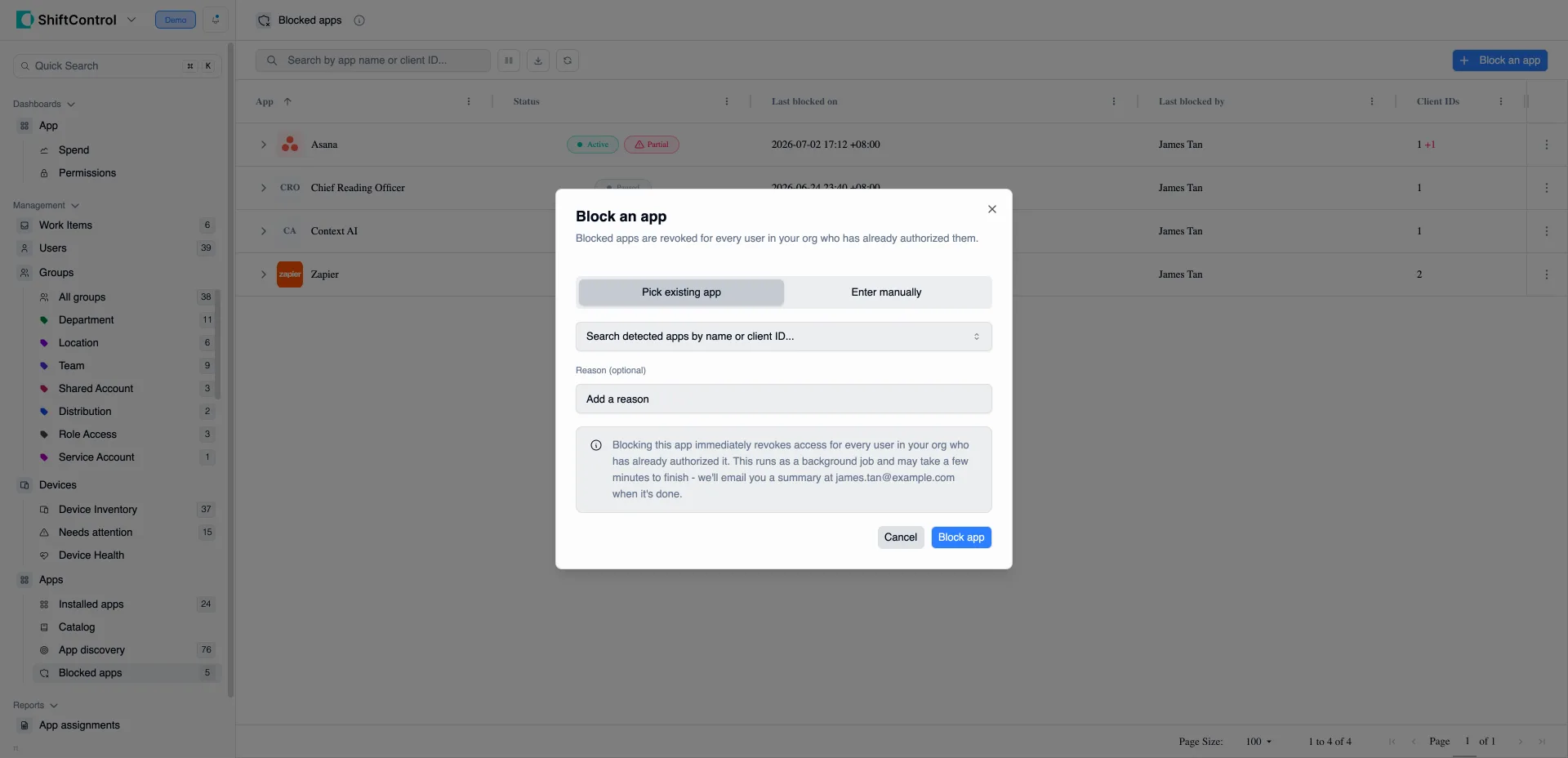
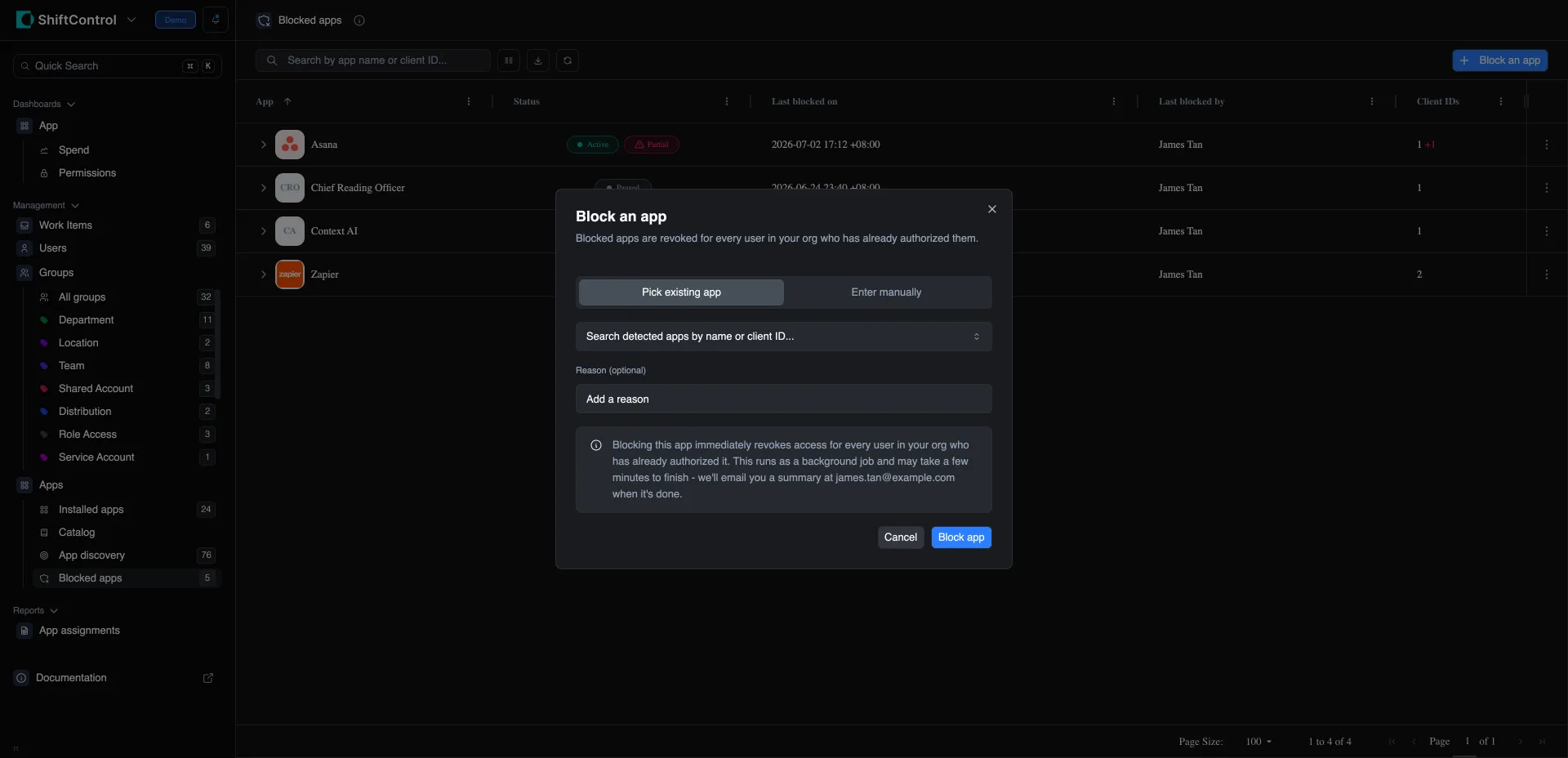
Add an optional reason — this is worth doing. The reason is stored with the block and shown on the Blocked apps page, so future-you (and your teammates) know why the app was blocked without having to reconstruct it. Then click Block app. Blocking begins immediately and the initial revocation runs in the background; ShiftControl emails you a summary when it's done.
Managing a Blocked App
Use the ⋮ menu on any row:
- Block remaining — block any of the app's client IDs that aren't yet covered.
- Edit reason — update the recorded reason.
- Pause / Resume — temporarily suspend auto-revocation without removing the block, then turn it back on. Handy when you're troubleshooting.
- Unblock — remove the block so the app can be authorized again.
Removing a block lets the app be authorized again going forward. It does not re-grant access to anyone whose authorization was already revoked — those users would need to authorize the app again themselves.
Blocking from the App Permissions Dashboard
On the App Permissions dashboard, the "Third-party apps and services" list shows the OAuth apps active across your org. Each row has a Block this app org-wide action. Clicking it opens a short confirmation that tells you how many client IDs will be blocked and lets you add a reason before you commit.
Blocking from a User's Page
Open any user and go to their App permissions tab (visible only for organizations with a Google directory). This shows the apps that user has authorized. The same Block this app org-wide action is available on each app — a fast way to act on something you spot while reviewing one person, without leaving the page. As everywhere else, the block applies to the entire organization, not just that user.
Things to Know
- Blocking is org-wide. No matter where you start it, a block covers every user in the organization — there are no per-user exceptions today.
- The initial sweep is a background job. On a large directory it takes a few minutes. You'll get an email summary when it finishes; you don't need to keep the page open.
- Ongoing revocation depends on Google's notification. ShiftControl revokes new authorizations when Google tells it one happened. That's normally within a couple of minutes, but it's not instantaneous and not a hard guarantee.
- You can't block ShiftControl's own connector. The ShiftControl app and a small set of protected client IDs are marked Protected and can't be blocked — this keeps you from cutting off ShiftControl's access to your directory.
- Blocking targets data-access grants, not login sessions. Re-read What Blocking Actually Does — this is the difference between "the app can no longer read our Drive" and "nobody can ever sign in with Google to that service."
- A reason is optional but recommended. It's the fastest way for anyone to understand a block months later.
Related Features
- App Discovery — find the third-party OAuth apps your team has connected, so you know what to block.
- App Permissions Dashboard — review OAuth activity across the org and block from there.
- App Management — manage the apps you officially provision and assign.
- Editing a User — review and act on a single user's connected apps.