Viewing a Group
See who's in a group, why they're there, what apps they can access, and how the rules work — all at a glance.
Overview
The group detail page answers the questions you ask during access reviews:
- "Who is in this group and how did they get there?"
- "What apps does this group grant access to?"
- "What rules control membership?"
- "Is this group syncing to Google Workspace?"
Click any group name in the Group Management list to open it.
Membership Tabs
The group detail page has tabs showing how members are added:
Dynamic Rules
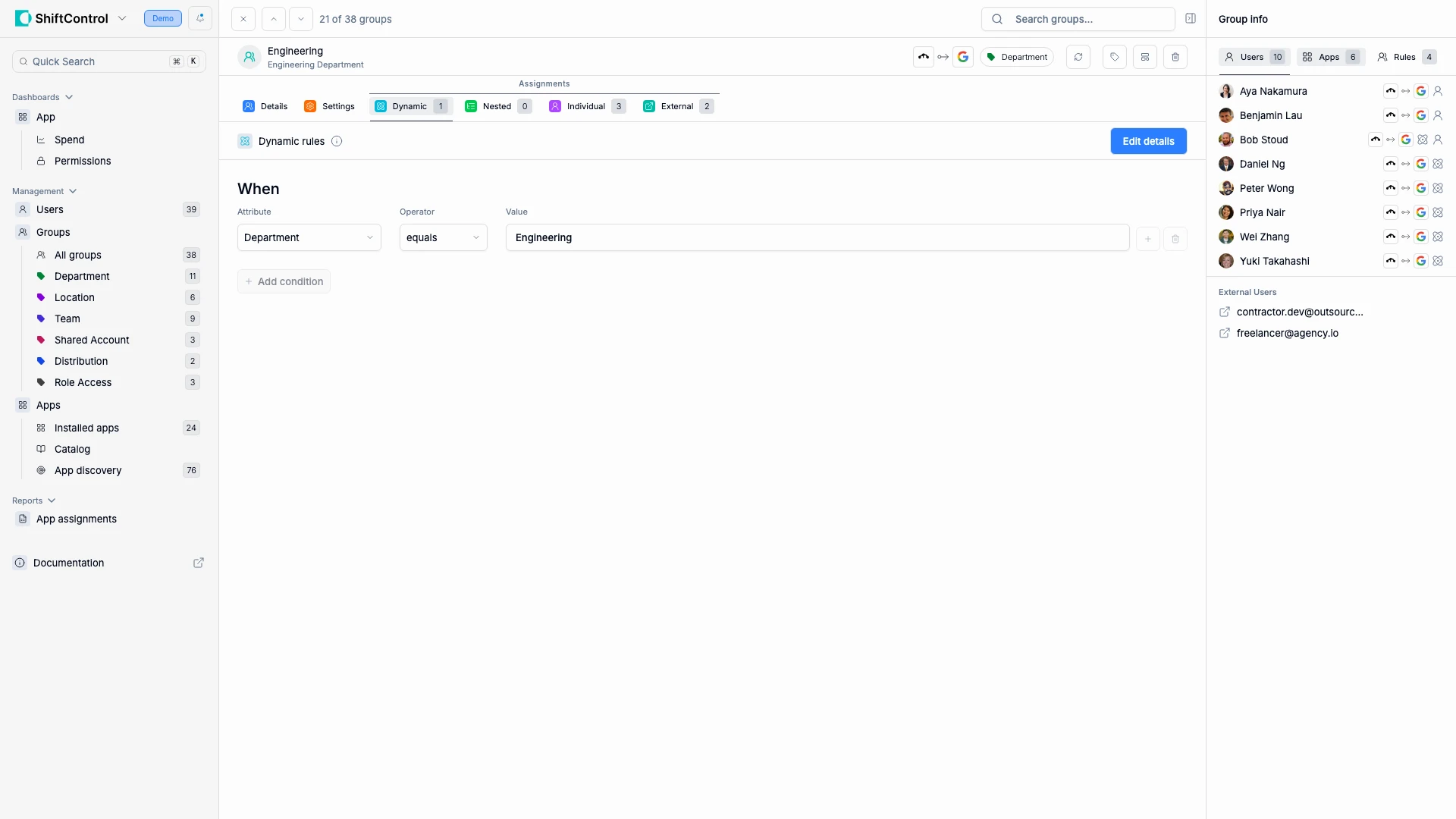
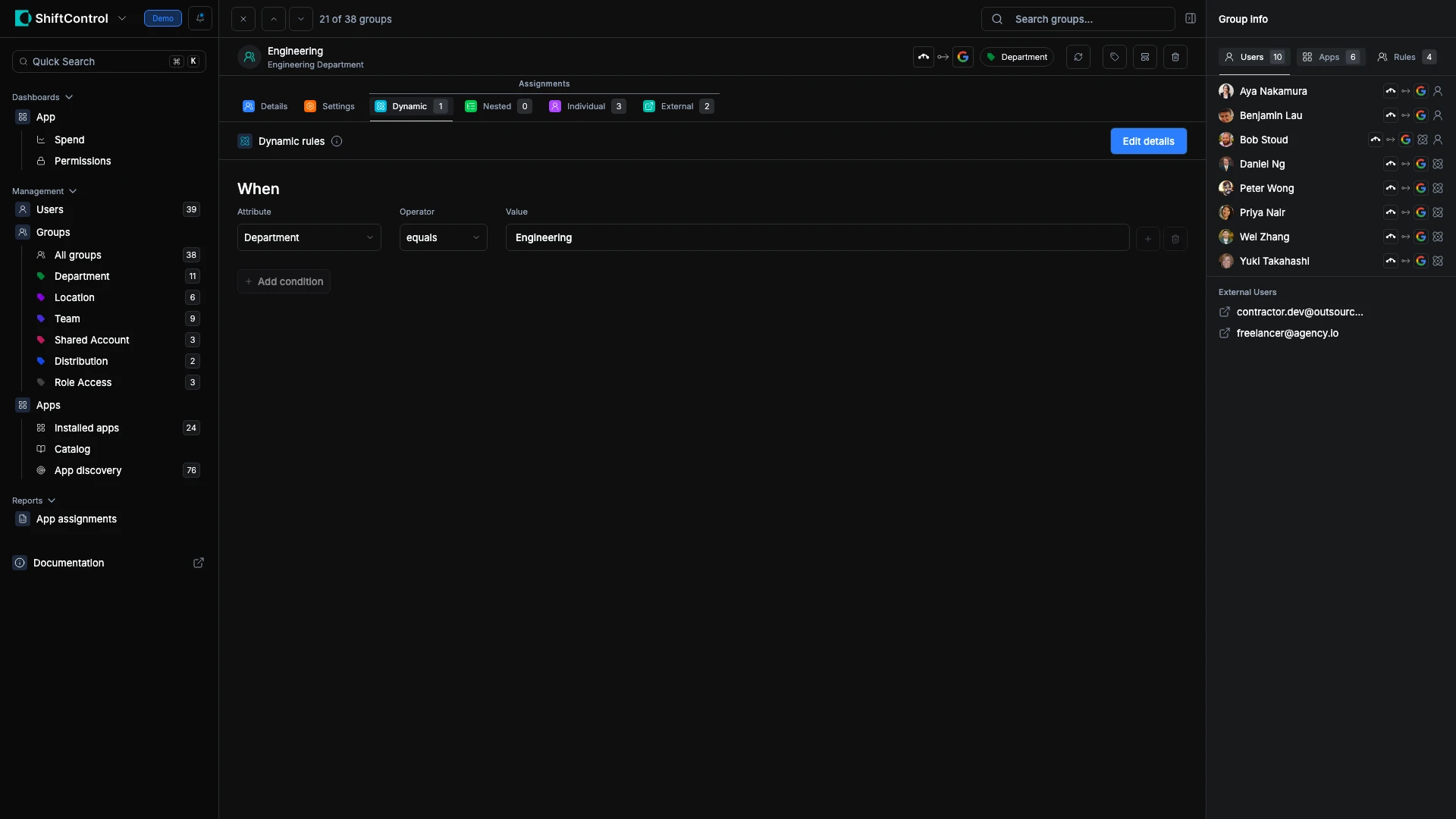
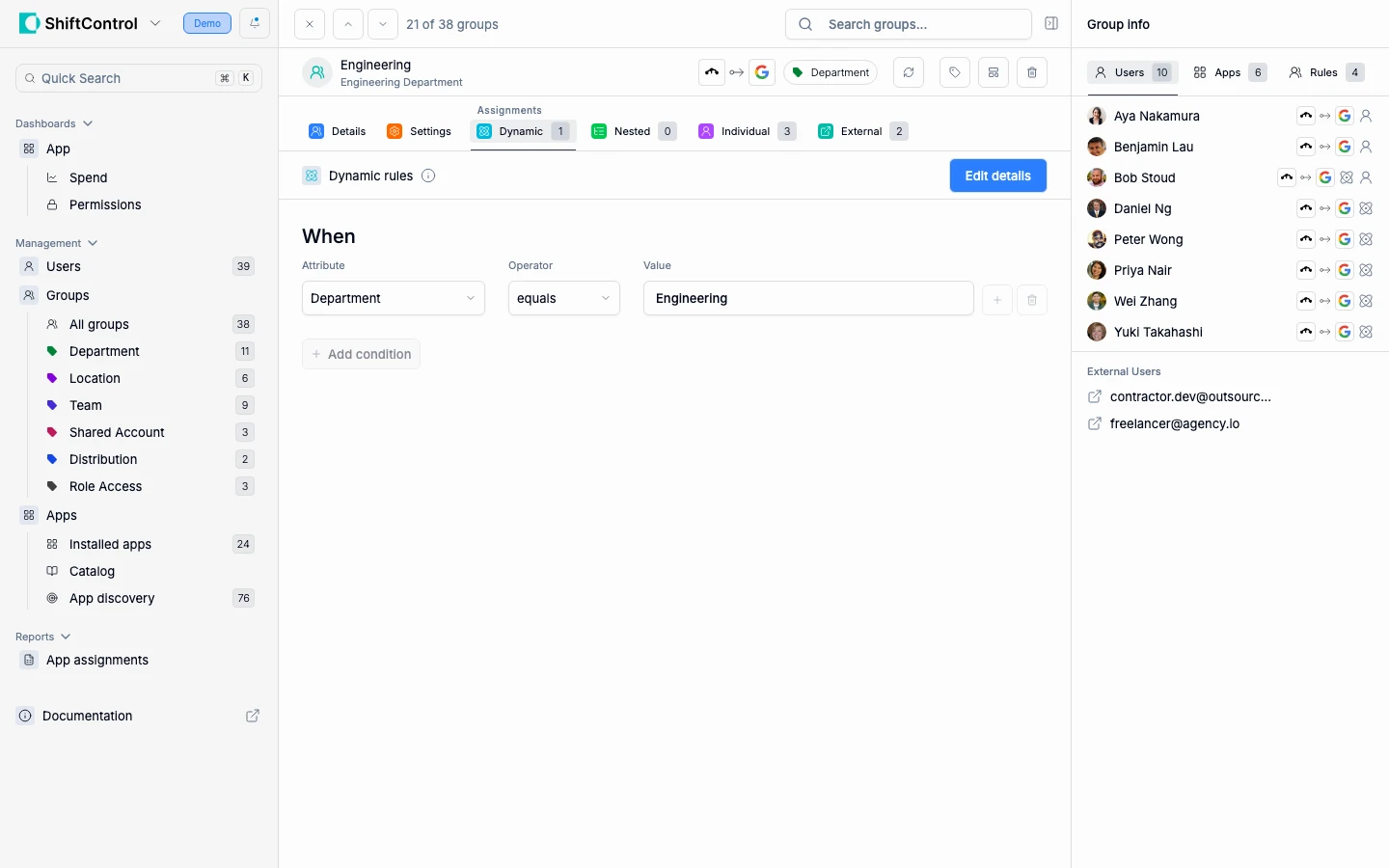
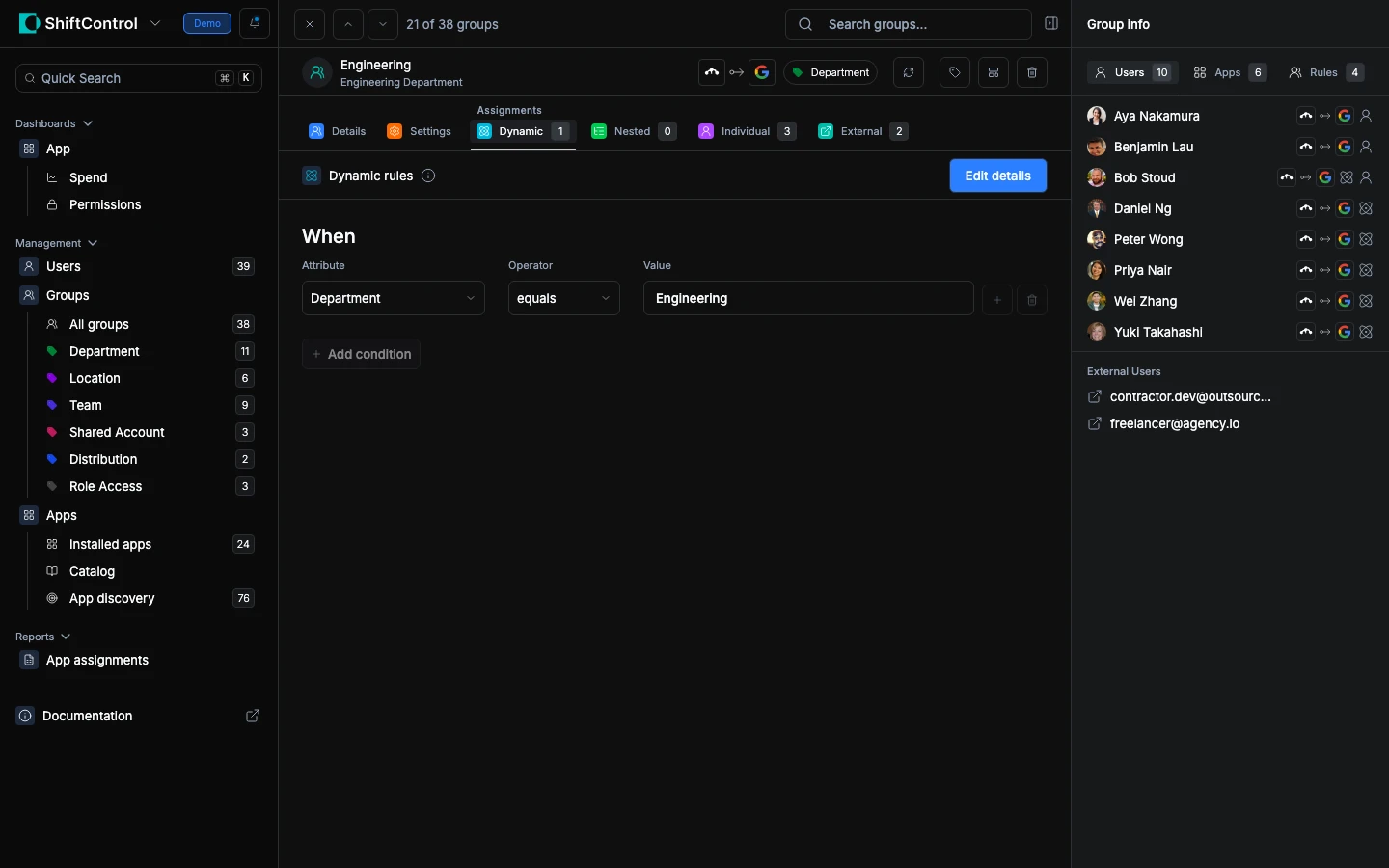
Shows rules that automatically add/remove users based on profile attributes. For example: "When Department equals Engineering" adds everyone in the Engineering department. When someone transfers out, they're automatically removed.
Nested Groups
Shows other groups whose members are included in this group. If you nest the "Engineering" group inside "All Technical Staff", every engineer becomes a member of both.
Individual Assignments
Shows users who were manually added to the group — useful for one-off exceptions or contractors who don't match any dynamic rule.
The Sidebar
The right sidebar gives you quick counts and details:
Rules Tab
Summary of active rules — how many dynamic, nested, and individual rules are configured.
Users Tab
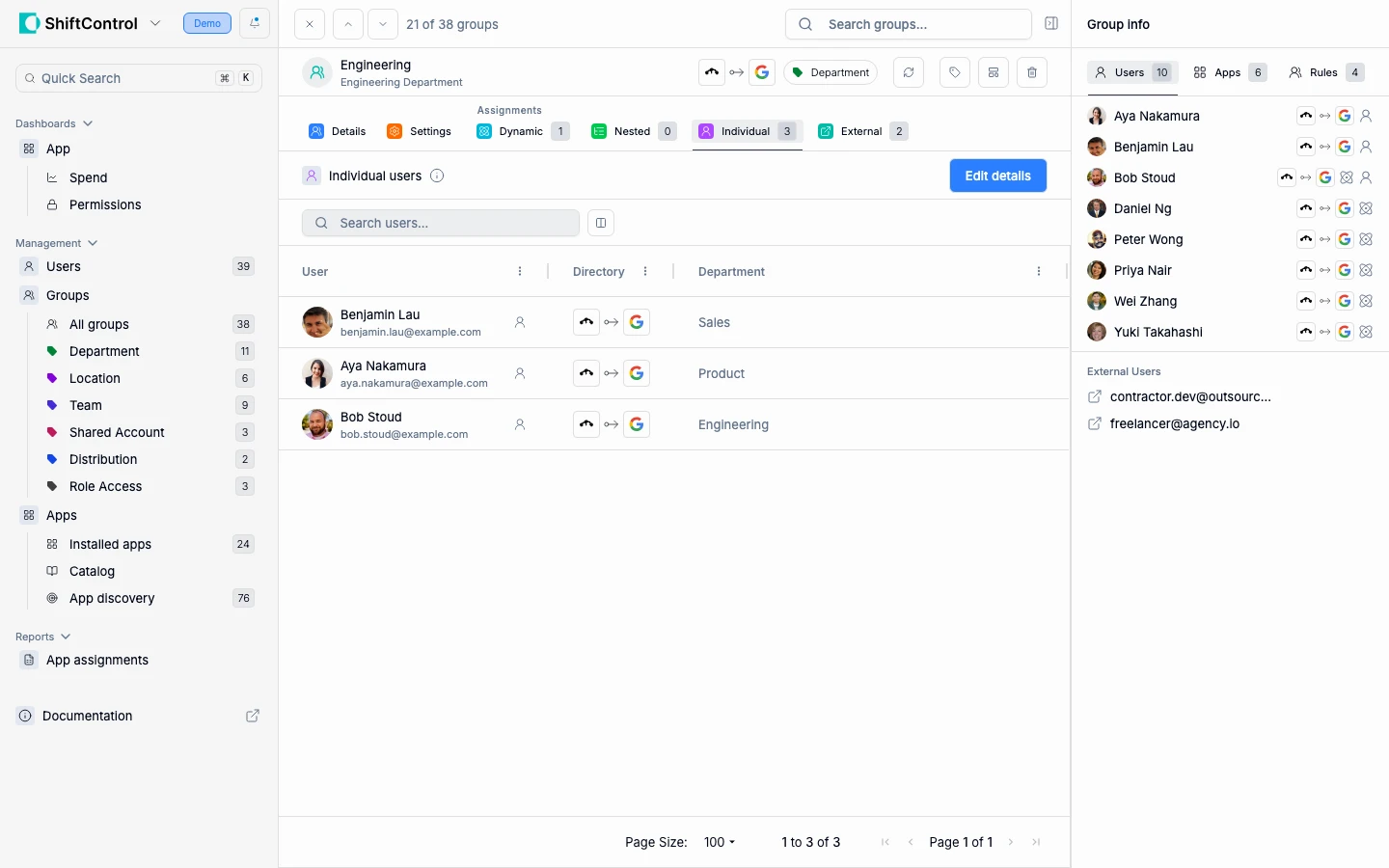
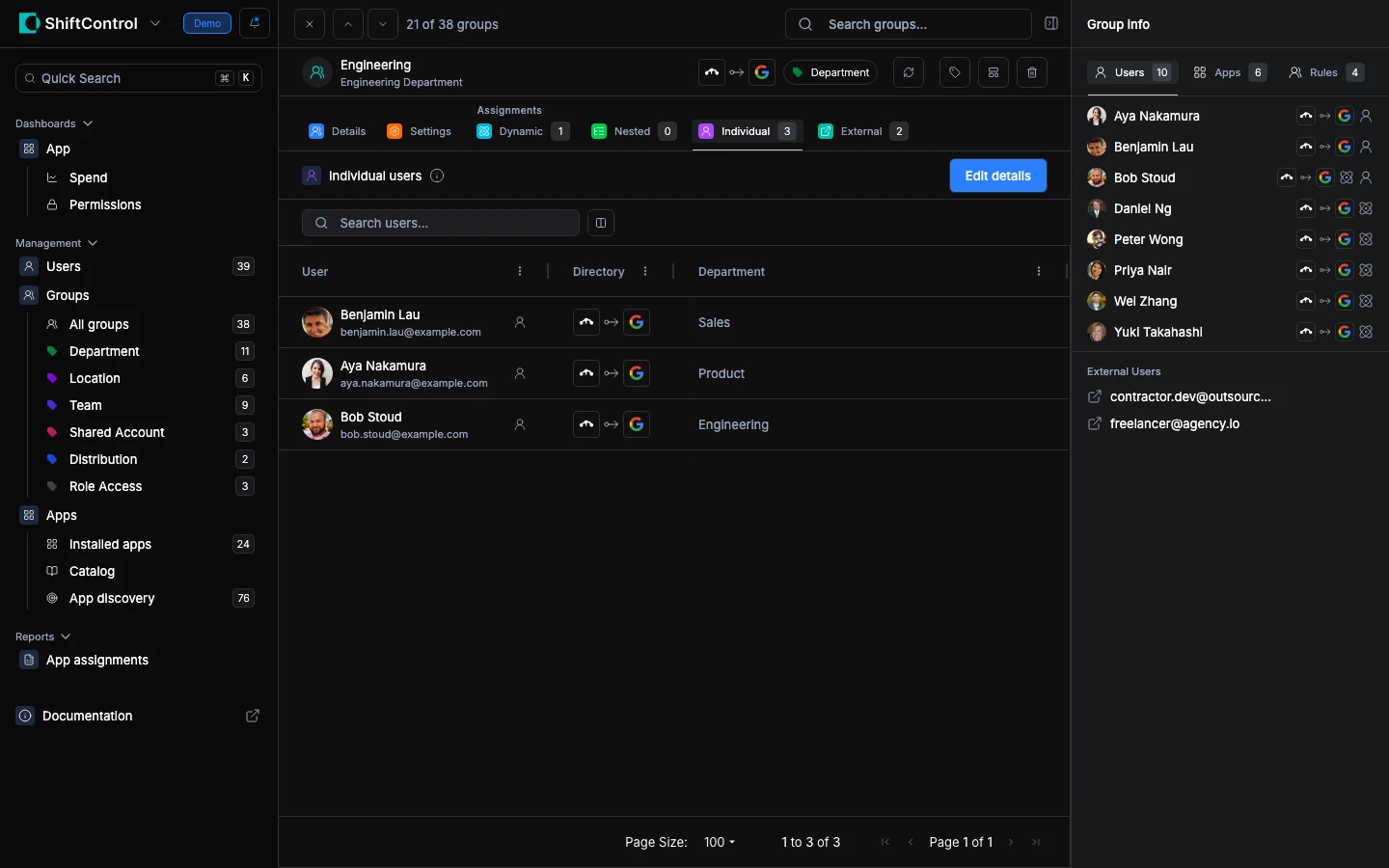
Lists all current members and shows how each was added (dynamic rule, nested group, or individual assignment). Hover over the icons for details.
Apps Tab
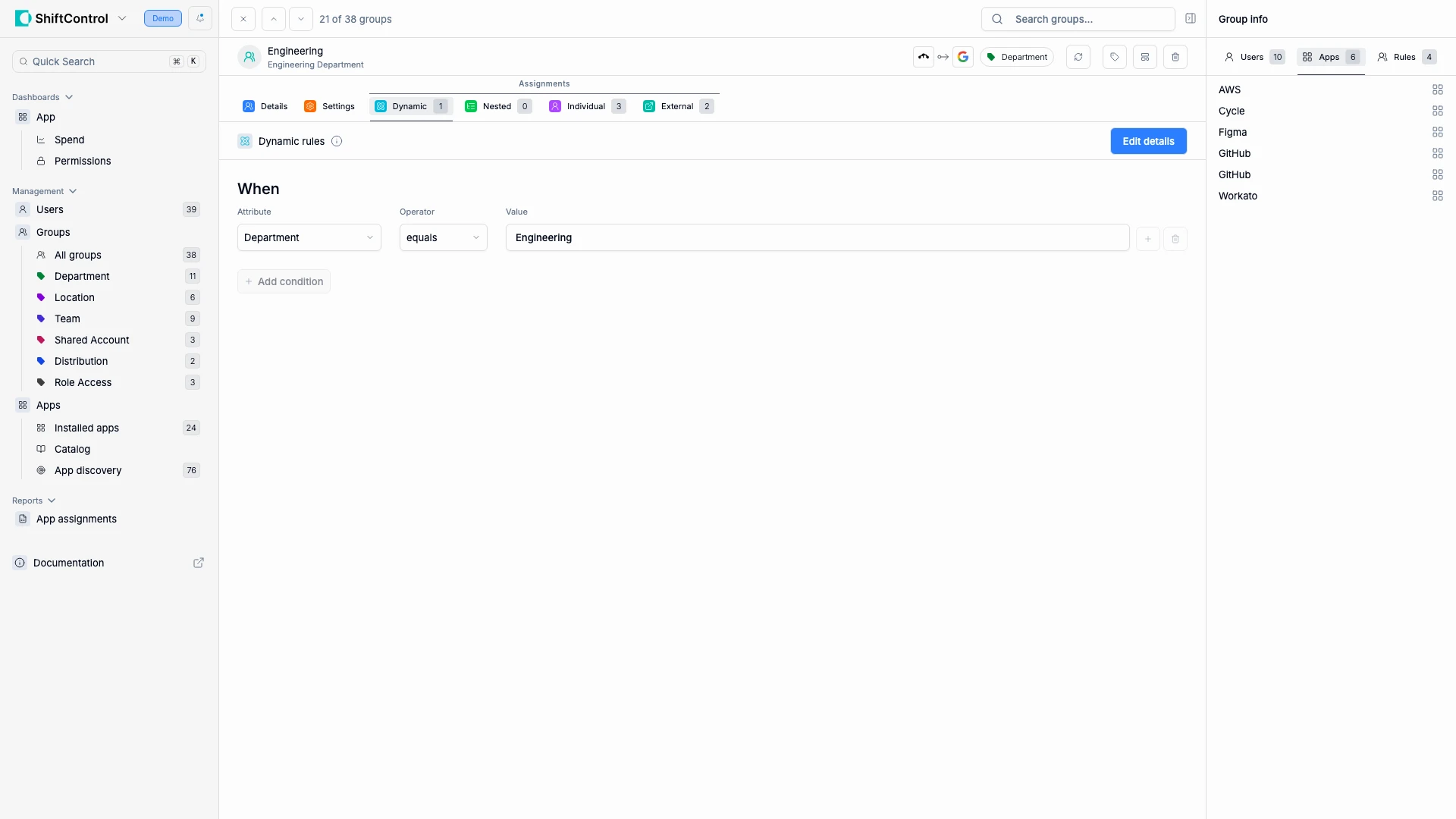
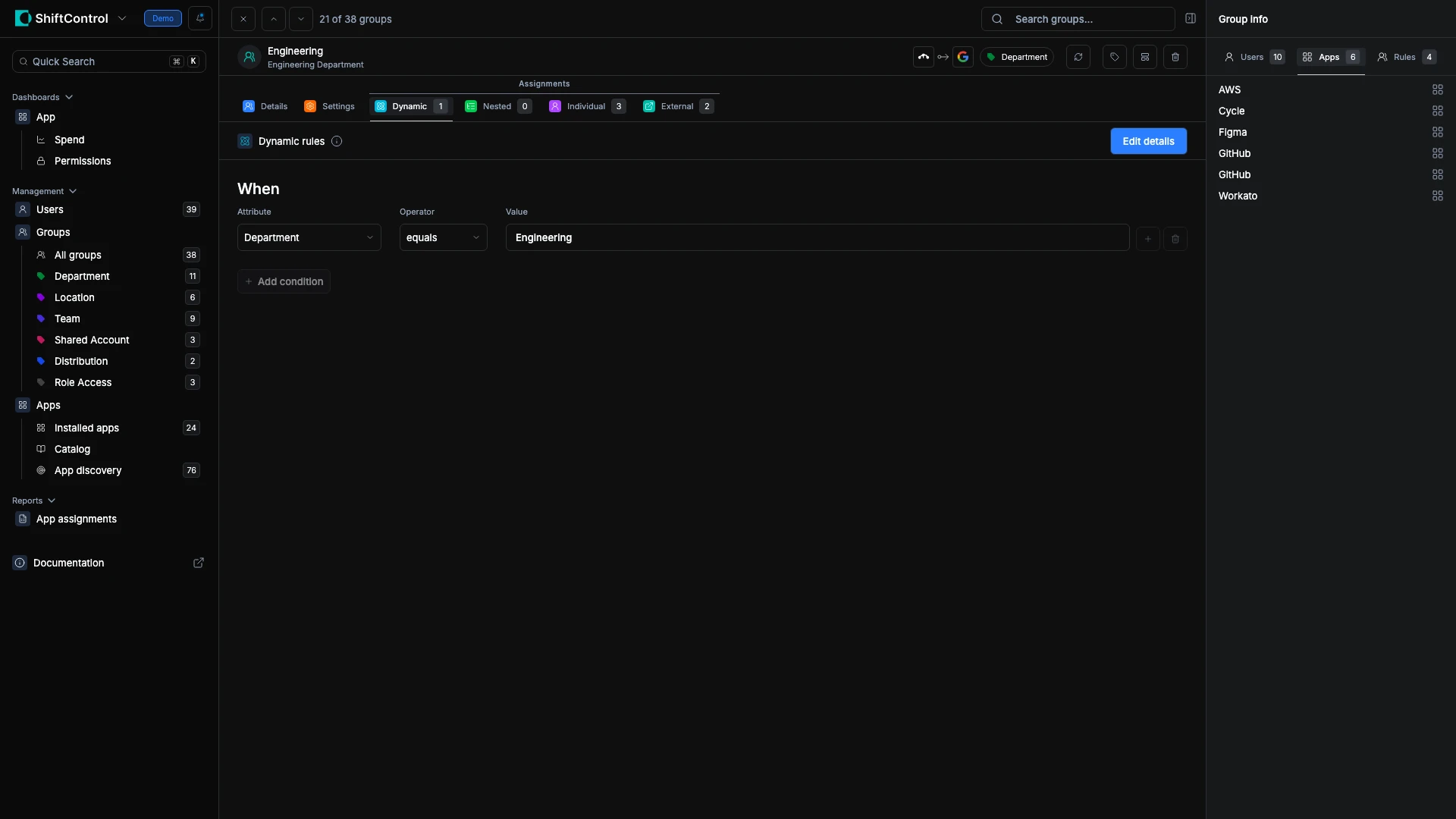
Shows which applications are assigned to this group. Every member of this group gets access to these apps.
Common Scenarios
Access review — checking who has access to a sensitive app
You need to verify who has access to AWS Production. Open the "AWS Production Access" group, check the Users sidebar tab to see every member, and the Apps sidebar to confirm which apps this group grants. Check the Dynamic tab to verify the membership rule hasn't been overly broadened.
Understanding why a user has unexpected access
A user has access to a tool they shouldn't. Open the relevant group from their user detail sidebar, check the Dynamic tab to see if a rule is matching too broadly, and the Nested tab to see if they're inheriting membership from another group.
Verifying Google Sync status
Related Features
- Group Management — Return to the full group list
- Editing a Group — Change membership rules, settings, and assignments
- Adding a Group — Google Sync — Sync membership to Google Workspace