Viewing a User
See everything about a person — their identity, security posture, app permissions, and costs — in one place.
Overview
The user detail page is where you go to answer questions like:
- "Is this person's MFA properly configured?"
- "What third-party apps has this user authorized?"
- "How much are we spending on this user's tools?"
- "What groups is this person in, and what access do those groups give them?"
You reach this page by clicking any user's name in the User Management list.
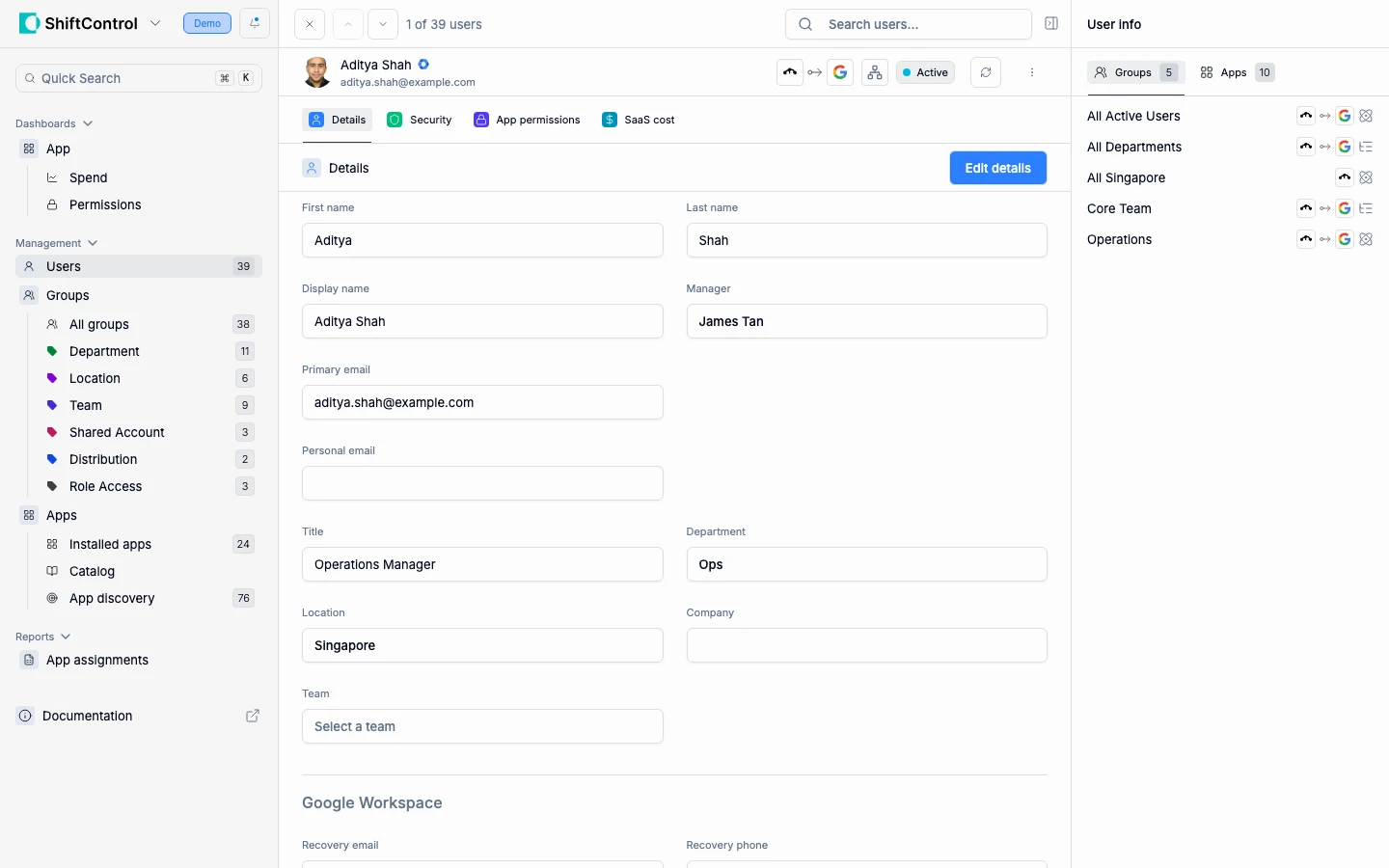
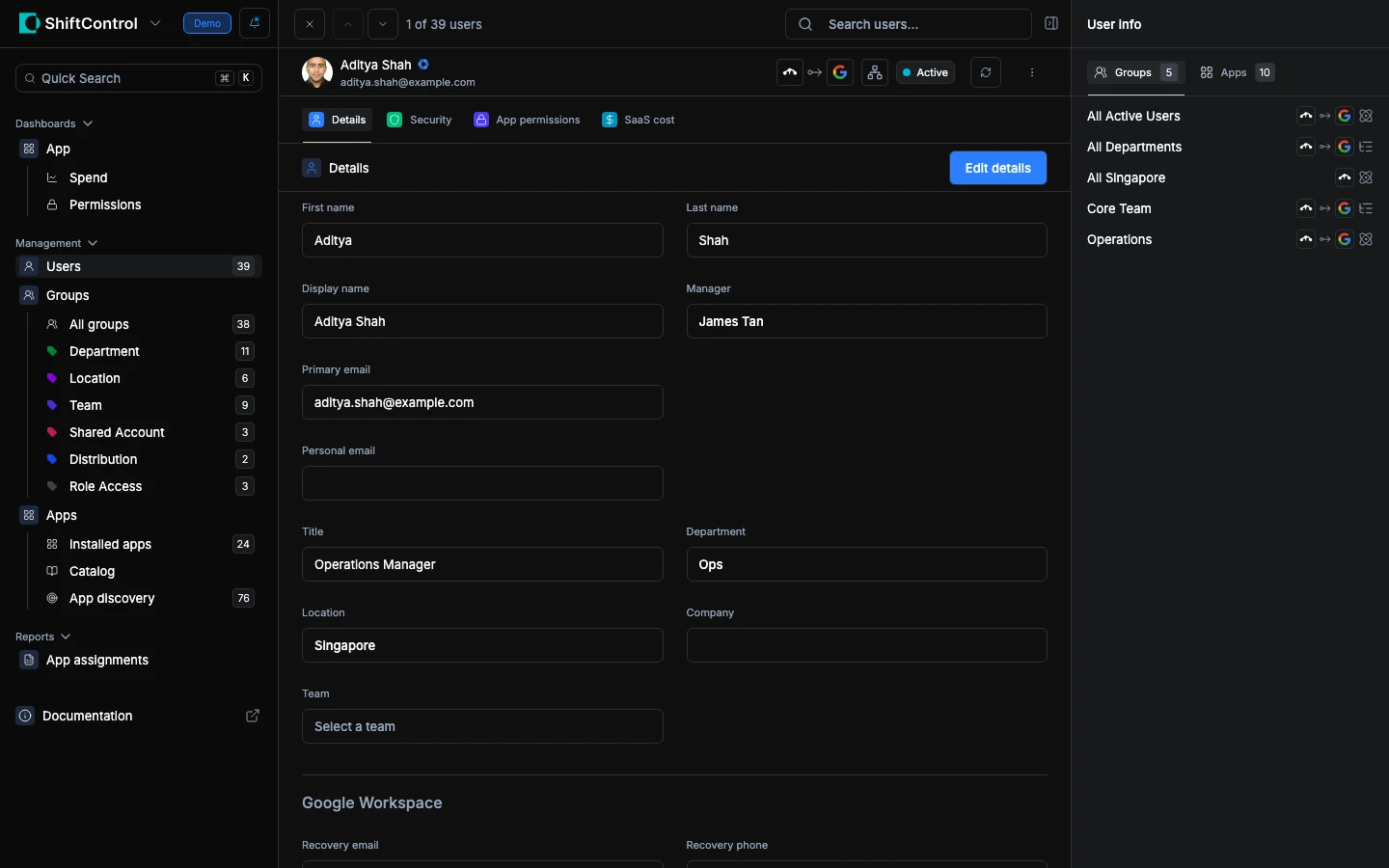
The Details Tab
The default view shows the user's profile information — name, email, title, department, location, team, and manager. This is the identity data that flows to your connected directories.
The Security Tab
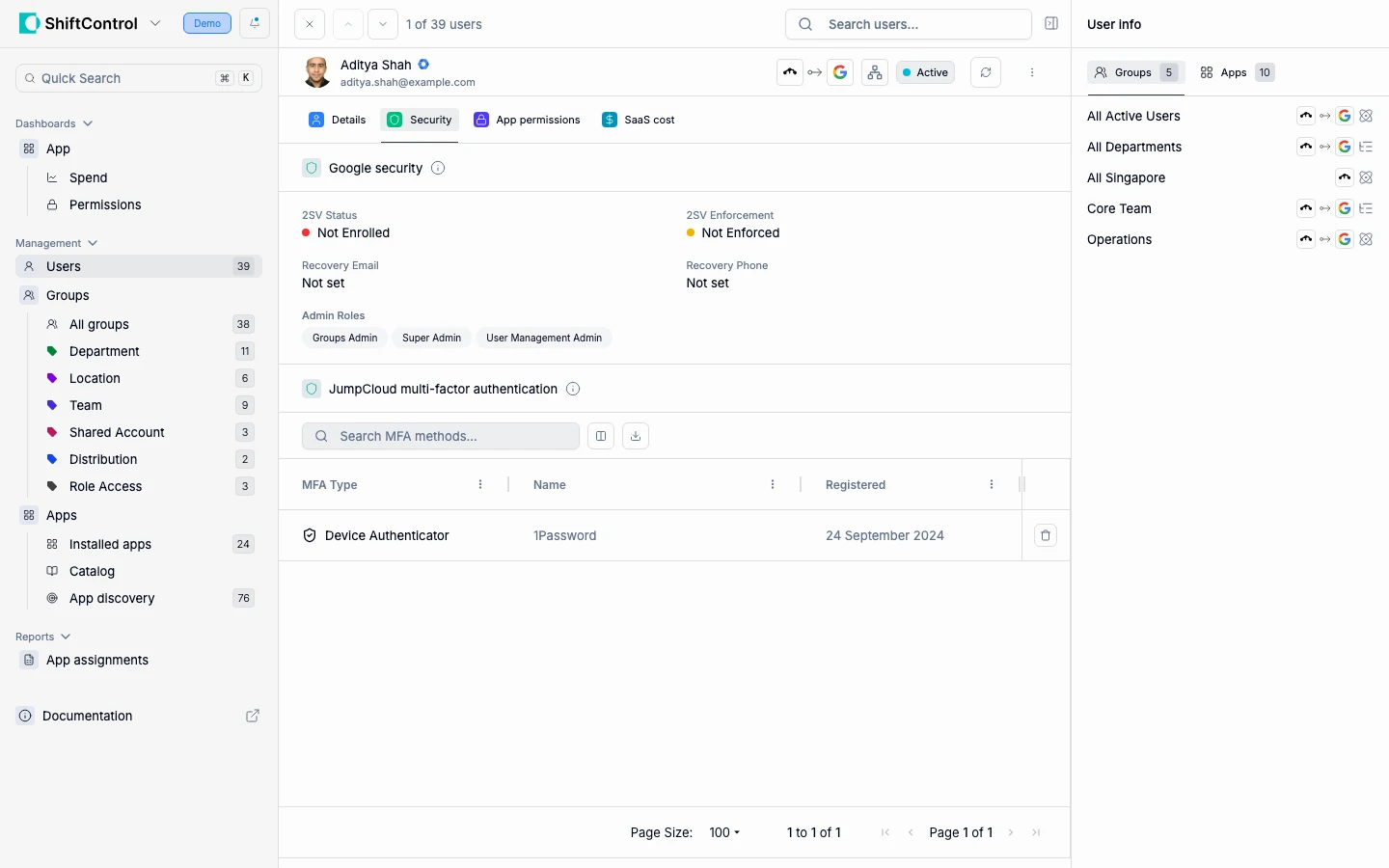
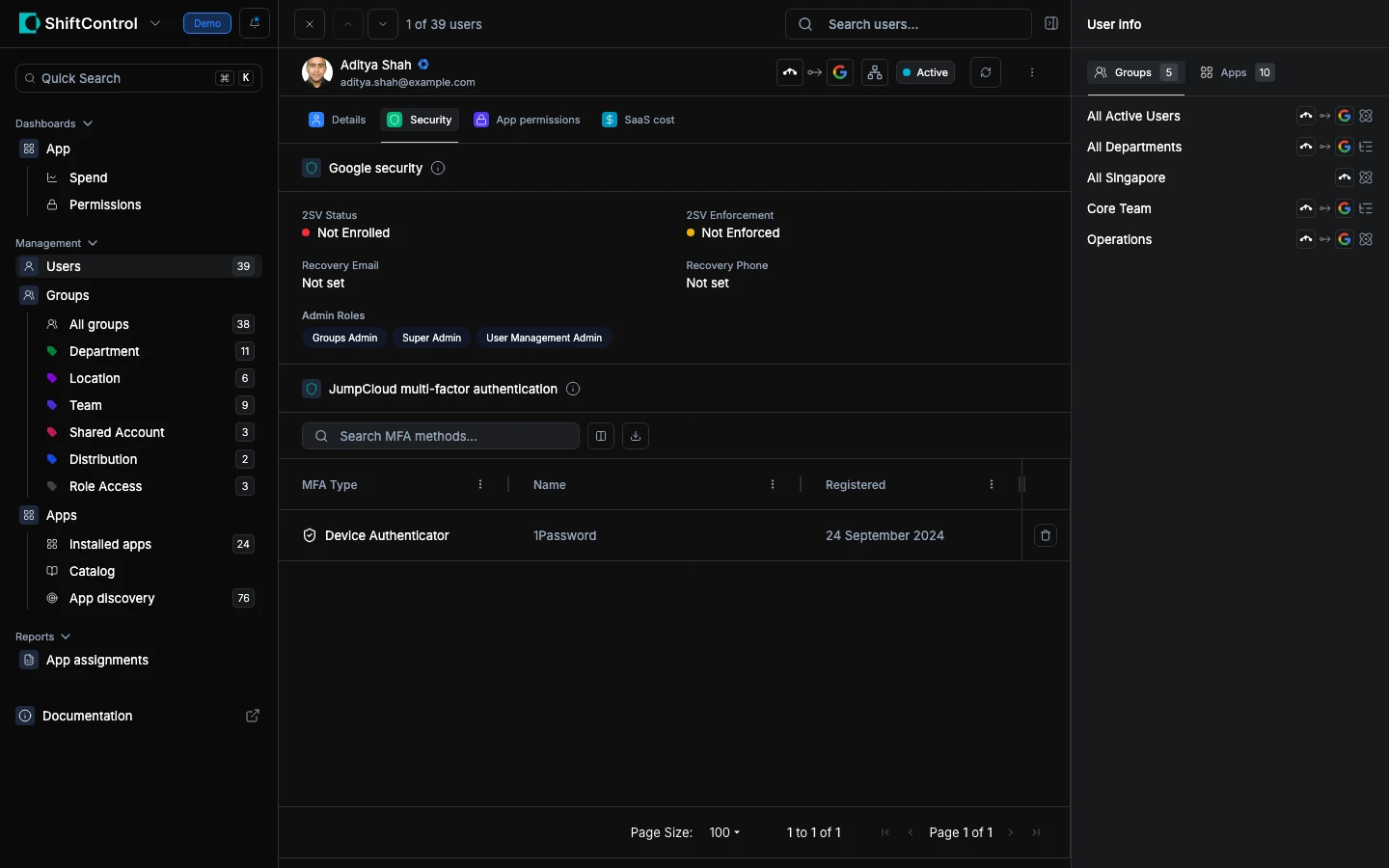
The Security tab shows the user's authentication and security configuration.
The App Permissions Tab
The SaaS Cost Tab
The SaaS Cost tab gives you a financial view of the user's application footprint:
- Total Apps — Number of SaaS applications assigned to this user
- Total Cost — Combined annual and monthly cost of all assigned applications
- Average Per App — Average cost per application, useful for benchmarking
- App Cost List — Line-by-line breakdown of each app and its cost
This data helps with budget planning, license optimization (are they using all these tools?), and offboarding cost recovery (what subscriptions can be cancelled?).
The User Info Sidebar
The right sidebar provides a quick-reference view without leaving the current tab.
Groups Tab
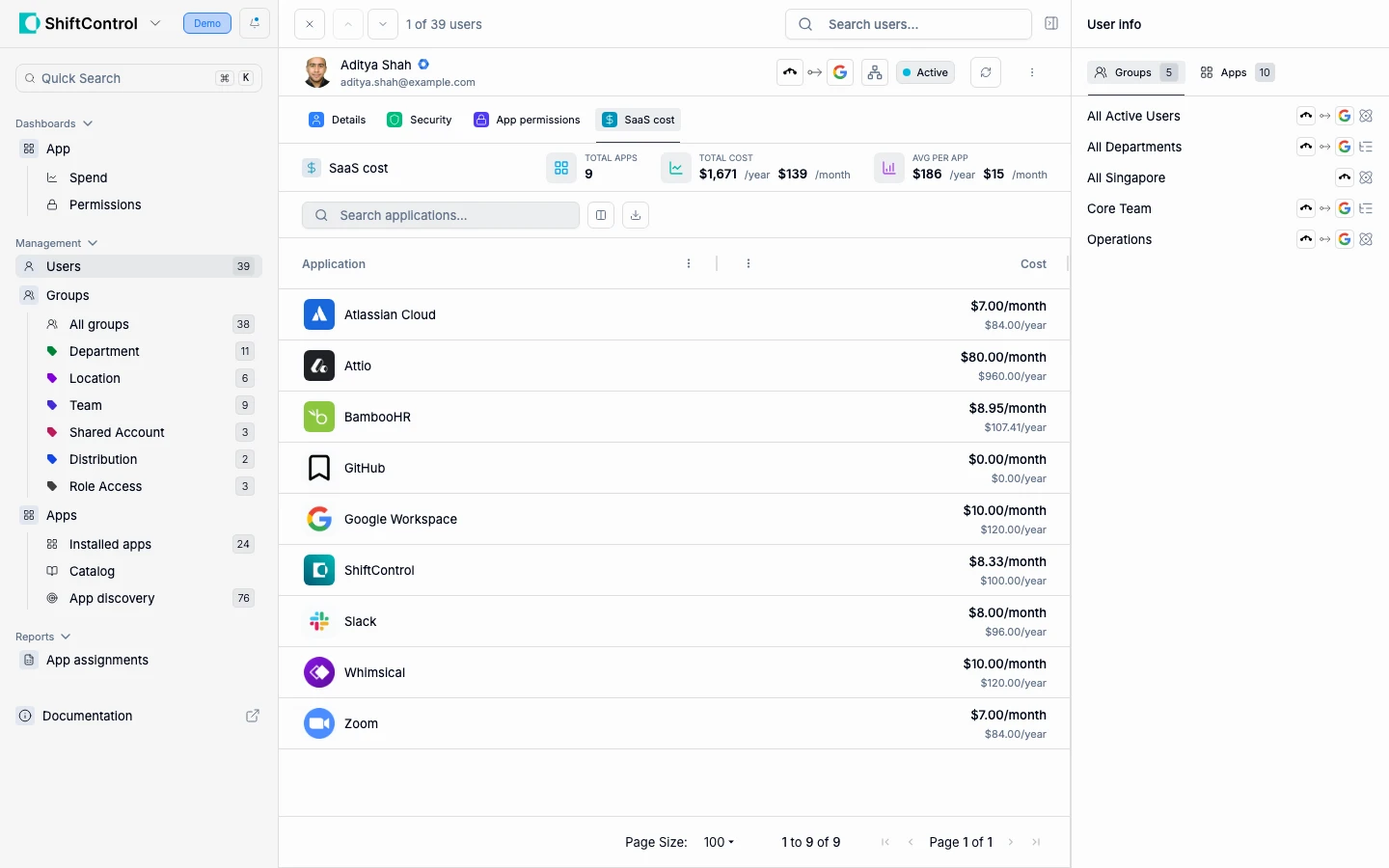
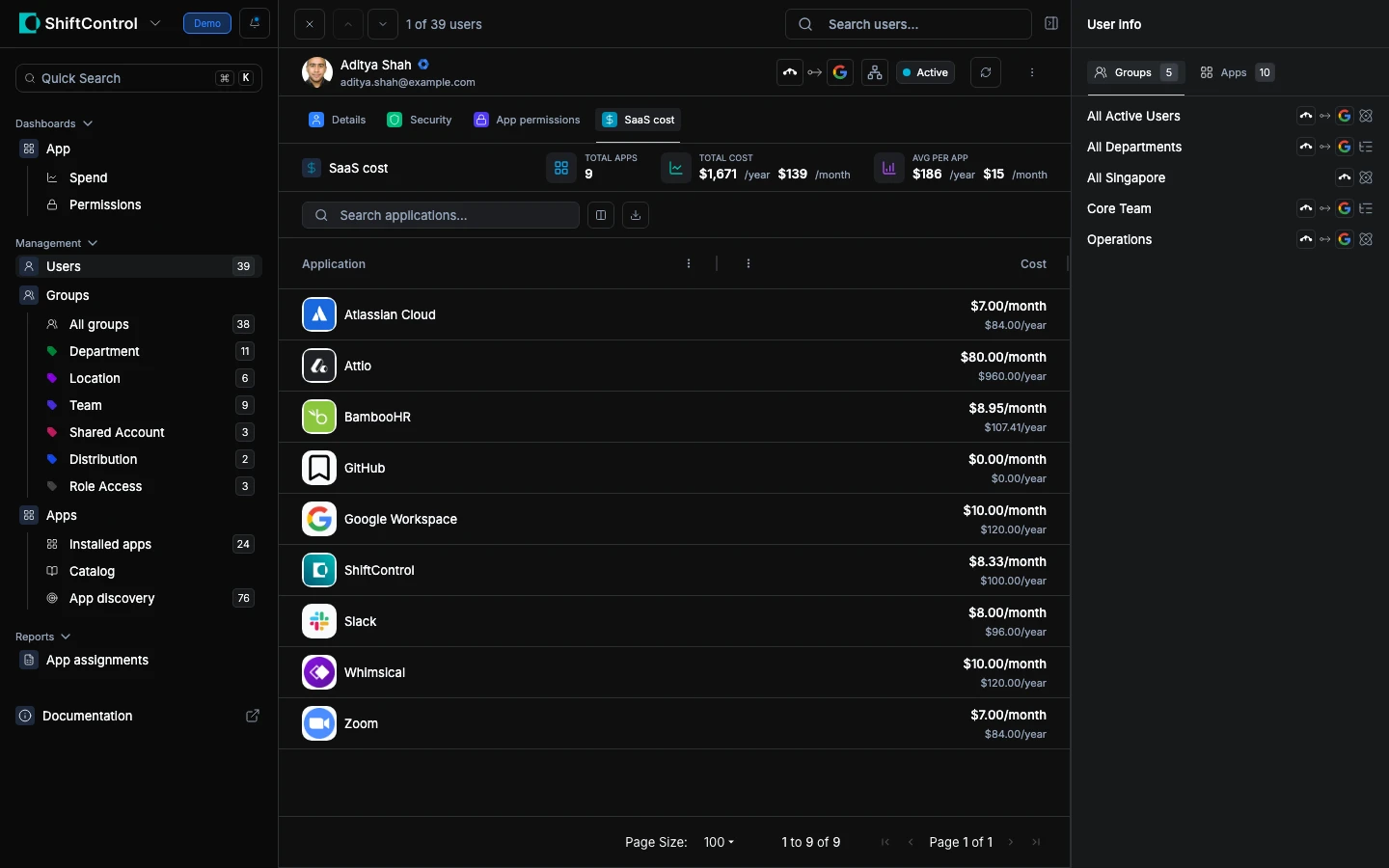
Shows every group the user belongs to and how they were added (manually, dynamically, or via nesting). This is the fastest way to understand why a user has the access they have — their groups determine their applications.
Apps Tab
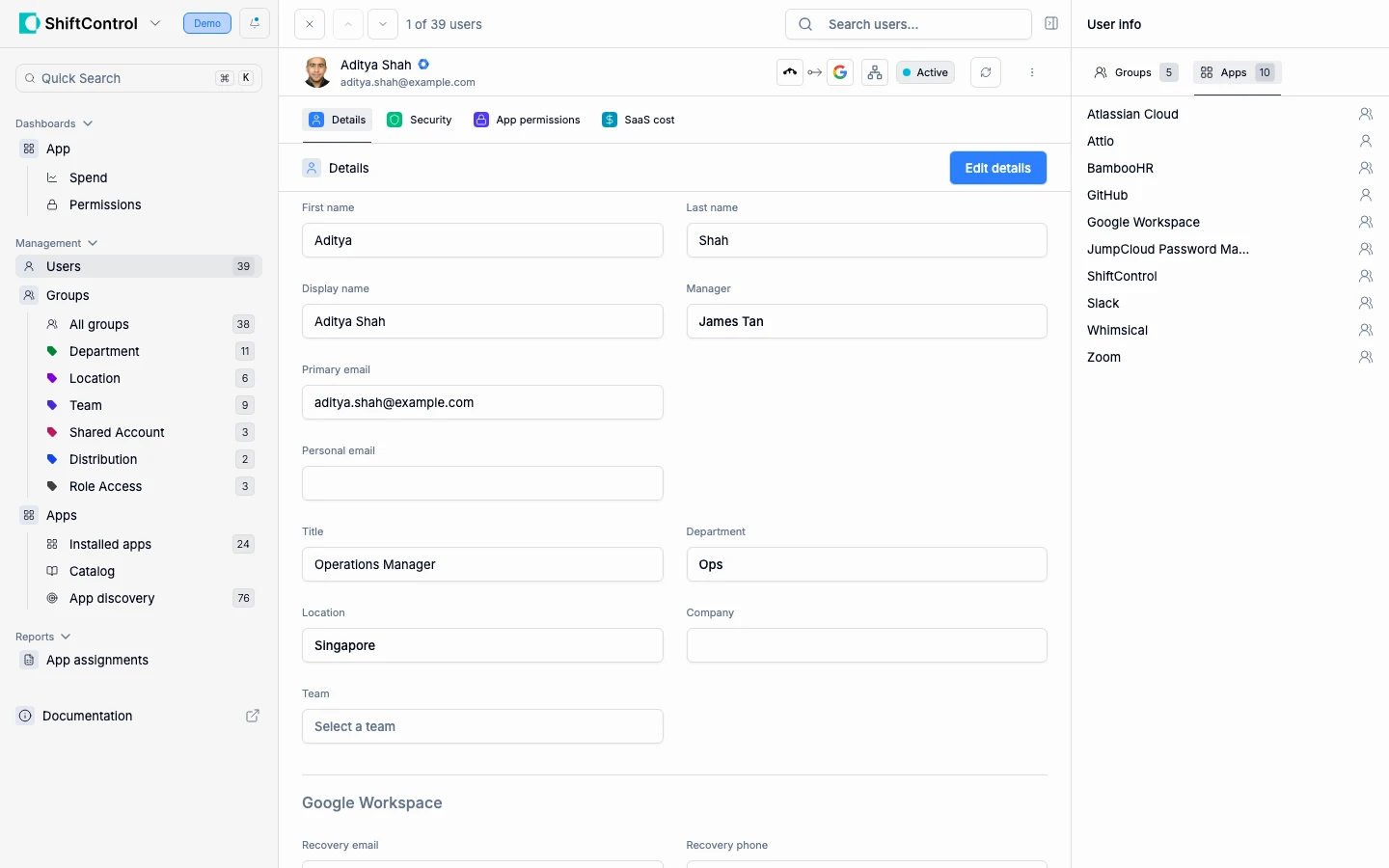
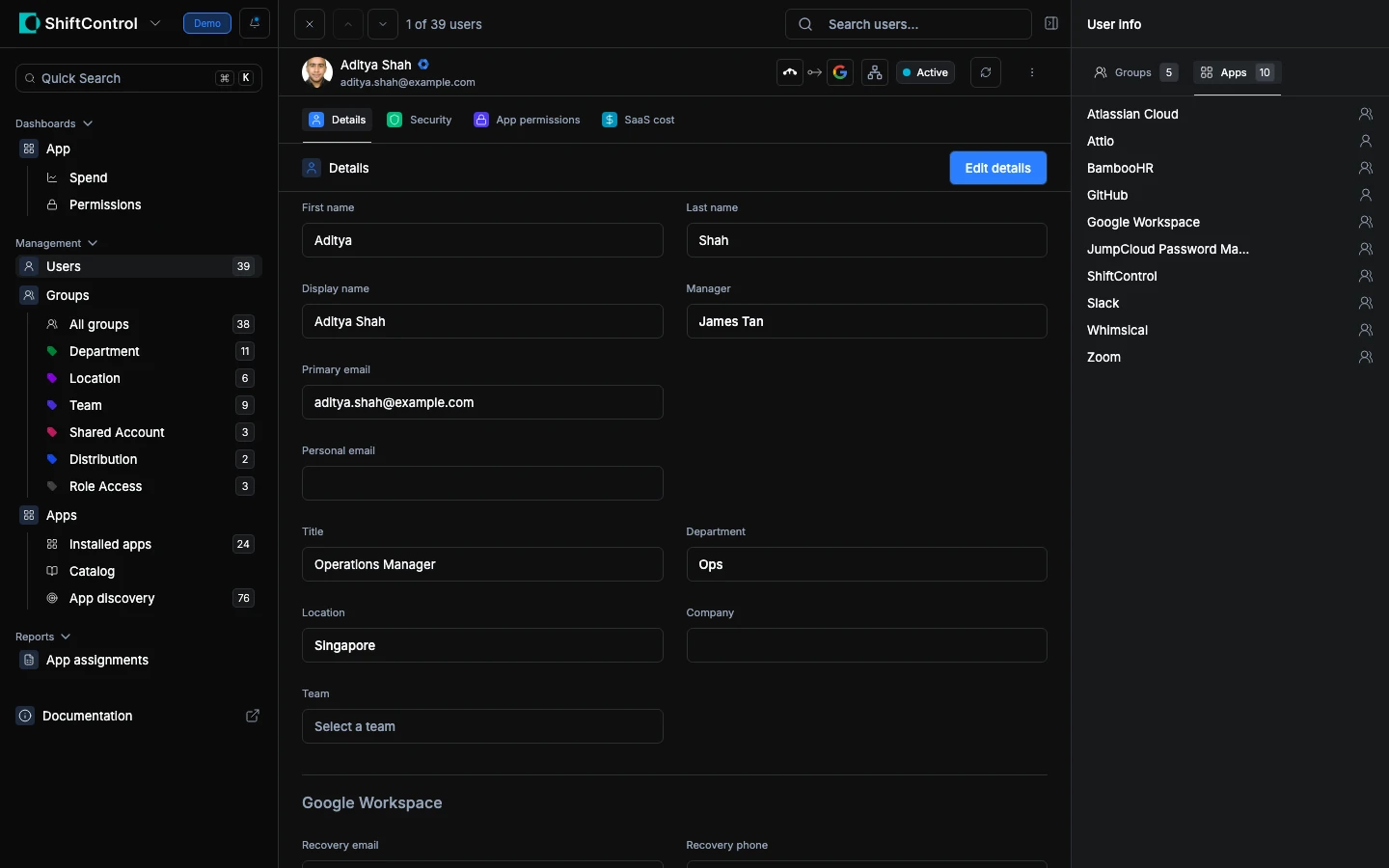
Shows every application the user can access and how they got access (through which group). If a user has access to something they shouldn't, this tells you which group is granting it so you can fix the root cause.
Common Scenarios
Investigating a security alert
Your security team flags a user whose recovery email is a personal Gmail address. Open the user, go to the Security tab, and check the Recovery Email field. You can see their 2SV status and whether MFA is properly enforced. If their security settings are weak, coordinate with them to update recovery info and enable MFA.
Reviewing a departing employee's access
An employee gave their two-week notice. Open their profile and check:
- App Permissions tab — see every OAuth grant they've authorized. Revoke anything risky.
- SaaS Cost tab — understand the budget impact of offboarding.
- Sidebar > Groups — see which groups they're in, so you know what access will be revoked when they're deactivated.
- Sidebar > Apps — verify every app they touch.
Responding to a budget review
Finance wants to know why software costs increased. Open high-cost users and check their SaaS Cost tab. Cross-reference with the App Permissions tab to see if they're still actively using all their authorized applications.
Related Features
- User Management — Return to the full user list
- Editing a User — Make changes to a user's profile
- App Permissions Dashboard — Organization-wide OAuth permission monitoring