Viewing a User
See everything about a person — their identity, security posture, app permissions, and costs — in one place.
Overview
The user detail page is where you go to answer questions like:
- "Is this person's MFA properly configured?"
- "What third-party apps has this user authorized?"
- "How much are we spending on this user's tools?"
- "What groups is this person in, and what access do those groups give them?"
You reach this page by clicking any user's name in the User Management list.
The Details Tab
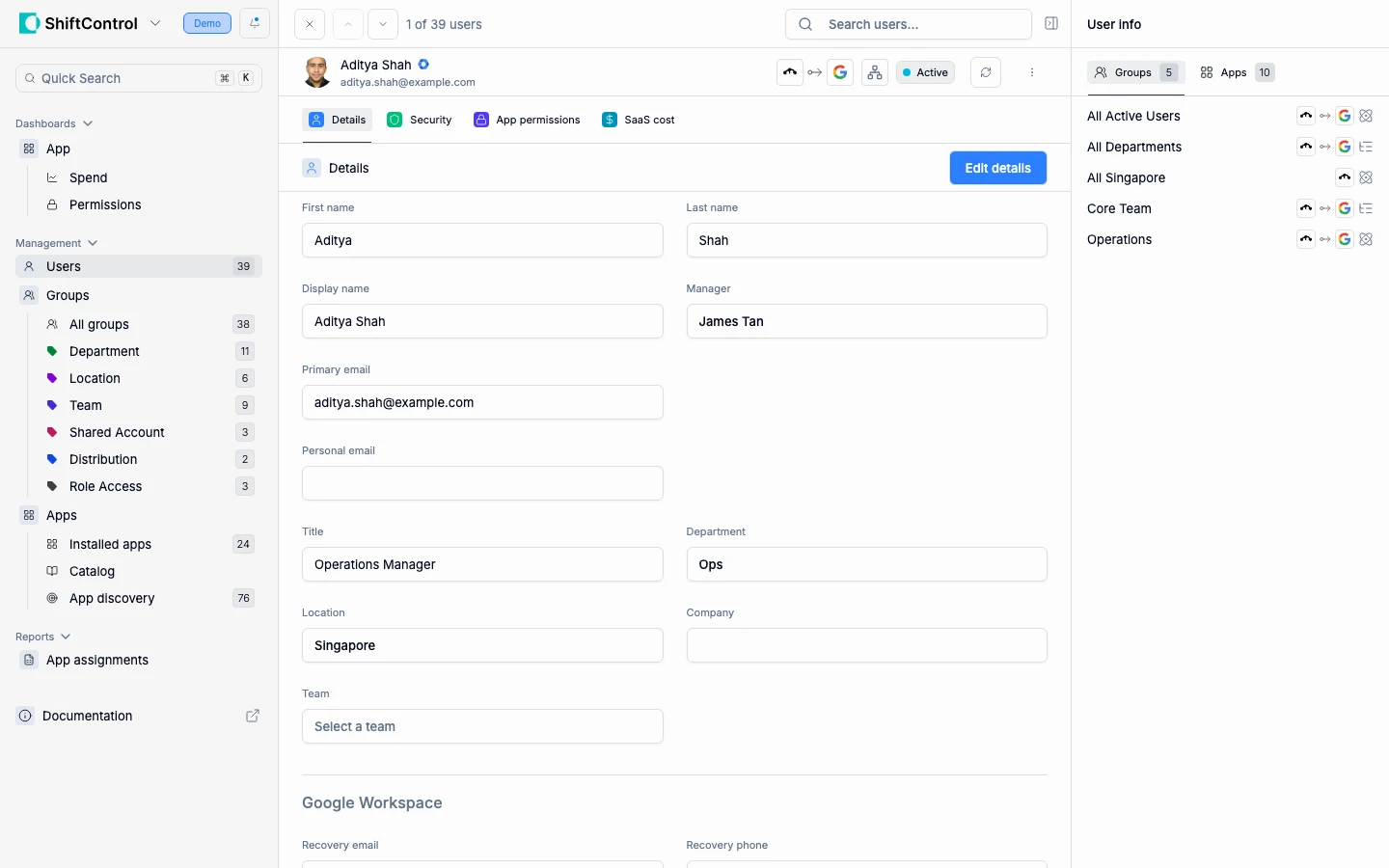
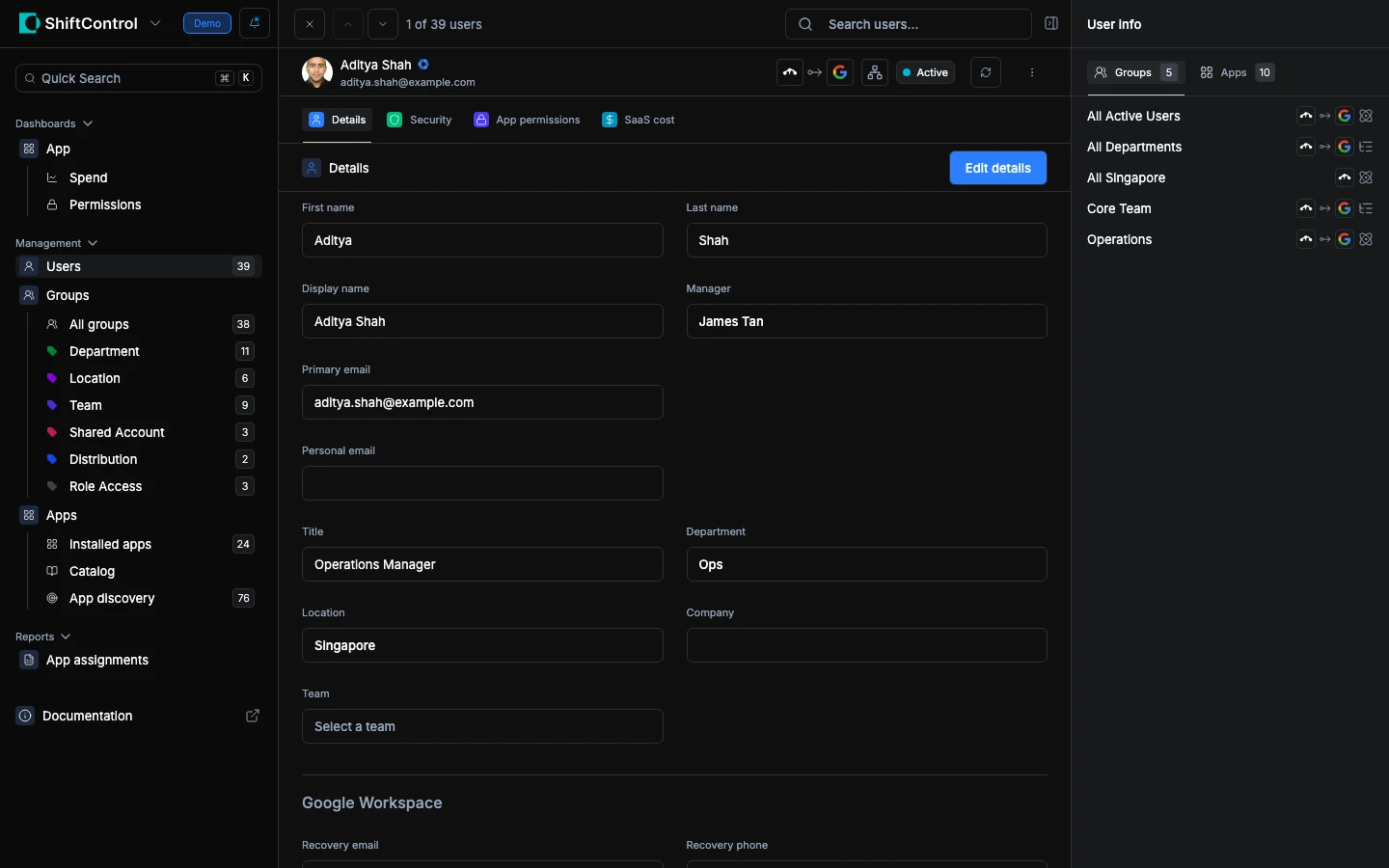
The default view shows the user's profile information — name, email, title, department, location, team, and manager. This is the identity data that flows to your connected directories.
Below the standard fields, you'll see a Google Workspace section with Google-specific settings:
- Recovery Email — The email address Google uses if the user is locked out
- Recovery Phone — Phone number for Google account recovery
- Show user in global directory — Whether this user appears in your Google Workspace directory listing
- Email Aliases — Additional email addresses that route to the user's primary Google inbox
The Security Tab
The Security tab shows the user's authentication and security configuration.
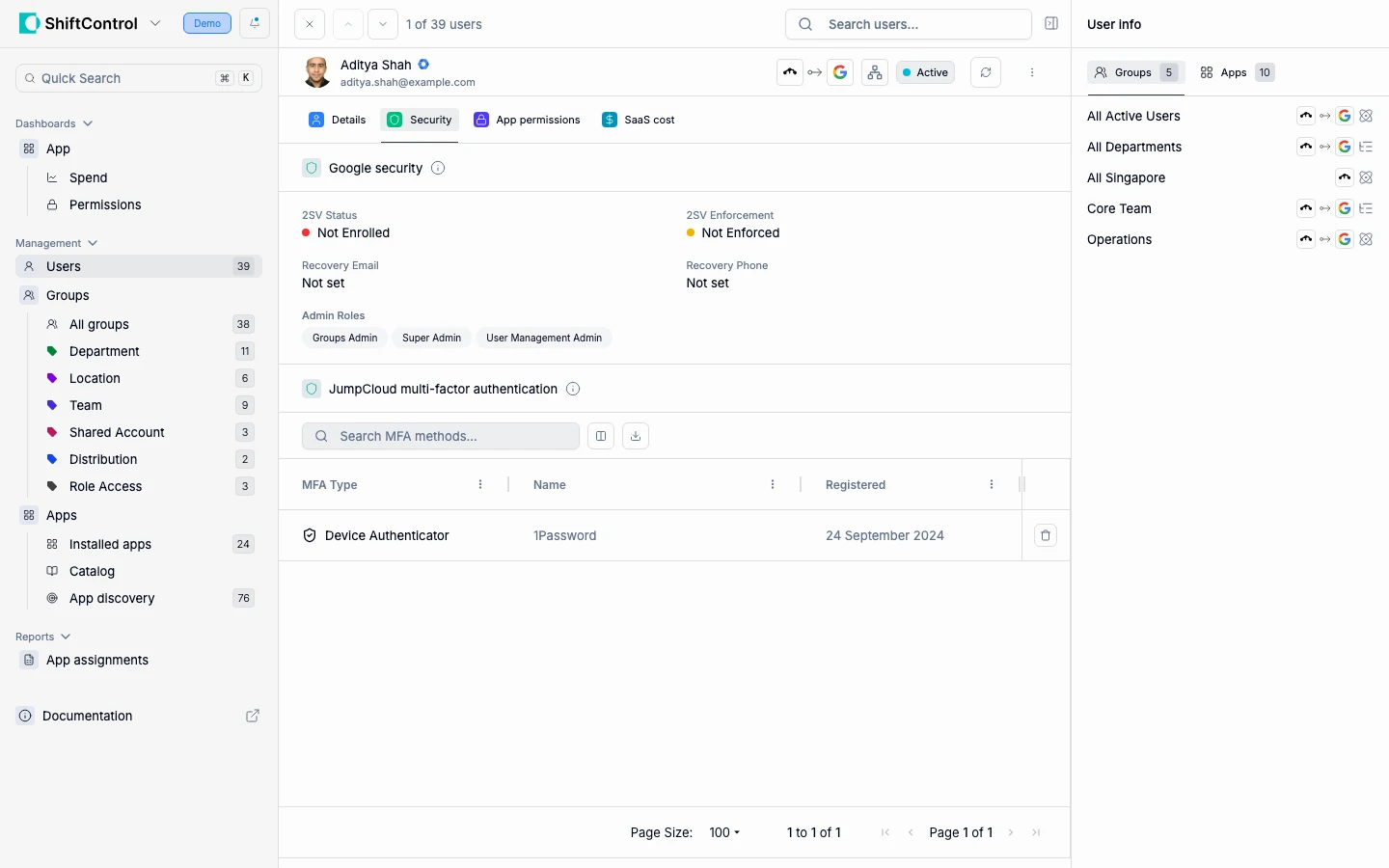
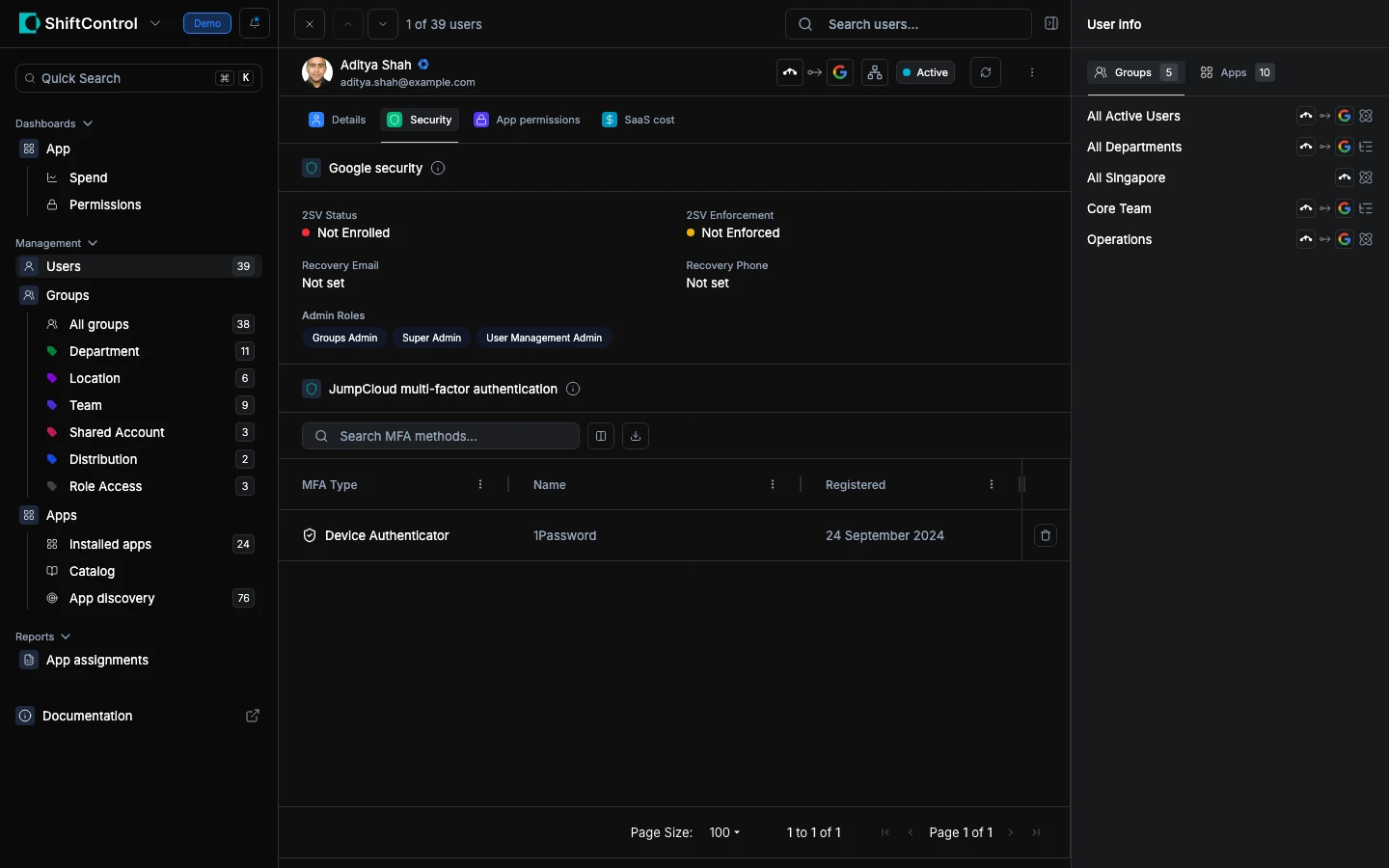
JumpCloud MFA shows which MFA method the user has configured (e.g., 1Password, Google Authenticator). If this is empty, the user hasn't completed MFA enrollment. You can delete an existing enrollment to force the user to re-enroll.
The Security tab is divided into two sections:
Google Security:
- 2SV Status — Whether 2-Step Verification is enabled
- 2SV Enforcement — Whether your org policy requires this user to have 2SV
- Recovery Email / Phone — Account recovery contact info
- Admin Roles — Any Google Workspace admin roles assigned to this user
JumpCloud Multi-Factor Authentication:
- Device Authenticator — Which MFA method is configured (1Password, Google Authenticator, etc.)
Having both on one tab gives you a complete security posture view without switching between the Google Admin Console and JumpCloud.
Google Security shows 2-Step Verification status, enforcement, recovery email/phone, and any admin roles. This is a read-only view — changes to Google security settings are made through the Google Admin Console.
The App Permissions Tab
The App Permissions tab shows every OAuth permission the user has granted to third-party applications through their Google account.
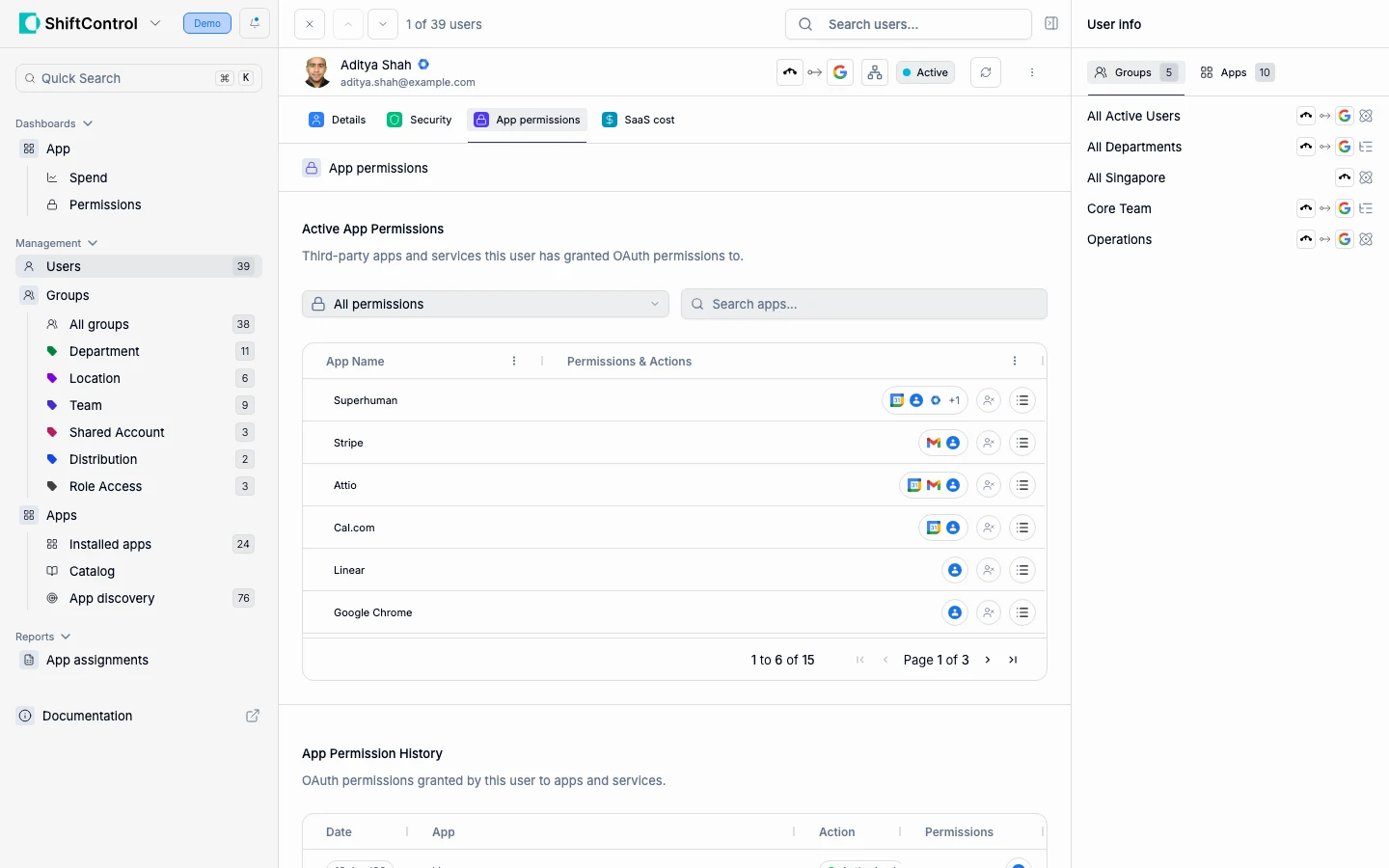
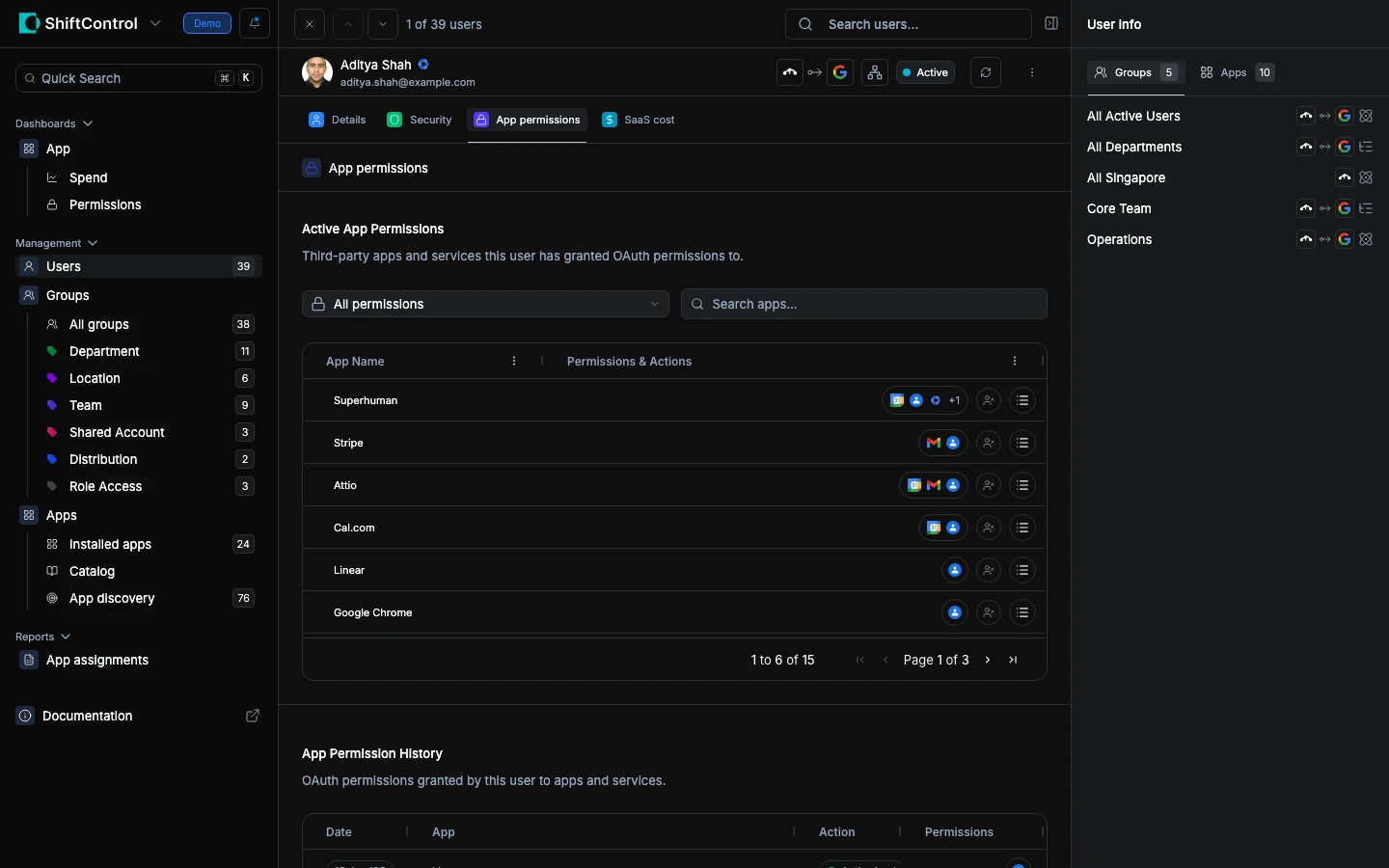
Active OAuth Permissions lists every app that currently has access to the user's data — apps like Superhuman, Stripe, Linear, and Chrome extensions. Each entry shows what data the app can access.
Revoking access: Each row has a revoke button (user-minus icon) that lets you remove that app's OAuth authorization for this user directly from ShiftControl. This revokes the token — the app immediately loses access to the user's data. No need to open the Google Admin Console. This is the action you take when you spot a risky or unauthorized app during a security review.
App Permission History shows a timeline of when permissions were granted or revoked. This is valuable for investigating security incidents — you can see exactly when a user authorized a suspicious application and when access was revoked.
The App Permissions tab requires Google Workspace to be connected. It monitors OAuth permissions granted through Google accounts.
The SaaS Cost Tab
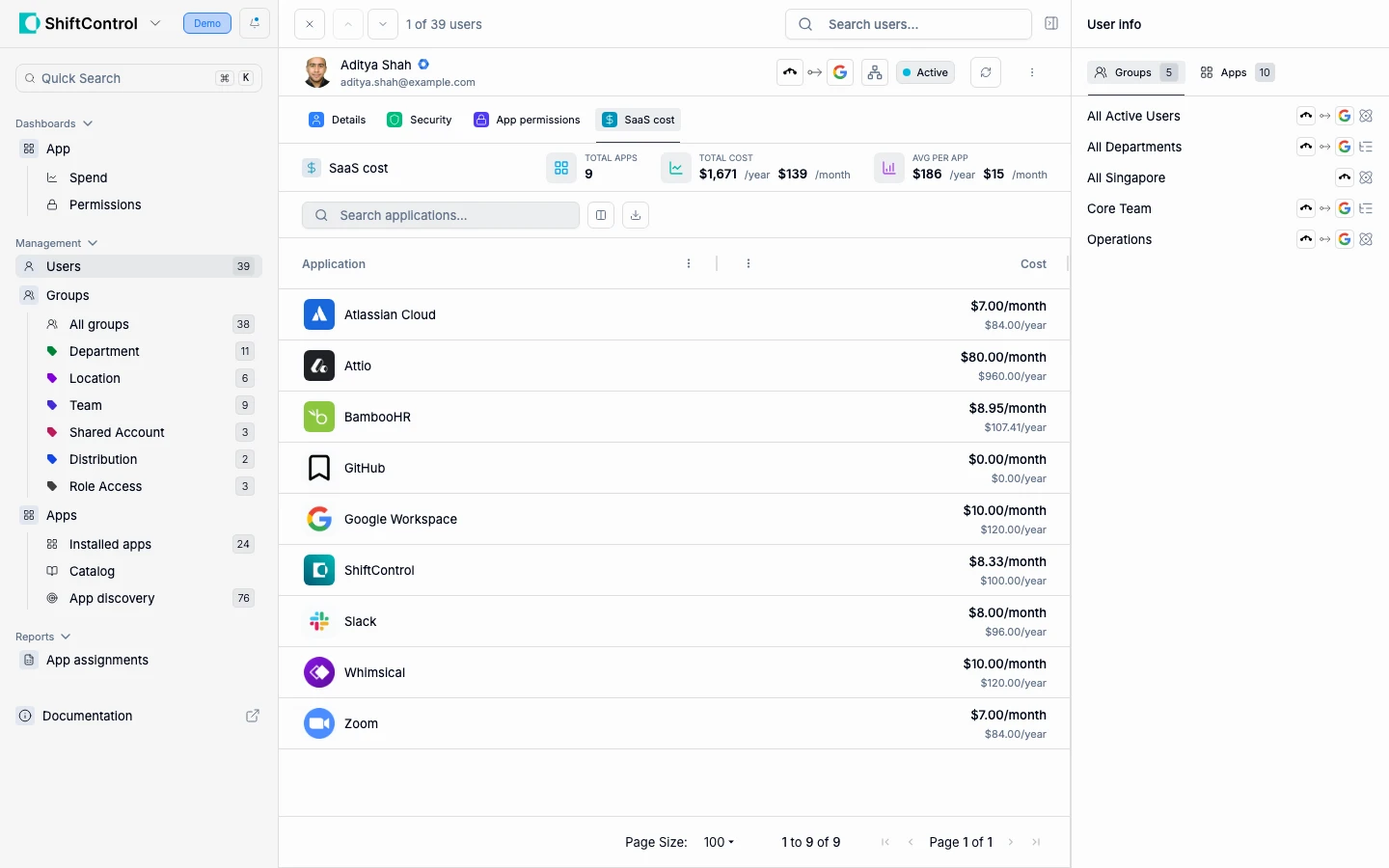
The SaaS Cost tab gives you a financial view of the user's application footprint:
- Total Apps — Number of SaaS applications assigned to this user
- Total Cost — Combined annual and monthly cost of all assigned applications
- Average Per App — Average cost per application, useful for benchmarking
- App Cost List — Line-by-line breakdown of each app and its cost
This data helps with budget planning, license optimization (are they using all these tools?), and offboarding cost recovery (what subscriptions can be cancelled?).
The User Info Sidebar
The right sidebar provides a quick-reference view without leaving the current tab.
Groups Tab
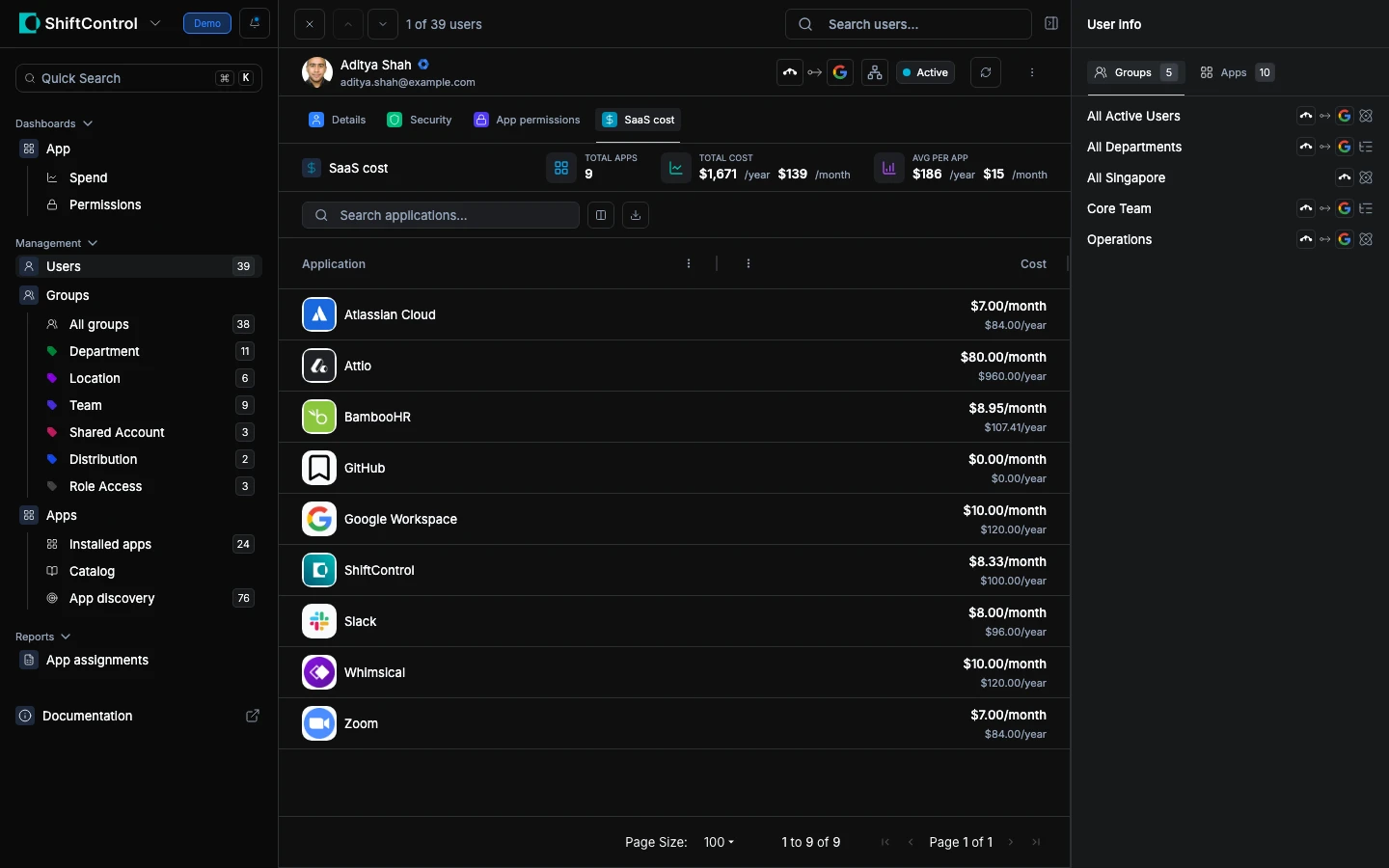
Shows every group the user belongs to and how they were added (manually, dynamically, or via nesting). This is the fastest way to understand why a user has the access they have — their groups determine their applications.
Apps Tab
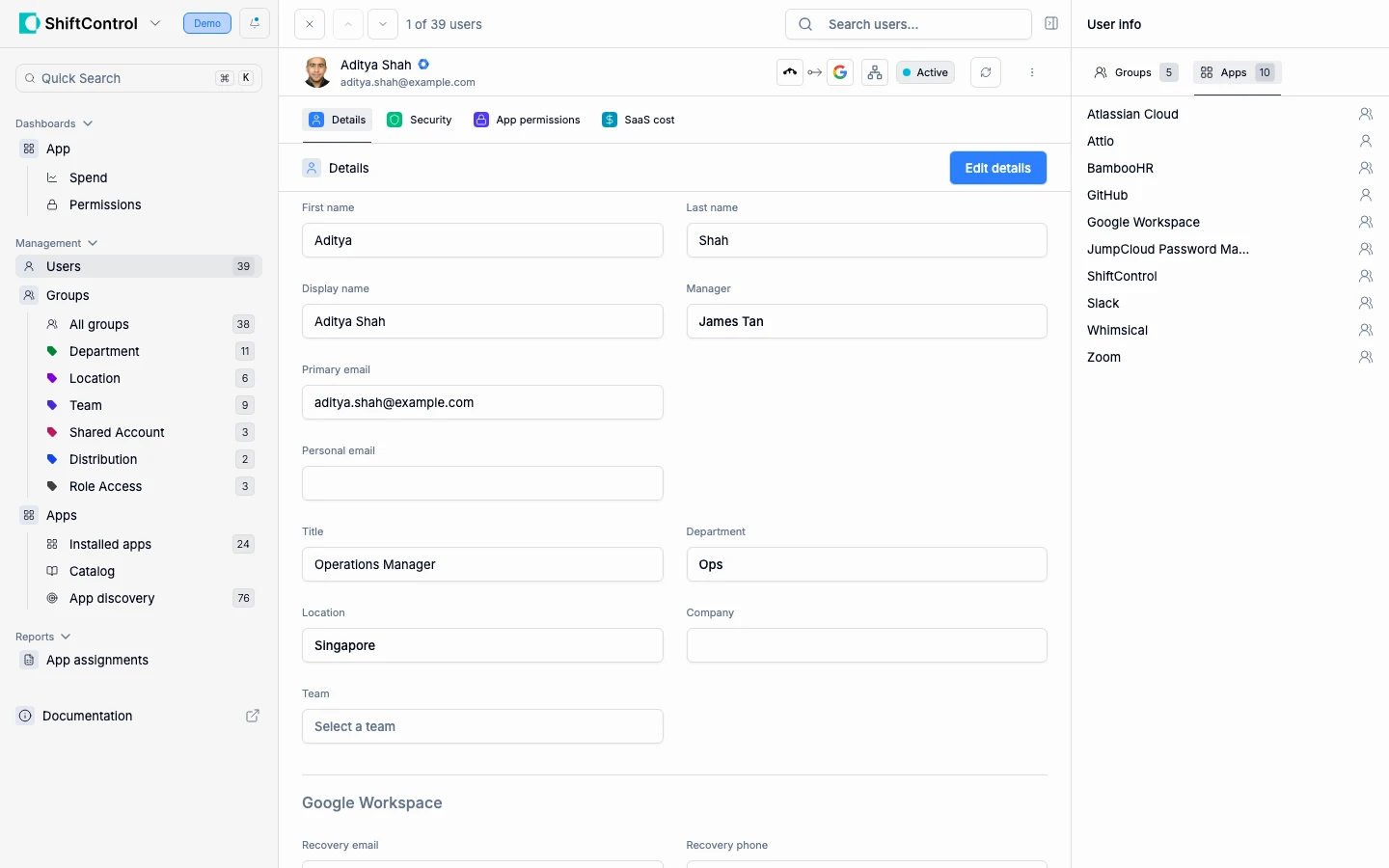
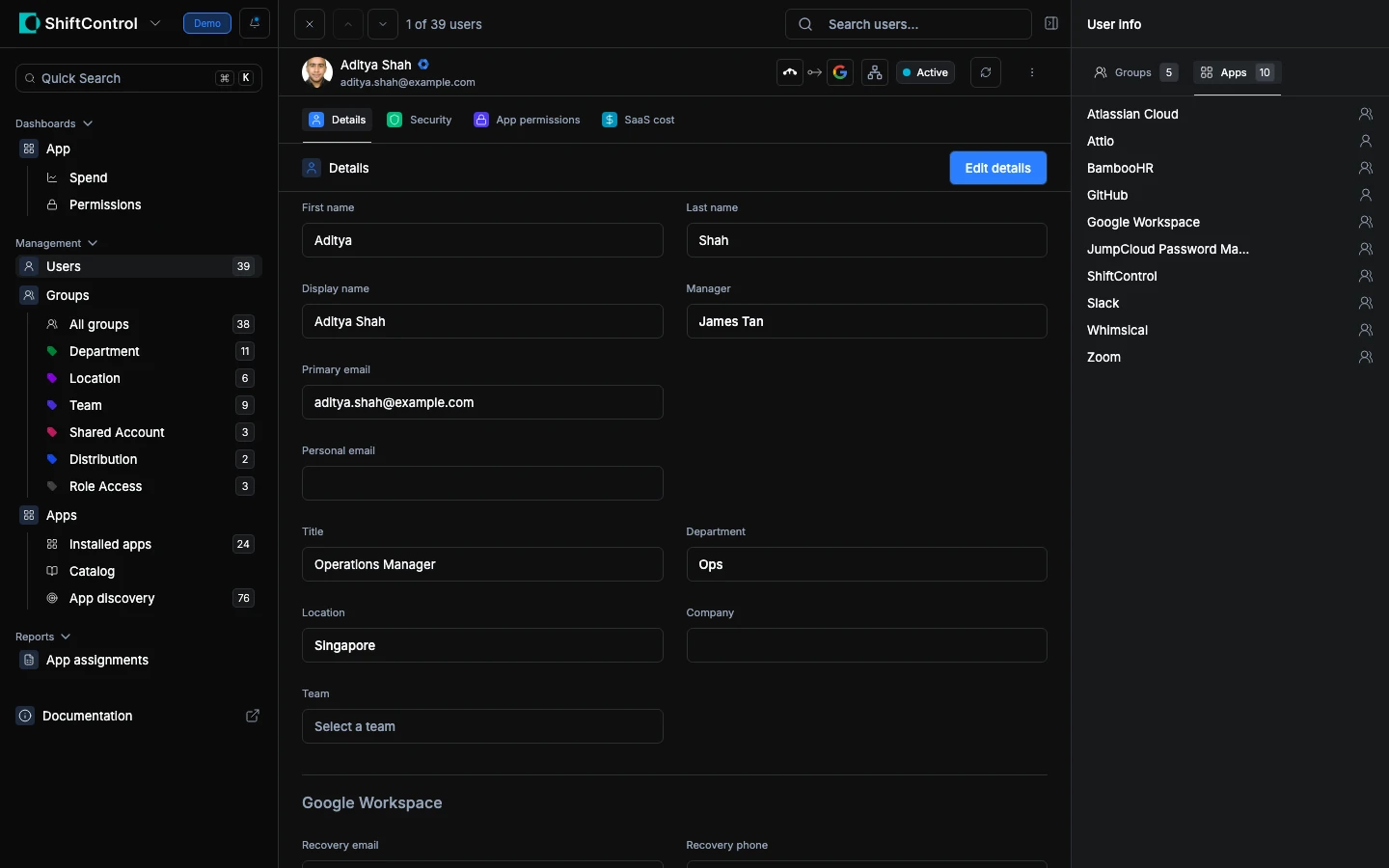
Shows every application the user can access and how they got access (through which group). If a user has access to something they shouldn't, this tells you which group is granting it so you can fix the root cause.
Common Scenarios
Investigating a security alert
Your security team flags a user whose recovery email is a personal Gmail address. Open the user, go to the Security tab, and check the Recovery Email field. You can see their 2SV status and whether MFA is properly enforced. If their security settings are weak, coordinate with them to update recovery info and enable MFA.
Reviewing a departing employee's access
An employee gave their two-week notice. Open their profile and check:
- App Permissions tab — see every OAuth grant they've authorized. Revoke anything risky.
- SaaS Cost tab — understand the budget impact of offboarding.
- Sidebar > Groups — see which groups they're in, so you know what access will be revoked when they're deactivated.
- Sidebar > Apps — verify every app they touch.
- Devices — the devices bound to this person appear on their profile. Before you deactivate them, follow the device offboarding steps — capture the recovery key first, then un-manage or erase the hardware.
Responding to a budget review
Finance wants to know why software costs increased. Open high-cost users and check their SaaS Cost tab. Cross-reference with the App Permissions tab to see if they're still actively using all their authorized applications.
Related Features
- User Management — Return to the full user list
- Editing a User — Make changes to a user's profile
- App Permissions Dashboard — Organization-wide OAuth permission monitoring
- Device Management — See and manage the devices assigned to this person (JumpCloud)