User Management
Your single view of every person in your organization — who they are, what they can access, and whether their security is in order.
Overview
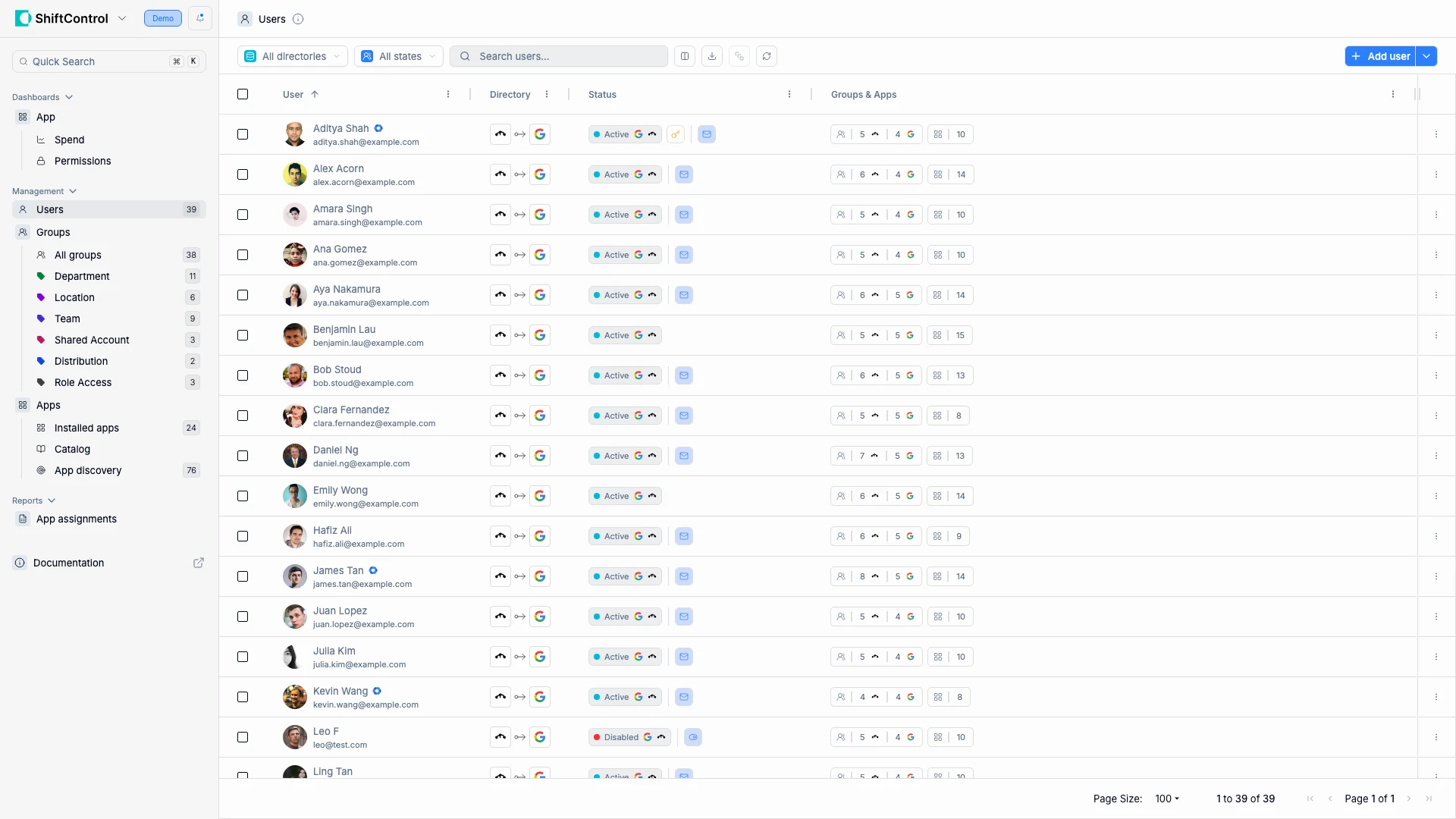
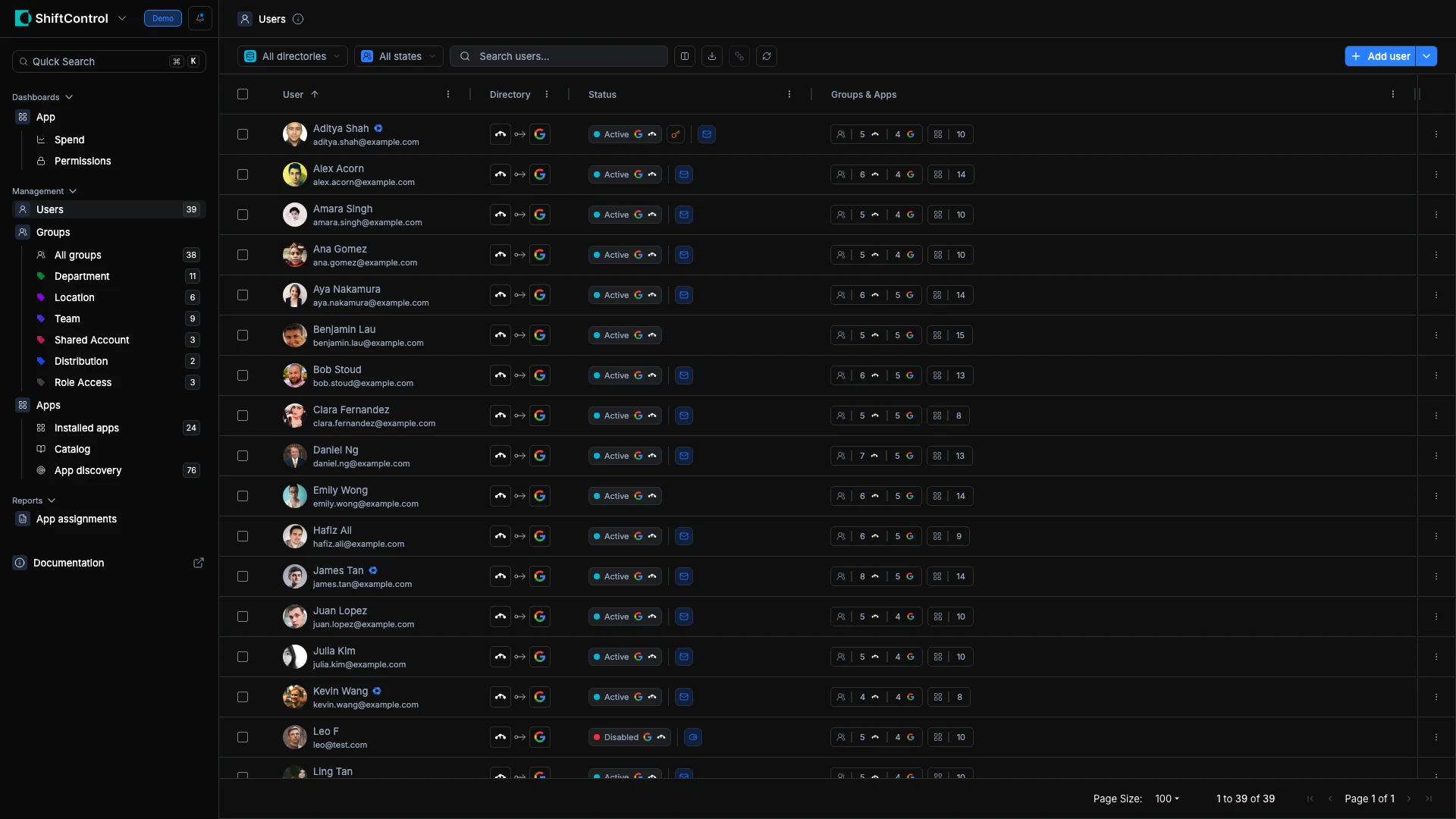
The Users page is the heart of ShiftControl. Every person in your organization has a row here, and that row tells you everything you need to know at a glance: their identity, which directories they belong to, whether they're active, and how many groups and apps they touch.
When you make changes here, they ripple through your entire stack. Activate a user and they get access to every app their groups provide. Deactivate them and access is revoked everywhere. Change their department and their group memberships — and therefore their app access — update automatically.
With both JumpCloud and Google Workspace connected, the Users list shows identity data from both directories in a unified view. Each user row displays directory icons for JumpCloud and Google Workspace side by side — so you can immediately see which directories a user exists in and whether they're synced to both.
What You See
Each row in the users table shows:
| Column | What It Tells You |
|---|---|
| User | Name, email, and avatar — this is the identity used across all connected systems |
| Directory | Icons showing which directories the user exists in |
| Status | Active (can authenticate) or Inactive (access suspended). A small calendar marker beside the status means a scheduled change is pending — hover it to see when it runs |
| Last sign-in | How recently the person signed in — hover to see the exact timestamp. The surest way to spot dormant accounts |
| Admin roles | Which Google admin role and ShiftControl role each person holds, so privileges are visible without opening every record |
| Groups & Apps | How many groups they belong to and how many apps they can access |
Use the filters to narrow down what you're looking at. The 2SV, last sign-in, Google admin role, and ShiftControl role filters live together in one Filters panel with a count badge showing how many are active, alongside the directory and status filters and search:
- Directory filter — Show users from a specific directory only
- Status filter — Active, Inactive, or all
- Filters panel — 2-Step Verification, last sign-in (including dormant accounts), Google admin role, and ShiftControl role. Role lists only offer roles someone actually holds, so you never pick an option that matches nobody. A Reset button clears the panel's filters without touching your status selection
- Search — Find users by name, email, or other attributes
Both admin-role columns and the exact last sign-in timestamp are included when you export the table.
Common Scenarios
Auditing access before a compliance review
Your security team needs a list of everyone with active access. Filter to Active users, then review the Groups and Apps counts. Users with unusually high app counts warrant a closer look — click into them to see their full permissions. You can export this data for your compliance documentation.
Finding inactive users who still have app access
Filter by Inactive status. If any inactive user still shows a non-zero Apps count, their deprovisioning didn't complete fully. Click in to investigate and revoke remaining access. This is a common finding during security audits.
Hunting dormant accounts
Open the Filters panel and filter Last sign-in to dormant accounts — people who haven't signed in within the dormancy window. Sort or export the list, then work down it: suspend, archive, or confirm the account is still needed. The Super Admin and ShiftControl-role filters in the same panel let you run the complementary check — everyone holding elevated access — in one pass.
Bulk onboarding a new team
Your company acquired a five-person design team. Add each user and assign them to the Design group — their app access (Figma, Slack, Google Workspace) provisions automatically based on group membership. No need to configure apps one at a time.
User Actions
Click the ⋮ menu on any user row for quick actions.
When both directories are connected, the context menu shows a directory selector first — choose JumpCloud or Google Workspace, then see the actions available for that directory. This lets you manage each directory identity independently.
JumpCloud actions (shown for users in JumpCloud):
- Edit — Open the user's JumpCloud profile for editing
- Send activation instructions — Send setup email with login credentials and MFA instructions
- Set password — Manually assign a password
- Schedule deactivation — Set a future date to revoke access
- Disable — Immediately suspend the user's JumpCloud account
- Delete — Permanently remove the user from JumpCloud
Google Workspace actions (shown for users in Google, varies by user status):
- Suspend / Restore — Suspend or restore a Google Workspace account (active users can be suspended; suspended/archived users can be restored)
- Reset password / Send password reset — Reset or email a password reset link
- Send sign-in instructions — Send login instructions (shown for users who haven't logged in yet)
- Sign out all sessions — Force sign-out from all Google sessions
- Change organizational unit — Move the user to a different Google OU
- Archive — Archive the Google Workspace account (preserves data, revokes access)
- Delete — Permanently delete the Google Workspace account
- Edit — Open the user's profile for editing
- Send activation instructions — Send the setup email with login credentials and MFA instructions
- Set password — Manually assign a password
- Schedule deactivation — Set a future date to revoke access
- Disable — Immediately suspend the user's account
- Delete — Permanently remove the user
Actions vary by the user's current status (active, suspended, or archived):
- Suspend / Restore — Suspend or restore the Google account
- Reset password / Send password reset — Reset or email a password reset link
- Send sign-in instructions — Send login instructions for new users
- Sign out all sessions — Force sign-out from all Google sessions
- Change organizational unit — Move to a different Google OU
- Archive — Archive the account (preserves data, revokes access)
- Delete — Permanently delete the account
Actions are context-sensitive — only actions that apply to the user's current status and your permissions are shown. For example, you won't see "Suspend" on an already-suspended user, or "Delete" if you don't have delete permissions.
Add to group and Assign to app
Every row's menu also offers Add to group and Assign to app, and the same two actions appear in the bulk menu when you select several people — so granting access doesn't require opening each person's record. The related row actions live on the other lists too: Groups rows offer Add users, and Apps rows offer Assign users and Assign groups.
- Additive only. These actions add; they never remove. Taking someone out still happens on the group or app detail screen, where the full membership is in front of you.
- Several targets at once. Add three users to two groups in one go. A message confirms what happened, and names any target that couldn't be updated.
- Directory-aware. In workspaces running both JumpCloud and Google, each directory's submenu carries its own Add to group, filtered to that directory's groups.
- No accidental duplicates. The picker shows existing members and assignments greyed out and labelled, so you see current state instead of guessing — and nobody can be picked twice.
Scheduled activation and deactivation (Google Workspace)
Any Google Workspace user can be scheduled for suspension or activation — from the row menu or in bulk — so offboardings land on time and people returning from leave come back on the right morning. Pick the date, time, and time zone, and confirm.
- A calendar marker appears beside the user's status while the change is pending — hover it to see when it runs, in UTC and your local time.
- Cancel from the same menu, right up until the change runs.
- Changes run within a minute of the time you set — not at the next nightly sync.
- Everything downstream still happens: a scheduled suspension follows the same path as a manual one, so offboarding work items, group re-evaluation, and the audit trail behave exactly as they do today. Scheduling an activation on an archived account un-archives it as well.
- Deleting a user quietly cancels their schedule. If Google refuses a scheduled change after retries, your org's Owners and Admins get an email so nothing is silently skipped.
For JumpCloud users, Schedule deactivation was already available and works the same way — see the JumpCloud actions above.
Bulk Actions
Select multiple users with the checkboxes, then choose an action from the bulk menu. This is how you handle operations at scale — seasonal onboarding, department-wide password resets, or end-of-contract offboarding.
The bulk menu shows a directory sub-menu — select JumpCloud or Google Workspace to apply the action to that directory for all selected users.
JumpCloud bulk actions: Activate, Send activation instructions, Cancel scheduled activation, Schedule deactivation, Cancel scheduled deactivation, Disable, Enable, Send password reset, Force password reset, Set password, Delete
Google Workspace bulk actions: Suspend, Restore, Delete — including the option to delete the Google account entirely when removing several users at once
Activate, Send activation instructions, Cancel scheduled activation, Schedule deactivation, Cancel scheduled deactivation, Disable, Enable, Send password reset, Force password reset, Set password, Delete
Suspend, Restore, Delete
Each action is only enabled when at least one selected user is eligible. For example, "Activate" is disabled if all selected users are already active.
Working with Tables
These behaviors apply to the data grids across ShiftControl — Users, Groups, Apps, Devices, and reports:
- Export to PDF, Excel, or CSV. Exports copy the same text you see on screen — readable dates instead of raw timestamps, the MFA method instead of an empty cell, Active/Disabled instead of status codes, and Never for keys with no expiry. Where you can choose columns, export either the visible ones or all of them. PDFs are laid out to be read: landscape pages, wrapped text, and a move up to A3 when a table is too wide for A4.
- Filenames that say what they are. Downloads are named for the page and date — like
users-2026-09-25.csv— instead ofexport.csv. - Reset table. Changed the columns, sort, filters, or page size? A Reset table button appears and puts everything back to the defaults.
- Previous/next follows your list. The prev/next arrows on a record follow the filtered, searched, and sorted list you opened it from — and the list keeps your filters when you come back.
Things to Know
- Changes take effect immediately. Activating, deactivating, or disabling a user pushes the change to your connected directories in real time. From there, it cascades to every connected application.
- Dual-directory visibility. The Directory column shows icons for each directory a user belongs to. If someone is missing from one directory, you'll see only one icon — a quick way to spot sync issues.
- Deactivation vs. disabling. Deactivating suspends access but preserves the account and its data. Disabling is more aggressive — use it when someone needs to be locked out immediately and you don't need to preserve their state.
- Scheduled actions aren't instant. A scheduled deactivation means the user keeps full access until that date. Double-check the date if timing is critical for security.
- Pagination. The list shows 10 users per page. The total count (e.g., "1 to 10 of 36 users") is always visible at the bottom.
Related Features
- Adding a User — Create a new identity and start the onboarding process
- Editing a User — Update details, review security, audit permissions, track costs
- Groups — Manage the groups that control what apps users can access