Quickstart
Get ShiftControl connected to your Google Workspace and start managing your organization in minutes.
Want to explore before setting up? Try the live demo — no login required. You can see every feature in action before connecting your own directories.
Step 1: Trust JumpCloud in Google Workspace
If you use Google Workspace alongside JumpCloud, the first step is to trust the JumpCloud apps in your Google Workspace Admin interface. This allows JumpCloud to sync users and provide Single Sign-On to Google services.
This step is only required if your organization has API Controls set to restricted in Google Workspace Admin. However, we recommend following it regardless to ensure the apps are properly authorized.
The following JumpCloud apps need to be approved:
| App | Purpose | Client ID |
|---|---|---|
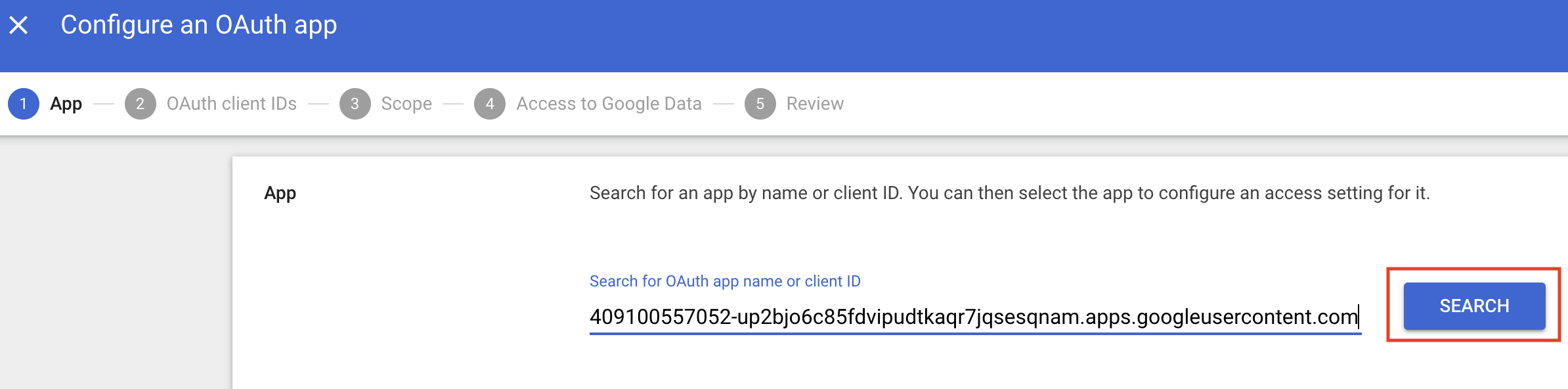
| JumpCloud | Directory sync of users and groups | 409100557052-up2bjo6c85fdvipudtkaqr7jqsesqnam.apps.googleusercontent.com |
| JumpCloud | Single Sign-On | 629652647736-b7u1qe4oktmn7b6vnmdbabrd32lds4as.apps.googleusercontent.com |
Open Google Workspace Admin
Go to admin.google.com and log in as a Google Workspace admin.
Navigate to API Controls
Go to Security → Access and data control → API Controls.
Open Managed Google Services
Click Manage Google Services.
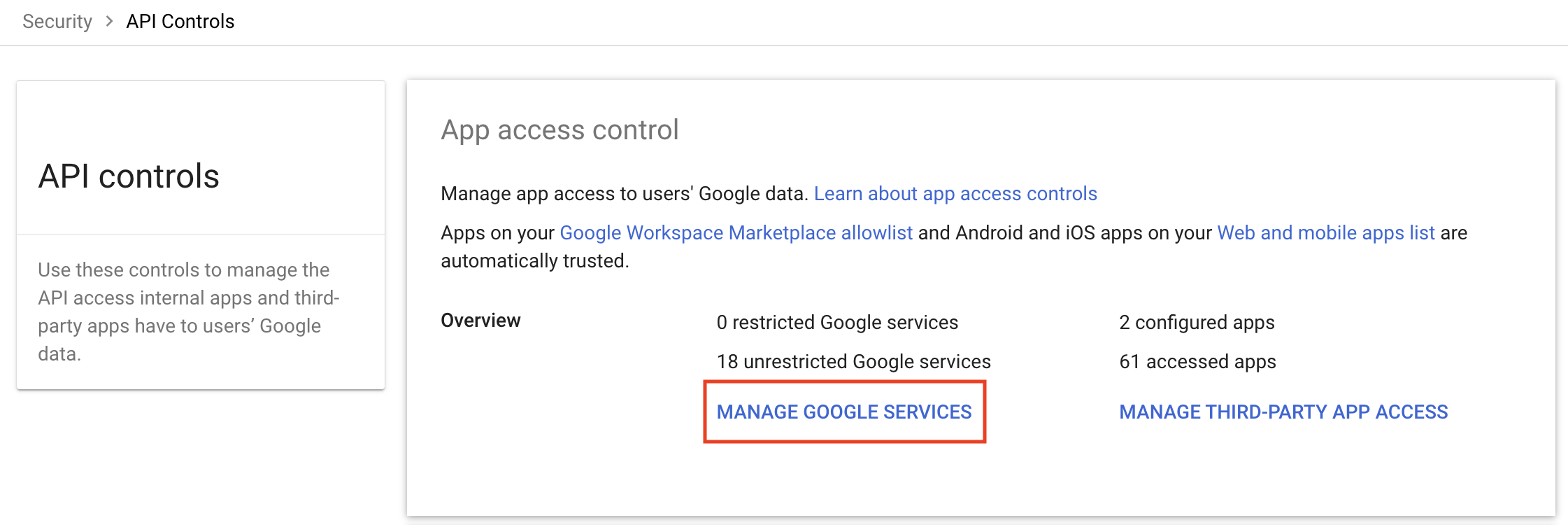
View configured apps
In the Configured Apps card, click View list.

Add an OAuth app
Click the Add App dropdown and select OAuth App Name or Client ID.
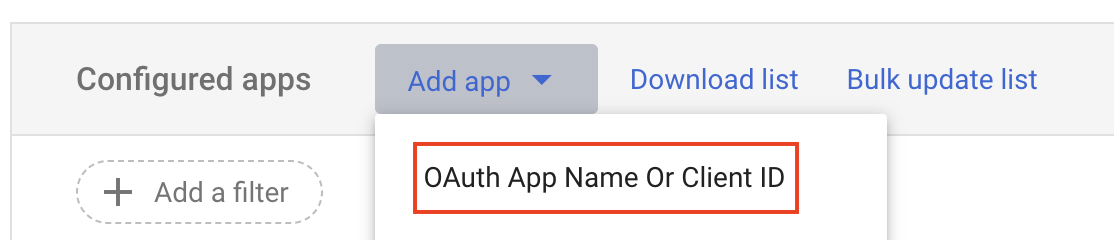
Search and approve each app
For each app in the table above, paste the Client ID and click Search. Then select the app, choose Your Org (all users), set it to Trusted, and click Finish.
Repeat for both JumpCloud apps.
You've now authorized JumpCloud to sync with Google Workspace. Next, connect Google Workspace as a directory in ShiftControl.
Step 2: Connect Google Workspace in ShiftControl
With JumpCloud trusted in Google, the next step is to connect Google Workspace as a directory so ShiftControl can manage both directories from one place.
Add Google Workspace from the App Catalog
Go to Apps → Catalog in ShiftControl. Search for Google Workspace and click Add. This installs Google Workspace as a managed application.
Enable the Google Workspace directory connector
Go to Settings → Connectors → Directories. Find Google in the list and click the ⋮ menu → Authenticate.
Complete the authorization flow
A Google authorization window will open. Sign in with a Google Workspace admin account and grant ShiftControl the requested permissions. These permissions allow ShiftControl to read and manage users, groups, and admin roles in your Google Workspace.
Verify the connection
After authorization, the Google connector status should show Enabled with a Healthy health indicator. ShiftControl will begin syncing your Google Workspace data immediately — users, groups, and admin roles will start appearing throughout the platform.
Once connected, you'll see Google Workspace data in:
- Users — Directory icons showing which users exist in Google Workspace
- Groups — Google Groups sync and distribution list management
- Dashboards — OAuth permission auditing from Google Workspace
- Settings → Google Admins — Google Workspace admin role management
Step 2: Start Managing Your Organization
With JumpCloud trusted (if you use Google Workspace) and ShiftControl connected to your JumpCloud directory, you're ready to start managing your organization:
- Review your users — ShiftControl syncs your JumpCloud users automatically. Check that everyone appears correctly.
- Set up groups — Create groups based on departments, teams, and roles to automate app access.
- Manage your apps — Assign applications to groups so access is provisioned automatically.
Step 1: Sign Up With Google Workspace
If you run on Google Workspace, you can set up your ShiftControl org in a few minutes. Sign up with your Google Workspace account, validate your domain, authorize the directory, and land on a working org — no setup call required.
Start your sign-up
Go to app.shiftcontrol.io/signup and choose Sign up with Google. Any Google Workspace user can start sign-up — you don't need to be a Super Admin at this step. The Super Admin requirement comes later, when ShiftControl asks to authorize the Google directory in Step 3. If you're not the Super Admin yourself, you can delegate that step.
Validate your domain
ShiftControl checks that the email you signed in with belongs to a Google Workspace domain you administer, and that the domain isn't already claimed by another ShiftControl org. If you hit a validation error here, see Onboarding for what each error means.
Approve permissions for ShiftControl (Super Admin required)
Google will show a screen asking you to grant ShiftControl permission to manage users, groups, and admin roles in your Workspace. Click Allow to connect the two systems.
This is the step that needs a Google Workspace Super Admin — other admin roles can't grant the permissions ShiftControl needs. If you're not the Super Admin, send them a 48-hour authorization link — they can approve the connection without needing a ShiftControl account of their own.
If you want the technical detail on exactly what ShiftControl is being granted (and why), the Google Workspace App Authorization page lists every permission with rationale.
Review discovered apps
ShiftControl scans your Workspace and shows you the SaaS apps your team is already signed in to. Review the list — they become your starting app catalog.
Set up departments and locations
Add your departments and office locations. Each one auto-creates a group with a dynamic membership rule, so users flow into the right group based on their department or location.
Start your trial
ShiftControl finishes provisioning and redirects you to the Manage Users screen. You're now in the trial. HRIS and other connectors are added anytime from Settings → Connectors — they're not part of onboarding.
Don't have your Google Workspace Super Admin in front of you right now? You can send them a 48-hour authorization link — they'll approve the connection without needing a ShiftControl account.
Once setup finishes, you'll see your Google Workspace data in:
- Users — your full Google directory with status badges showing who needs a password reset, who's never logged in, and who hasn't accepted the Google terms of service
- Groups — Google Groups with automatic syncing, dynamic membership rules, and drift detection
- Dashboards — a view of every third-party app that has access to your Workspace and what permissions they have
- Settings → Google Admins — manage who holds each Google Workspace admin role
What's Next
Now that your directories are connected, explore what ShiftControl can do:
- Users — Add, edit, and manage everyone in your organization
- Groups — Automate app access through group memberships
- Apps — Manage SaaS applications and discover shadow IT
- Dashboards — Monitor OAuth permissions and track SaaS spending