Managing a User's Card
Set up and run any employee's card on their behalf — for the people who won't do it themselves, and for the ones who are leaving.
Overview
Employees can manage their own cards in the Employee Portal, but you shouldn't have to depend on that. Executives won't log into a portal to fill in a form. New starters haven't got round to it. Departing employees need their card dealt with whether they cooperate or not.
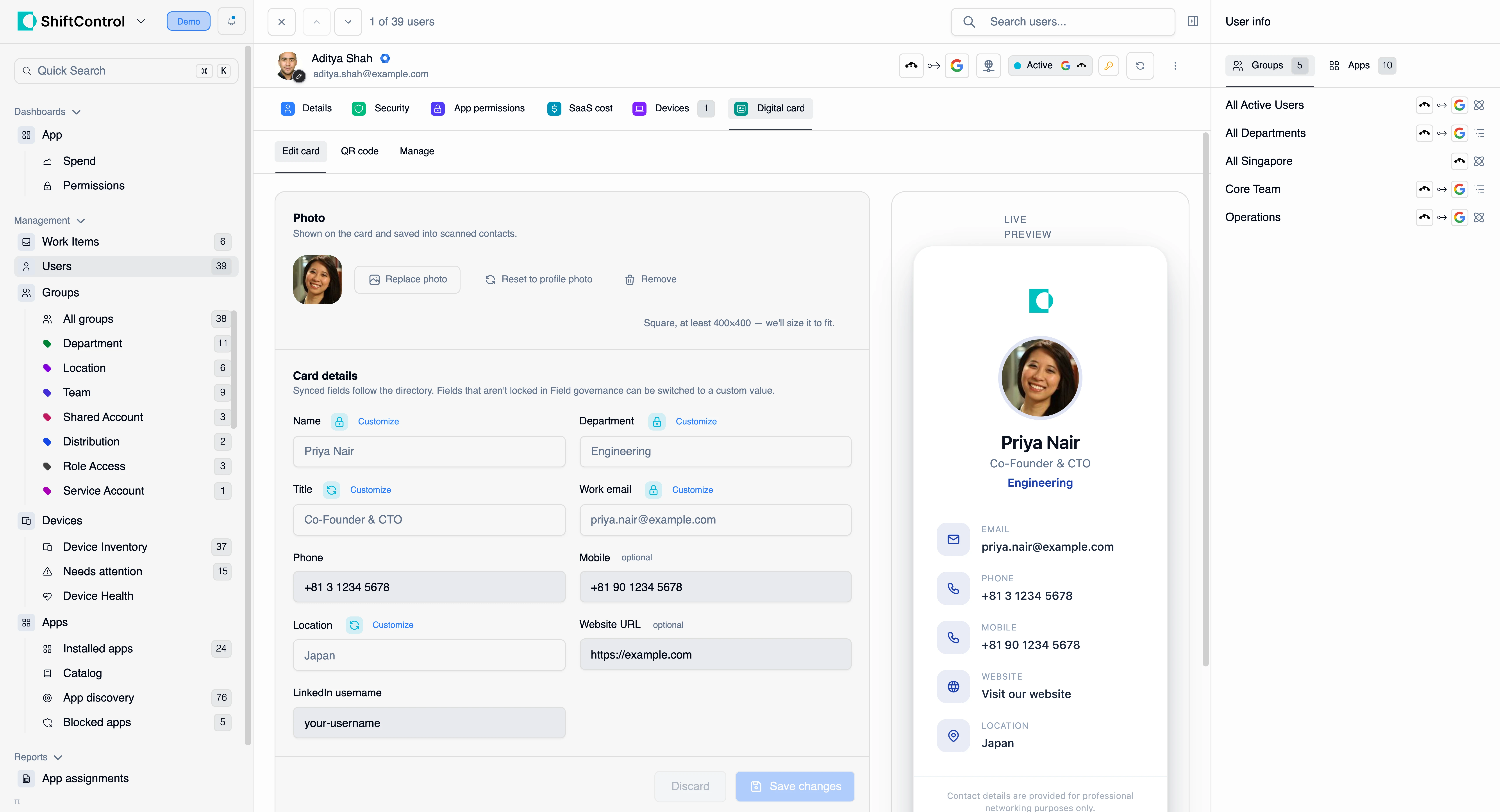
Every user record has a Digital card tab that gives an admin the whole lifecycle for that one person: activate, edit every field, choose their QR medallion, set a PIN, rotate their link, publish, unpublish, and permanently delete.
Open any user from Users and select the Digital card tab.
This tab only appears for admins with Manage organization cards. Without it the surface doesn't render at all.
How It Works
The tab has three sub-tabs — Edit card, QR code, and Manage — which are the same surfaces the employee sees, pointed at this person's card instead of your own.
If they don't have a card yet
Activation is deliberately two steps, so you can back out until you commit:
- You get a preview and an Activate their card button. Nothing is created yet.
- Choosing it opens the edit surface, pre-filled from the person's directory profile. Only pressing Save creates the card. Discard — or simply navigating away — leaves no card behind, and your next visit starts from the intro again.
A card needs an existing user to belong to. On a brand-new user who hasn't been saved yet, the tab tells you to save the user first.
Editing the card
The Edit card tab is the same editor the employee gets, with one important difference: you can override locked fields. A field the org locked in Card fields is read-only for the employee but editable for you — which is exactly what you need when a locked value is wrong for a specific person.
The field indicators tell you what you're looking at:
- A lock icon means the field is locked at the org level.
- A sync icon means the field tracks the directory. Customize switches it to a custom value; the chip flips to Custom · sync off, the directory value is shown underneath for comparison, and a Re-sync link reconnects it.
Photo sits at the top: Replace photo uploads a new one, Remove clears it, and Reset to profile photo restores the person's directory avatar. Photos want to be square and at least 400×400 — ShiftControl resizes to fit.
Photo and field changes are both local until you press Save changes, so a failed save leaves your edits intact rather than half-applying them.
Publishing and unpublishing
The Manage sub-tab shows the card's status and lets you take it live or offline. Publishing is what puts the card on the internet; unpublishing takes it down while keeping the card and its data intact, so you can publish again later.
The card PIN
Also on Manage: an optional PIN that must be entered before the card shows its contents. It doesn't have to be numeric — a word or short phrase works, up to 24 characters. You can set, change, remove, and view the current value.
Use it for a card that needs to exist but shouldn't be readable by anyone who happens to get the link.
Rotating the link
If a card ends up somewhere you don't want it, regenerate the link. The old code stops working permanently and is never reissued, so this is a genuine kill-switch rather than a rename. If you rotate by mistake, you can restore the previous link.
Rotation is an admin capability by default. You can hand it to employees with the Regenerate their own link switch on the Card fields tab, but most organizations shouldn't.
Deleting the card
Hard delete is admin-only and sits behind a confirmation that states plainly that the deletion is permanent. It purges the card, its stored images, and its link code — the code is never reused.
If you want the card off the internet but recoverable, unpublish it. Delete exists for the cases where the data itself has to go — a GDPR erasure request, or a departure where you don't want the card to have existed. It cannot be undone.
Common Scenarios
Scenario: Setting up an executive's card for them
Your CEO is speaking at a conference next week and won't be filling in a portal form. You open their record, go to Digital card, choose Activate their card, and get the edit surface pre-filled from the directory. Their locked job title reads Chief Executive Officer but they introduce themselves as Co-Founder & CEO — you override the locked field, save, and publish. You send them the link and a print-ready QR download.
Scenario: A card leaked into a scraped contact list
A salesperson's card link starts attracting spam. You open their record's Digital card → Manage tab and regenerate the link. The old code dies immediately and permanently. You tell them to update their email signature and regenerate their QR code — and if they'd already printed cards, you consider setting a PIN as well.
Scenario: A GDPR erasure request from a former employee
Someone who left last year asks for their data to be removed. Offboarding already switched their card to your generic policy, but the underlying card record still exists. You open their user record, go to Digital card, and hard delete the card. Its images and link code are purged and the code is never reissued.
Things to Know
- The person needs a ShiftControl login. A directory user who has never signed in can't own a card — the tab explains this rather than failing with an error.
- You can override locked fields; the employee can't. Expect the occasional "why could you change that and I couldn't?"
- Every change is Save-gated. Nothing is written until you save, and a failed save keeps your edits.
- Unpublish ≠ delete. Unpublish is reversible; delete is not.
- A regenerated link is gone for good. Old codes are retired permanently — the only recovery is the restore-previous undo, immediately after.
- Offboarding runs on its own. You don't need to visit this tab for a normal departure; the offboarding policy handles it.
Related Features
- Card fields — what's locked, synced, and self-service.
- Card offboarding — the automatic policy for leavers.
- My digital card (Employee Guide) — the same surfaces as your employees see them.
- Editing a user — the rest of the user record, including their profile photo.