Card Fields
Decide what can appear on a card, who controls each field, and which fields must always match your directory.
Overview
The Template tab decides how a card looks. The Fields tab decides what's on it — and, more importantly, who gets to change it.
This is the tab that makes company-managed cards different from a card app your team signs up for individually. You can guarantee that everyone's name, title, and department match the directory, while still letting people add their own mobile number or LinkedIn if they want to.
Find it under Settings → Digital cards → Fields.
How It Works
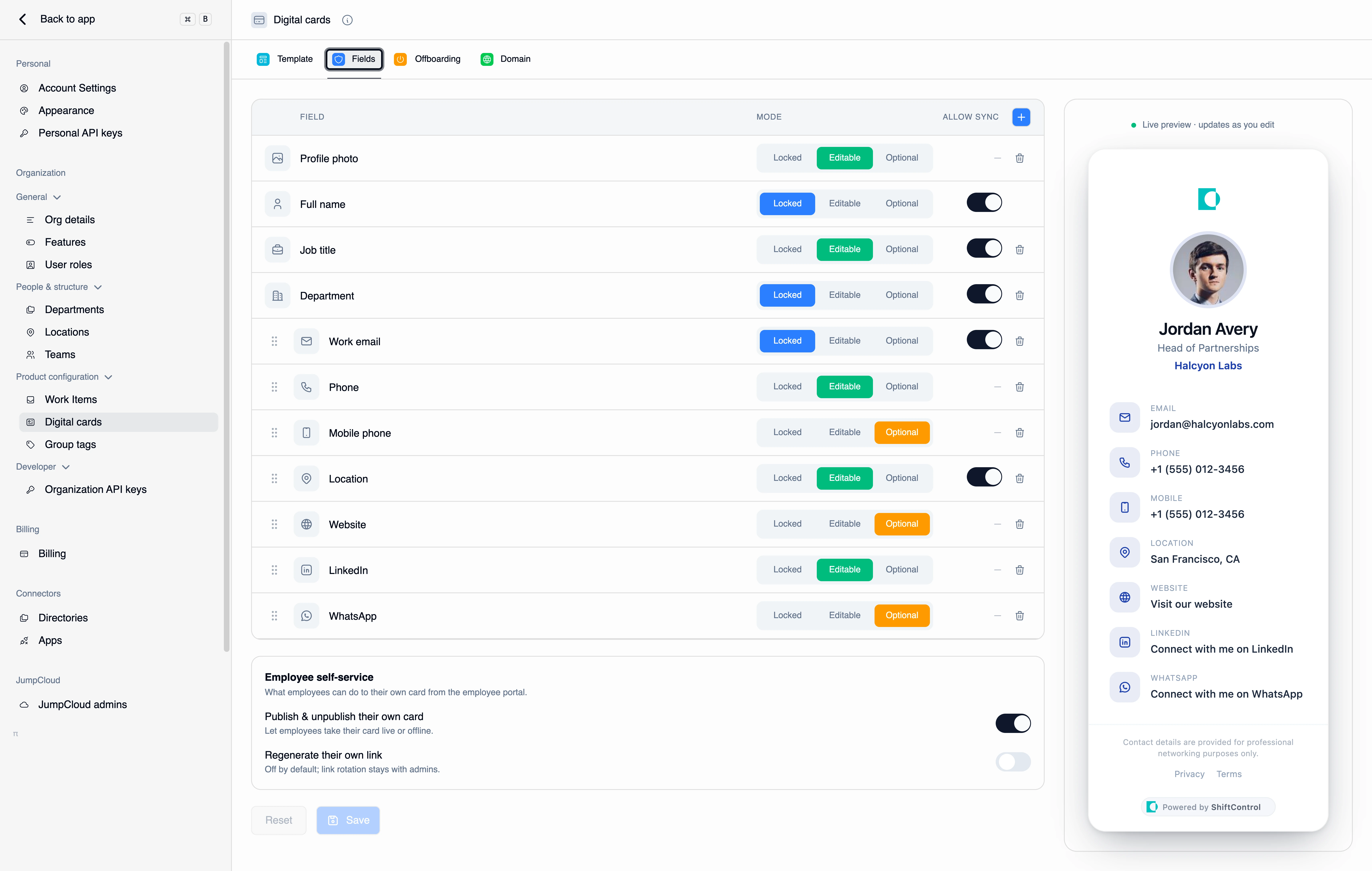
The table lists exactly the fields that can appear on a card. Anything not in the table isn't on the card at all — removing a row is how you hide a field, and the + button in the table header is how you add one back or add something new.
Each row has three controls:
- Mode — who controls the field (below).
- Allow sync — whether the field tracks the directory, for the fields that have a directory equivalent.
- Icon — the small icon shown on that contact line. Click it to pick a different one.
Contact rows can be dragged to reorder them, which sets the order they appear on the card. The identity block at the top of the card — photo, name, title, department — has a fixed position.
Like the Template tab, edits are staged until you press Save.
The three modes
| Mode | What it means for the employee |
|---|---|
| Locked | Always on the card, and the organization controls the value. The employee sees it read-only and can't remove it. |
| Editable | On the card by default, and the employee can change or clear the value. |
| Optional | Off the card by default. The employee can choose to add it. |
If you do nothing to a field, it behaves as Editable.
The useful mental model: Locked is for facts about the person's role that the company is asserting. Editable is for details the company supplies but the person may correct. Optional is for anything personal enough that it should be their choice — a mobile number is the classic case.
Most organizations lock Full name, Job title, and Department — those should match the directory, and a card that disagrees with your directory is worse than no card. Then leave phone and location editable and make mobile optional.
Directory sync
For fields that exist in your directory — name, job title, department, work email, and location — the Allow sync toggle keeps the card following the directory. Change someone's title in ShiftControl and their card follows.
An employee (or an admin acting for them) can still break that link on a specific field by choosing Customize on their card. That field then holds a custom value, stops tracking the directory, and shows the directory value underneath for comparison, with a Re-sync link to reconnect it. A sync will never silently overwrite a value someone deliberately customized.
If a field is Locked, employees don't get the Customize option — but an admin editing the card from the user's record still can.
The Fields You Can Put on a Card
Identity — photo, full name, job title, department. These render as the card's header block.
Contact — work email, phone, mobile phone, location.
Everything else comes from the + menu, grouped by category:
- General — Website, Office address
- Social — LinkedIn, X (Twitter), Instagram, Facebook, YouTube, TikTok, Threads
- Messaging — WhatsApp, Signal, Telegram
- Business — GitHub, Booking link
The same menu lets you define a custom field if you need something that isn't on the list.
Fields like LinkedIn and WhatsApp show a friendly action line on the card — "Connect with me on LinkedIn" — rather than a naked URL, and tapping it opens the right app. The employee enters just their handle or number.
Employee Self-Service
Below the table, two switches control what employees may do to their own card. They're separate from field-level control because they're about the card's lifecycle, not its content.
- Publish and unpublish their own card — whether an employee can take their own card live and offline. On by default.
- Regenerate their own link — whether an employee can rotate their own card link. Off by default: link rotation is a kill-switch, and most organizations want that with admins.
Turning both off leaves employees able to edit their card content while admins own whether it's live and what its address is.
Common Scenarios
Scenario: The directory is the source of truth, with room for personal choice
You lock Full name, Job title, Department, and Work email with sync on, so no card can contradict the directory. You leave Phone and Location editable — the directory has them, but people fix them. You add Mobile phone and LinkedIn as Optional, so sharing either is a personal decision. Sales adds their mobile; engineering mostly doesn't.
Scenario: Someone's job title needs to differ from the directory
Your directory has a formal title ("Senior Manager, Commercial Partnerships") but the person introduces themselves with a shorter one. You leave Job title editable with sync on. They open their card, choose Customize on the title, and set the version they use. Their card now shows their preferred title, keeps showing the directory value beneath it in the editor for reference, and won't be reverted by the next sync.
Scenario: Locking down a regulated team
Compliance needs every outward-facing detail approved. You set every field on the card to Locked, remove the optional social and messaging fields entirely, and turn off both self-service switches. Employees can see their card and share it; they can't change anything about it, and admins own publication.
Things to Know
- Removing a row hides the field. There's no separate "hidden" mode — take it off the table and it's off the card.
- Unlisted fields behave as Editable. If you want a field genuinely locked down, set it explicitly.
- Customized values survive syncs. That's intentional; it's also why a stale custom value stays stale until someone re-syncs it.
- Admins can override locked fields; employees can't. Useful for corrections, and worth remembering when someone asks why you could change something they couldn't.
- Field order is the card's order. Drag the contact rows to control what a scanner sees first.
Related Features
- Card template — how the card looks.
- Managing a user's card — edit an individual card, including locked fields.
- My digital card (Employee Guide) — how these rules appear to your employees.
- Editing a user — the directory values that synced fields follow.